What is MisomidixMelody?
MisomidixMelody is a melody MIDI generator for Mac and Windows. It is the melody edition of Misomidix: same engine, one part. It writes a line that follows the harmony instead of wandering over it. It makes no sound on its own: put it on a MIDI track ahead of an instrument, or drag its MIDI onto your timeline.
The whole engine runs to produce the one part you get. The chords are generated as context, purely so the line has a harmony to follow, and chord tones are placed on the strong beats, which is why the line resolves instead of drifting. The genre shapes the contour and the rhythm.
How does generative melody writing work?
A generative melody is written against the harmony rather than drawn note by note. MisomidixMelody runs the whole engine to produce the one part you get: it generates the drums and chords as context (the chords are never written to the MIDI), purely so the melody has a harmony to follow. Chord tones are placed on the strong beats, so the line resolves rather than wanders.
The genre shapes the contour and the rhythm. The chord names show above each bar in the piano roll so you can see what the melody is resolving against, even though those chords are not part of the output.
The interface
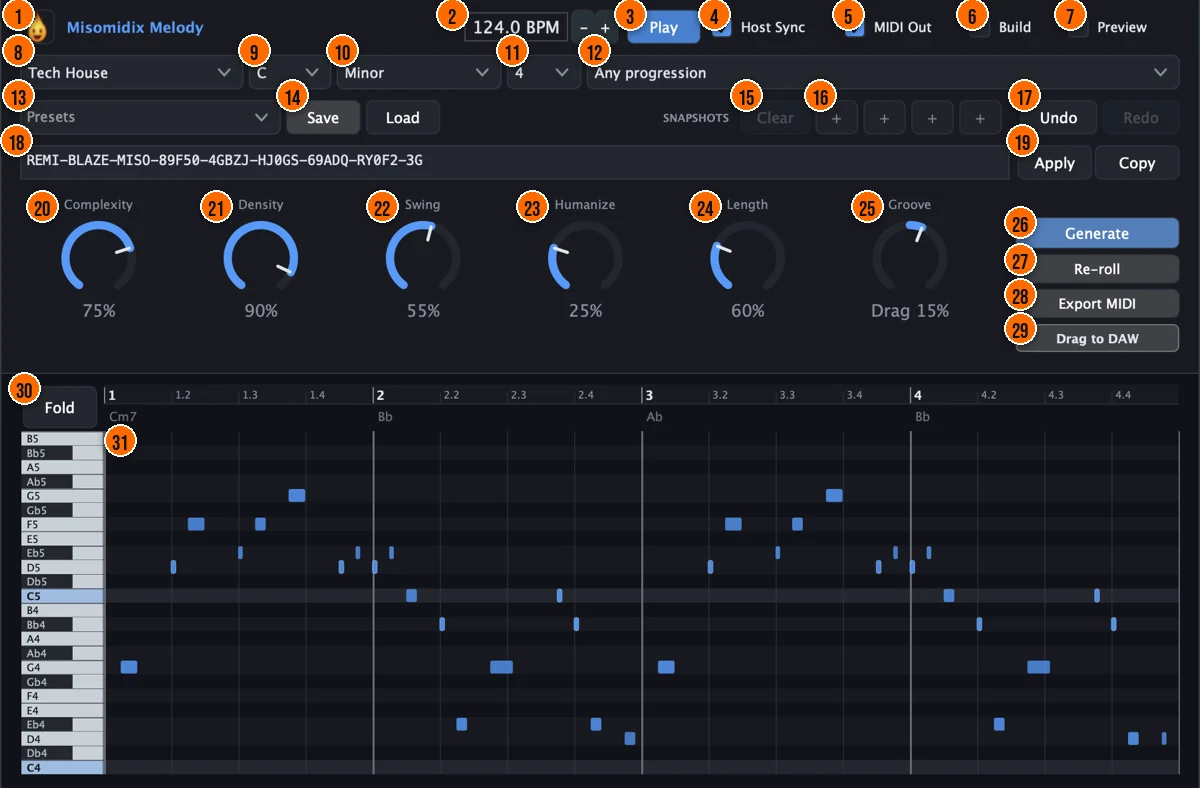
Controls
Top bar

- 1Fire Head: click the flame logo to open the About panel: what the plugin is, who made it, its version and the trademark notices. Click anywhere in the panel to close it.
- 2BPM: the tempo used when no host provides one, as in the Standalone app. In a DAW, the host's tempo is followed automatically.60 to 200 BPM, default 124
- 3Play: the plugin's own transport, used whenever the host isn't driving playback. It is on by default.
- 4Host Sync: follows your DAW's tempo and transport. Switch it off to audition with the plugin's own clock while the DAW is stopped.
- 5MIDI Out: the output gate: when it's on, the generated notes leave the plugin. If it's off, MisomidixMelody still runs but nothing reaches your instrument. It is on by default.
- 6Build: regenerates the pattern as an energy build toward the drop: the part becomes a filter riser. It works best on 8 or 16 bars.
- 7Preview: plays the pattern through a built-in preview synth, so you can audition it in place. Route the MIDI to your own instrument for the final sound.
What to write

- 8Genre: the style the melody is written in. Each genre has its own phrasing, and shapes the contour and the rhythm.Tech House, Deep Tech, House, Deep House, Melodic House, Progressive House, Afro House, Organic House, Bass House, Techno, Minimal, Drum & Bass, Hip Hop / Rap, RockTip The genre shapes the contour and the rhythm. Switching genres changes how the melody phrases and moves, not just the notes it uses.
- 9Key: the key of the melody. Key, scale and progression decide what the melody is written over.Tip Key, scale and progression decide what the melody is written over. The chord names show above the bars so you can see the harmony it follows.
- 10Scale: the scale the notes come from.
- 11Loop length: how many bars the loop is.
- 12Progression: picks a specific chord progression from the genre's pool. Any progression lets the genre choose by weight.
Presets, snapshots and codes

- 13Presets: presets store the generative formula, the settings that produce a kind of result, and are saved to disk by name.
- 14Save / Load: Save stores the current settings as a user preset; Load opens a preset file from anywhere on disk.
- 15Clear: empties all four snapshot slots. The pattern you're on is untouched.
- 16Snapshots: four numbered slots for this session. Click + to keep the pattern you're on (it becomes the next number), and click a number to come back to it. Alt-click a slot to store over it. Snapshots are saved with your project.
- 17Undo / Redo: undo and redo cover generating, re-rolls, preset loads, snapshot recalls and imports.
- 18Pattern code: the current pattern as a shareable code. Paste a code in and press Apply or Enter to get that exact pattern back.
- 19Apply / Copy: Apply loads the code in the box; Copy puts this pattern's code on your clipboard. Codes carry a checksum, so a mistyped code is refused instead of loading something else.
Macros

- 20Complexity: how complex the generated part is.0 to 100%Tip Complexity adds passing tones and embellishments. A lower setting keeps the melody to chord tones on strong beats.
- 21Density: how many notes there are. Low for a sparse intro, high for a busy drop.0 to 100%Tip Lower Density for a sparse, vocal-style melody. Higher values fill in more notes for a busier lead line.
- 22Swing: the swing of the timing.0 to 100%Tip Swing pushes the off-beat notes later. A small amount gives the melody a human feel against the grid.
- 23Humanize: adds a human feel to the timing and playing.0 to 100%
- 24Length: note length: below 100% shortens notes toward staccato, above it lengthens them toward legato. Notes still never collide.10% to 200%Tip Shorten Length toward staccato for a plucked, staccato line. Extend it for a smoother, more legato phrase.
- 25Groove: leans the whole timing ahead of the beat (Rush) or behind it (Drag).Rush 100% to Drag 100%, with Straight in the middleTip A slight Groove drag gives the melody a laid-back feel that sits behind the beat, while Rush pushes it ahead for energy.
Generate and export
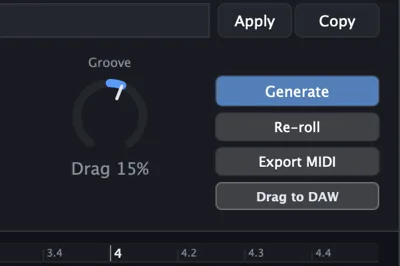
- 26Generate: generates a new pattern.
- 27Re-roll: re-rolls the melody.
- 28Export MIDI: saves the melody as a MIDI file.
- 29Drag to DAW: drag from this handle onto your timeline to take the pattern on screen into your session.
Piano roll
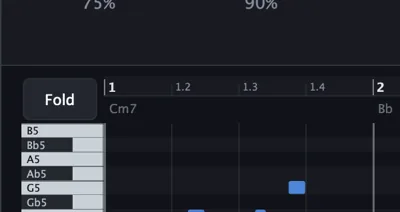
- 30Fold: shows only the pitches the part actually uses, so the piano roll stays compact.Tip Gate shortens only the melody, without touching the other parts. Use it to make the melody more plucked while leaving everything else as is.
- 31Piano roll: shows the notes of the melody. You can also drag it onto your timeline.
Meters and displays
- 31Piano roll: shows the notes, with the bar numbers along the top and the chord names above each bar. Only the melody is output; the chords are generated as context so the line has a harmony to follow.
- MIDI files on the window: drop a .mid file on the window to import it and re-shape your own material.
Key specs*
| Output | MIDI only; makes no sound on its own (a built-in preview synth is for auditioning) |
|---|---|
| Part | One: the melody |
| Genres | 14 |
| Macros | Complexity, Density, Swing, Humanize, Length, Groove |
| Harmony | Chords generated as context and not output; chord tones on the strong beats |
| Tempo | Follows the host; 60 to 200 BPM when standalone |
| Recall | 4 snapshot slots (saved with the project), presets, checksummed pattern codes; seed-deterministic |
| MIDI out | Drag to the timeline, or export as a MIDI file |
| MIDI in | Drop a .mid file to re-shape your own material |
* Key specs from the plugin page. Some specs may not be listed.
How does the sound flow through MisomidixMelody?
MisomidixMelody writes MIDI, not audio. The whole engine runs to produce the one part you get.
How do I write a melody with MisomidixMelody?
- Load it. Put MisomidixMelody on a MIDI track ahead of an instrument, or open the Standalone app.
- Set the harmony. Pick a genre, a key, a scale, a loop length and a progression. They decide what the melody is written over.
- Generate. Press Generate, or Re-roll for a new version of the line.
- Shape it. Use Density for how many notes there are, Length for short or long notes, and Swing, Humanize and Groove to place the line against the beat.
- Read it. Press Fold to show only the pitches in use. Keep each version you like in a snapshot slot with +.
- Take it out. Drag the pattern onto your timeline with Drag to DAW, or press Export MIDI for a MIDI file. Copy the pattern code to get the result back later.
How do I write a melody over my own chord progression with MisomidixMelody?
- Set the key and scale. Match the key and scale to the chords you already have in your session.
- Pick the progression. Scroll through the Progression menu until the chord names above the bars match what you have. The progression controls what the melody resolves against.
- Generate and compare. Press Generate and listen to the melody against your chords. Re-roll for a different phrase over the same progression.
- Shape the phrasing. Adjust Density for more or fewer notes, and Length for staccato or legato. Gate shortens the melody independently.
- Drag it in. Drag the melody onto a MIDI track routed to a lead synth or sampled instrument. The chord context stays behind.
What about the full Misomidix?
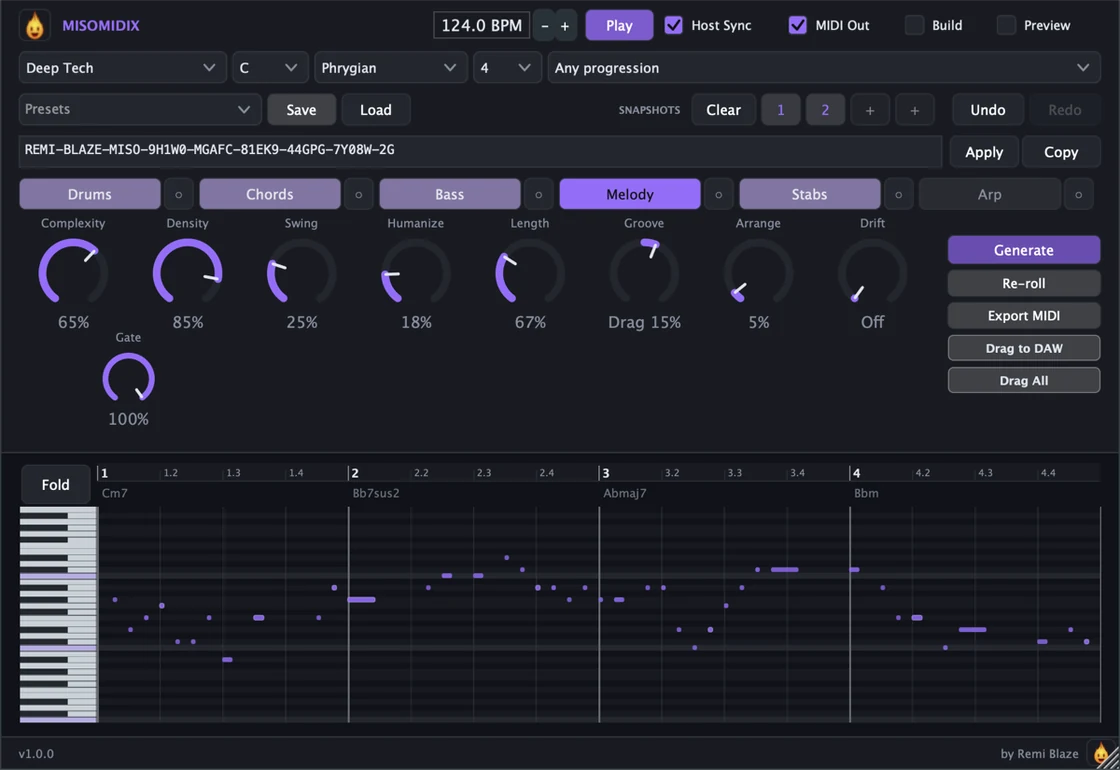
MisomidixMelody writes the melody alone. Misomidix writes all six parts together on the same engine: drums, chords, bass, melody, stabs and arp, in an order where each part follows the ones before it. Lock the parts you like and re-roll the rest. Misomidix is also in the MIDI Bundle with Misomidix Raw, Ghostix and Vortix.
Keyboard and mouse shortcuts
These work in every MisomidixMelody format (AU, VST3, CLAP, AAX, Standalone).
| Reset a control to its default | Double-click the knob or slider |
|---|---|
| Scroll to change a value | Hover over a knob and scroll the mouse wheel |
| Type an exact value | Click the value below a knob and type a number |
Frequently Asked Questions
What does Fold do?
It collapses the piano roll to only the pitches the melody uses, so the roll stays compact.
Does the melody change if I change the progression?
Yes. Key, scale and progression decide what the melody is written over, and chord tones land on the strong beats.
How do I get a pattern back later?
Keep it in one of the four snapshot slots, save the settings as a preset, or copy its pattern code. Pasting the code back in with Apply gives you that exact pattern.
Why does MisomidixMelody appear under Audio FX in my DAW?
In some hosts the CLAP version shows up under Audio FX as well as Instruments. Either one works.
I can't hear anything. What should I check?
MisomidixMelody only writes MIDI, so route it to an instrument, or switch on Preview to audition it. Then check that Play and MIDI Out are on; both are on by default.
Where can I find more about MisomidixMelody?
On the MisomidixMelody page: its features, system requirements and how to get it.
How do I buy and install MisomidixMelody?
- Buy it. MisomidixMelody is a one-time purchase. Buy it from the MisomidixMelody page, and the store emails you the download link.
- Run the installer. On macOS, double-click the .pkg file and choose AU, VST3, CLAP, AAX or Standalone. On Windows, run the .exe installer and choose VST3, CLAP or Standalone.
- Open your DAW. Restart your DAW and rescan plugins if needed, then find MisomidixMelody under Remi Blaze in your plugin list.
More about MisomidixMelody, including its features and system requirements, is on the MisomidixMelody page.
Where are the plugin files?
If you need to find MisomidixMelody on disk, for example to troubleshoot or to uninstall it manually, these are the standard locations.
| macOS AU | ~/Library/Audio/Plug-Ins/Components/ |
|---|---|
| macOS VST3 | ~/Library/Audio/Plug-Ins/VST3/ |
| macOS CLAP | ~/Library/Audio/Plug-Ins/CLAP/ |
| macOS AAX | /Library/Application Support/Avid/Audio/Plug-Ins/ |
| Windows VST3 | C:\Program Files\Common Files\VST3\ |
| Windows CLAP | C:\Program Files\Common Files\CLAP\ |
To uninstall, quit your DAW and delete the MisomidixMelody file from the relevant folder. Your DAW will stop listing it on its next rescan.
Need help with MisomidixMelody?
If something isn't covered here, or MisomidixMelody doesn't behave as described, contact support or email support@remiblaze.com. To get an answer faster, include:
- your operating system and version (for example macOS 15.6 or Windows 11)
- your DAW and its version
- the format you're using (AU, VST3, CLAP, AAX or Standalone)
- the MisomidixMelody version, shown in the About panel (click the Fire Head)
- what you did, what you expected, and what happened instead
This manual is for MisomidixMelody 1.0.0. Controls and settings can change between versions, so if something here doesn't match what you see, check which version you have: click the Fire Head to open MisomidixMelody's About panel. Spotted a mistake or have a question? Let us know.