What is Chainix?
Chainix is a multi-effect chain plugin for Mac and Windows. It stacks eight effect modules, Saturate, Filter, Compress, Crush, Chorus, Delay, Reverb and Noise, into one chain, so you can add warmth, grit, movement and lo-fi texture without loading a rack of plugins.
Switch on the modules you want and drag them into any order to change the signal flow. Two macros, PHAT and TRASH, push several modules at once, the Flux Engine keeps the parameters drifting, and Sub Anchor keeps the bass clean while the chain colors the mids and tops.
How does multi-effect chaining work?
A multi-effect chain runs your audio through several processors in a row. The order matters: saturation before a filter sounds different from a filter before saturation, because each stage changes the signal before the next one sees it. Reordering the chain changes the sound without changing any knob.
Quick start
Get a result with Chainix in under a minute.
- Insert it. Put Chainix on the track or bus you want to process.
- Pick a preset. Open the Presets menu and choose one close to what you want.
- Shape it. Work through the numbered controls below until it sounds right to your ear.
- Blend to taste. Pull Mix back from 100% if you want a subtler result.
- Compare. Bypass the plugin in your DAW to hear before and after.
The interface
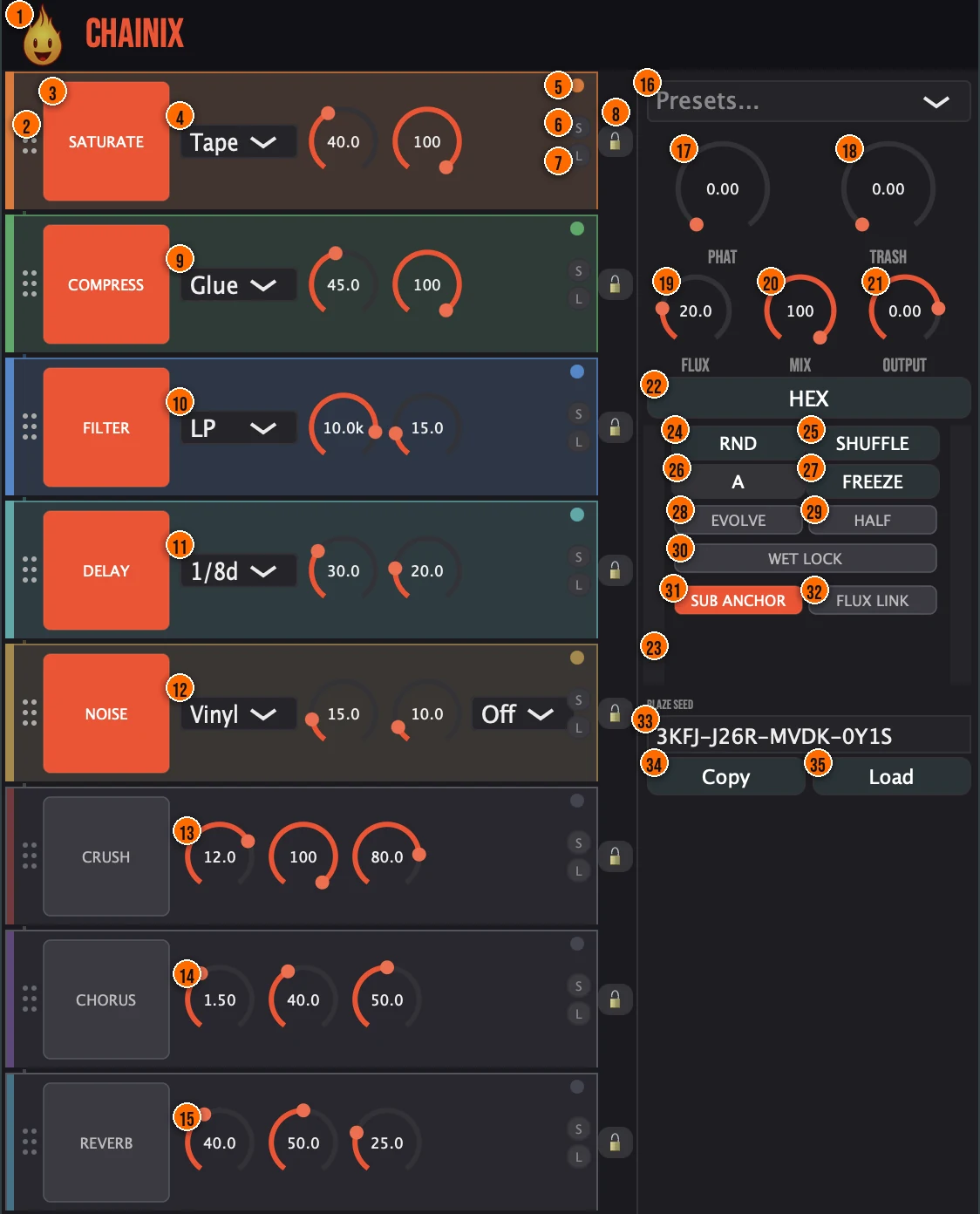
Controls
Top bar
- 1Fire Head: click the flame logo to open the About panel: what the plugin is, who made it, its version and the trademark notices. Click anywhere in the panel to close it.
The chain
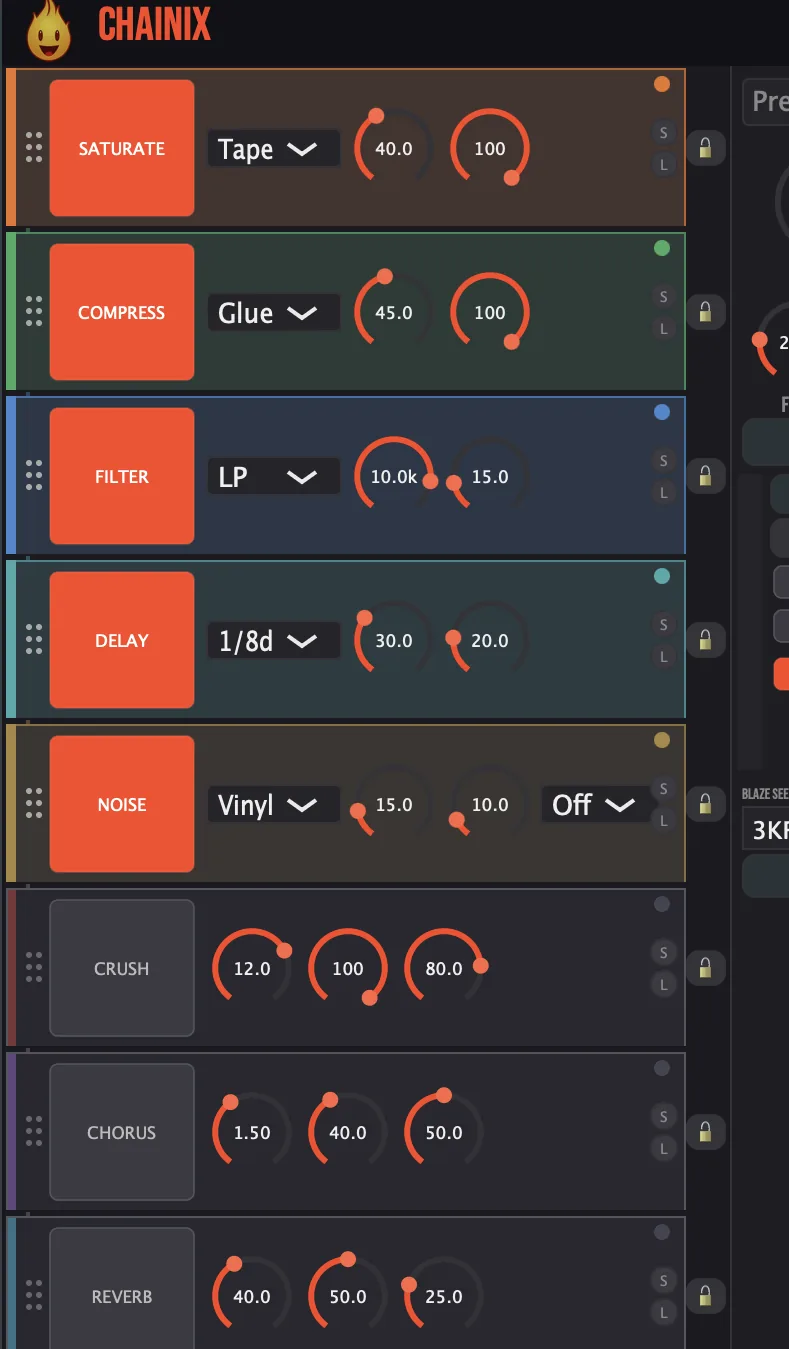
- 2Drag handle: on each module: drag it to move the module to a new place in the chain. Reordering is protected by a 20 ms crossfade.
- 3On/off: on each module: the module's name. Click it to switch the module on (lit) or off. Every module starts off.
- 4Saturate: analog-modeled waveshaping (Tape, Tube) and sine fold-back distortion (Clip, which folds the wave back rather than flattening it), for warmth and grit. Its menu picks the mode, and its knobs, left to right, are Drive and Mix.Tape, Tube, Clip; Drive and Mix 0 to 100, defaults 30 and 100Tip Saturate at the start of the chain colors everything after it. Move it later for a cleaner feed into other effects.
- 5Activity light: on each module: its activity light.
- 6S (Save): on each module: saves that module's settings, so you can reuse them.
- 7L (Load): on each module: loads saved settings into that module.
- 8Lock: on each module: protects that module from RND and SHUFFLE. Locks are kept across sessions.
- 9Compress: compression with a parallel mix. Its menu picks the tone, and its knobs are Amount and Mix.Punch, Glue, Squash; Amount and Mix 0 to 100, defaults 40 and 100
- 10Filter: a state variable filter with resonance. Its menu picks the type, and its knobs are Frequency and Resonance.LP, HP, BP; Frequency 20 Hz to 20 kHz, default 1 kHz; Resonance 0 to 100, default 20Tip For a section exit, turn the Filter on in LP mode and automate Frequency from where it sits down to the bottom of its range over 4 to 8 bars. Snap it back on the first beat of the next section for an instant contrast.
- 11Delay: a tempo-synced delay with low-pass filtered feedback and soft clipping. Its menu picks the note value, and its knobs are Feedback and Mix.1/16, 1/8d, 1/8, 1/4, 1/2, default 1/8; Feedback 0 to 95, default 35; Mix 0 to 100, default 30
- 12Noise: adds a Vinyl, Tape, Static or Room noise layer. The first menu picks the type, the knobs are Amount and Wobble (pitch instability, like tape wow and flutter), and the second menu picks the sidechain mode: Duck or Breathe make the noise react to your signal.Amount 0 to 100, default 20; Wobble 0 to 100, default 0; sidechain Off, Duck, Breathe, default Off
- 13Crush: bit depth and sample rate reduction. Its knobs are Bits, Rate and Mix. The bit depth is continuous.Bits 2 to 16, default 12; Rate 1 to 100, default 100; Mix 0 to 100, default 80
- 14Chorus: a stereo chorus from a quadrature LFO. Its knobs are Rate, Depth and Mix.Rate 0.1 to 10 Hz, default 1.5 Hz; Depth and Mix 0 to 100, defaults 40 and 50
- 15Reverb: space, with its own wet/dry mix. Its knobs are Size, Damping and Mix.Size, Damping and Mix 0 to 100, defaults 40, 50 and 25
Presets and macros
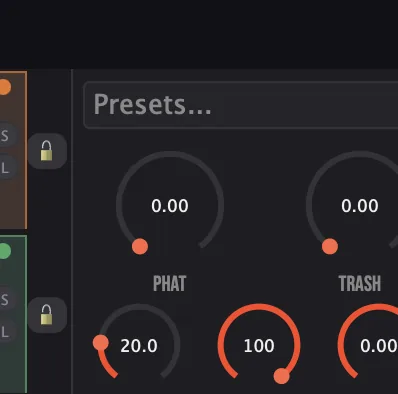
- 16Presets: 18 factory presets, from Retro Crush Classic and Lo-Fi Tape to Tape Echo, Warehouse Glue and Full Destruction. The menu also has Save Preset and Load Preset, for your own presets.
- 17PHAT: boosts saturation drive, a bass shelf, compression and reverb size together, for weight.0 to 100, default 0Tip Push PHAT for instant weight on a thin loop: it raises saturation, bass, compression and reverb together.
- 18TRASH: pushes distortion, bit crushing, noise and feedback together, for grit.0 to 100, default 0Tip TRASH goes the other direction: more distortion, bit crushing, noise and feedback for grit.
- 19Flux: the Flux Engine: organic drift of the parameters, from Perlin noise, so the sound keeps moving.0 to 100, default 15Tip Flux adds randomized micro-movement to every parameter, so the chain never sounds static.
Output
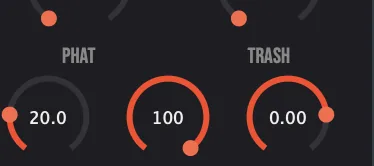
- 20Mix: the master mix between the chain and the dry signal, with a constant-power crossfade.0 to 100, default 100Tip Pull Mix back when using heavy effects to keep the dry signal anchoring the groove.
- 21Output: the output gain.−24 to +6 dB, default 0 dB
Hex Pad
- 22HEX: switches to the Hex Pad view, which takes the place of the chain. The button then reads CHAIN, to switch back. The Hex Pad is a 2D XY performance controller: its six corners map to Space, Flux, Heat, Crush, Wobble and Filter, so dragging the cursor morphs the whole sound. In that view, Morph moves the cursor for you along a Circle, Star, Triangle or Random Walk path, synced to the tempo, and IGNITE jumps it to a random position.Morph rate 1/4, 1/8, 1/2, 1 bar or 2 bars, default 1 barTip Drag the HEX cursor slowly for smooth morphing, or automate it for evolving textures.
Performance
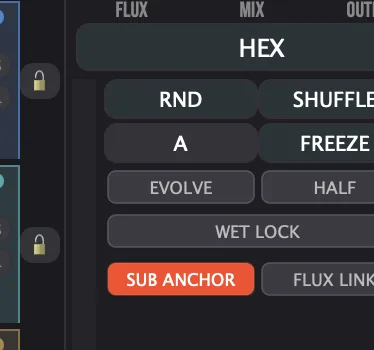
- 24RND (Randomize): new parameter values at random. Locked modules are left alone.
- 25Shuffle (Entropy Shuffle): randomizes the module order and the parameters together. Locked modules are left alone.
- 26A: the A/B snapshot toggle: flip between two complete states, with a constant-power crossfade. The button shows which one you are on, A or B.
- 27Freeze (Freeze Chain): captures audio into a loop buffer. You can also trigger it from a MIDI CC, with MIDI learn.
- 28Evolve: slow, organic drift of the parameters.
- 29Half (Half Speed): records, then plays back an octave down.
- 30Wet Lock: forces 100% wet output, for send and return setups.
- 31Sub Anchor: a Linkwitz-Riley (LR4) crossover that keeps the bass clean while the chain colors the mids and tops. Shift-click it to set the crossover frequency. It is on by default.80 to 250 Hz, default 150 Hz
- 32Flux Link: gives the Flux Engine one unified amount.
Seed
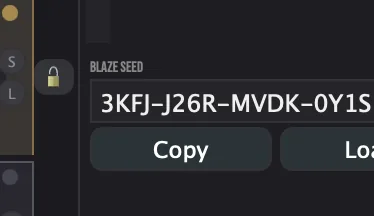
- 33Blaze Seed (Chain Seed): the whole chain as a short alphanumeric code: module order, enables, every parameter and every mode.Tip Copy a seed before experimenting. If you lose a sound, paste the seed to get it back instantly.
- 34Copy: copies the seed to the clipboard, to save or share a sound.
- 35Load: loads a seed from the clipboard and recreates that exact chain.
Meters and displays
- 23Level meters: the two narrow bars either side of the performance buttons: input on the left, output on the right.
- Hex Pad display: a real-time cursor trail, and a hexagonal outline that pulses with the output level.
Key specs*
| Modules | 8, reorderable, each with its own enable |
|---|---|
| Reordering | 20 ms crossfade |
| Latency | Zero: no oversampling, no look-ahead |
| Filter | State variable, LP, HP or BP, 20 Hz to 20 kHz |
| Crush | 2 to 16 bits, plus sample rate reduction |
| Delay | Tempo-synced, 1/16 to 1/2 |
| Noise types | Vinyl, Tape, Static, Room |
| Sub Anchor | LR4 crossover |
| Output | −24 to +6 dB; hard limiter, adaptive DC blocker |
| Parameters | Fully smoothed |
| Factory presets | 18 |
* Key specs from the plugin page. Some specs may not be listed.
How does the sound flow through Chainix?
A simplified view of the main path.
Drag the modules to change the order. The Flux Engine drifts the parameters, and Evolve and Shuffle add randomness over time.
How do I turn a loop into a lo-fi texture with Chainix?
- Load it. Put Chainix on a drum loop or a pad and pick Lo-Fi Tape from the presets.
- Set the order. Drag the modules by their handles to try a different order, for example Crush before or after Saturate.
- Add texture. Switch on the Noise module and choose Vinyl in its menu.
- Push it. Raise TRASH for grit, or PHAT for weight.
- Keep the low end. Switch on Sub Anchor so the bass stays clean while the chain colors the rest.
- Keep it. Raise Flux for slow movement, set Mix, then press Copy to keep the seed for later.
How do I build a riser with Chainix?
- Insert it. Put Chainix on the track you want to wash out before a drop.
- Enable the chain. Turn on Saturate, Filter, Delay and Reverb. Disable modules you do not need.
- Automate PHAT. Draw a PHAT automation from 0 to 80% over 4 or 8 bars.
- Cut at the drop. At the drop, automate Mix to 0% or bypass the plugin so the dry signal hits clean.
What about Chainix Raw?
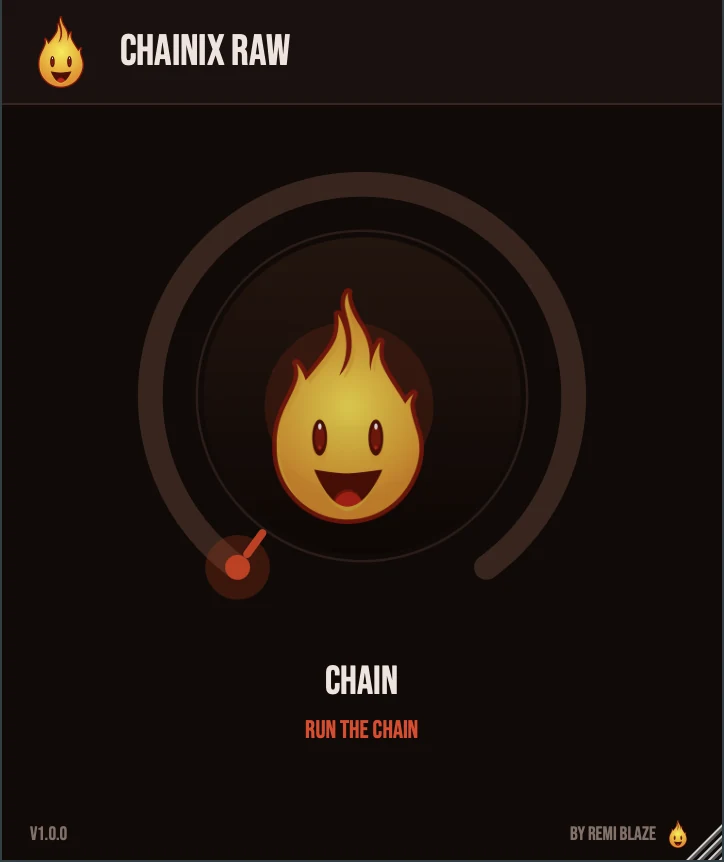
Chainix Raw is the free one-knob version, on the same effects engine. Its CHAIN knob opens a fixed rack together: Tape saturation, glue compression, chorus width, a tempo-synced slap delay and reverb. The rack stays level-matched as it opens, and it reports zero latency. Its own manual: Chainix Raw manual.
Chainix vs. Chainix Raw
A side-by-side look at what each version includes.
| Feature | Chainix | Chainix Raw |
|---|---|---|
| Presets | Included | Not included |
| A/B compare | Included | Not included |
| Randomize | Included | Not included |
| Mix (dry/wet) | Included | Not included |
| Output level | Included | Not included |
Keyboard and mouse shortcuts
These work in every Chainix format (AU, VST3, CLAP, AAX, Standalone).
| Reset a control to its default | Double-click the knob or slider |
|---|---|
| Scroll to change a value | Hover over a knob and scroll the mouse wheel |
| Shift-click the Sub-Anchor button | Open a popup slider to set the crossover frequency |
Frequently Asked Questions
Can I use Chainix on a send?
Yes. Switch on Wet Lock to force 100% wet output, for send and return setups.
What is the difference between RND and Shuffle?
RND randomizes the parameters. Shuffle randomizes the module order and the parameters together. Lock a module to keep it out of both.
Can I trigger Freeze from a controller?
Yes. Freeze Chain can be triggered by the button or by a MIDI CC you assign with MIDI learn.
What does Half do?
Half Speed records, then plays the audio back an octave down.
Where can I find more about Chainix?
On the Chainix page: its features, system requirements and how to get it.
How do I buy and install Chainix?
- Buy it. Chainix is a one-time purchase. Buy it from the Chainix page, and the store emails you the download link.
- Run the installer. On macOS, double-click the .pkg file and choose AU, VST3, CLAP, AAX or Standalone. On Windows, run the .exe installer and choose VST3, CLAP or Standalone.
- Open your DAW. Restart your DAW and rescan plugins if needed, then find Chainix under Remi Blaze in your plugin list.
More about Chainix, including its features and system requirements, is on the Chainix page.
Where are the plugin files?
If you need to find Chainix on disk, for example to troubleshoot or to uninstall it manually, these are the standard locations.
| macOS AU | ~/Library/Audio/Plug-Ins/Components/ |
|---|---|
| macOS VST3 | ~/Library/Audio/Plug-Ins/VST3/ |
| macOS CLAP | ~/Library/Audio/Plug-Ins/CLAP/ |
| macOS AAX | /Library/Application Support/Avid/Audio/Plug-Ins/ |
| Windows VST3 | C:\Program Files\Common Files\VST3\ |
| Windows CLAP | C:\Program Files\Common Files\CLAP\ |
To uninstall, quit your DAW and delete the Chainix file from the relevant folder. Your DAW will stop listing it on its next rescan.
Need help with Chainix?
If something isn't covered here, or Chainix doesn't behave as described, contact support or email support@remiblaze.com. To get an answer faster, include:
- your operating system and version (for example macOS 15.6 or Windows 11)
- your DAW and its version
- the format you're using (AU, VST3, CLAP, AAX or Standalone)
- the Chainix version, shown in the About panel (click the Fire Head)
- what you did, what you expected, and what happened instead
This manual is for Chainix 1.1.1. Controls and settings can change between versions, so if something here doesn't match what you see, check which version you have: click the Fire Head to open Chainix's About panel. Spotted a mistake or have a question? Let us know.