What is Crunchix?
Crunchix is a lo-fi bitcrusher and decimator for Mac and Windows. It reduces the bit depth of your sound from a clean 32-bit down to a 1-bit square wave, drops the sample rate, and adds jitter for the timing wobble of an old hardware sampler. It is made for percussion, synth textures and sound design.
Bass Lock can route the low end around the crusher, so the sub stays clean while the mids and highs fall apart. After the crush, Tone tilts the brightness and an always-on 18 kHz low-pass takes the edge off extreme settings. Mix blends in the dry signal, Auto keeps the loudness steady, and the output stage trims the level and holds a 0 dBFS ceiling.
How does bitcrushing and sample-rate decimation work?
Digital audio stores each moment of a sound as a number with a fixed number of bits. Lowering the bit depth cuts the number of values a sample can take, and the rounding error becomes audible as quantization noise: a gritty, digital distortion. At 1 bit, the waveform is a square wave.
Sample-rate decimation throws away samples, which removes the high-frequency detail the original rate could capture. The missing frequencies fold back as aliasing, a metallic, inharmonic tone. Combined, the two effects turn clean audio into the lo-fi character of old hardware samplers and early digital gear.
Quick start
Get a result with Crunchix in under a minute.
- Insert it. Put Crunchix on the track or bus you want to process.
- Pick a preset. Open the Presets menu and choose one close to what you want.
- Shape it. Work through the numbered controls below until it sounds right to your ear.
- Blend to taste. Pull Mix back from 100% if you want a subtler result.
- Compare. Bypass the plugin in your DAW to hear before and after.
The interface
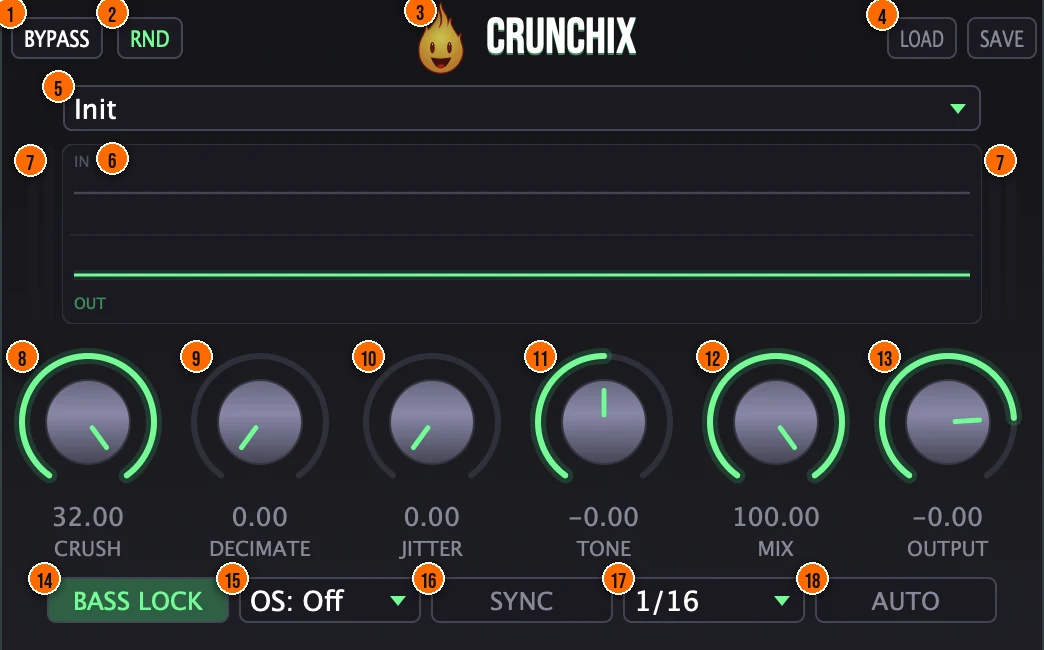
Controls
Top bar

- 1Bypass: switches the effect off, so you can compare against the dry signal.
- 2RND (Randomize): new settings at random, for instant ideas.
- 3Fire Head: click the flame logo to open the About panel: what the plugin is, who made it, its version and the trademark notices. Click anywhere in the panel to close it.
- 4Load / Save: load a preset you saved, or save your own.
- 5Presets: 14 factory presets, from Subtle Grit and Hi-Hat Crunch to Lo-Fi Pad, Vinyl Drift, Digital Chaos and Bit-Filter Rise.
Knobs

- 8Crush: reduces the bit depth. The knob is mapped logarithmically, so the whole range is usable, from subtle grit to total destruction.32-bit (clean) down to 1-bit (square wave)Tip The first 10 to 20% adds subtle grit. Past 50% the quantization noise becomes the main character. Push it to 100% for a pure square wave.
- 9Decimate: lowers the sample rate with sample-and-hold, also on a logarithmic scale. With Sync on, it locks to your DAW's tempo.Full rate down to about 100 HzTip A little Decimate (10 to 20%) thins the highs. Higher values create obvious aliasing. Keep it lower than Crush for a controlled result.
- 10Jitter: a random drift in the decimator's timing, like the instability of a vintage hardware sampler. Each channel drifts on its own, which adds stereo width.Tip Jitter drifts the decimator's timing like an unstable clock. Each channel drifts on its own, which adds stereo width to the effect.
- 11Tone: a tilt EQ after the crush. Negative values darken the highs; positive values brighten them and shelve the lows down.−6 to +6 dBTip Negative Tone darkens the crushed sound if it gets too harsh. Positive values brighten it and cut the lows.
- 12Mix: blends the crushed sound with the dry signal, for parallel processing. The dry signal stays phase-aligned when oversampling is on.Tip Pull Mix back to 50 to 70% for parallel bitcrushing: the grit layers on top of the clean signal instead of replacing it.
- 13Output: the level leaving Crunchix, with soft tanh saturation and a hard 0 dBFS ceiling.−24 to +6 dB
Options row

- 14Bass Lock (Bass Sentinel): splits off everything under 150 Hz with a 4th-order Linkwitz-Riley crossover and routes it around the crusher, so the sub stays clean while the mids and highs get crushed. The button reads BASS LOCK; in your DAW's automation list it is called Bass Sentinel.On or off, default onTip Keep Bass Lock on for drum buses and full mixes. It routes the sub around the crusher so the kick stays clean.
- 15OS (Oversampling): tames harsh aliasing with half-band FIR oversampling. With it off, Crunchix has zero latency; at 2x or 4x it reports its latency to your DAW.Off, 2x or 4xTip Turn on OS when the aliasing is harsher than you want. At 2x or 4x the harsh upper harmonics are tamed, at the cost of some latency and CPU.
- 16Sync: switches Decimate between free-running and locked to your DAW's tempo, so the aliasing stays on the grid.On or offTip Turn on Sync to lock the decimation to your tempo. The aliasing then sits on the beat grid instead of drifting.
- 17Division: the note value Decimate locks to when Sync is on.1/2 to 1/64
- 18Auto (Auto-Gain): RMS-based loudness compensation: as crushing removes energy, Auto makes up the level, so you hear the character instead of a drop in volume.On or off
Meters and displays
- 6Waveform display: shows the sound before (IN) and after (OUT) Crunchix in real time, refreshing 30 times a second.
- 7Level meters: the thin bars at the left and right of the display show the input and output levels, left and right.
Key specs*
| Crush | 32-bit down to 1-bit, logarithmic |
|---|---|
| Decimate | Full rate down to about 100 Hz, free-running or synced from 1/2 to 1/64 |
| Jitter | Random walk on the decimator's hold length, independent per channel |
| Tone | Tilt EQ after the crush, −6 to +6 dB |
| Bass Lock | Linkwitz-Riley, 4th order, at 150 Hz |
| Oversampling | Off, 2x or 4x, FIR half-band |
| Latency | Zero with oversampling off; reported to your DAW at 2x and 4x |
| Safety filter | 18 kHz low-pass after the crush, always on |
| Output | −24 to +6 dB, soft tanh saturation, 0 dBFS ceiling, 5 Hz DC blocker |
| Factory presets | 14 |
* Key specs from the plugin page. Some specs may not be listed.
How does the sound flow through Crunchix?
A simplified view of the main path.
With Bass Lock on, the low end bypasses the crusher and rejoins at the output.
How do I crush hi-hats and percussion but keep the bass clean with Crunchix?
- Load it. Put Crunchix on your drum bus or drum loop and turn on Bass Lock, so everything under 150 Hz passes through clean.
- Add the crush. Bring Crush up to around 40 to 65%. The hats and percussion get grit while the kick's sub stays solid.
- Rough it up. Add Decimate at around 20 to 35%. Keep it lower than Crush for a controlled result.
- Lock it to the beat. Turn on Sync and set the division to 1/16, so the decimation sits in time with your track.
- Blend it. Turn on Auto and set Mix to around 60 to 80% to blend the crushed sound with the original.
- Compare. Use Tone to pull back any harshness, then press Bypass to compare against the dry drums.
How do I give a synth pad a lo-fi texture with Crunchix?
- Load it. Put Crunchix on the synth pad track.
- Protect the low end. Turn on Bass Lock so any bass content in the pad stays clean.
- Crush gently. Bring Crush to around 30 to 40%. The pad picks up a grainy texture.
- Add drift. Raise Jitter so the timing wobbles like an old sampler. It also adds stereo movement.
- Darken it. Turn Tone negative to roll off the harsh digital edge.
- Blend. Pull Mix to 50 to 60% so the lo-fi texture sits under the clean pad, then turn on Auto to keep the level steady.
What about Crunchix Raw?
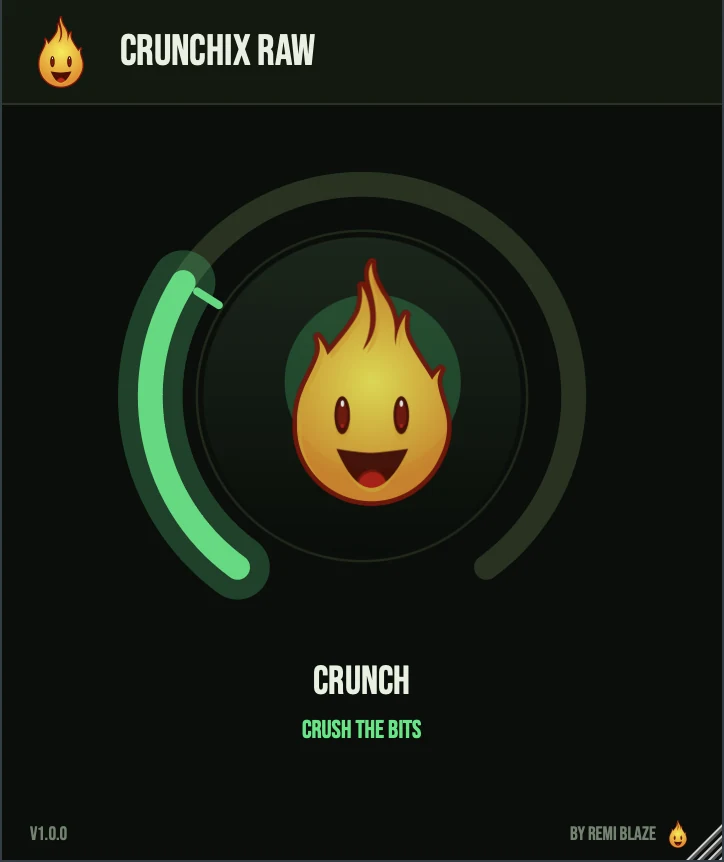
Crunchix Raw is the free one-knob version, on the same bitcrush and decimator engine. Its CRUNCH knob lowers the bit depth and adds sample-rate reduction together, with Auto Gain always on so it gets crunchier, never louder. A crossover keeps the low end clean, and it runs at zero latency. Its own manual: Crunchix Raw manual.
Crunchix vs. Crunchix Raw
A side-by-side look at what each version includes.
| Feature | Crunchix | Crunchix Raw |
|---|---|---|
| Presets | Included | Not included |
| Randomize | Included | Not included |
| Mix (dry/wet) | Included | Not included |
| Output level | Included | Not included |
Keyboard and mouse shortcuts
These work in every Crunchix format (AU, VST3, CLAP, AAX, Standalone).
| Reset a control to its default | Double-click the knob or slider |
|---|---|
| Scroll to change a value | Hover over a knob and scroll the mouse wheel |
| Type an exact value | Click the value below a knob and type a number |
Frequently Asked Questions
Does Crunchix add latency?
Not with OS set to Off: it runs at zero latency. At 2x or 4x it reports its latency to your DAW so everything stays in time, and the dry signal in Mix is delayed to match, so there is no comb filtering.
When should I turn on oversampling?
When the aliasing sounds harsher than you want. Leave OS off for zero latency and the lightest CPU load; 2x and 4x cost more CPU.
What does Jitter add?
A random drift in the decimator's timing, like an old hardware sampler. Each channel drifts on its own, so it also adds some stereo width. It works with Decimate.
Why does the crushed sound stay at the same loudness?
That's Auto. Heavy crushing removes energy, and Auto compensates for it, so you can compare settings without the crushed version sounding quieter. Turn it off if you want the level to drop.
Why don't extreme settings get painfully harsh?
An 18 kHz low-pass after the crush is always on. It removes the harsh, fatiguing top end that heavy crushing can produce.
Where can I find more about Crunchix?
On the Crunchix page: its features, system requirements and how to get it.
How do I get and install Crunchix?
- Get it. Crunchix is a Creative Pass exclusive. The Crunchix page explains how to get it.
- Run the installer. On macOS, double-click the .pkg file and choose AU, VST3, CLAP, AAX or Standalone. On Windows, run the .exe installer and choose VST3, CLAP or Standalone.
- Open your DAW. Restart your DAW and rescan plugins if needed, then find Crunchix under Remi Blaze in your plugin list.
More about Crunchix, including its features and system requirements, is on the Crunchix page.
Where are the plugin files?
If you need to find Crunchix on disk, for example to troubleshoot or to uninstall it manually, these are the standard locations.
| macOS AU | ~/Library/Audio/Plug-Ins/Components/ |
|---|---|
| macOS VST3 | ~/Library/Audio/Plug-Ins/VST3/ |
| macOS CLAP | ~/Library/Audio/Plug-Ins/CLAP/ |
| macOS AAX | /Library/Application Support/Avid/Audio/Plug-Ins/ |
| Windows VST3 | C:\Program Files\Common Files\VST3\ |
| Windows CLAP | C:\Program Files\Common Files\CLAP\ |
To uninstall, quit your DAW and delete the Crunchix file from the relevant folder. Your DAW will stop listing it on its next rescan.
Need help with Crunchix?
If something isn't covered here, or Crunchix doesn't behave as described, contact support or email support@remiblaze.com. To get an answer faster, include:
- your operating system and version (for example macOS 15.6 or Windows 11)
- your DAW and its version
- the format you're using (AU, VST3, CLAP, AAX or Standalone)
- the Crunchix version, shown in the About panel (click the Fire Head)
- what you did, what you expected, and what happened instead
This manual is for Crunchix 1.0.1. Controls and settings can change between versions, so if something here doesn't match what you see, check which version you have: click the Fire Head to open Crunchix's About panel. Spotted a mistake or have a question? Let us know.