What is Emberex?
Emberex is a free resonant performance filter for Mac and Windows. One bipolar knob sweeps from low-pass to high-pass, with the center as bypass, and Bandpass, Comb and Formant modes are there for sound design. It is made for sweeps, builds and drops, from a subtle DJ cut to a screaming resonant build.
Your sound first goes through Drive, a saturation stage that runs at 4x oversampling, then into the filter. An LFO, an envelope follower, Drift and MIDI can all move the filter for you. The filtered sound is blended with the dry signal, and the output stage sets the level, can flip the polarity and removes DC.
How does resonant filter performance work?
A resonant filter boosts a narrow peak at its cutoff frequency before rolling off the signal above or below it. The higher the resonance, the sharper the peak and the more the filter colors the sound. In a DJ-style performance filter, one knob sweeps the cutoff from low-pass through bypass to high-pass, so a single gesture can thin out the lows, open the full signal, or strip the bass for a build.
Emberex adds modes beyond LP/HP: Bandpass isolates a band that sweeps with the knob, Comb creates a metallic pitched effect, and Formant shapes vowel-like resonances. Drive before the filter adds harmonic density, and modulators (LFO, envelope follower, key tracking) move the cutoff automatically.
Quick start
Get a result with Emberex in under a minute.
- Insert it. Put Emberex on the track or bus you want to process.
- Pick a preset. Open the Presets menu and choose one close to what you want.
- Shape it. Work through the numbered controls below until it sounds right to your ear.
- Blend to taste. Pull Mix back from 100% if you want a subtler result.
- Compare. Bypass the plugin in your DAW to hear before and after.
The interface
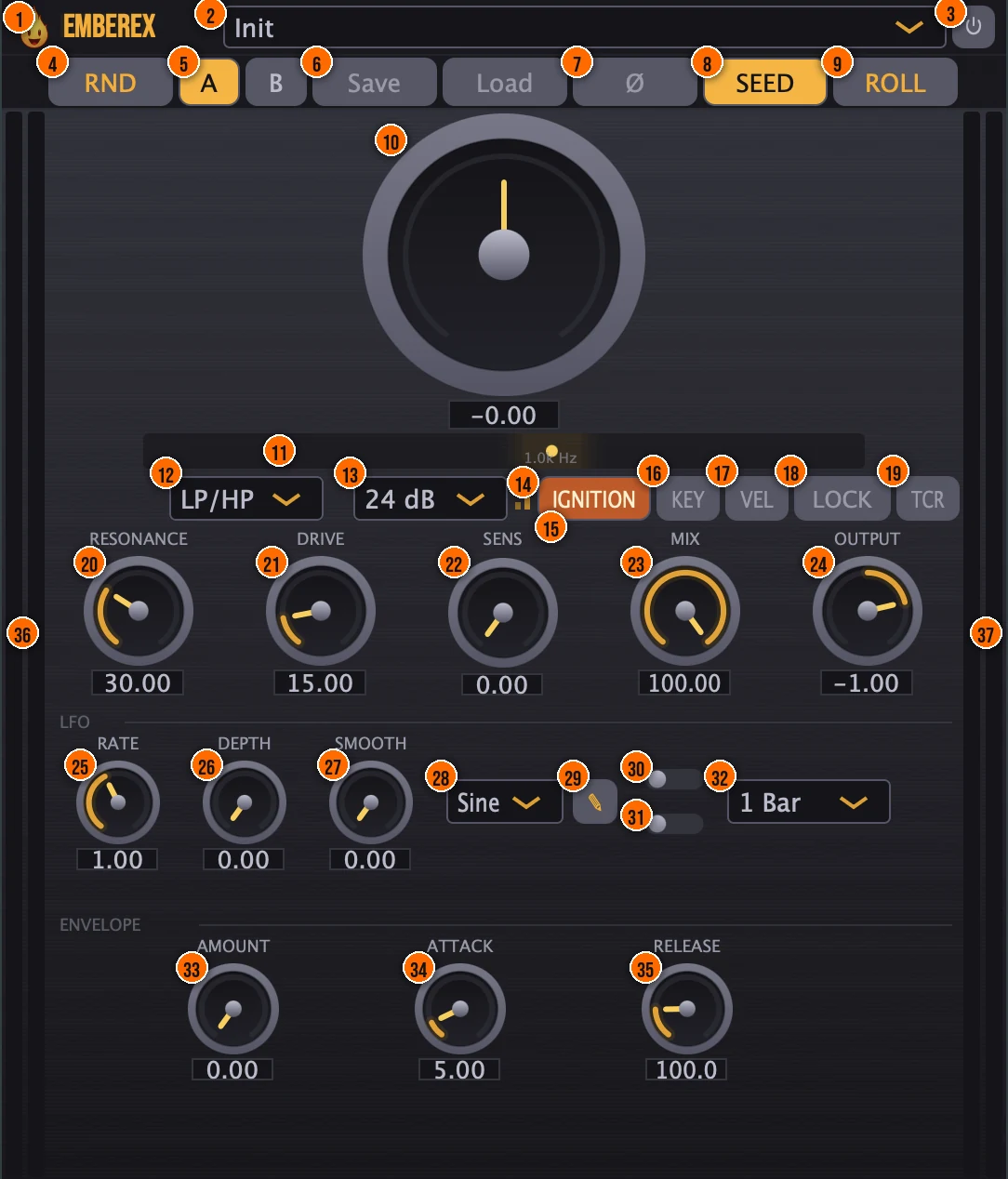
Controls
Top bar

- 1Fire Head: click the flame logo to open the About panel: what the plugin is, who made it, its version and the trademark notices. Click anywhere in the panel to close it.
- 2Presets: 22 factory presets, from Gentle LP Sweep and DJ High Cut to Build-Up HP, Drop LP and Vowel Sweep. A short output fade on preset and state changes prevents clicks.
- 3Bypass (power button): switches the effect off, for comparing with the dry signal. The switch crossfades, so it doesn't pop.
- 4RND (Randomize): new settings at random, for instant ideas.
- 5A / B: switch instantly between two parameter states, to compare two versions of your settings.
- 6Save / Load: save your own presets as .preset files you can share, or load them back.
- 7Ø (Phase reverse): flips the polarity of the processed signal.On or off
- 8SEED (Seed Lock): locks the random seed behind Drift, the organic wander of the cutoff, and behind the Sample & Hold LFO shape. With it on, a saved project reloads to the same motion every time.On or offTip Lock the seed before printing a take. The Drift and Sample-and-Hold patterns become repeatable, so the project reloads to the same motion.
- 9ROLL: rolls a new random pattern for Drift, which Seed Lock then holds.
Filter
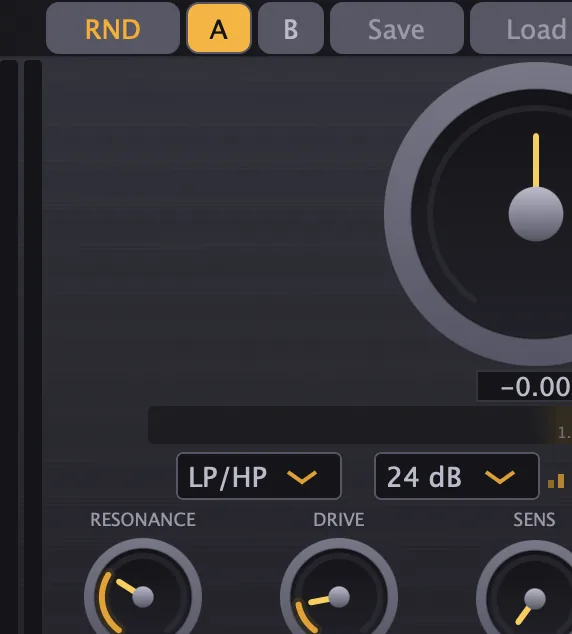
- 10Filter knob: the large bipolar knob. Turn it left for low-pass, right for high-pass. The center is bypass.−100% to +100%Tip For a classic DJ sweep, drag from center to full left (LP) during a breakdown, then snap back to center for the drop. The filter returns to bypass at center.
- 12Filter mode: LP/HP is the bipolar low-pass to high-pass sweep. Bandpass, Comb and Formant are for sound design; Formant gives the filter a vowel character, and Formant Spread widens or narrows it.LP/HP, Bandpass, Comb or Formant
- 13Slope: how steeply the filter cuts, in every mode.12, 24 or 48 dB per octave
- 20Resonance: the peak at the cutoff, from flat to a screaming resonant peak.Tip A moderate resonance (30–50%) adds a vocal quality to sweeps. Push it higher for acid-style screams on a synth bass.
- 22Sens (Sensitivity): sets Kinetic Resonance: a resonance boost that grows with how hard the input drives the filter, which adds life to fast sweeps.
Performance
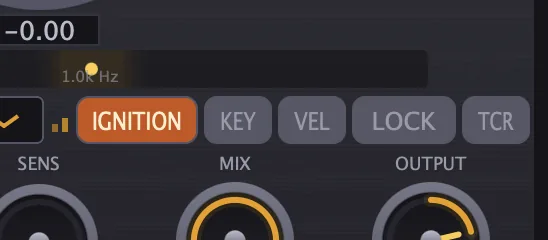
- 15Ignition: a fast build or drop gesture for live sets and transitions: hold it for an instant filter sweep.Tip Press Ignition to snap the filter wide open instantly. It is designed for a fast build-to-drop gesture: automate it off at the drop.
- 16KEY (Key tracking): the filter cutoff follows the pitch of incoming MIDI notes, with a 1V/oct mapping.
- 17VEL (Velocity Link): MIDI velocity modulates the filter, for example its resonance or drive, with an amount and a Linear, Logarithmic or Exponential curve.Amount 0 to 100%
- 18LOCK (Frequency lock): holds the filter cutoff when the filter knob returns to center.
- 19TCR (Transient-Controlled Resonance): spikes the filter's resonance on kick and snare hits, with an adjustable Intensity.Tip Turn on TCR to spike the resonance on kick and snare hits. It adds a rhythmic accent to the filter sweep without raising the overall resonance.
Saturation
- 21Drive: tanh saturation before the filter, running at 4x oversampling. Smolder also adds warmth on its own as the filter moves further from center.Tip Drive saturates the signal before the filter, at 4x oversampling. A little thickens a thin source so the sweep has more to work with.
LFO
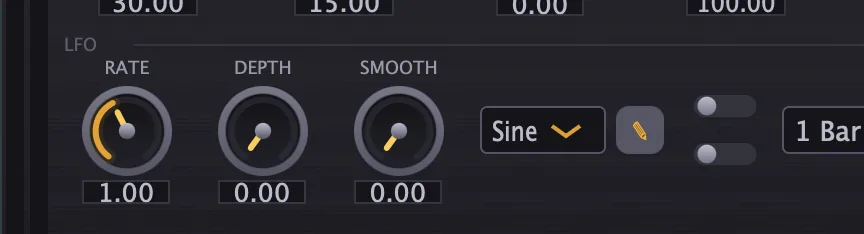
- 25Rate: how fast the LFO moves the filter.
- 26Depth: how far the LFO moves the filter.
- 27Smooth: smooths the edges of a custom LFO waveform, the one you draw.
- 28LFO shape: the waveform of the LFO. Custom is a waveform you draw yourself.Sine, Triangle, Square, Saw, Custom or Sample & Hold
- 29Draw (pencil): opens the area where you draw your own LFO waveform for the Custom shape. While it is open, a RND button draws a random path for you.
- 30LFO Sync (upper switch): syncs the LFO rate to your DAW's tempo, so it snaps to note divisions.On or off, default offTip Sync the LFO to the host tempo for rhythmic filter motion that stays locked to the beat.
- 31Loop Sync (lower switch): locks the LFO to your DAW's bar and beat grid, following the playback position.On or off, default off
- 32Loop division: the note value or bar length Loop Sync locks the LFO to.1/64 up to 32 Bars, default 1 Bar
Envelope follower
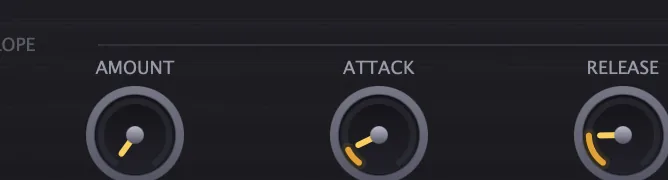
- 33Amount: how much the filter reacts to the level of the input: louder input opens the filter.Tip A small Env Follow amount (10–20%) adds subtle dynamics to the filter. Higher values turn the filter into a wah that follows the playing.
- 34Attack: how fast the envelope follower reacts when the input gets louder.0.1 to 50 ms
- 35Release: how fast it lets go when the input gets quieter.10 to 500 ms
Output
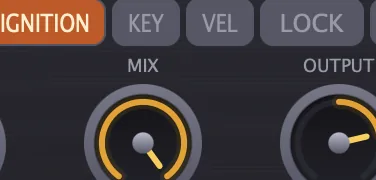
- 23Mix: blends the filtered sound with the dry signal, for parallel filtering.0 to 100%
- 24Output: the level leaving Emberex, for matching the filtered sound to the bypassed one. A 10 Hz high-pass on the output keeps the signal free of DC after saturation.−24 to +6 dB
Meters and displays
- 11Cutoff display: the strip under the filter knob. The dot shows where the filter cutoff sits, with its frequency in Hz underneath.
- 14Slope indicator: the small bars next to the Slope menu: one, two or three bars for 12, 24 or 48 dB.
- 36Input meters: the two bars down the left edge show the input level, left and right channels, with a peak hold.
- 37Output meters: the two bars down the right edge show the output level, left and right channels, with a peak hold.
- Value boxes: the box under the filter knob and under each small knob shows its current setting.
Key specs*
| Filter modes | LP/HP (bipolar), Bandpass, Comb, Formant |
|---|---|
| Slopes | 12, 24 or 48 dB per octave |
| Filter knob | −100% to +100%, center is bypass |
| Drive | tanh saturation before the filter, 4x oversampled (half-band polyphase IIR) |
| Latency | Reported to your DAW; the oversampler stays engaged, so it doesn't change |
| LFO | Sine, Triangle, Square, Saw, Custom, Sample & Hold; synced from 1/64 up to 32 Bars |
| Envelope follower | Attack 0.1 to 50 ms, Release 10 to 500 ms |
| MIDI | Key tracking (1V/oct), Velocity Link with Linear, Logarithmic or Exponential curves |
| Output | −24 to +6 dB, phase reverse, 10 Hz DC blocker |
| Preset recall | Short output fade to prevent clicks |
| Window size | 440 x 560 up to 900 x 860 |
| Factory presets | 22 |
* Key specs from the plugin page. Some specs may not be listed.
How does the sound flow through Emberex?
A simplified view of the main path.
The LFO, the envelope follower, Drift and MIDI (Key and Velocity) move the filter along the way.
How does Sample & Hold shape the LFO?
The LFO has six waveform shapes. Five are smooth; the sixth, Sample & Hold, captures a value at each clock tick and holds it flat until the next tick. That turns a smooth wave into a staircase of random-looking steps.
Sine wave into Sample & Hold
The dashed line is the smooth sine that the LFO would normally produce. At each tick the Sample & Hold reads the sine's current value and holds it as a flat step. The result is a staircase that jumps only at the ticks.
Rate sets how fast the ticks arrive. At a higher Rate the steps are shorter, so the staircase follows the sine more closely. At a lower Rate the steps are wider and the jumps are more obvious.
How does the envelope follower move the filter?
The envelope follower watches the input level and mirrors it onto the filter cutoff, so a loud hit opens the filter and a quiet moment closes it. Attack sets how fast the follower rises, and Release sets how fast it falls back.
Input hit into filter movement
The follower's curve is smoother than the raw input because Attack (0.1 to 50 ms) rounds the rise and Release (10 to 500 ms) rounds the fall. A short Attack follows transients closely; a longer Release lets the filter glide down.
How do I make a filter build and drop with Emberex?
- Load it. Put Emberex on the track or bus you want to sweep, and pick the Build-Up HP preset or set the filter mode to LP/HP.
- Pick a slope. Choose 12 dB for a gentle sweep, or 24 or 48 dB for a sharper one.
- Automate the sweep. Automate the filter knob from the center toward the right across the build, so the high-pass climbs and the low end thins out.
- Add edge. Raise Resonance for a peak that sings as it rises, and add Drive for grit. Sens adds more resonance the harder the sweep is pushed.
- Open it for the drop. Bring the filter knob back to center, which is bypass, so the full track comes back in.
- Balance it. Use Mix to blend some dry signal back in, and match the level with Output.
How do I add tempo-synced filter motion with Emberex?
- Load it. Put Emberex on a pad, chord or loop that needs movement.
- Set the filter. Choose LP/HP mode and turn the filter knob partway left, so there is room for the cutoff to move.
- Pick a shape. Choose an LFO shape: Triangle for a smooth sweep, Square for a choppy on-off, or Sample & Hold for random steps.
- Sync it. Switch on LFO Sync and set Rate to a note division, such as 1/4 or 1/8, so the motion locks to the beat.
- Set the depth. Raise Depth until the movement is clear but the sound still holds together.
- Blend it. Lower Mix to bring back some of the dry sound if the movement is too strong.
What about Emberex Raw?
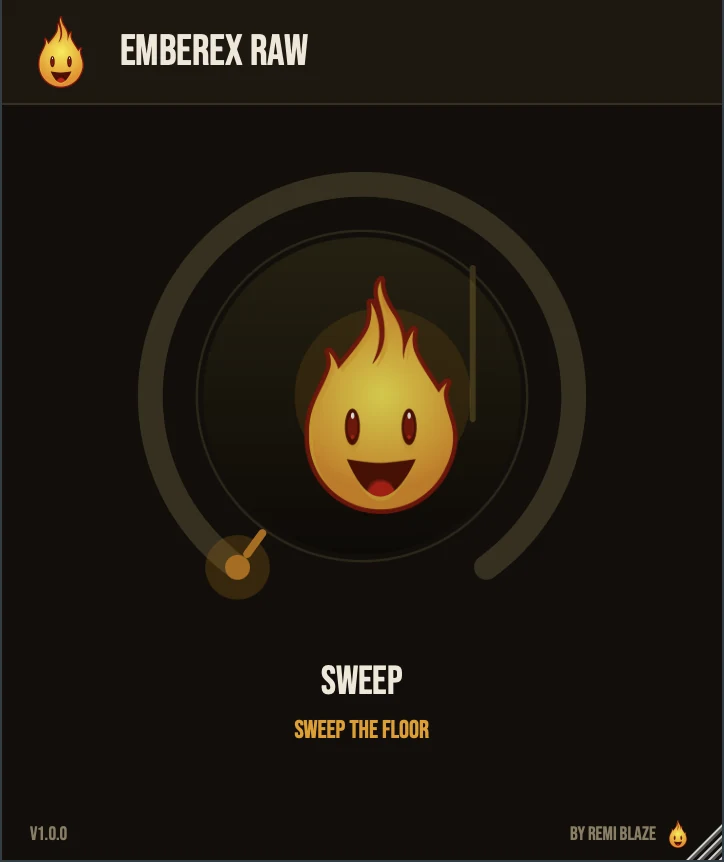
Emberex Raw is the free one-knob version, on the same filter engine. Its SWEEP knob drives a resonant low-pass: as you turn it, the cutoff drops, resonance rises and a touch of drive adds grit, and the level stays matched with no volume jump. SWEEP is its only automatable parameter. Its own manual: Emberex Raw manual.
Emberex vs. Emberex Raw
A side-by-side look at what each version includes.
| Feature | Emberex | Emberex Raw |
|---|---|---|
| Presets | Included | Not included |
| Randomize | Included | Not included |
| Mix (dry/wet) | Included | Not included |
| Output level | Included | Not included |
Keyboard and mouse shortcuts
These work in every Emberex format (AU, VST3, CLAP, AAX, Standalone).
| Reset a control to its default | Double-click the knob or slider |
|---|---|
| Scroll to change a value | Hover over a knob and scroll the mouse wheel |
| Type an exact value | Click the value below a knob and type a number |
| Hold Space | Fire Ignition (stops when you let go) |
Frequently Asked Questions
What happens when the filter knob is in the center?
The center is bypass. Turn the knob left for low-pass or right for high-pass, so one knob covers both directions of a sweep.
How do I get the same Drift motion every time I open the project?
Turn on SEED. Drift and the Sample & Hold shape are seeded, so with Seed Lock on a saved project reloads to the same motion. Press ROLL when you want a new pattern.
What does LOCK do?
Frequency lock holds the filter cutoff when the filter knob returns to center.
What does the Ø button do?
It flips the polarity of the output. Press it again to switch it back.
Will switching presets click?
Emberex fades the output briefly during preset and state changes, which prevents clicks.
Where can I find more about Emberex?
On the Emberex page: its features, system requirements and how to get it.
How do I get and install Emberex?
- Get it. Emberex is free. Get it from the Emberex page.
- Run the installer. On macOS, double-click the .pkg file and choose AU, VST3, CLAP, AAX or Standalone. On Windows, run the .exe installer and choose VST3, CLAP or Standalone.
- Open your DAW. Restart your DAW and rescan plugins if needed, then find Emberex under Remi Blaze in your plugin list.
More about Emberex, including its features and system requirements, is on the Emberex page.
Where are the plugin files?
If you need to find Emberex on disk, for example to troubleshoot or to uninstall it manually, these are the standard locations.
| macOS AU | ~/Library/Audio/Plug-Ins/Components/ |
|---|---|
| macOS VST3 | ~/Library/Audio/Plug-Ins/VST3/ |
| macOS CLAP | ~/Library/Audio/Plug-Ins/CLAP/ |
| macOS AAX | /Library/Application Support/Avid/Audio/Plug-Ins/ |
| Windows VST3 | C:\Program Files\Common Files\VST3\ |
| Windows CLAP | C:\Program Files\Common Files\CLAP\ |
To uninstall, quit your DAW and delete the Emberex file from the relevant folder. Your DAW will stop listing it on its next rescan.
Need help with Emberex?
If something isn't covered here, or Emberex doesn't behave as described, contact support or email support@remiblaze.com. To get an answer faster, include:
- your operating system and version (for example macOS 15.6 or Windows 11)
- your DAW and its version
- the format you're using (AU, VST3, CLAP, AAX or Standalone)
- the Emberex version, shown in the About panel (click the Fire Head)
- what you did, what you expected, and what happened instead
This manual is for Emberex 1.0.1. Controls and settings can change between versions, so if something here doesn't match what you see, check which version you have: click the Fire Head to open Emberex's About panel. Spotted a mistake or have a question? Let us know.