What is Kernix?
Kernix is a multi-FX destruction engine for Mac and Windows. It takes a dry vocal or synth from clean warmth to controlled chaos through six modules: saturation, pitch and formant warp, a feedback echo, a bit-crusher, a harshness suppressor and a high-end exciter.
The modules run in a fixed order: Drive, Warp, Echo, Texture, Firewall, Plasma. The Echo's repeats run back through the Drive mode, so each one is re-saturated. Firewall tightens harshness only when it's there, Plasma restores the air, and Auto-Gain keeps the level honest as you push harder.
How does multi-stage destruction work?
A destruction engine chains several types of distortion and mangling in a fixed order: saturation, pitch shifting, delay, and bit-crushing each change the signal before the next stage sees it. Stacking these stages means small changes early in the chain compound into large changes by the end, so a clean sound can be pushed from subtle warmth to total chaos with the same set of controls.
Quick start
Get a result with Kernix in under a minute.
- Insert it. Put Kernix on the track or bus you want to process.
- Pick a preset. Open the Presets menu and choose one close to what you want.
- Shape it. Work through the numbered controls below until it sounds right to your ear.
- Blend to taste. Pull Mix back from 100% if you want a subtler result.
- Compare. Bypass the plugin in your DAW to hear before and after.
The interface
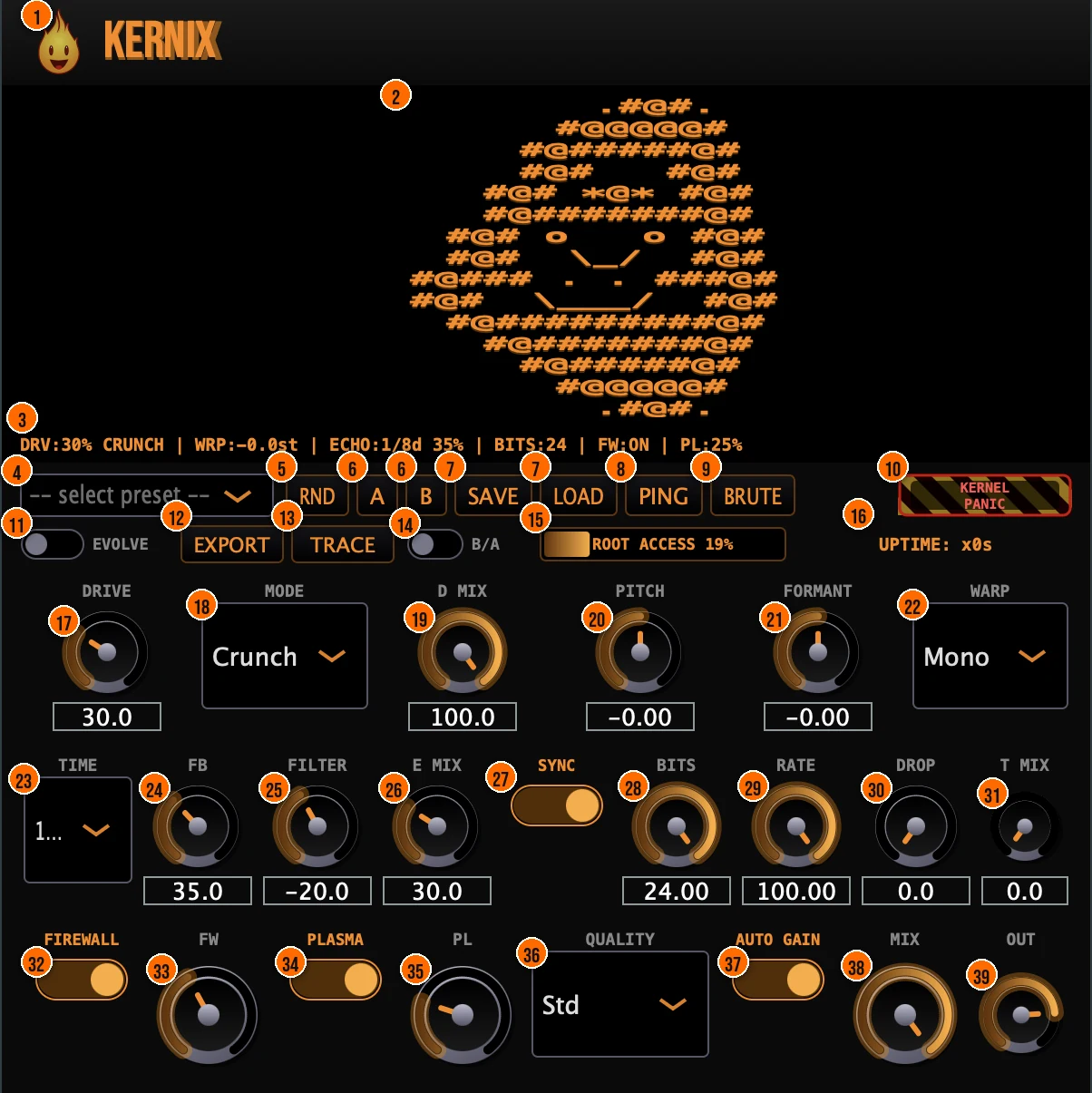
Controls
Top bar
- 1Fire Head: click the flame logo to open the About panel: what the plugin is, who made it, its version and the trademark notices. Click anywhere in the panel to close it.
Action bar
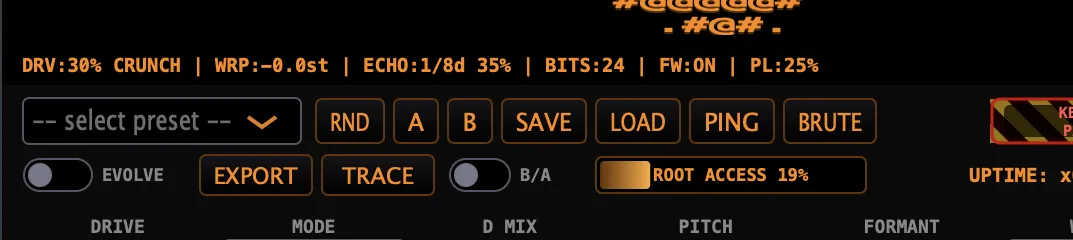
- 4Presets: 12 factory presets, from Vocal Warm and Broadcast to Digital Rot, Self-Oscillate and the Remi Blaze Kernix signature chain.
- 5RND (Randomize): re-rolls the Drive, Warp pitch, Echo and Texture settings. Firewall, Plasma and the output keep theirs, so your taste settings survive.
- 6A / B: two slots for storing and recalling settings, for instant comparison.
- 7Save / Load: Save stores the current settings as a .preset file; Load opens one from disk.
- 8Ping: fires a single tap into the delay, in time with the current echo time.
- 9Brute (Brute Force): rapid-fire random preset cycling, with crack text running on the terminal.
- 10Kernel Panic: a momentary button: hold it to slam the drive, texture and echo to extreme values. When you let go, your settings come back, the echo is cleared and the sound fades back in.
- 11Evolve: a generative morph over 16 bars: it moves Drive, Warp pitch, Echo feedback and Texture bits, and cycles through the five drive modes.
- 12Export: copies the current settings to your clipboard as a JSON code, for sharing.
- 13Trace: exports the current settings as a terminal-style log trace file.
- 14B/A (Before/After): switches on the Before/After scope, which shows the input and output waveforms together.
Drive
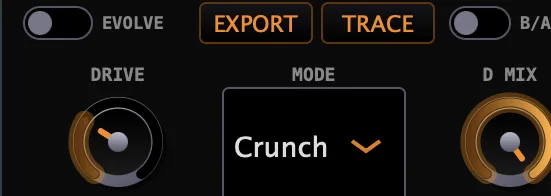
- 17Drive: the amount of saturation. At zero, Drive passes the sound through clean.Tip Warm mode at low Drive adds subtle color. Hell mode at high Drive is total destruction.
- 18Mode: the saturation character: Warm (smooth tube), Crunch (asymmetric transistor clip), Tape (magnetic hysteresis), Broken (bit-aliased waveshaping) or Hell (cascaded saturation, wavefold and hard clip).Warm, Crunch, Tape, Broken, Hell
- 19D Mix: the dry/wet mix of the Drive module.Tip Keep D Mix below 50% to blend distortion with the dry signal for controlled grit.
Warp
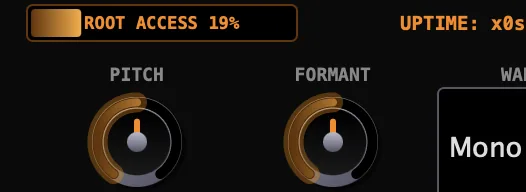
- 20Pitch: shifts the pitch.±12 semitonesTip Small Pitch shifts (+/- a few semitones) thicken a sound. Larger shifts turn it into a new instrument.
- 21Formant: shifts the formants independently of the pitch.±12 semitonesTip Shift Formant without Pitch to change the vocal character without changing the note.
- 22Warp: runs the pitch and formant shift in mono or poly.Mono or Poly
Echo
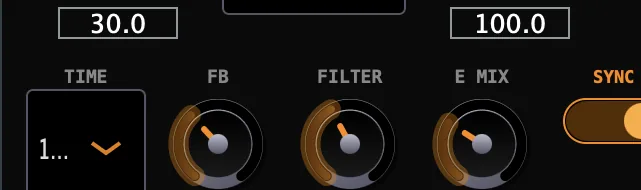
- 23Time: the delay time, synced to your DAW's tempo.1/32 to 1/2
- 24FB (Feedback): how many repeats you hear. The feedback runs back through the active drive mode, so each repeat is re-saturated.Tip High feedback with high Drive creates rising, increasingly distorted echoes.
- 25Filter: the tone of the repeats, from dark to bright.
- 26E Mix: the dry/wet mix of the Echo module.
- 27Sync: syncs the echo time to your DAW's tempo.On or off, default on
Texture
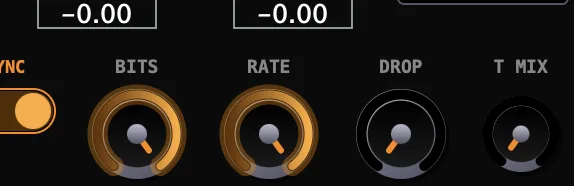
- 28Bits: bit-depth reduction.24 down to 2 bitsTip Reduce Bits to 8 or lower for retro game-style crunch. Above 12 is subtle grit.
- 29Rate: sample-rate reduction.
- 30Drop: packet-loss dropout.
- 31T Mix: the dry/wet mix of the Texture module.
Firewall and Plasma
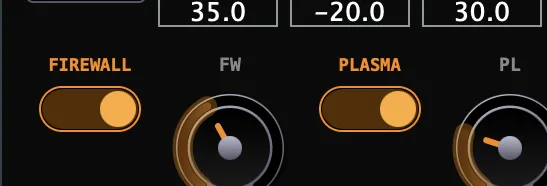
- 32Firewall: switches the Firewall on or off: a dynamic notch in the 2 to 5 kHz band that tracks the harshness saturation creates, and tightens only when needed.Tip Firewall tames the harshness that saturation creates in the 2 to 5 kHz range. Leave it on for vocal work.
- 33FW: the Firewall amount.
- 34Plasma: switches Plasma on or off: a high-end exciter that high-passes above 8 kHz, saturates in parallel and sums back, to restore the air that saturation and bit-crushing strip away.Tip Plasma restores the air that saturation and bit-crushing strip away. Raise it after heavy processing.
- 35PL: the Plasma amount.
Quality and output
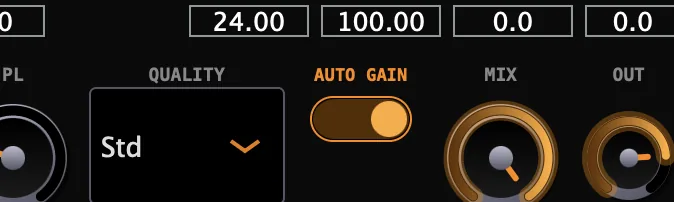
- 36Quality: switchable oversampling across the Drive, Warp and Echo core.Draft (2x), Std (4x) or HQ (8x)
- 37Auto Gain: drive-based gain compensation, so pushing harder doesn't just get louder.
- 38Mix: the global dry/wet mix.Tip Pull Mix back when using multiple stages at once, so the dry signal keeps the performance anchored.
- 39Out (Output): the level leaving Kernix.−24 to +6 dB
Meters and displays
- 2ASCII Fire Head: the Fire Head drawn in ASCII art on the terminal screen. It has five states that follow the drive intensity, from idle dots to a full flame at high drive.
- 3Status bar: a live readout of the main settings: drive amount and mode, warp pitch, echo time and feedback, bit depth, Firewall on or off and the Plasma amount.
- 15Root Access: a progress bar driven by the combined pressure of drive, echo and texture. At 100% it flashes ROOT ACCESS GRANTED.
- 16Uptime: counts how long the signal stays hot and loud without clipping. It resets when Drive drops below 30%, the output falls below −30 dBFS or the signal clips.
Key specs*
| Signal chain | Drive, Warp, Echo, Texture, Firewall, Plasma (fixed order) |
|---|---|
| Drive modes | 5: Warm, Crunch, Tape, Broken, Hell |
| Pitch and formant | ±12 semitones each, mono or poly |
| Echo | 1/32 to 1/2, tempo-synced; feedback re-saturates through Drive |
| Bit depth | 24 down to 2 bits |
| Firewall | Dynamic notch, 2 to 5 kHz |
| Plasma | High-pass above 8 kHz, parallel saturation |
| Oversampling | 2x, 4x or 8x, across Drive, Warp and Echo |
| Output | −24 to +6 dB, drive-based Auto-Gain |
| Factory presets | 12 |
* Key specs from the plugin page. Some specs may not be listed.
How does the sound flow through Kernix?
A simplified view of the fixed module chain.
The Echo's feedback runs back through the active drive mode.
What does Crunch do as Drive rises?
Crunch soft-clips the wave unevenly, then adds a sine-shaped fold to the curve that grows with Drive. Below, the same sine goes through Crunch at three Drive settings.
Drawn from Kernix’s Crunch curve. Crunch squashes the top of the wave harder than the bottom, so the wave leans to one side. The fold reshapes the peaks rather than flipping them over, and as Drive rises it pushes up the higher harmonics: compare bars 5 to 9 at 25% and at 100%. Bar 1 is the original note.
How do I make a driven vocal with distorted echoes in Kernix?
- Start warm. Put Kernix on the vocal, set Mode to Warm or Tape, and raise Drive until the vocal thickens.
- Add echoes. Set Time to a note value such as 1/8, then bring in E Mix.
- Let them grow. Raise FB. Each repeat runs back through the drive, so higher Drive and FB give rising, distorted echoes.
- Shape the repeats. Turn Filter down for darker repeats that sit behind the vocal, or up for brighter ones.
- Tame the edge. Switch on Firewall to tighten harshness, and Plasma to bring back air.
- Balance. Keep Auto Gain on, then set Mix and Out.
How do I make a lo-fi vocal effect with Kernix?
- Insert it. Put Kernix on a vocal track or a vocal bus.
- Set the drive. Choose Tape mode with Drive at about 40% for a warm, compressed feel.
- Add texture. Lower Bits to 10 and Rate to 75% for subtle digital degradation.
- Shift the formant. Move Formant down slightly to give the voice a deeper, darker character without changing the pitch.
- Tame the harshness. Switch on Firewall and raise it until the 2 to 5 kHz edge softens.
- Blend. Pull Mix back to 60 to 70% so the original vocal still comes through.
What about Kernix Raw?

Kernix Raw is the free one-knob version, on the same engine. Its MANGLE knob drives every stage at once: saturation thickens first, then the re-saturated echo builds, the bitcrush deepens and a slight detune warps the pitch. It runs HQ-oversampled with Auto-Gain always on, so it gets dirtier and bigger, never just louder. Its own manual: Kernix Raw manual.
Kernix vs. Kernix Raw
A side-by-side look at what each version includes.
| Feature | Kernix | Kernix Raw |
|---|---|---|
| Presets | Included | Not included |
| Randomize | Included | Not included |
| Oversampling control | Included | Not included |
| Mix (dry/wet) | Included | Not included |
| Output level | Included | Not included |
| Auto-gain | Not included | Included |
Keyboard and mouse shortcuts
These work in every Kernix format (AU, VST3, CLAP, AAX, Standalone).
| Reset a control to its default | Double-click the knob or slider |
|---|---|
| Scroll to change a value | Hover over a knob and scroll the mouse wheel |
| Type an exact value | Click the value below a knob and type a number |
Frequently Asked Questions
In what order do the modules run?
Drive, Warp, Echo, Texture, Firewall, Plasma. The order is fixed.
What does the Quality menu change?
The oversampling across the Drive, Warp and Echo core: Draft (2x), Std (4x) or HQ (8x).
Why does my sound not get louder when I add Drive?
Auto Gain compensates for the drive, so you hear the change in character rather than a jump in level.
Can I shift the formants without changing the pitch?
Yes. Pitch and Formant are independent, each ±12 semitones, so you can move one and leave the other at zero.
Where can I find more about Kernix?
On the Kernix page: its features, system requirements and how to get it.
How do I buy and install Kernix?
- Buy it. Kernix is a one-time purchase. Buy it from the Kernix page, and the store emails you the download link.
- Run the installer. On macOS, double-click the .pkg file and choose AU, VST3, CLAP, AAX or Standalone. On Windows, run the .exe installer and choose VST3, CLAP or Standalone.
- Open your DAW. Restart your DAW and rescan plugins if needed, then find Kernix under Remi Blaze in your plugin list.
More about Kernix, including its features and system requirements, is on the Kernix page.
Where are the plugin files?
If you need to find Kernix on disk, for example to troubleshoot or to uninstall it manually, these are the standard locations.
| macOS AU | ~/Library/Audio/Plug-Ins/Components/ |
|---|---|
| macOS VST3 | ~/Library/Audio/Plug-Ins/VST3/ |
| macOS CLAP | ~/Library/Audio/Plug-Ins/CLAP/ |
| macOS AAX | /Library/Application Support/Avid/Audio/Plug-Ins/ |
| Windows VST3 | C:\Program Files\Common Files\VST3\ |
| Windows CLAP | C:\Program Files\Common Files\CLAP\ |
To uninstall, quit your DAW and delete the Kernix file from the relevant folder. Your DAW will stop listing it on its next rescan.
Need help with Kernix?
If something isn't covered here, or Kernix doesn't behave as described, contact support or email support@remiblaze.com. To get an answer faster, include:
- your operating system and version (for example macOS 15.6 or Windows 11)
- your DAW and its version
- the format you're using (AU, VST3, CLAP, AAX or Standalone)
- the Kernix version, shown in the About panel (click the Fire Head)
- what you did, what you expected, and what happened instead
This manual is for Kernix 1.1.0. Controls and settings can change between versions, so if something here doesn't match what you see, check which version you have: click the Fire Head to open Kernix's About panel. Spotted a mistake or have a question? Let us know.