What is Searex?
Searex is a free rhythmic gate for Mac and Windows. It turns the level of a sound up and down in steps, locked to your DAW's tempo, so a held pad, a synth or a vocal turns into a rhythm. You draw the pattern as a row of bars, one per step, and Searex plays it in time with your song.
Before the gate, an optional crossover (SUB) splits off everything under 150 Hz and lets it pass untouched, so the low end stays steady while the rest is chopped. The gated signal can then be swept with a low-pass filter on each step, blended with the dry sound, and trimmed at the output, where a soft clipper catches stray peaks.
How does rhythmic gating work?
A rhythmic gate opens and closes the volume of a sound in a timed pattern, turning a sustained signal into a rhythm. Each step in the pattern has its own volume, and the gate moves from step to step in time with your project's tempo. The shape of each step's envelope decides whether the chop is hard (square) or soft (smooth).
A crossover can split the sound into a low band and everything above it. The gate works only on the upper band, so the low end stays steady while the rest is chopped. This keeps the kick and bass solid on full loops or mix buses.
Quick start
Get a result with Searex in under a minute.
- Insert it. Put Searex on the track or bus you want to process.
- Pick a preset. Open the Presets menu and choose one close to what you want.
- Shape it. Work through the numbered controls below until it sounds right to your ear.
- Blend to taste. Pull Mix back from 100% if you want a subtler result.
- Compare. Bypass the plugin in your DAW to hear before and after.
The interface
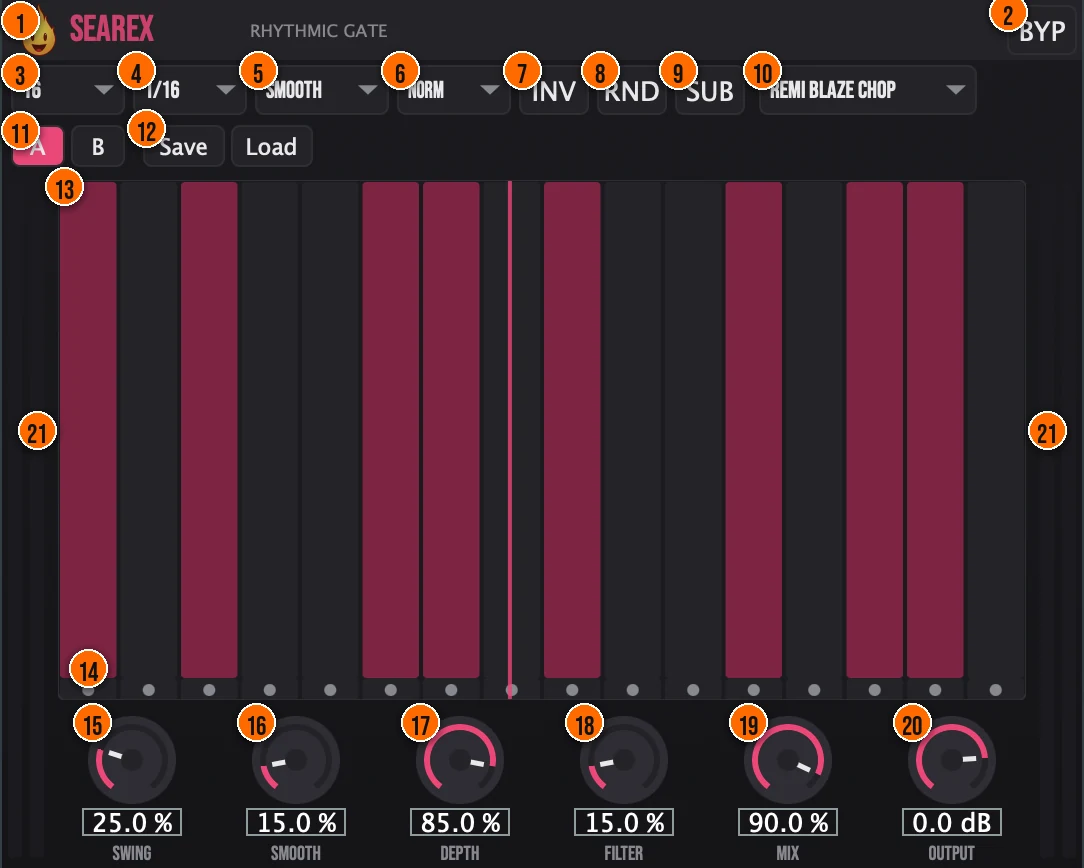
Controls
Top bar

- 1Fire Head: click the flame logo to open the About panel: what the plugin is, who made it, its version and the trademark notices. Click anywhere in the panel to close it.
- 2BYP (Bypass): switches the effect off so you can compare against the dry signal instantly.
Pattern

- 3Steps: how many steps the pattern has.4, 8, 16 or 32Tip 16 steps at 1/16 rate is a classic trance gate. 8 steps at 1/8 gives a wider, more open rhythm.
- 4Rate: how long each step lasts, in note values synced to your DAW.1/4, 1/8, 1/16 or 1/32
- 5Shape: the envelope of every step. Square cuts in and out; Smooth opens and closes softly; Ramp Up rises through each step; Ramp Down falls through it.Square, Smooth, Ramp Up, Ramp DownTip Square gives the hardest chops. Smooth rounds the edges. Ramp Up and Ramp Down create a rising or falling swell inside each step.
- 6Speed: plays the whole pattern at half, normal or double time against the Rate, for buildups and breakdowns without redrawing anything.Half, Normal, 2xTip Switch Speed to 2x for a buildup, then back to Normal for the drop, without redrawing the pattern.
- 7INV (Invert): flips the pattern, so open steps close and closed steps open.
- 8RND (Randomize): writes a new set of step volumes. It leaves the pan and every other setting alone.
- 9SUB (Sub-Anchor): lets everything under 150 Hz pass ungated, through a phase-coherent crossover, so kicks and bass stay solid while the gate works on the mids and highs.Tip Turn on SUB whenever the source has low end you want to keep steady. It uses a phase-coherent crossover, so the bands sum back cleanly.
- 10Presets: 14 factory patterns, from Full On and Basic Gate to Trance Gate, Warehouse Stutter and Ghost Vocal.
Compare and save
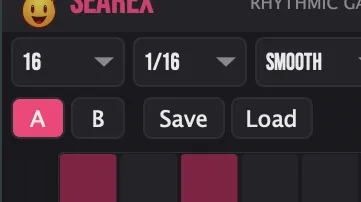
- 11A / B: two complete states, settings and pattern included. Switch between them to compare two versions while you work.
- 12Save / Load: write your settings and pattern to a .preset file, or bring one back.
Step grid
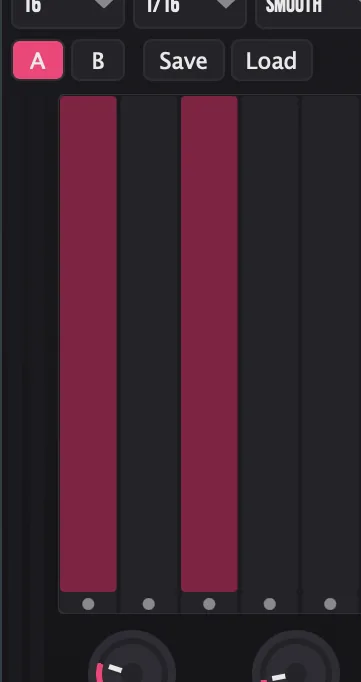
- 13Step bars: each bar is one step, and its height is that step's volume. Click and drag across the grid to draw a pattern.
- 14Pan dots: every step also has its own stereo position, shown by the dot under it, so chops can bounce between the left and right speakers.Tip Draw the pan dots in an alternating left-right pattern so the chops bounce across the stereo field.
Knobs

- 15Swing: delays the odd steps for a shuffled or triplet feel.0 to 100%Tip A small amount of Swing pushes every other step later for a shuffled feel. Higher values approach a triplet groove.
- 16Smooth: rounds off the edge of every step with a short crossfade, which removes clicks on fast patterns.0 to 100% (a 2 to 50 ms crossfade)
- 17Depth: how far the closed steps duck the signal.0 to 100%Tip Depth sets how far the closed steps duck. At 100% the gaps are fully silent. Pull it back if you want the original to bleed through the gaps.
- 18Filter: a low-pass sweep on each step that adds tonal movement to the chops.0 to 100%Tip Adding Filter movement to the chops gives a sweep on each step that makes the rhythm more alive, especially on pads and synths.
- 19Mix: blends the gated sound with the dry signal, for parallel gating.0 to 100% (dry to wet)
- 20Output: the level leaving Searex. Use it to match the gated sound to the bypassed one, so the comparison is fair.−24 dB to +6 dB
Meters and displays
- 21Level meters: the thin bars down the left and right edges are the stereo input and output meters. Watch them when you set Output.
- 13Playback line and glow: while your DAW plays, a line moves across the step grid and the active step lights up, so you can see exactly which step you are hearing.
- 14Pan dots: show where each step sits in the stereo field.
Key specs*
| Steps | 4, 8, 16 or 32 |
|---|---|
| Rate | 1/4 to 1/32, with Half, Normal or 2x speed |
| Swing | 0 to 100% |
| Smoothing | Raised-cosine crossfade, 2 to 50 ms |
| Sub-Anchor | Phase-coherent Linkwitz-Riley crossover, 4th order, at 150 Hz |
| Gate filter | Zero-delay state-variable low-pass, per step |
| Output | −24 to +6 dB, with a 10 Hz DC blocker and a tanh soft clipper |
| Factory presets | 14 |
* Key specs from the plugin page. Some specs may not be listed.
How does the sound flow through Searex?
A simplified view of the main path.
Per-step volume and pan give the pattern its shape. Swing, Smooth and Speed vary the timing and transitions.
How do I build a trance gate with Searex?
- Load it. Put Searex on a pad, synth or vocal track and press play so it locks to your DAW's tempo.
- Set the grid. Set Steps to 16 and Rate to 1/16.
- Pick or draw a pattern. Choose Trance Gate from the preset menu, or click and drag in the step grid to draw your own.
- Shape the edges. Square for hard chops, Smooth for softer ones. If fast steps click, raise the Smooth knob.
- Set how hard it chops. Turn Depth up until the closed steps duck as far as you want, and lower Mix to blend some dry sound back in.
- Keep the low end steady. On bass-heavy material, turn on SUB so everything under 150 Hz passes through ungated.
- Compare and save. Use A and B to compare two versions, then Save the one you like as a .preset file.
How do I create a stuttered vocal chop with Searex?
- Load it. Put Searex on the vocal track and press play.
- Set a fast grid. Set Steps to 32 and Rate to 1/32 for a rapid stutter.
- Draw the pattern. Draw short bursts of volume in the step grid, leaving most steps at zero.
- Keep it clean. Raise Smooth a little to remove clicks between the fast chops.
- Add movement. Turn up Filter for a low-pass sweep on each burst, and drag the Pan dots for stereo bounce.
- Blend. Pull Mix back to taste so the dry vocal still comes through under the stutter.
What about Searex Raw?
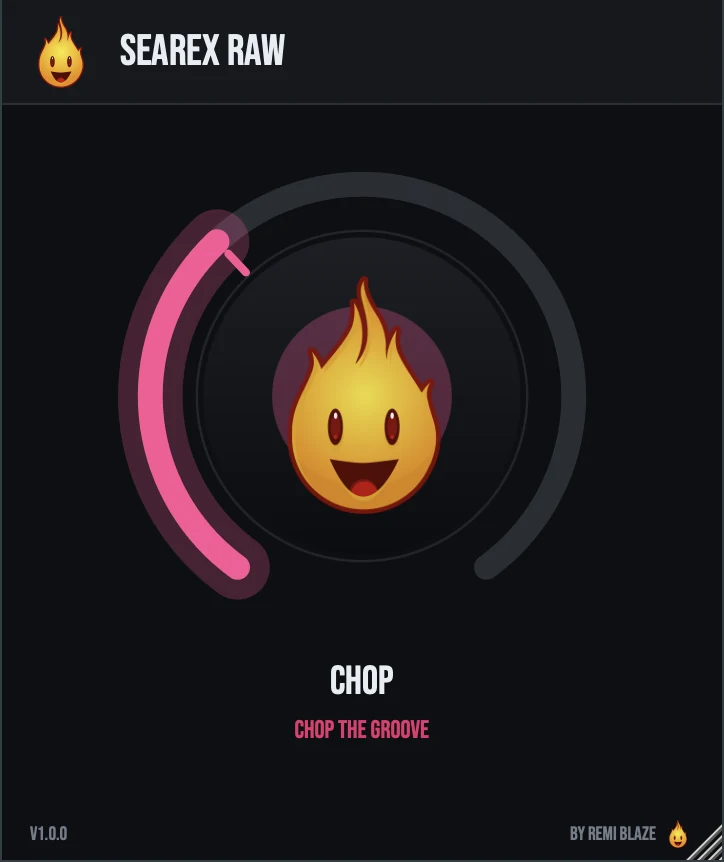
Searex Raw is the free one-knob version. Its CHOP knob drives the gate's depth and speed together over a fixed 16-step pattern, from a gentle pulse at low settings to a fast 1/16 chop near the top, and it matches the level as you turn it. There is nothing else to set, so it needs no manual. Its own manual: Searex Raw manual.
Searex vs. Searex Raw
A side-by-side look at what each version includes.
| Feature | Searex | Searex Raw |
|---|---|---|
| Presets | Included | Not included |
| Randomize | Included | Not included |
| Mix (dry/wet) | Included | Not included |
| Output level | Included | Not included |
Keyboard and mouse shortcuts
These work in every Searex format (AU, VST3, CLAP, AAX, Standalone).
| Reset a control to its default | Double-click the knob or slider |
|---|---|
| Scroll to change a value | Hover over a knob and scroll the mouse wheel |
| Type an exact value | Click the value below a knob and type a number |
| Drag in the top zone of the sequencer | Set per-step volume |
| Drag left or right in the bottom strip of the sequencer | Set per-step pan |
Frequently Asked Questions
What is the difference between Depth and Mix in Searex?
Depth sets how far each closed step ducks the signal. Mix blends the whole gated result with the dry signal, which gives you parallel gating: the rhythm stays, with the original underneath.
Does Randomize change the pan or my other settings?
No. RND only writes new step volumes. The pan, the knobs and the menus stay as they are.
When should I turn on SUB?
Whenever the source has low end you want to keep steady: a bass, a full loop or a whole mix. SUB lets everything under 150 Hz pass ungated while the gate chops the mids and highs.
How do I keep a pattern I made?
Press Save to write your settings and pattern to a .preset file, and Load to bring one back. A and B hold two complete states for quick comparisons while you work.
What does the Speed menu do?
It plays the pattern at half, normal or double time against the Rate, which is useful for buildups and breakdowns without redrawing the pattern.
Where can I find more about Searex?
On the Searex page: its features, system requirements and how to get it.
How do I get and install Searex?
- Get it. Searex is free. Get it from the Searex page.
- Run the installer. On macOS, double-click the .pkg file and choose AU, VST3, CLAP, AAX or Standalone. On Windows, run the .exe installer and choose VST3, CLAP or Standalone.
- Open your DAW. Restart your DAW and rescan plugins if needed, then find Searex under Remi Blaze in your plugin list.
More about Searex, including its features and system requirements, is on the Searex page.
Where are the plugin files?
If you need to find Searex on disk, for example to troubleshoot or to uninstall it manually, these are the standard locations.
| macOS AU | ~/Library/Audio/Plug-Ins/Components/ |
|---|---|
| macOS VST3 | ~/Library/Audio/Plug-Ins/VST3/ |
| macOS CLAP | ~/Library/Audio/Plug-Ins/CLAP/ |
| macOS AAX | /Library/Application Support/Avid/Audio/Plug-Ins/ |
| Windows VST3 | C:\Program Files\Common Files\VST3\ |
| Windows CLAP | C:\Program Files\Common Files\CLAP\ |
To uninstall, quit your DAW and delete the Searex file from the relevant folder. Your DAW will stop listing it on its next rescan.
Need help with Searex?
If something isn't covered here, or Searex doesn't behave as described, contact support or email support@remiblaze.com. To get an answer faster, include:
- your operating system and version (for example macOS 15.6 or Windows 11)
- your DAW and its version
- the format you're using (AU, VST3, CLAP, AAX or Standalone)
- the Searex version, shown in the About panel (click the Fire Head)
- what you did, what you expected, and what happened instead
This manual is for Searex 1.1.0. Controls and settings can change between versions, so if something here doesn't match what you see, check which version you have: click the Fire Head to open Searex's About panel. Spotted a mistake or have a question? Let us know.