What is Sparkit?
Sparkit is a 16-step MIDI sequencer and arpeggiator for Mac and Windows. It turns held notes and steps into tempo-locked MIDI patterns, with per-step velocity and probability, swing, humanize, scales, Euclidean rhythms and pattern seeds you can share.
Sparkit makes MIDI, not audio. Put it as a MIDI effect before an instrument: Sparkit drives the notes, and the synth, sampler or drum machine after it makes the sound. It locks to your DAW's transport and tempo, and keeps running on its own clock when there is no transport.
How does step sequencing and MIDI generation work?
A step sequencer divides a bar into equal steps (typically 16) and fires a note on each active step in time with the host tempo. Unlike audio effects, a MIDI sequencer generates note messages that drive an instrument on another track, so it creates rhythm and melody without processing any sound itself.
Per-step velocity and probability add dynamics and variation: velocity controls how hard each note hits, and probability lets some steps fire only part of the time, so the pattern evolves on every loop. Euclidean rhythms distribute a set number of hits as evenly as possible across the steps, producing classic grooves from world music and electronic genres.
Quick start
Get a result with Sparkit in under a minute.
- Insert it. Put Sparkit as a MIDI effect before the instrument you want to play, and start from the Init preset.
- Set the rhythm. Set Euclidean to the number of hits you want and press GEN to seed the grid.
- Play it. Press play in your DAW and hold notes. Sparkit turns them into the pattern.
- Shape it. Lower some velocities for ghost notes, and add Swing and Humanize so it breathes.
- Save the seed. Press Copy to save the pattern seed so you can share the pattern or use it again.
The interface
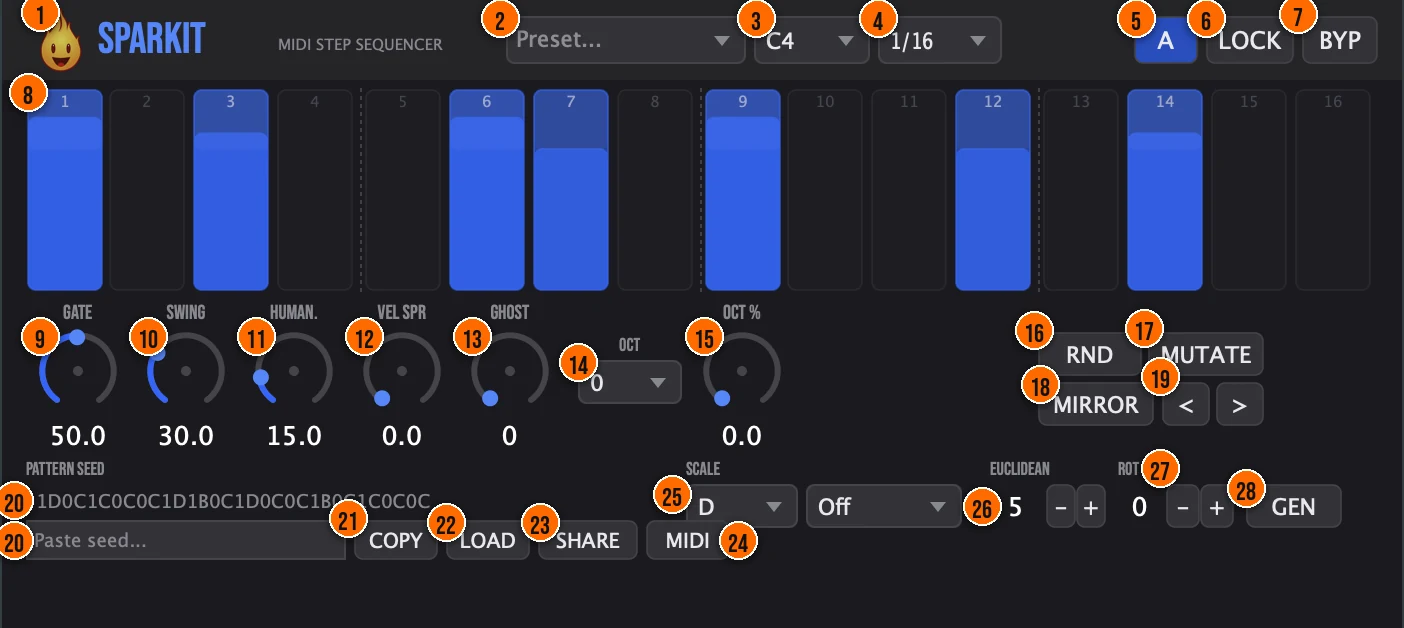
Controls
Top bar

- 1Fire Head: click the flame logo to open the About panel: what the plugin is, who made it, its version and the trademark notices. Click anywhere in the panel to close it.
- 2Presets: 17 factory presets, from Four on Floor and Hi-Hat 16ths to Euclidean 5/16, Probability Cloud, Acid Line and Tech Hats.
- 3Note: the note the steps trigger.C1 to C6
- 4Rate: the length of each step, locked to your DAW's tempo.1/4, 1/8, 1/16 or 1/32, default 1/16
- 5A / B: two slots: flip between two patterns for a quick comparison.
- 6LOCK (Anchor Downbeats): locks the downbeats, steps 1, 5, 9 and 13, for a solid pulse: they play every time, with no timing jitter.On or off, default offTip Turn on Lock so steps 1, 5, 9 and 13 play every time with no timing jitter. Humanize and probability then never weaken the pulse.
- 7BYP (Bypass): passes MIDI through untouched.
Step grid
- 8Steps 1 to 16: the pattern, one column per step, synced to your DAW's tempo. Each step has its own velocity, for accents and ghost notes, and its own probability, so a step can fire only some of the time for a groove that keeps changing.
Feel
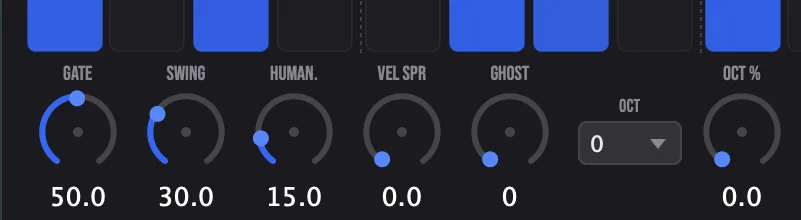
- 9Gate: how long each note is held, from tight staccato to full legato.1 to 100%, default 50%
- 10Swing: pushes the off-beat steps late, for shuffle and groove.0 to 100%, default 0%
- 11Human. (Humanize): adds subtle random variation to the timing, so the pattern breathes.0 to 100%, default 0%Tip A small Humanize value (5–15%) adds enough timing variation to make a quantized pattern feel played, without sounding sloppy.
- 12VEL SPR (Velocity Spread): random velocity variation on each note.0 to 100%, default 0%
- 13GHOST (Ghost Velocity): when a step's probability check fails, a quieter ghost note plays instead of silence. The knob sets how loud the ghost notes are compared with the original, for rolling patterns.0 to 100%, default 0Tip Raise Ghost so a step that fails its probability check plays a quieter note instead of silence. It turns sparse probability patterns into rolling ones.
- 14OCT (Octave Range): where the octave motion jumps: up, down, or up and down. 0 keeps the pattern in its octave.0, +1, −1 or +1/−1, default 0Tip Set OCT to +1 and OCT % to around 25% so the pattern jumps up an octave now and then. 0 keeps every note in place.
- 15OCT % (Octave Chance): how often the octave jump set in OCT happens.0 to 100%, default 0%
Pattern tools
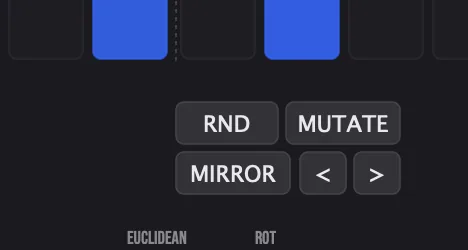
- 16RND (Randomize): writes a new random pattern, with varied velocity and probability.
- 17MUTATE: makes one to three random changes to the current pattern.Tip Press Mutate for one to three random changes. The pattern keeps its shape, so it is a quick way to make a variation for the next section.
- 18MIRROR: reverses the pattern.
- 19< > (Rotate): shifts the whole pattern one step to the left or right.
Pattern seed
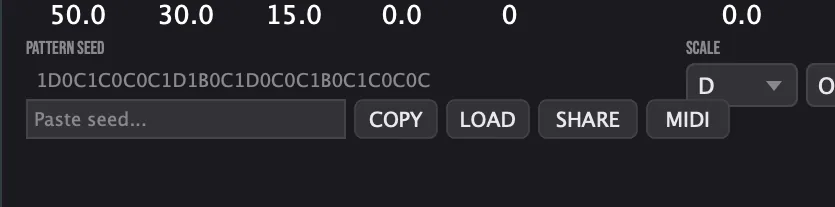
- 20Pattern seed: the string under PATTERN SEED captures the current pattern as a seed. The Paste seed field takes a seed someone shared with you.Tip Copy the seed to keep a pattern you like, or share it. Paste a seed someone sent you and press LOAD to get their pattern.
- 21COPY: copies the pattern seed, so you can share the pattern or keep it.
- 22LOAD: loads the seed in the Paste seed field into the step grid.
- 23SHARE: copies the pattern as a line of text, ready to post on social media.
- 24MIDI: exports the pattern as a MIDI file to your Desktop.
Pitch and rhythm
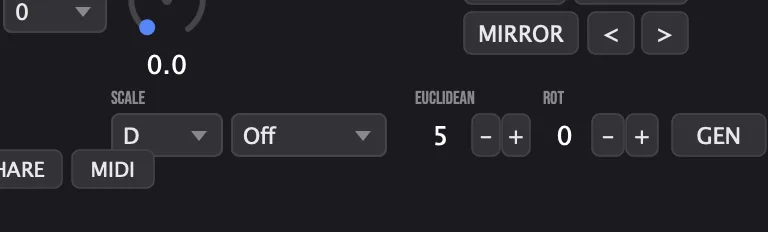
- 25Scale: locks the sequence to a musical scale so it always stays in key: pick the key on the left and the scale on the right. Off leaves it unquantized.Keys C to B; scales Off, Major, Minor, Dorian, Phrygian, Mixolydian, Pent Maj, Pent Min, Blues, Harm Min. Default C, OffTip Pick the key and scale of your track so every note stays in key. Off leaves the notes unquantized.
- 26Euclidean: the number of hits for the Euclidean generator, set with − and +. A Euclidean rhythm spreads the hits as evenly as possible across the steps.1 to 16 hitsTip Try 3, 5 or 7 hits, then press GEN. Odd counts across 16 steps give syncopated grooves; use ROT to shift where the hits start. For a polyrhythmic layer, put Sparkit on a shaker or percussion sound and use 3 or 5 hits against a four-on-the-floor kick: the uneven spacing pulls against the steady pulse in a way straight 16th hats can’t.
- 27ROT (Rotation): the rotation offset for the Euclidean rhythm, set with − and +: it shifts where the hits start.0 to 15 steps
- 28GEN: generates the Euclidean rhythm, with its rotation, and seeds the grid with it. Refine it step by step afterward.
Meters and displays
- 8Step numbers: each column is numbered 1 to 16 at the top, with dotted lines after every fourth step.
Key specs*
| Type | MIDI effect: makes MIDI, not audio |
|---|---|
| Steps | 16, with per-step velocity and probability |
| Clock | Sample-accurate, synced to your DAW's transport and tempo, with a free-run fallback |
| Notes | Every Note-On is matched; all notes off when the transport stops |
| Latency | Zero audio latency |
| Factory presets | 17 |
* Key specs from the plugin page. Some specs may not be listed.
Circle of fifths
Adjacent keys on the circle share the most notes, so moving one step around the circle keeps a key change smooth. The formulas below show the interval pattern for each of Sparkit’s Scale options.
W = whole step (two semitones). H = half step (one semitone). W+H = three semitones. F♯ at the bottom of the circle is the same pitch as G♭.
The arrows start from C major. One step clockwise to G adds a sharp, one step counterclockwise to F adds a flat, and each keeps six of C major’s seven notes. The inner arrow goes to A minor, the relative minor, which uses the same seven notes. In Sparkit, change the key on the left of Scale for a one-step move; for the relative move, set the key to A and the scale to Minor.
How do I build a groove from a Euclidean rhythm with Sparkit?
- Place it. Insert Sparkit as a MIDI effect before the instrument you want to play, and start from the Init preset.
- Generate a rhythm. Set Euclidean to the number of hits you want, for example 5, and press GEN to seed the grid.
- Play it. Press play in your DAW and play or hold notes into the track. Sparkit turns them into the pattern, locked to the tempo.
- Refine it. Adjust the steps in the grid: lower the velocity of some for ghost notes, and lower the probability of others so they fire only some of the time.
- Give it feel. Add Swing for shuffle and a little Humanize so it breathes. For a melodic part, set a key and scale.
- Keep it. Press Copy to copy the pattern seed, so you can share the pattern or use it again.
How do I create a hi-hat pattern with ghost notes using Sparkit?
- Place Sparkit. Put Sparkit before a drum instrument or sampler and set Note to the hi-hat's note.
- Set the rate. Set the Rate to 1/16 for sixteenth-note hi-hats.
- Start from a preset. Load the Hi-Hat 16ths preset as a base.
- Add variation. Press MUTATE for one to three changes, or RND for a new pattern with varied velocity and probability.
- Fill the gaps. Raise GHOST so steps that fail their probability check play quiet ghost notes instead of silence.
- Add swing. Raise Swing to push the off-beats late. Turn on LOCK if you want steps 1, 5, 9 and 13 to stay solid.
What about Sparkit Raw?
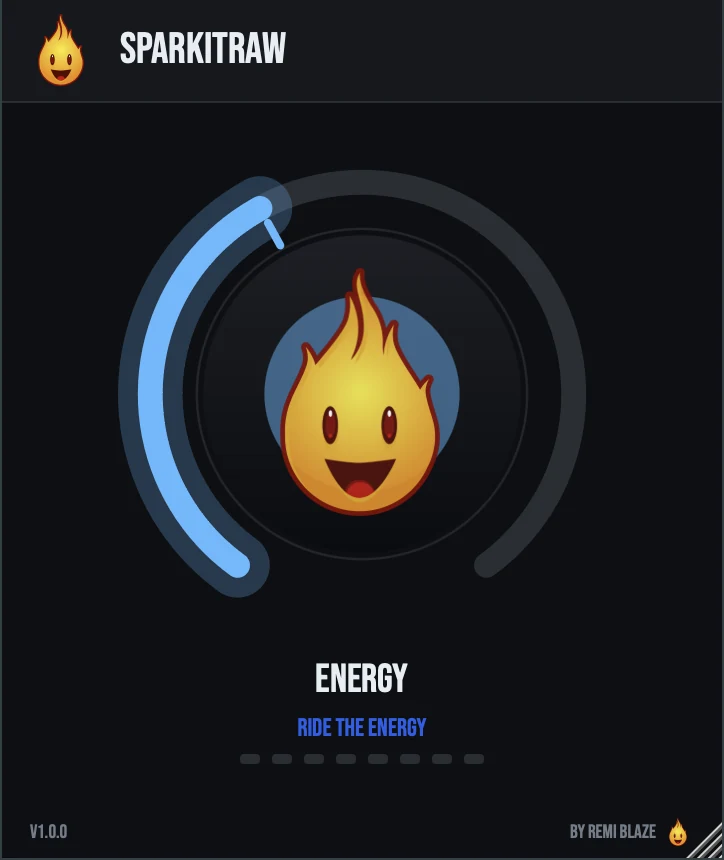
Sparkit Raw is the free one-knob arpeggiator. Hold a chord and turn ENERGY: the rate ramps from 1/4 to 1/32, the range grows up to 4 octaves, and the pattern opens from an upward run into up and down. It is a MIDI effect with zero latency, and it free-runs at 120 BPM when there is no transport. Its own manual: Sparkit Raw manual.
Sparkit vs. Sparkit Raw
A side-by-side look at what each version includes.
| Feature | Sparkit | Sparkit Raw |
|---|---|---|
| Presets | Included | Not included |
| Randomize | Included | Not included |
Keyboard and mouse shortcuts
These work in every Sparkit format (AU, VST3, CLAP, AAX, Standalone).
| Reset a control to its default | Double-click the knob or slider |
|---|---|
| Scroll to change a value | Hover over a knob and scroll the mouse wheel |
| Type an exact value | Click the value below a knob and type a number |
| Shift-drag a step button | Override its gate length |
Frequently Asked Questions
Where do I put Sparkit in my track?
Before an instrument, as a MIDI effect. Sparkit sends notes to the synth, sampler or drum machine after it, and that instrument makes the sound.
Will Sparkit leave notes hanging when I stop?
No. Every Note-On is matched with a Note-Off, and Sparkit sends all notes off when the transport stops.
Does Sparkit add latency?
No. It is a MIDI generator with zero audio latency, so it never delays your signal path.
How do I keep a pattern in key?
Set a key and a scale in the Scale menus. Sparkit then quantizes the sequence to that scale.
How do I share a pattern?
Press Copy to copy its pattern seed and send it. Whoever receives it pastes it into the Paste seed field.
Where can I find more about Sparkit?
On the Sparkit page: its features, system requirements and how to get it.
How do I get and install Sparkit?
- Get it. Sparkit is a Creative Pass exclusive. The Sparkit page explains how to get it.
- Run the installer. On macOS, double-click the .pkg file and choose AU, VST3, CLAP, AAX or Standalone. On Windows, run the .exe installer and choose VST3, CLAP or Standalone.
- Open your DAW. Restart your DAW and rescan plugins if needed, then find Sparkit under Remi Blaze in your plugin list.
More about Sparkit, including its features and system requirements, is on the Sparkit page.
Where are the plugin files?
If you need to find Sparkit on disk, for example to troubleshoot or to uninstall it manually, these are the standard locations.
| macOS AU | ~/Library/Audio/Plug-Ins/Components/ |
|---|---|
| macOS VST3 | ~/Library/Audio/Plug-Ins/VST3/ |
| macOS CLAP | ~/Library/Audio/Plug-Ins/CLAP/ |
| macOS AAX | /Library/Application Support/Avid/Audio/Plug-Ins/ |
| Windows VST3 | C:\Program Files\Common Files\VST3\ |
| Windows CLAP | C:\Program Files\Common Files\CLAP\ |
To uninstall, quit your DAW and delete the Sparkit file from the relevant folder. Your DAW will stop listing it on its next rescan.
Need help with Sparkit?
If something isn't covered here, or Sparkit doesn't behave as described, contact support or email support@remiblaze.com. To get an answer faster, include:
- your operating system and version (for example macOS 15.6 or Windows 11)
- your DAW and its version
- the format you're using (AU, VST3, CLAP, AAX or Standalone)
- the Sparkit version, shown in the About panel (click the Fire Head)
- what you did, what you expected, and what happened instead
This manual is for Sparkit 1.1.1. Controls and settings can change between versions, so if something here doesn't match what you see, check which version you have: click the Fire Head to open Sparkit's About panel. Spotted a mistake or have a question? Let us know.