What is Torchit?
Torchit is a free saturation and drive plugin for Mac and Windows. It adds harmonics to a sound, from subtle warmth on a mix bus to heavy distortion on a bass, through four saturation modes: Warm, Grit, Tube and Tape. Delta lets you hear only what Torchit adds, and Auto-Gain keeps the level steady as you push the drive.
Your sound passes through the Input gain and an anti-mud high-pass filter, then into the saturation stage, which is oversampled 4x or 8x. The Tone control shapes the result after the saturation, Mix blends it with the dry signal (taken after the high-pass, so the filter cuts the dry signal too), and a soft clipper on the output stage tames the peaks. With Split on, the lows below the crossover pass through without being saturated.
How does saturation and clipping work?
Saturation adds harmonics to a sound by gently bending the waveform, the way analog tape or tubes color audio when driven hard. Clipping is the harder version: it chops the peaks flat, making the signal louder and denser. Both reduce the dynamic range, so quiet parts stay while loud peaks are shaved down. The character depends on the curve shape, and different shapes sound warmer, brighter or more aggressive.
Quick start
Get a result with Torchit in under a minute.
- Insert it. Put Torchit on the track or bus you want to process.
- Pick a preset. Open the Presets menu and choose one close to what you want.
- Shape it. Work through the numbered controls below until it sounds right to your ear.
- Use Auto-Gain. Switch on AG so the level stays matched, and judge the sound, not the volume.
- Blend to taste. Pull Mix back from 100% if you want a subtler result.
- Compare. Bypass the plugin in your DAW to hear before and after.
The interface
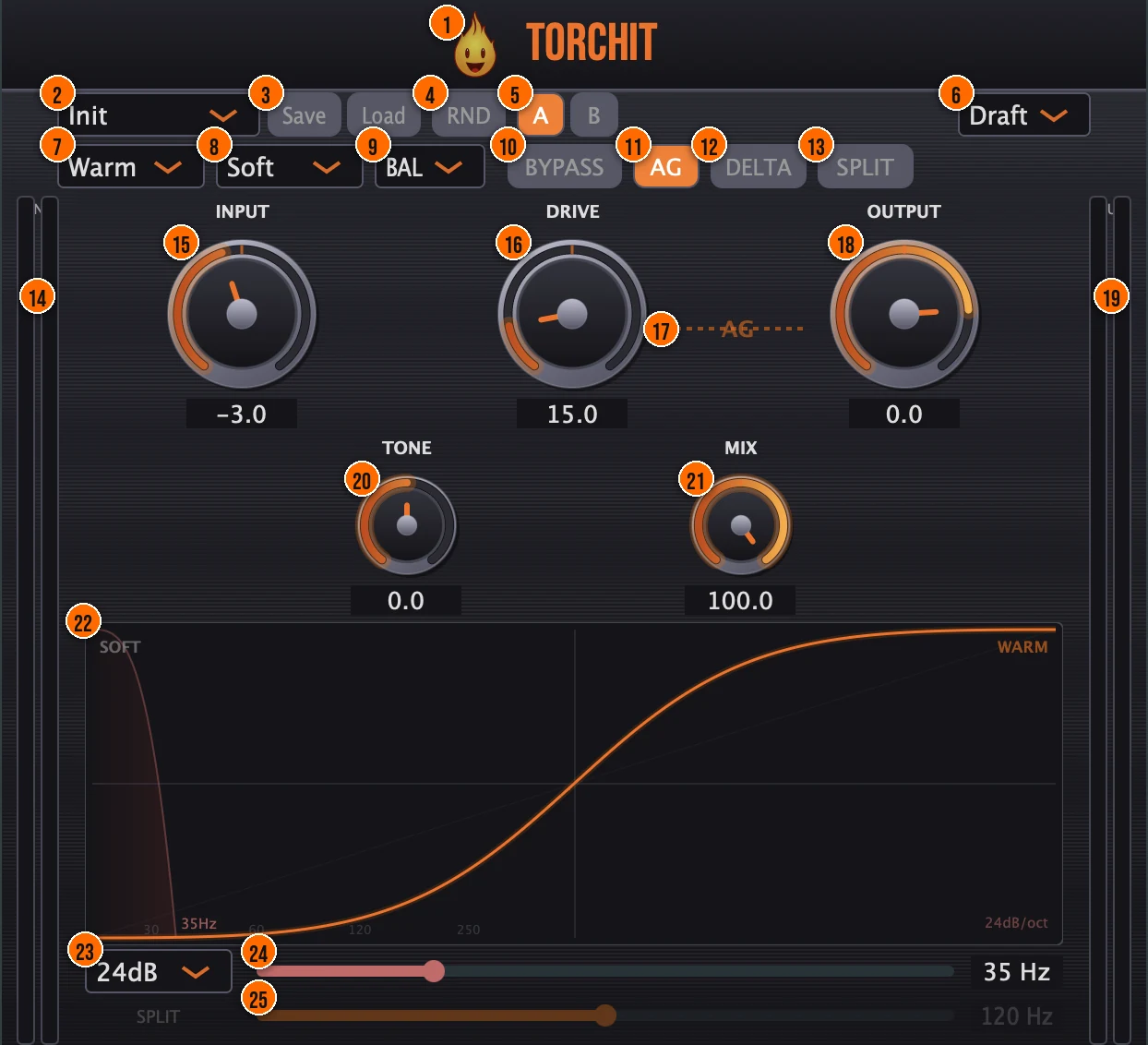
Controls
Top bar

- 1Fire Head: click the flame logo to open the About panel: what the plugin is, who made it, its version and the trademark notices. Click anywhere in the panel to close it.
- 2Presets: 21 factory presets tuned for electronic music, from Init and Subtle Warmth to Bus Glue, Master Soft Clip and Remi Blaze Heat.
- 3Save / Load: export your own presets, or import them back.
- 4RND (Randomize): new settings at random, for a fresh starting point.
- 5A / B: compare two versions of your settings.
- 6Quality (Draft / HQ): the oversampling. Draft (4x) keeps the CPU low while you work; HQ (8x) gives cleaner, anti-aliased processing. Torchit reports the same latency to your DAW in both, so switching never causes a playback hiccup.Draft (4x) or HQ (8x)
Saturation
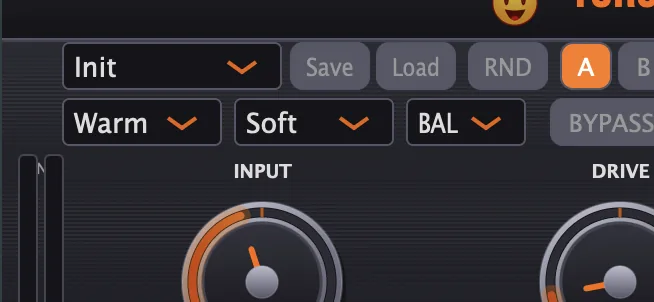
- 7Mode: the saturation character. Warm is a smooth tanh curve; Grit is an asymmetric clip with more bite; Tube has a triode character; Tape adds magnetic compression with a rounded ceiling.Warm, Grit, Tube or TapeTip Warm and Tape are symmetric curves, so they add mostly odd harmonics (3rd, 5th, 7th). Grit and Tube are asymmetric, so they also add even harmonics (2nd, 4th), which is what gives them more bite and presence. Tape’s gentler curve keeps the lower harmonics strongest, for compression-like warmth; Grit’s sharper clip pushes higher-order harmonics harder, for more edge.
- 8Knee: how sharply the saturation bends at the clipping threshold: Hard is the most abrupt, Soft the most gradual.Hard, Medium or SoftTip Hard Knee clips sharply for aggressive distortion. Soft Knee rounds the onset for gentler saturation.
- 15Input: the level going into the saturation.−24 to +24 dB
- 16Drive: how hard the signal is pushed into the saturation, from gentle harmonic enhancement to heavy distortion.Tip Low Drive adds subtle harmonics. Push it past 50% for obvious distortion character. On a bass, you can saturate in two stages: put Torchit first with Drive around 20-30% and SPLIT on, so the sub stays clean, then add a second saturator after it. Two light stages usually sound smoother than one stage pushed hard.
Tone and filter
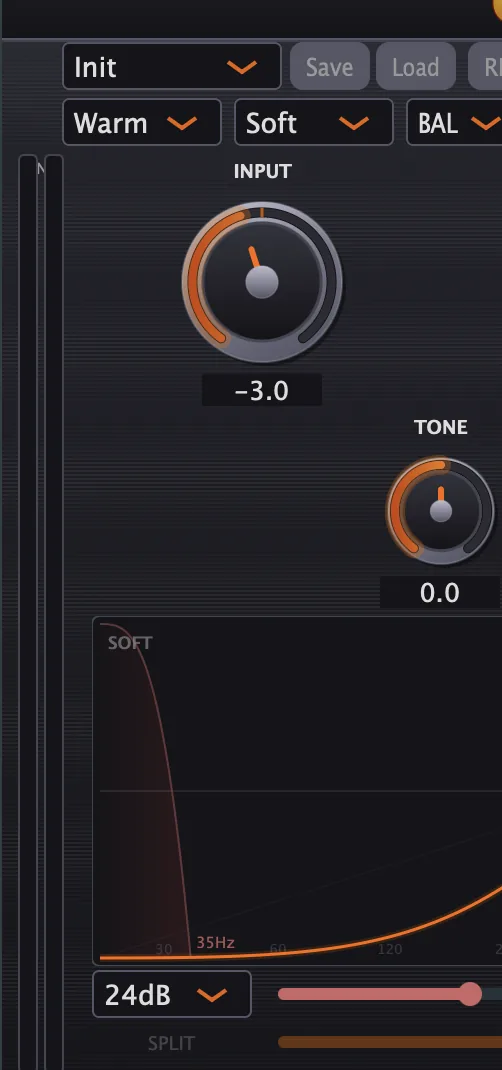
- 9Tone mode: what the Tone knob does. BAL is a tilt EQ that stays balanced in volume; GLW is a shelf that adds air or weight; FX is a morph filter for creative low-pass sweeps.BAL, GLW or FXTip BAL is a balanced tilt EQ. GLW is a shelf for adding air or weight. FX is a morph filter for creative sweeps.
- 20Tone: tone shaping after the saturation, in the style set by the tone mode.
- 23HP slope: how steep the anti-mud high-pass filter cuts.Smooth (12 dB/oct), Standard (24 dB/oct) or Hard (48 dB/oct)Tip Smooth (12 dB/oct) is gradual. Hard (48 dB/oct) cuts steeply. Standard and Hard cut cleanly, with no lift above the cutoff at any Drive. Smooth lifts the band just above the cutoff a little as Drive rises, about 2 dB at full Drive.
- 24HP frequency: the anti-mud high-pass filter, which removes low-end mud before the saturation. The value shows to the right of the slider.20 to 500 HzTip Raise the HP to cut sub-bass mud before the saturation. It cuts the dry signal too, so to keep the sub and saturate only above it, use SPLIT instead.
Split
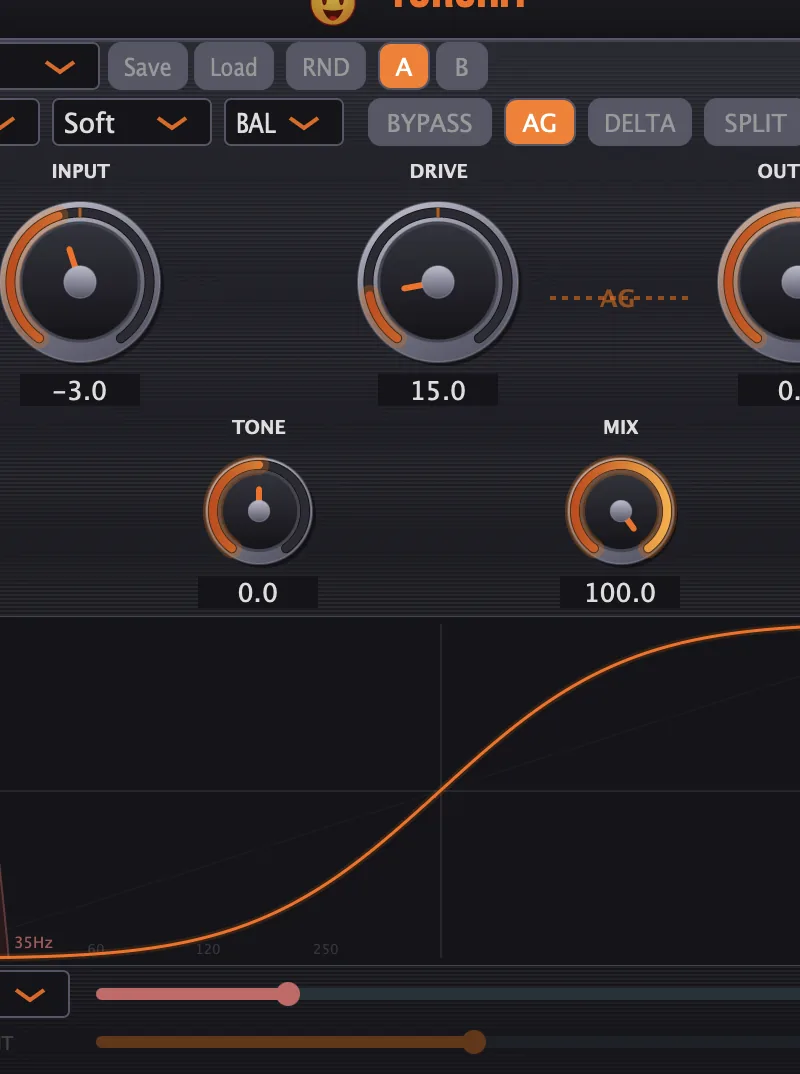
- 13SPLIT: multiband mode: only the mids and highs above the split frequency are saturated, and the sub passes through clean.Tip Switch on SPLIT to separate the bass from the rest of the signal, so you can saturate the top without muddying the sub.
- 25Split frequency: the crossover for Split. Set it near the fundamental of the bass or kick you want to keep clean.60 to 300 Hz
Monitoring
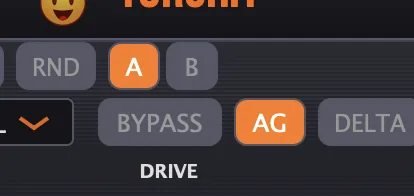
- 10BYPASS: instant comparison against the dry signal.
- 11AG (Auto-Gain): links Drive to the output level in reverse, so the loudness stays steady as you push the drive and your comparisons are honest.Tip Switch on AG to compare the saturation character without being fooled by the volume increase.
- 12DELTA: plays only what Torchit adds, through a phase-aligned subtraction with no dry signal bleeding through.Tip Use DELTA to hear only the harmonics the saturation adds. It helps you dial in Drive and Mode by ear.
Output
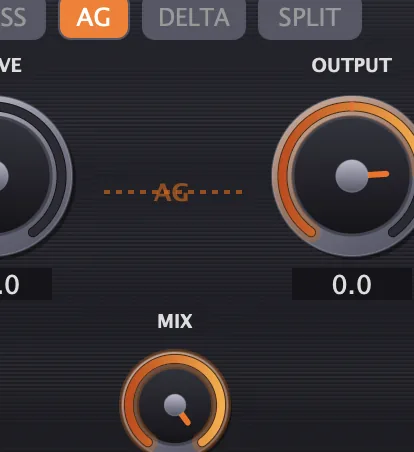
- 18Output: the level leaving Torchit. Use it to match the level for a fair comparison with Bypass.
- 21Mix: blends the dry and saturated signal, for parallel saturation on the same track.Tip Pull Mix back for parallel saturation: thickness and warmth blended with the untouched original.
Meters and displays
- 14IN meter: the stereo input level, left and right, with smooth decay and peak hold.
- 17AG link: the line between Drive and Output appears when AG is on, to show the two are linked.
- 19OUT meter: the stereo output level, left and right, with smooth decay and peak hold.
- 22Transfer curve: a live view of the saturation shape, which updates in real time as you move Drive and Knee. The corners name the knee and the mode and show the high-pass slope; the shaded area at the left is the high-pass filter, with frequency markers along the bottom. A straight reference line is drawn for comparison.
Key specs*
| Saturation modes | Warm (tanh, odd harmonics), Grit (asymmetric clip, odd + even), Tube (triode, odd + even), Tape (gentle tanh, odd harmonics) |
|---|---|
| Knee | Hard, Medium or Soft |
| Oversampling | Draft 4x, HQ 8x |
| Latency | Fixed, reported to your DAW, the same in Draft and HQ |
| Input | −24 to +24 dB, before the saturation |
| Anti-mud high-pass | 20 to 500 Hz; 12, 24 or 48 dB/oct |
| Split crossover | 60 to 300 Hz |
| Output stage | 5 Hz DC blocker and a soft clipper |
| Factory presets | 21 |
* Key specs from the plugin page. Some specs may not be listed.
How does the sound flow through Torchit?
A simplified view of the main path.
Mix blends the dry and saturated signal. With Split on, the lows below the split frequency skip the saturation.
What does each mode do to a sine wave?
Each mode bends the wave with its own curve. Below, the same sine goes through all four modes at the same settings. On the left is the wave going in and the wave coming out; on the right are the harmonics each curve adds, in dB below the original note.
Drawn from Torchit’s mode curves with Drive at 50% and Knee on Soft. Warm and Tape treat the top and bottom of the wave the same way, so only odd harmonics (3rd, 5th, 7th) appear. Grit and Tube shape the two halves differently, which adds even harmonics (2nd, 4th) as well. Bar 1 is the original note.
Two-band split
With SPLIT on, Torchit divides the signal at the Split frequency. The sub below it passes through clean, and only the mids and highs above it are saturated. A bass note's fundamental sits low, but its harmonics stack up above the split, so the note still gains grit while the sub stays solid.
An A1 bass note (55 Hz) with the Split frequency at 100 Hz. The fundamental (blue) stays clean, and every harmonic from 110 Hz up (orange) is saturated. Raise the Split frequency and more of the low harmonics stay clean too.
How do I saturate a bass and keep the sub clean?
- Load it. Put Torchit on your bass track.
- Turn on Split. Press SPLIT, then set the split frequency near the bass's fundamental: around 80 Hz for a deep sub, 100 to 120 Hz for a bass with more mids.
- Pick a character. Choose Grit or Tube in the mode menu.
- Drive it. Raise Drive until the bass has the edge you want. Turn on AG so the level stays steady while you judge it.
- Check what you add. Press DELTA to hear only the added harmonics, then press it again to return.
- Blend. If the effect is too heavy, lower Mix to bring some of the dry bass back, and match the level with Output.
How do I add grit to a synth lead with Torchit?
- Insert it. Put Torchit on your synth lead track.
- Choose Grit. Set Mode to Grit for asymmetric bite that cuts through a mix.
- Set the knee. Pick Medium Knee for a balance between smooth and aggressive.
- Push the drive. Raise Drive to 40 to 60% until the synth has the edge you want.
- Shape the tone. Set Tone mode to BAL and tilt it slightly bright to keep the lead present.
- Clean up the low end. Raise the HP frequency to 80 to 120 Hz so the sub stays clean under the distortion.
What about Torchit Raw?
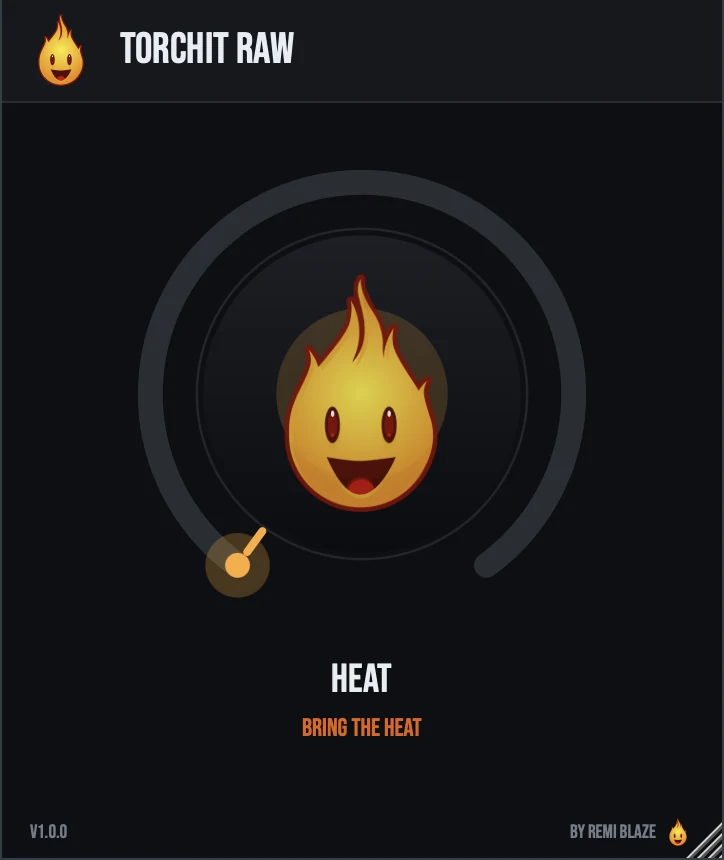
Torchit Raw is the free one-knob version. Its HEAT knob drives the Grit saturation at HQ (8x) oversampling with the knee held at Medium. As you turn it up, an anti-mud high-pass sweeps in to keep the low end tight, and automatic gain compensation keeps the level steady. Its latency stays the same at every position of the knob. Its own manual: Torchit Raw manual.
Torchit vs. Torchit Raw
A side-by-side look at what each version includes.
| Feature | Torchit | Torchit Raw |
|---|---|---|
| Presets | Included | Not included |
| Randomize | Included | Not included |
| Mix (dry/wet) | Included | Not included |
| Output level | Included | Not included |
| Auto-gain | Included | Included |
| Delta / listen mode | Included | Not included |
Keyboard and mouse shortcuts
These work in every Torchit format (AU, VST3, CLAP, AAX, Standalone).
| Reset a control to its default | Double-click the knob or slider |
|---|---|
| Scroll to change a value | Hover over a knob and scroll the mouse wheel |
| Type an exact value | Click the value below a knob and type a number |
Frequently Asked Questions
Should I use Draft or HQ?
Draft (4x oversampling) keeps the CPU low while you work. HQ (8x) gives the cleanest, anti-aliased result, for example on a mixdown. Torchit reports the same latency in both, so you can switch at any time without a playback hiccup.
What does the Knee change?
How the saturation bends as the signal reaches the clipping threshold. Hard bends abruptly for a more obvious clip; Soft bends gradually for smoother harmonics; Medium sits between them.
What harmonics does each mode add?
Warm and Tape use symmetric curves, so they add mostly odd harmonics (3rd, 5th, 7th). Grit and Tube use asymmetric curves, so they also add even harmonics (2nd, 4th), giving them more bite and presence. Among the symmetric pair, Tape’s gentler saturation keeps the lower harmonics strongest for a compressed, warm sound. Among the asymmetric pair, Grit clips harder than Tube, pushing higher-order harmonics for more edge.
What does Split do?
It saturates only the mids and highs above the split frequency (60 to 300 Hz) and lets the sub pass through clean, so a bass or kick keeps its low end while it gains grit.
Why does SPLIT change nothing on my sine sub?
SPLIT saturates only what is above the crossover. A pure sine sub sits entirely below it, so there is almost nothing for the saturation to work on. To add harmonics to a sine sub, leave SPLIT off, keep Drive low and use Mix to blend the harmonics in.
Why use Auto-Gain?
Louder usually sounds better, which makes saturation hard to judge. AG lowers the output as you raise Drive, so you compare the tone, not the volume.
Where can I find more about Torchit?
On the Torchit page: its features, system requirements and how to get it.
How do I get and install Torchit?
- Get it. Torchit is free. Get it from the Torchit page.
- Run the installer. On macOS, double-click the .pkg file and choose AU, VST3, CLAP, AAX or Standalone. On Windows, run the .exe installer and choose VST3, CLAP or Standalone.
- Open your DAW. Restart your DAW and rescan plugins if needed, then find Torchit under Remi Blaze in your plugin list.
More about Torchit, including its features and system requirements, is on the Torchit page.
Where are the plugin files?
If you need to find Torchit on disk, for example to troubleshoot or to uninstall it manually, these are the standard locations.
| macOS AU | ~/Library/Audio/Plug-Ins/Components/ |
|---|---|
| macOS VST3 | ~/Library/Audio/Plug-Ins/VST3/ |
| macOS CLAP | ~/Library/Audio/Plug-Ins/CLAP/ |
| macOS AAX | /Library/Application Support/Avid/Audio/Plug-Ins/ |
| Windows VST3 | C:\Program Files\Common Files\VST3\ |
| Windows CLAP | C:\Program Files\Common Files\CLAP\ |
To uninstall, quit your DAW and delete the Torchit file from the relevant folder. Your DAW will stop listing it on its next rescan.
Need help with Torchit?
If something isn't covered here, or Torchit doesn't behave as described, contact support or email support@remiblaze.com. To get an answer faster, include:
- your operating system and version (for example macOS 15.6 or Windows 11)
- your DAW and its version
- the format you're using (AU, VST3, CLAP, AAX or Standalone)
- the Torchit version, shown in the About panel (click the Fire Head)
- what you did, what you expected, and what happened instead
This manual is for Torchit 1.1.0. Controls and settings can change between versions, so if something here doesn't match what you see, check which version you have: click the Fire Head to open Torchit's About panel. Spotted a mistake or have a question? Let us know.