What is Tunix?
Tunix is a real-time pitch corrector and harmonizer for vocals, for Mac and Windows. It goes from natural, transparent correction to a hard robot snap. It locks your voice to a key and scale, or to the MIDI notes you play, keeps the voice's natural formant character as it retunes, and adds up to three harmony voices that stay in key.
Tunix detects the pitch of the voice and pulls each note toward the scale, as fast as Retune and as hard as Strength allow. Around that, a doubler, a widener, two LFOs, a de-esser and a ducking Wash of reverb and delay complete the vocal chain, and Mix blends the result with the dry signal.
How does real-time pitch correction work?
A pitch detector tracks the fundamental frequency of the voice in real time. It compares that frequency to the nearest note in the chosen scale and measures how far off it is in cents. The corrector then shifts the pitch toward the target note, using a time-domain method that keeps the latency low enough to sing through.
Retune Speed controls how fast the correction pulls the pitch onto the note. A slow speed leaves natural slides and vibrato intact. A fast speed snaps every note to the grid, which is the robotic effect. Formant preservation keeps the vocal-tract shape from shifting with the pitch, so the corrected voice sounds like the same person.
Quick start
Get a result with Tunix in under a minute.
- Insert it. Put Tunix on the track or bus you want to process.
- Pick a preset. Open the Presets menu and choose one close to what you want.
- Shape it. Work through the numbered controls below until it sounds right to your ear.
- Blend to taste. Pull Mix back from 100% if you want a subtler result.
- Compare. Bypass the plugin in your DAW to hear before and after.
The interface
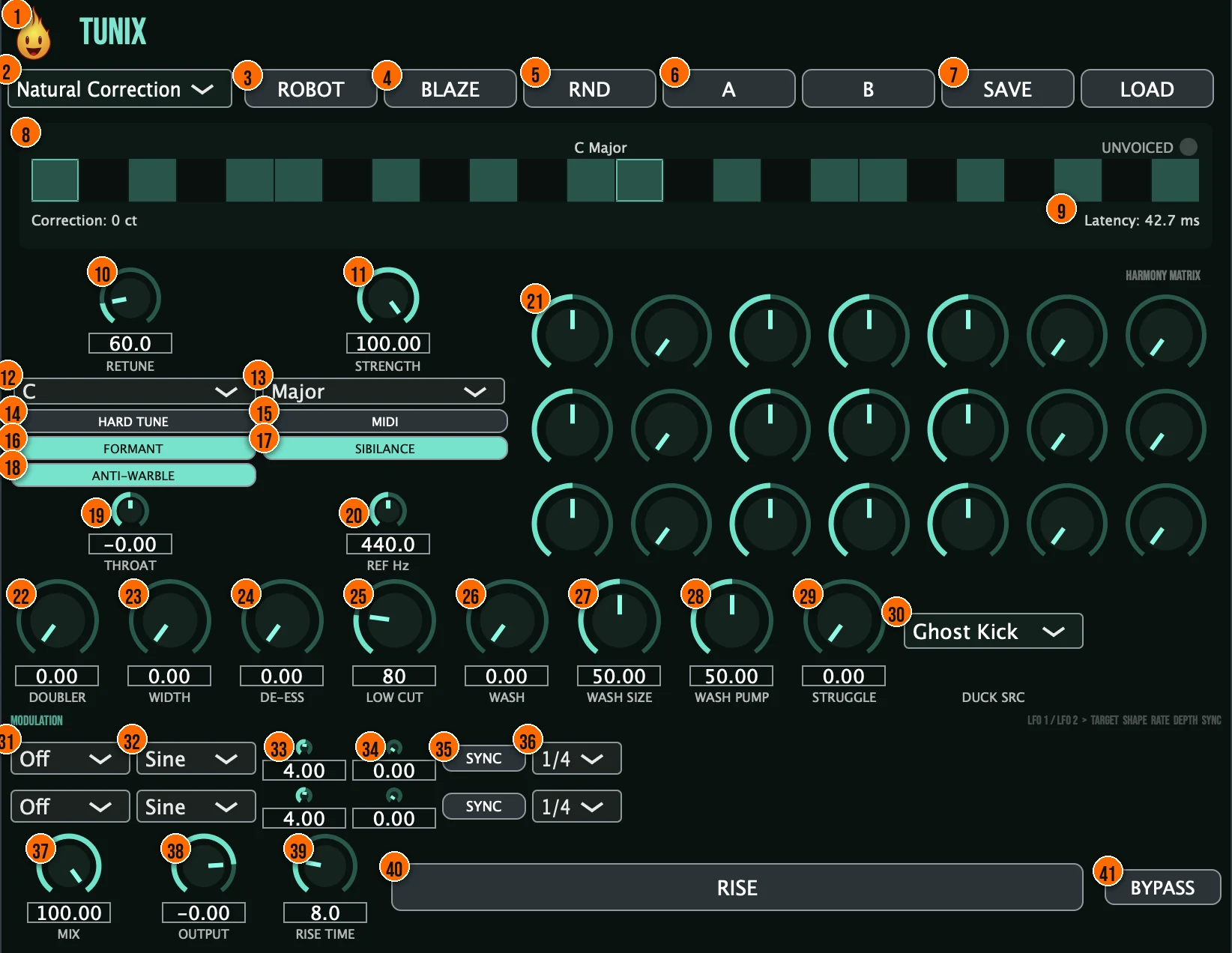
Controls
Top bar

- 1Fire Head: click the flame logo to open the About panel: what the plugin is, who made it, its version and the trademark notices. Click anywhere in the panel to close it.
- 2Presets: 10 factory presets, from Natural Correction and Tight Pop to Hard Robot, Thirds Harmony, Choir and MIDI Mode Lead.
- 3Robot: loads the Hard Robot preset in one click.
- 4Blaze: loads the Remi Blaze Tune preset in one click.
- 5RND (Randomize): new settings at random, for fast sound discovery.
- 6A / B: A/B snapshots: store two versions of your settings and switch between them for an instant comparison.
- 7Save / Load: save your settings as a preset file, or load one back.
Pitch correction
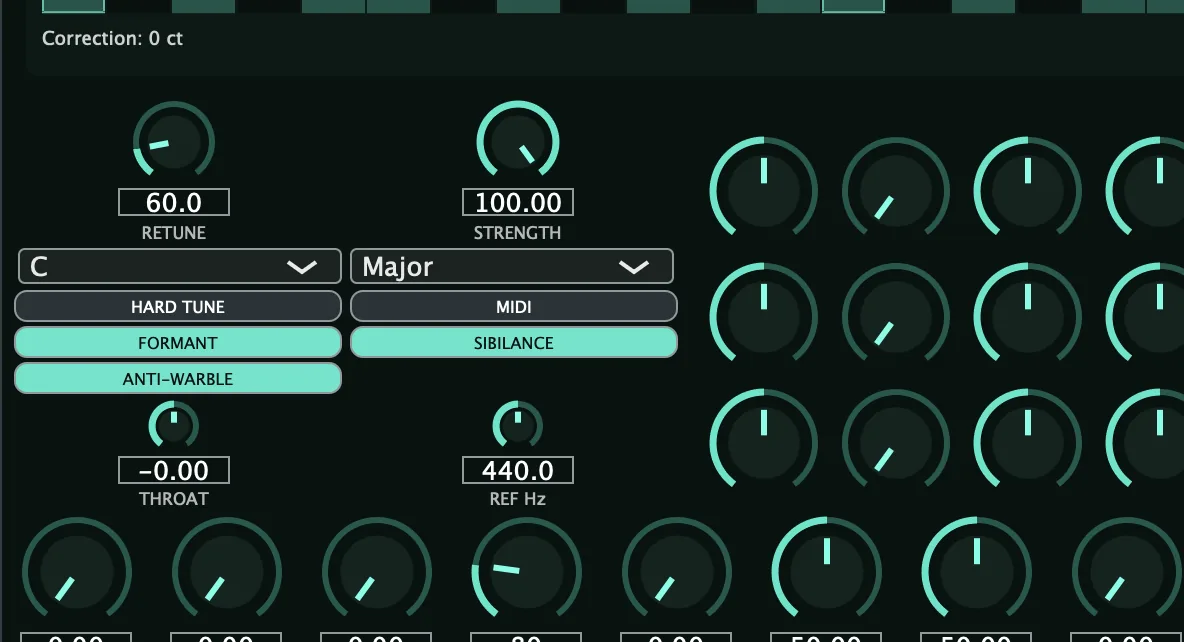
- 10Retune (Retune Speed): how quickly notes glide onto the scale. 0 ms is a hard, robotic snap (the stair-step effect); toward 400 ms the glide is smooth and natural.0 to 400 ms, default 60 msTip 60 to 100 ms is transparent on most vocals. Below 20 ms the stair-step robotic effect becomes obvious. Set it by ear.
- 11Strength: how hard each note is pulled onto the scale: a blend between the raw pitch and the corrected target.0 to 100%, default 100%Tip Strength and Retune work together. For a natural feel, keep Strength around 60 to 80% so notes are guided, not forced.
- 12Key: the key to correct to. Choose Auto and Tunix detects the key live, or set it by hand.C to B, or Auto, default CTip If you are unsure of the key, set Key to Auto and let the detector pick it. Lock it by hand once you know the key, so it does not drift on ambiguous notes.
- 13Scale: the scale to correct to.Chromatic, Major, Minor, Dorian, Phrygian, Mixolydian, Harmonic Minor, Major Pentatonic or Minor Pentatonic, default Major
- 14Hard Tune: a one-button hard robot snap.Tip Hard Tune is a one-button shortcut to the robotic snap. Use it when you want the effect without dialing Retune and Strength by hand.
- 15MIDI (MIDI Mode): play the target note from a keyboard instead of snapping to the scale.
- 16Formant (Formant Preserve): keeps the voice's natural formant character while it retunes, so correction doesn't make it sound like a chipmunk.Tip Keep Formant on for any correction beyond a semitone or two. Without it, a large correction shifts the vocal-tract character and the voice sounds unnatural.
- 17Sibilance (Sibilance Protect): leaves consonants un-smeared.
- 18Anti-Warble: a pitch pre-filter that rejects single-frame octave-jump glitches on breathy attacks.
- 19Throat (Formant shift): shifts the voice's formants.−12 to +12 semitonesTip Shift the formant up for a brighter, younger character, or down for a darker, heavier one, without changing the pitch.
- 20Ref Hz (Ref Tuning): the reference tuning: the frequency of A4 that correction is tuned to.430 to 450 Hz, default 440 Hz
- 25Low Cut: an anti-rumble high-pass on the pitch analysis and the processed signal.20 to 300 Hz, default 80 Hz
- 29Struggle: a controlled pitch glitch, a yodel that bubbles between neighboring notes in the scale.
Harmony
- 21Harmony matrix: 21 knobs in three rows, one row for each harmony voice. From left to right: Interval, Level, Pan, Formant, Detune, Vibrato and Humanize. Hover a knob to see its voice and name. The voices are scale-aware, so they stay in key, and each has its own formant-locked shifter. In MIDI / Chord Mode, hold a chord and the three voices follow the notes you hold.Interval −7 to +7 scale steps, Level 0 to 100%, Pan −100% to +100%, Formant −12 to +12 semitones, Detune −50 to +50 cents, Vibrato and Humanize 0 to 100%; all default to 0
Thickness and space

- 22Doubler: two slightly detuned, short-delayed copies panned hard left and right, for instant thickness.
- 23Width (Dimension Widener): widens the vocal while the center stays anchored to the dry signal, so it holds up in mono.
- 24De-Ess (De-Esser): dynamic sibilance taming.5 to 9 kHzTip Roll De-Ess in after correction to keep sibilance from poking out. The correction itself can push s and t sounds forward.
- 26Wash: the amount of the Ducking Wash: a parallel reverb and delay that ducks under the vocal and blooms back in the gaps.Tip Set Duck Src to Vocal so the reverb ducks under the singing and blooms in the gaps. Ghost Kick gives a tempo-locked pump instead.
- 27Wash Size: scales the Wash's space and delay time.0 to 100%, default 50%
- 28Wash Pump: the shape of the Ghost Kick pump: higher is a snappier, punchier duck on each beat.0 to 100%, default 50%
- 30Duck Src (Duck source): what the Wash ducks to. Ghost Kick is a tempo-locked 4/4 pump; Vocal follows the dry vocal's level.Ghost Kick or Vocal, default Ghost Kick
Modulation (LFO 1 on the top row, LFO 2 below)
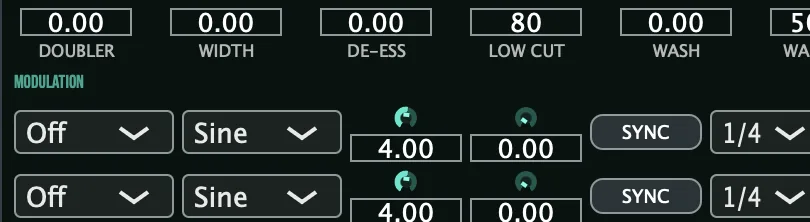
- 31Target: what the LFO moves.Off, Pitch, Formant or Pan
- 32Shape: the LFO's waveform.Sine, Triangle or Square
- 33Rate: how fast the LFO runs when it is free.0.05 to 20 Hz, default 4 Hz
- 34Depth: how much the LFO moves its target.0 to 100%, default 0%
- 35Sync: switches the LFO from free running to tempo-synced, at the rate set beside it. It is off by default.
- 36Sync rate: the LFO's tempo-synced rate, used when Sync is on.1/1, 1/2, 1/4, 1/8, 1/16, 1/4T or 1/8T, default 1/4
Output and performance

- 37Mix: blends the processed vocal with the dry signal, at equal power. The dry signal is latency-aligned, so it doesn't comb.
- 38Output: the output trim.−24 to +6 dB
- 39Rise Time: how many bars Rise takes to ramp up. It follows your DAW's tempo.1 to 32 bars, default 8
- 40Rise (Build-Up): a tempo-synced performance riser for drops and transitions. Latch it to ramp into a wall of sound over the Rise Time; release it to slam back to dry.
- 41Bypass: a gated bypass, for comparing against the dry signal.
Meters and displays
- 8Piano-key lane: shows the current key and scale over a lane of piano keys, with live dots for the detected and the corrected pitch. Below it, the Correction readout shows the correction in cents, and the Unvoiced light is the voiced indicator.
- 9Latency: shows the latency in milliseconds. The latency Tunix reports stays the same whatever your settings, so your DAW's delay compensation never has to re-sync.
Key specs*
| Correction | Low-latency time-domain PSOLA, with Formant Preserve |
|---|---|
| Pitch detection | MPM / NSDF, with an octave guard, hysteresis and a voiced/unvoiced gate |
| Retune Speed | 0 to 400 ms |
| Scales | 9, plus automatic key detection |
| Throat | −12 to +12 semitones |
| Ref Tuning | 430 to 450 Hz |
| Harmony | 3 scale-aware voices, 7 settings each |
| LFOs | 2; Sine, Triangle or Square; 0.05 to 20 Hz or tempo-synced |
| De-Esser | 5 to 9 kHz |
| Output | −24 to +6 dB trim; constant latency; 0 dBFS true-peak ceiling |
| Factory presets | 10 |
* Key specs from the plugin page. Some specs may not be listed.
Circle of fifths
Adjacent keys on the circle share the most notes. If you’re unsure which Key to set, try a key one step away from your current one. A melody that sits between two adjacent keys often corrects cleanly under either. The formulas show which notes each Scale setting lets through.
W = whole step (two semitones). H = half step (one semitone). W+H = three semitones. Chromatic lets every note through, so Tunix corrects only to the nearest semitone. F♯ at the bottom of the circle is the same pitch as G♭.
The arrows start from C major. One step clockwise to G adds a sharp, one step counterclockwise to F adds a flat, and each keeps six of C major’s seven notes. The inner arrow goes to A minor, the relative minor: Key A with Scale on Minor lets through the same seven notes as Key C with Scale on Major.
How do I tune a lead vocal naturally with Tunix?
- Load it. Put Tunix on the lead vocal and start from the Natural Correction preset.
- Set the key. Set Key and Scale to your song, or let automatic key detection pick the key.
- Set the feel. Set Retune for how quickly notes are corrected: low settings give a robotic stair-step, higher ones a smooth, natural glide. Set Strength for how firmly they are pulled in.
- Protect the voice. Keep Formant on so the voice doesn't chipmunk, and Sibilance and Anti-Warble on for clean consonants and breathy attacks.
- Watch it work. Sing or play the vocal and watch the piano-key lane: the dots show the detected and corrected pitch, and Correction shows how many cents Tunix is moving it.
- Go robot. For a hard robot snap instead, switch on Hard Tune.
How do I add a harmony layer with Tunix?
- Set the key. Set Key and Scale to your song so the harmony voices land on the right notes.
- Open the matrix. In the harmony matrix, set Voice 1's Interval to +3 (a third above) and its Level to around 60%.
- Lock the formant. Set Voice 1's Formant to 0 so it keeps the lead vocal's character.
- Add width. Pan Voice 1 to one side and, if you want a second voice, set Voice 2 to a different interval on the other side.
- Add vibrato. Raise Vibrato on each voice for a more natural feel, and Humanize for random pitch drift.
- Blend. Use Doubler and Width to thicken the lead, then set Mix and Output.
What about Tunix Raw?
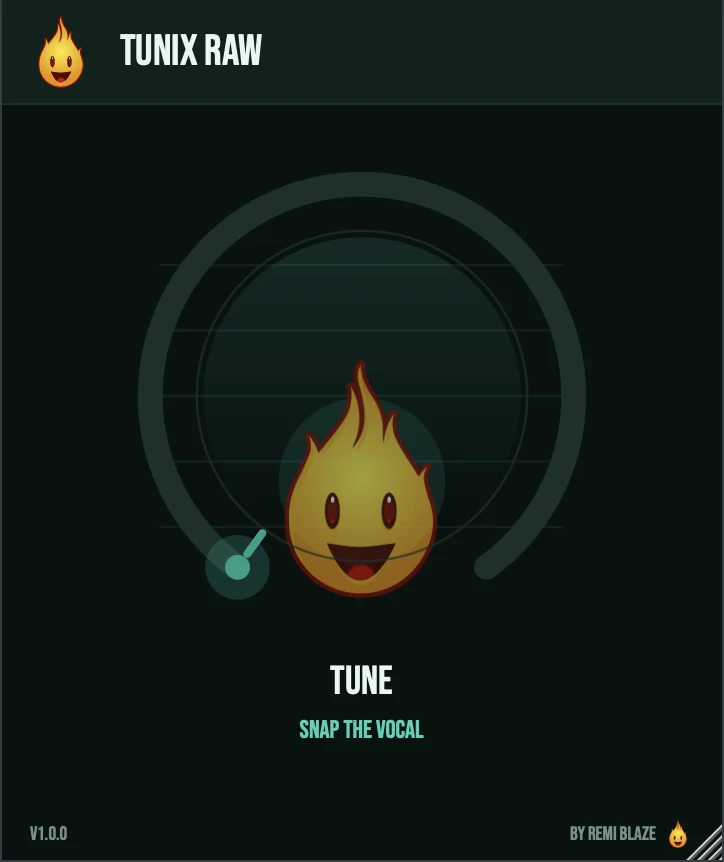
Tunix Raw is the one-knob version, on the same formant-locked correction engine. Its TUNE knob goes from gentle, natural correction to a hard robotic snap on the chromatic grid, and automatic gain keeps the level matched the whole way. Its own manual: Tunix Raw manual.
Tunix vs. Tunix Raw
A side-by-side look at what each version includes.
| Feature | Tunix | Tunix Raw |
|---|---|---|
| Presets | Included | Not included |
| Randomize | Included | Not included |
| Mix (dry/wet) | Included | Not included |
| Output level | Included | Not included |
Keyboard and mouse shortcuts
These work in every Tunix format (AU, VST3, CLAP, AAX, Standalone).
| Reset a control to its default | Double-click the knob or slider |
|---|---|
| Scroll to change a value | Hover over a knob and scroll the mouse wheel |
| Type an exact value | Click the value below a knob and type a number |
Frequently Asked Questions
Can I monitor through Tunix while I record?
Yes. Its time-domain corrector has low, constant latency, so you can sing through it live without distracting lag.
How do I get the hard robot effect?
Switch on Hard Tune for a one-button hard robot snap, or start from the Hard Robot preset.
Can I play the target notes from a keyboard?
Yes. Switch on MIDI and Tunix corrects to the notes you play instead of the scale.
Will the harmony voices clash with the key?
No. The three voices are scale-aware, so even odd intervals land in key.
What does Struggle do?
It adds a controlled pitch glitch, a yodel that bubbles between neighboring notes in the scale.
Where can I find more about Tunix?
On the Tunix page: its features, system requirements and how to get it.
How do I buy and install Tunix?
- Buy it. Tunix is a one-time purchase. Buy it from the Tunix page, and the store emails you the download link.
- Run the installer. On macOS, double-click the .pkg file and choose AU, VST3, CLAP, AAX or Standalone. On Windows, run the .exe installer and choose VST3, CLAP or Standalone.
- Open your DAW. Restart your DAW and rescan plugins if needed, then find Tunix under Remi Blaze in your plugin list.
More about Tunix, including its features and system requirements, is on the Tunix page.
Where are the plugin files?
If you need to find Tunix on disk, for example to troubleshoot or to uninstall it manually, these are the standard locations.
| macOS AU | ~/Library/Audio/Plug-Ins/Components/ |
|---|---|
| macOS VST3 | ~/Library/Audio/Plug-Ins/VST3/ |
| macOS CLAP | ~/Library/Audio/Plug-Ins/CLAP/ |
| macOS AAX | /Library/Application Support/Avid/Audio/Plug-Ins/ |
| Windows VST3 | C:\Program Files\Common Files\VST3\ |
| Windows CLAP | C:\Program Files\Common Files\CLAP\ |
To uninstall, quit your DAW and delete the Tunix file from the relevant folder. Your DAW will stop listing it on its next rescan.
Need help with Tunix?
If something isn't covered here, or Tunix doesn't behave as described, contact support or email support@remiblaze.com. To get an answer faster, include:
- your operating system and version (for example macOS 15.6 or Windows 11)
- your DAW and its version
- the format you're using (AU, VST3, CLAP, AAX or Standalone)
- the Tunix version, shown in the About panel (click the Fire Head)
- what you did, what you expected, and what happened instead
This manual is for Tunix 1.0.0. Controls and settings can change between versions, so if something here doesn't match what you see, check which version you have: click the Fire Head to open Tunix's About panel. Spotted a mistake or have a question? Let us know.