What is Vortix?
Vortix is a hex granular sequencer for Mac and Windows. It keeps capturing whatever runs through it, slices it into 19 grains on a hexagonal grid, and plays them along a path you draw, locked to your DAW's tempo, so a vocal, a drum loop or a pad becomes a rhythmic instrument.
Audio goes into a stereo capture buffer, grains are triggered as the playhead walks your path across the grid, and the result is blended with the dry signal and sent to the output, where a ceiling keeps the peaks safe. Along the way, Age, pitch and Polly Mode shape the grains.
How does granular synthesis work?
Granular synthesis works by cutting audio into tiny fragments called grains (typically 10 to 500 milliseconds) and playing them back independently. Each grain can be pitched, reversed, or enveloped on its own, so the texture can range from a faithful echo to a completely deconstructed cloud of sound.
Vortix captures audio into a stereo circular buffer and reads grains from it as a hex-grid sequencer steps through a drawn path. The path determines when and which grains play, while controls like pitch, reverse and grain size shape how they sound. Up to 32 grains can overlap at once for dense, layered textures.
Quick start
Get a result with Vortix in under a minute.
- Insert it. Put Vortix on the track or bus you want to process.
- Pick a preset. Open the Presets menu and choose one close to what you want.
- Shape it. Work through the numbered controls below until it sounds right to your ear.
- Blend to taste. Pull Mix back from 100% if you want a subtler result.
- Compare. Bypass the plugin in your DAW to hear before and after.
The interface
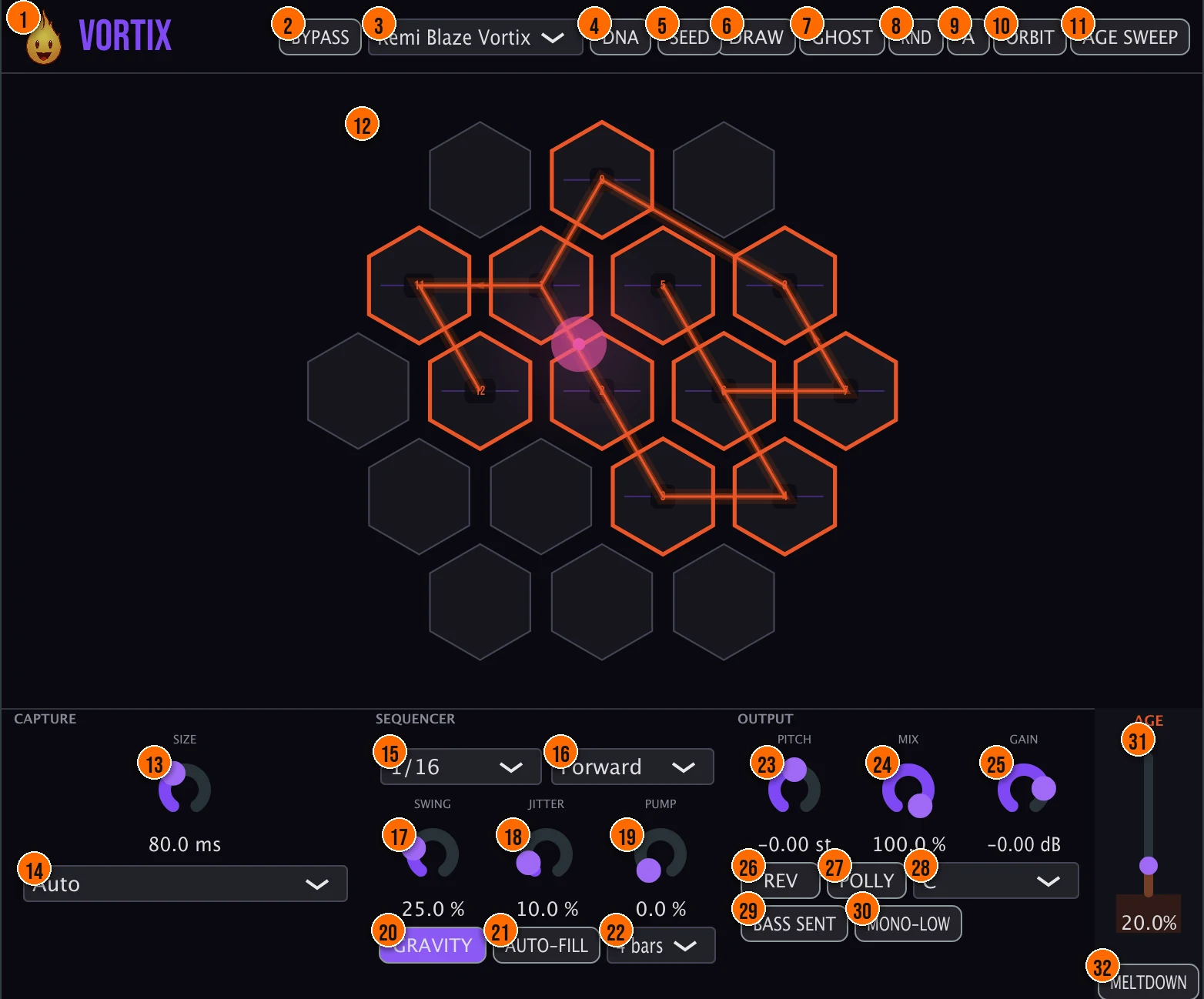
Controls
Top bar

- 1Fire Head: click the flame logo to open the About panel: what the plugin is, who made it, its version and the trademark notices. Click anywhere in the panel to close it.
- 2Bypass: switches the effect off, for comparing against the dry signal.
- 3Presets: 17 factory presets, from Stutter Machine and Vocal Chop to Gravity Groove, Melodic Polly and The Spiral.
- 4DNA: DNA Lock: when it's on, loading a seed keeps your Age, Gain, Pump, Mono-Low and Bass Sent settings instead of taking them from the seed.
- 5SEED: copies the current setup, the path and its sound settings, to your clipboard as a code. The button shows COPIED! when it's done.
- 6Draw: draw the path the playhead follows: click and drag across the cells of the grid.
- 7Ghost (Ghost Tap): a stutter, one of the performance tools.Tip Ghost Tap is a stutter, one of the performance tools. Save it for a fill or transition so it stands out.
- 8RND (Randomize): a new path in one click.
- 9A: A/B: store and recall two complete states, for instant comparison.
- 10Orbit: a generative spiral, one of the performance tools.
- 11Age Sweep: a performance tool built on the Age macro (31).
Hex grid
- 12Grid: 19 cells in two rings around a center, each holding one grain. The highlighted cells and the line show the path the playhead walks in time with the beat.
Capture
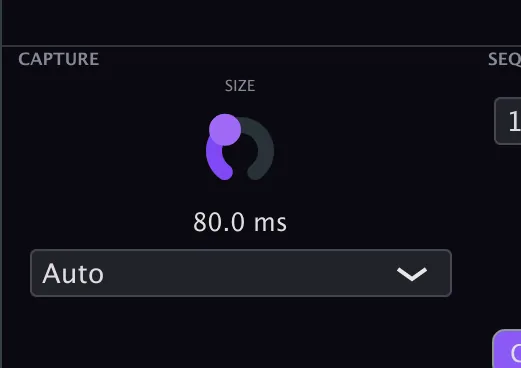
- 13Size: the length of each grain.10 to 500 msTip Short grains (10–50 ms) create percussive, glitchy textures. Longer grains (200–500 ms) produce smoother, more recognizable fragments.
- 14Capture mode: Auto captures continuously, Trigger captures when you ask, and Freeze locks the buffer you have.Auto, Trigger, FreezeTip Use Auto for continuous capture so the buffer always has fresh material. Trigger captures only when you press, and Freeze locks the buffer for repeating the same content.
Sequencer
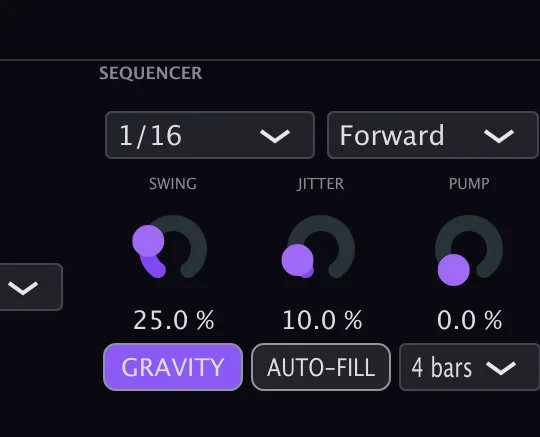
- 15Rate: how fast the playhead moves, synced to your DAW.1/32 to 1/2Tip Slower rates (1/4, 1/2) give the sequencer time to dwell on each cell. Faster rates (1/16, 1/32) create rapid-fire grain bursts.
- 16Direction: the order the path is played in.Forward, Reverse, Ping-Pong, Random
- 17Swing: shifts the timing for a shuffled feel.
- 18Jitter: random timing variation, for a humanized, off-grid feel.
- 19Pump: ducking synced to the beat.Tip Pump ducks the grain output on the beat for a sidechain-style pulse that makes the rhythm breathe.
- 20Gravity: Gravity Mode: up to four attractor points on the grid that bend the playhead's timing, for organic swing and syncopation.Tip Gravity bends the playhead's timing by pulling it toward attractor points. It adds organic swing and syncopation to the path.
- 21Auto-Fill: writes a path for you over the length set next to it.
- 22Bars: the length Auto-Fill writes over.4 or 8 bars
Output
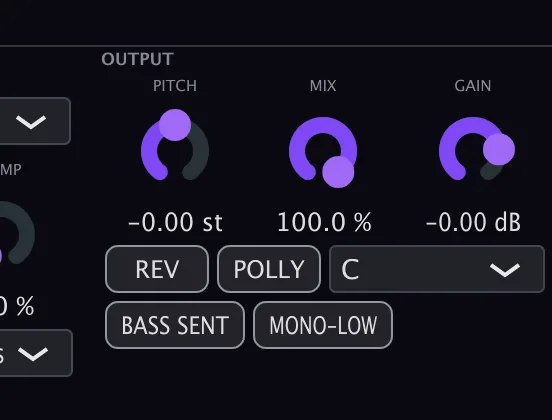
- 23Pitch: transposes the grains.±24 semitones
- 24Mix: blends the grains with the dry signal.
- 25Gain: the output trim.−24 to +6 dB
- 26Rev (Reverse): plays the grains backwards.
- 27Polly: Polly Mode: MIDI notes repitch the grains relative to the Polly Root, so you can play the grid from a keyboard.Tip Turn on Polly Mode and play MIDI notes to repitch grains relative to the Polly Root. The hex grid becomes a pitched instrument.
- 28Polly Root: the note that plays the grains at their original pitch in Polly Mode.
- 29Bass Sent (Bass Sentinel): a high-pass at 150 Hz that keeps the low end tight.
- 30Mono-Low: collapses the low end to mono, keeping it centered.
Age
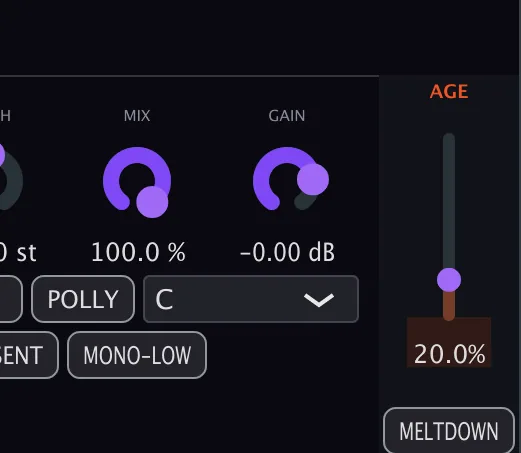
- 31Age: one slider that takes the sound from clean digital through vintage warmth to glitchy digital rot, through low-pass sweeps, tape hiss, dropouts and bit crushing. The interface wears down with it.Tip Age is a single slider from clean digital through vintage warmth to glitchy digital rot. The interface itself degrades as you push it.
- 32Meltdown: hold it for a moment of chaos: while held, it ramps Age to 100% and lifts the output by 6 dB, then lets go smoothly when you release it.
Meters and displays
- The interface: wears down along with the Age macro: the higher Age goes, the more degraded the interface looks.
Key specs*
| Grid | 19 cells, two rings |
|---|---|
| Grains | Up to 32 at once, from a stereo circular capture buffer |
| Grain size | 10 to 500 ms |
| Pitch | ±24 semitones |
| Rate | 1/32 to 1/2, synced to your DAW |
| Gravity | Up to 4 attractor points |
| Auto-Fill | 4 or 8 bars |
| Bass Sentinel | High-pass at 150 Hz |
| Output | −24 to +6 dB trim, DC blocker, −0.1 dBFS safety ceiling |
| Meltdown | Momentary: Age to 100% and +6 dB while held |
| Factory presets | 17 |
* Key specs from the plugin page. Some specs may not be listed.
How does the sound flow through Vortix?
A simplified view of the main path.
Age, Pitch and Polly Mode shape the grains along the way.
Grain cloud
How the granular engine captures audio and plays it back as overlapping grains along the hex grid path.
Capture, grains and size
Audio goes into the capture buffer. As the playhead steps through the hex grid, each cell triggers a grain: a short slice of the buffer, shaped by grain Size and transposed by Pitch. Up to 32 grains can overlap at once.
Each grain fades in and out through a Hanning window so overlapping grains are smooth. The grain starts snap to the nearest zero crossing in the buffer.
How do I turn a vocal into a rhythmic stutter with Vortix?
- Load it. Put Vortix on the vocal track, set the capture mode to Auto, and press play.
- Set the speed. Choose a Rate, for example 1/16.
- Make a path. Click Draw and drag across the cells, or press Auto-Fill for a 4 or 8 bar path, or RND for a new one.
- Add groove. Add Swing and a little Jitter, or switch on Gravity to bend the timing.
- Add character. Raise Age for vintage warmth or, further up, digital rot.
- Blend. Set Mix, and switch on Bass Sent or Mono-Low if the low end needs tidying.
How do I play the hex grid as a pitched instrument with Vortix?
- Capture some audio. Set Capture to Auto and play a sustained chord, pad or vocal through Vortix for a few bars so the buffer fills.
- Switch to Freeze. Set Capture mode to Freeze so the buffer stays locked on the captured material.
- Turn on Polly. Enable Polly Mode. Set the Polly Root to the note of the captured audio.
- Draw a path. Press Draw, then click and drag across the cells of the grid to make a short path. The playhead walks it in time with the beat.
- Play MIDI notes. Send MIDI notes from a keyboard or a MIDI track. Each note repitches the grains relative to the Polly Root.
- Shape the sound. Adjust grain Size for texture, and use Age or the sequencer Rate to shape the character of the instrument.
What about Vortix Raw?
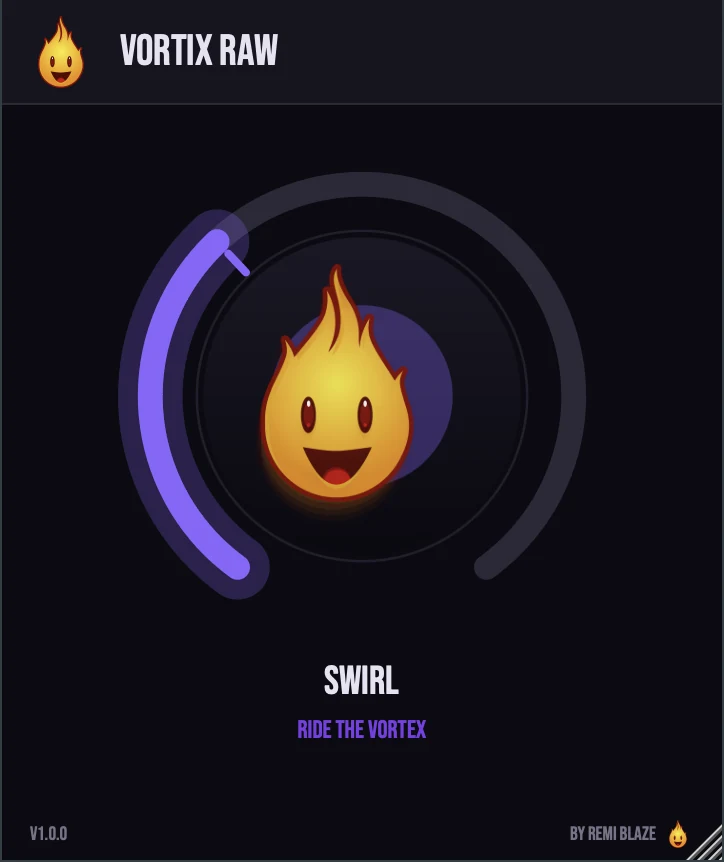
Vortix Raw is the free one-knob version, on the same granular engine. Its SWIRL knob drives the granular mix and the Age character together: clean at zero, vintage tape character further up, then full granular glitch. It keeps the level matched as you turn it and reports zero latency. Its own manual: Vortix Raw manual.
Vortix vs. Vortix Raw
A side-by-side look at what each version includes.
| Feature | Vortix | Vortix Raw |
|---|---|---|
| Presets | Included | Not included |
| A/B compare | Included | Not included |
| Randomize | Included | Not included |
| Mix (dry/wet) | Included | Not included |
Keyboard and mouse shortcuts
These work in every Vortix format (AU, VST3, CLAP, AAX, Standalone).
| Reset a control to its default | Double-click the knob or slider |
|---|---|
| Scroll to change a value | Hover over a knob and scroll the mouse wheel |
| Type an exact value | Click the value below a knob and type a number |
| Click and drag on the grid | Draw a sequencer path (up to 64 steps) |
| Hold Shift while drawing | Extend an existing path |
Cmd+V / Ctrl+V | Paste a seed code |
Frequently Asked Questions
What is the difference between Auto, Trigger and Freeze capture?
Auto keeps capturing whatever runs through Vortix. Trigger captures only when you trigger it. Freeze locks the buffer you have, so the grains stop changing.
How many grains can play at once?
Up to 32, from a stereo capture buffer.
How do I keep the low end clean?
Switch on Bass Sent, a high-pass at 150 Hz, and Mono-Low, which keeps the lows centered.
Can I compare two settings?
Yes. The A button stores and recalls two complete states for instant comparison.
Where can I find more about Vortix?
On the Vortix page: its features, system requirements and how to get it.
How do I buy and install Vortix?
- Buy it. Vortix is a one-time purchase. Buy it from the Vortix page, and the store emails you the download link.
- Run the installer. On macOS, double-click the .pkg file and choose AU, VST3, CLAP, AAX or Standalone. On Windows, run the .exe installer and choose VST3, CLAP or Standalone.
- Open your DAW. Restart your DAW and rescan plugins if needed, then find Vortix under Remi Blaze in your plugin list.
More about Vortix, including its features and system requirements, is on the Vortix page.
Where are the plugin files?
If you need to find Vortix on disk, for example to troubleshoot or to uninstall it manually, these are the standard locations.
| macOS AU | ~/Library/Audio/Plug-Ins/Components/ |
|---|---|
| macOS VST3 | ~/Library/Audio/Plug-Ins/VST3/ |
| macOS CLAP | ~/Library/Audio/Plug-Ins/CLAP/ |
| macOS AAX | /Library/Application Support/Avid/Audio/Plug-Ins/ |
| Windows VST3 | C:\Program Files\Common Files\VST3\ |
| Windows CLAP | C:\Program Files\Common Files\CLAP\ |
To uninstall, quit your DAW and delete the Vortix file from the relevant folder. Your DAW will stop listing it on its next rescan.
Need help with Vortix?
If something isn't covered here, or Vortix doesn't behave as described, contact support or email support@remiblaze.com. To get an answer faster, include:
- your operating system and version (for example macOS 15.6 or Windows 11)
- your DAW and its version
- the format you're using (AU, VST3, CLAP, AAX or Standalone)
- the Vortix version, shown in the About panel (click the Fire Head)
- what you did, what you expected, and what happened instead
This manual is for Vortix 1.0.1. Controls and settings can change between versions, so if something here doesn't match what you see, check which version you have: click the Fire Head to open Vortix's About panel. Spotted a mistake or have a question? Let us know.