What is Carvix?
Carvix is a sample slicer and MIDI sampler for Mac and Windows. Drop in a loop or a one-shot of up to 60 seconds, and Carvix slices it at the transients and maps each slice to its own MIDI note, ascending from C3. Play the slices from your keyboard or sequence them in the piano roll.
Carvix is an instrument: it plays voices from MIDI and ignores the audio on its track. Each note triggers its slice through an ADSR envelope, with up to four voices at once, pitch, granular playback and a choice of play modes. Bit-crush, a tempo-synced Pump, Swing and Mono Lo shape the sound, and Key Detect finds the key of your material.
How does transient slicing work?
A transient is the sharp start of a sound: a drum hit, a pluck, the first consonant of a word. Carvix finds the transients in your sample and cuts it at each one, so every slice starts on a hit. Thresh sets how sensitive the detection is, and Min Len stops it from making slices shorter than you want.
Each slice is mapped to its own MIDI note, rising from C3. Playing a note plays that slice, so a loop becomes a kit you can replay in a new order from your keyboard or the piano roll.
Quick start
Get a result with Carvix in under a minute.
- Load a loop. Put Carvix on an instrument track and drag an audio file onto the drop zone.
- Check the slices. Carvix slices at the transients. Adjust Thresh and Min Len if it misses hits or cuts too often, then press Re-Slice.
- Play the slices. Play notes from C3 upward; each note triggers the next slice. Set Play Mode to One-Shot so each hit plays through.
- Shape it. Add Swing for groove, Bit-crush for grit, and tweak the envelope (ATK, DEC, SUS, REL).
- Export. Press Export MIDI to save the mapping as a .mid file, or keep playing the slices live.
The interface
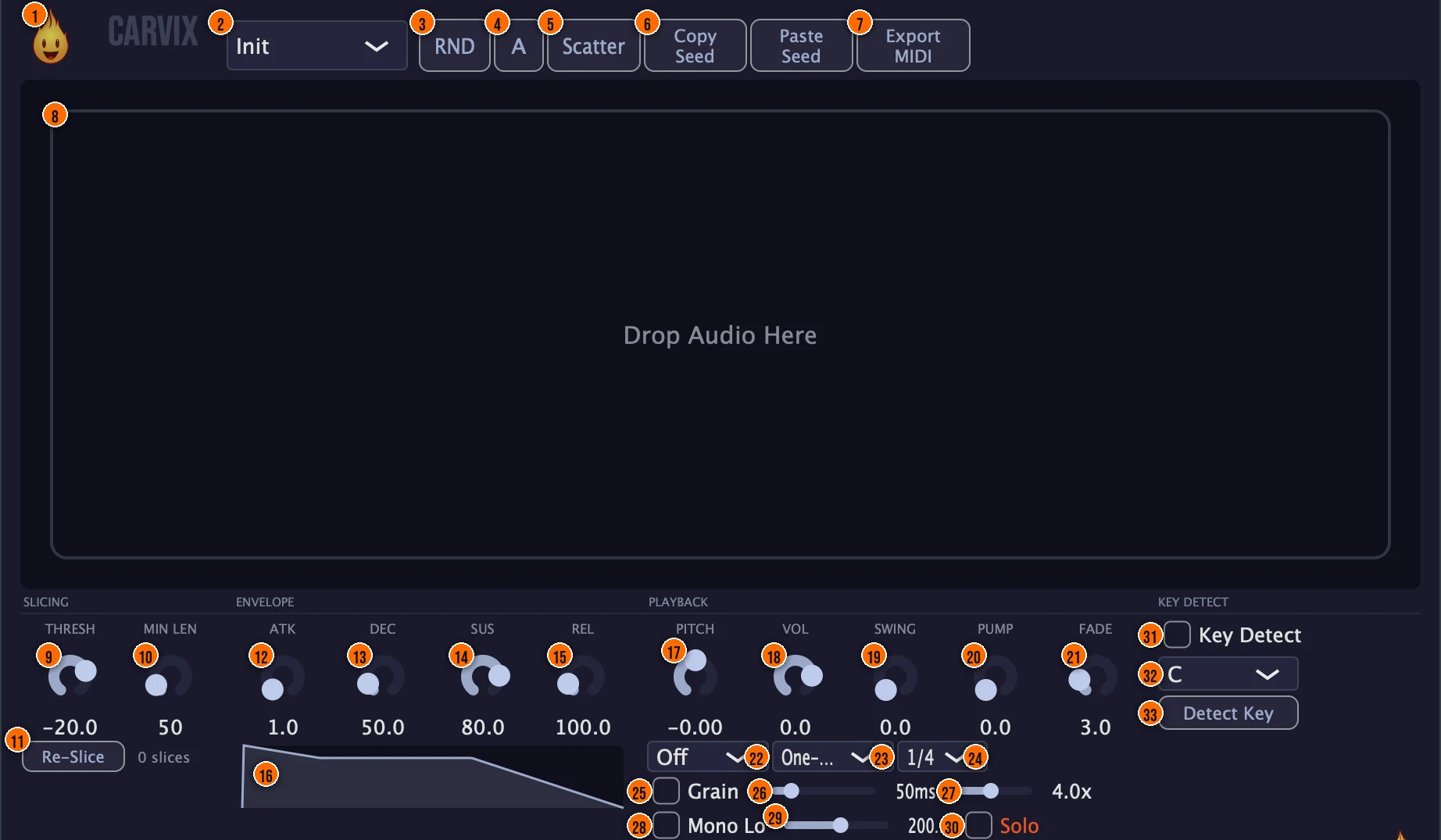
Controls
Top bar

- 1Fire Head: click the flame logo to open the About panel: what the plugin is, who made it, its version and the trademark notices. Click anywhere in the panel to close it.
- 2Presets: load a preset. Preset and state changes are click-free.
- 3RND (Randomize): randomizes the playback settings, for instant ideas.
- 4A / B: compare two states instantly.
- 5Scatter: shuffles which slice plays on which MIDI note, for happy accidents.Tip Scatter shuffles which slice plays on which note, so the same MIDI part plays a new arrangement of the loop. Press it a few times to hear different versions.
- 6Copy Seed / Paste Seed: copy the slice positions as a text string you can share, or paste one back in.Tip Copy Seed captures the slice positions as text. Keep it in your project notes to get the same cuts back later.
- 7Export MIDI: writes the slice mapping out as a .mid file.
Sample
- 8Sample display and drop zone: drag an audio file here to load it, up to 60 seconds long. Carvix slices it at the transients. Drag a slice marker to move it by hand: it snaps to a zero crossing for a clean, click-free cut. Right-click slices to put them in a choke group, so triggering one cuts the others, like an open and closed hi-hat.
Slicing
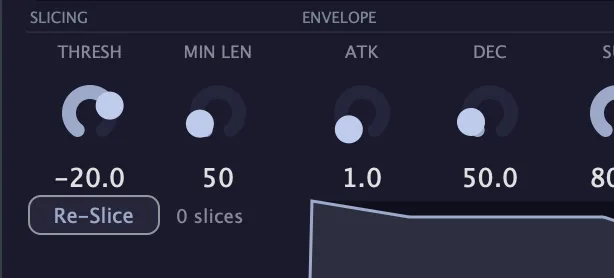
- 9Thresh (Threshold): how sensitive the transient detection is: it decides where Carvix slices.
- 10Min Len (Min Slice): the shortest slice Carvix will make.Tip On busy loops with fast hi-hats, a longer Min Len stops Carvix from cutting every short hit into its own slice. Press Re-Slice and check the slice count.
- 11Re-Slice: runs the transient detection again with the current Thresh and Min Len. The readout next to it shows the number of slices.
Envelope
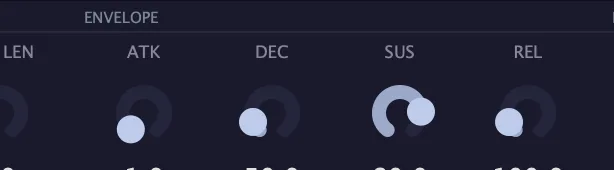
- 12ATK (Attack): how fast each note fades in.
- 13DEC (Decay): how fast the level falls from the peak to the sustain level.
- 14SUS (Sustain): the level a held note stays at.
- 15REL (Release): how fast a note fades out after you let go of the key.
Playback
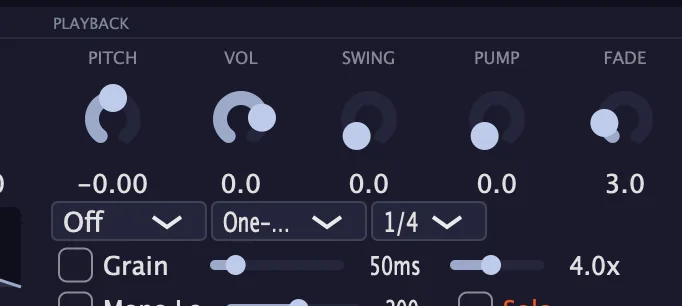
- 17Pitch: pitches the playback up or down, with 4-point Hermite interpolation for clean resampling.−24 to +24 semitones
- 18VOL (Volume): the output trim.−24 to +6 dB, default 0 dB
- 19Swing: pushes the offbeats later, for a looser groove.
- 21Fade (Fade Out): a de-click release fade, so notes end without a click.
- 22Bit-crush: the first menu under the knobs: reduces the bit depth for lo-fi grit.Off, 16-bit or 12-bit
- 23Play Mode: how a slice plays when you trigger it.One-Shot, Gate or LoopTip Try One-Shot for drum hits, and Gate or Loop for longer phrases you want to hold and shape with the envelope.
Pump
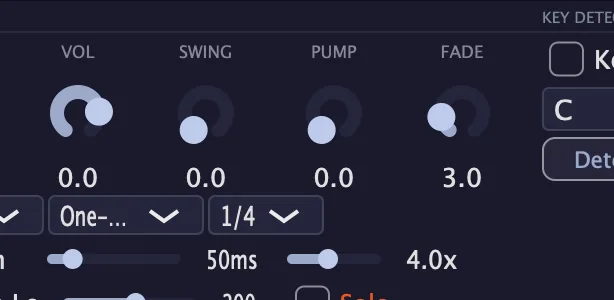
- 20Pump: sidechain-style ducking synced to your DAW's tempo. The knob sets how deep it ducks.
- 24Pump rate: how often the Pump ducks.1/4, 1/2 or 1/1Tip At 1/4 the Pump ducks on every beat; 1/2 and 1/1 give a slower, longer pump.
Granular
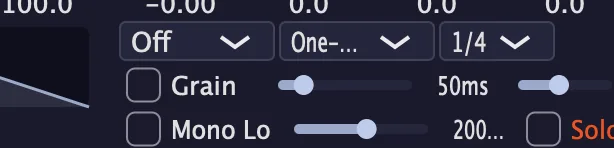
- 25Grain: switches on granular playback, which smears and textures the sample into new sounds.On or offTip Switch on Grain on a vocal or melodic slice to smear it into a texture. Grain Size sets the length of each grain and Grain Overlap how many overlap.
- 26Grain Size: the slider next to Grain sets the length of each grain.20 to 200 ms, default 50 ms
- 27Grain Overlap: the second slider sets how many grains overlap.1x to 8x, default 4x
Low end

- 28Mono Lo: folds the lows below a set frequency to mono, with a Linkwitz-Riley crossover.On or off
- 29Mono Lo frequency: the slider next to Mono Lo sets the frequency below which the lows go mono.80 to 300 Hz, default 200 Hz
- 30Solo: solos the low band, so you can hear what Mono Lo is folding.On or offTip Press Solo while you set the Mono Lo frequency: you hear only the low band, so you know exactly what goes to mono.
Key
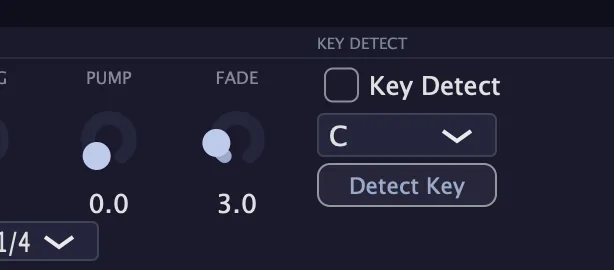
- 31Key Detect: when it is ticked, Carvix retunes the slices toward the key in the menu below it.On or off, default off
- 32Target Key: the key the slices are retuned toward.C to B, default C
- 33Detect Key: analyzes the pitch of each slice, shown per slice on the waveform, and shows the key it finds.Tip Press Detect Key before you tick Key Detect. Carvix shows the pitch of each slice and the key it finds, so you can pick a Target Key that fits your track.
Meters and displays
- 8Sample display: shows the loaded sample and its slice markers. With no sample loaded, it reads Drop Audio Here.
- 16Envelope graph: draws the shape set by ATK, DEC, SUS and REL, and follows the knobs as you turn them.
Key specs*
| Type | Instrument: plays from MIDI and ignores the input signal |
|---|---|
| Sample length | Up to 60 seconds |
| Mapping | One slice per MIDI note, ascending from C3 |
| Polyphony | 4 voices, oldest-note voice stealing |
| Pitch | −24 to +24 semitones, 4-point Hermite interpolation |
| Play modes | One-Shot, Gate, Loop |
| Bit-crush | Off, 16-bit, 12-bit |
| Pump rates | 1/4, 1/2, 1/1, synced to tempo |
| Mono Lo | Linkwitz-Riley crossover, with a low-band solo |
| Export | Slice mapping as a .mid file; slice positions as a text string |
| Recall | Click-free preset and state changes |
* Key specs from the plugin page. Some specs may not be listed.
How does the sound flow through Carvix?
A simplified view of the main path.
Carvix is an instrument: it plays from MIDI and ignores the audio on its track. Swing shifts the timing, and Key Detect finds the sample’s key.
What do the ADSR envelope shapes look like?
Carvix draws the live ADSR curve in the display. These four starting points show how Attack, Decay, Sustain and Release combine for common sounds. Each is a starting shape; adjust the four knobs from there.
Four starting shapes
In One-Shot play mode, the note plays through regardless of note-off, so the release only matters if you switch to Gate mode. The live ADSR display in Carvix updates as you move the knobs.
How do I chop a drum loop and play it with Carvix?
- Load it. Put Carvix on an instrument track and drag a drum loop onto the drop zone.
- Check the slices. Carvix slices the loop at the transients. If it misses hits or cuts too often, adjust Thresh and Min Len, then press Re-Slice.
- Fine-tune. Drag any slice marker that is in the wrong place. It snaps to a zero crossing.
- Play it. Play notes from C3 upward: each note triggers the next slice. Set Play Mode to One-Shot so each hit plays through.
- Choke the hats. Right-click the open and closed hi-hat slices into a choke group, so one cuts the other.
- Shape and keep it. Add Swing for groove and Bit-crush for grit, then press Export MIDI to save the mapping as a .mid file.
How do I turn a vocal phrase into an in-key instrument with Carvix?
- Load the vocal. Put Carvix on an instrument track and drag a vocal phrase onto the drop zone.
- Slice it. Adjust Thresh and Min Len, then press Re-Slice until each word or syllable has its own slice.
- Find the key. Press Detect Key. Carvix shows the pitch of each slice and the key it finds.
- Retune it. Set Target Key to the key of your track and tick Key Detect, so the slices are retuned toward it.
- Play it. Set Play Mode to Gate and play the slices from C3 upward. Use ATK and REL to smooth the start and end of each note.
- Add texture. Switch on Grain on held notes for a smeared vocal texture, and set Pitch for a higher or lower voice.
What about Carvix Raw?
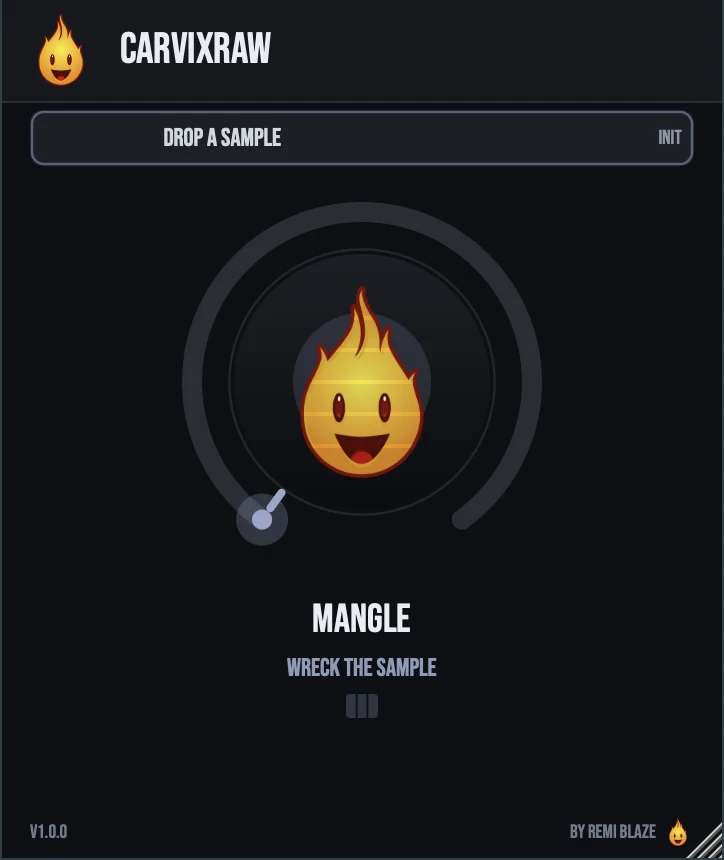
Carvix Raw is the free one-knob version: a MIDI-triggered sample mangler with a built-in sample, so it plays on the first key you press. Drop in your own sample, up to 30 seconds, and turn MANGLE to pitch it down, flip it in reverse, stutter it and crush it into lo-fi grime. It reports zero latency. Its own manual: Carvix Raw manual.
Carvix vs. Carvix Raw
A side-by-side look at what each version includes.
| Feature | Carvix | Carvix Raw |
|---|---|---|
| Presets | Included | Not included |
| Randomize | Included | Not included |
Keyboard and mouse shortcuts
These work in every Carvix format (AU, VST3, CLAP, AAX, Standalone).
| Reset a control to its default | Double-click the knob or slider |
|---|---|
| Scroll to change a value | Hover over a knob and scroll the mouse wheel |
| Type an exact value | Click the value below a knob and type a number |
| Right-click a slice marker | Assign it to a choke group (triggering one cuts the others) |
Frequently Asked Questions
Which notes do the slices play on?
Each slice gets its own MIDI note, ascending from C3. Scatter shuffles that mapping.
How long can a sample be?
Up to 60 seconds.
How do I make one slice cut off another?
Right-click the slices to put them in a choke group. Triggering one then cuts the others, like an open and a closed hi-hat.
Can I move a slice point by hand?
Yes. Drag the slice marker. It snaps to a zero crossing, so the cut stays clean and click-free.
How do I share my slices or use them in another project?
Copy Seed copies the slice positions as a text string, and Paste Seed brings one back. Export MIDI writes the slice mapping out as a .mid file.
Why doesn't Carvix change the audio on its track?
It is an instrument. It plays voices from MIDI and ignores the input signal, so load it on an instrument track and send it notes.
Where can I find more about Carvix?
On the Carvix page: its features, system requirements and how to get it.
How do I get and install Carvix?
- Get it. Carvix is a Creative Pass exclusive. The Carvix page explains how to get it.
- Run the installer. On macOS, double-click the .pkg file and choose AU, VST3, CLAP, AAX or Standalone. On Windows, run the .exe installer and choose VST3, CLAP or Standalone.
- Open your DAW. Restart your DAW and rescan plugins if needed, then find Carvix under Remi Blaze in your plugin list.
More about Carvix, including its features and system requirements, is on the Carvix page.
Where are the plugin files?
If you need to find Carvix on disk, for example to troubleshoot or to uninstall it manually, these are the standard locations.
| macOS AU | ~/Library/Audio/Plug-Ins/Components/ |
|---|---|
| macOS VST3 | ~/Library/Audio/Plug-Ins/VST3/ |
| macOS CLAP | ~/Library/Audio/Plug-Ins/CLAP/ |
| macOS AAX | /Library/Application Support/Avid/Audio/Plug-Ins/ |
| Windows VST3 | C:\Program Files\Common Files\VST3\ |
| Windows CLAP | C:\Program Files\Common Files\CLAP\ |
To uninstall, quit your DAW and delete the Carvix file from the relevant folder. Your DAW will stop listing it on its next rescan.
Need help with Carvix?
If something isn't covered here, or Carvix doesn't behave as described, contact support or email support@remiblaze.com. To get an answer faster, include:
- your operating system and version (for example macOS 15.6 or Windows 11)
- your DAW and its version
- the format you're using (AU, VST3, CLAP, AAX or Standalone)
- the Carvix version, shown in the About panel (click the Fire Head)
- what you did, what you expected, and what happened instead
This manual is for Carvix 1.0.1. Controls and settings can change between versions, so if something here doesn't match what you see, check which version you have: click the Fire Head to open Carvix's About panel. Spotted a mistake or have a question? Let us know.