What is Chopix?
Chopix is a vocal chop sequencer for Mac and Windows. It chops a held vocal, loop or pad into a tempo-locked, syncopated groove with a 16-step gate, so one sustained note becomes a bouncing rhythm.
Chopix reads your DAW's tempo and position and gates the audio in time. Each step has its own level and slice mode, an envelope shapes every chop, and Width, Micro-Tune and the ducking Wash add space. A MIDI note restarts the pattern from the first step while you hold it.
How does step gate sequencing work?
A step gate chops audio by switching it on and off in a repeating pattern synced to the host tempo. Each step in the sequence is either open (audio passes) or closed (silence), turning a sustained sound into a rhythmic pattern. Per-step controls like level, envelope shape and slice mode let each hit feel different.
Chopix adds a circular buffer behind the gate. When a step's slice mode is set to Reverse, Tape-Stop or Stutter, the buffer re-reads the audio it just recorded, so the chop plays back a rearranged version of the input rather than simply gating it.
Quick start
Get a result with Chopix in under a minute.
- Insert it. Put Chopix on the track or bus you want to process.
- Pick a preset. Open the Presets menu and choose one close to what you want.
- Shape it. Work through the numbered controls below until it sounds right to your ear.
- Listen to the difference. Switch on DELTA to hear only what the plugin is adding, then switch it off.
- Blend to taste. Pull Mix back from 100% if you want a subtler result.
- Compare. Bypass the plugin in your DAW to hear before and after.
The interface
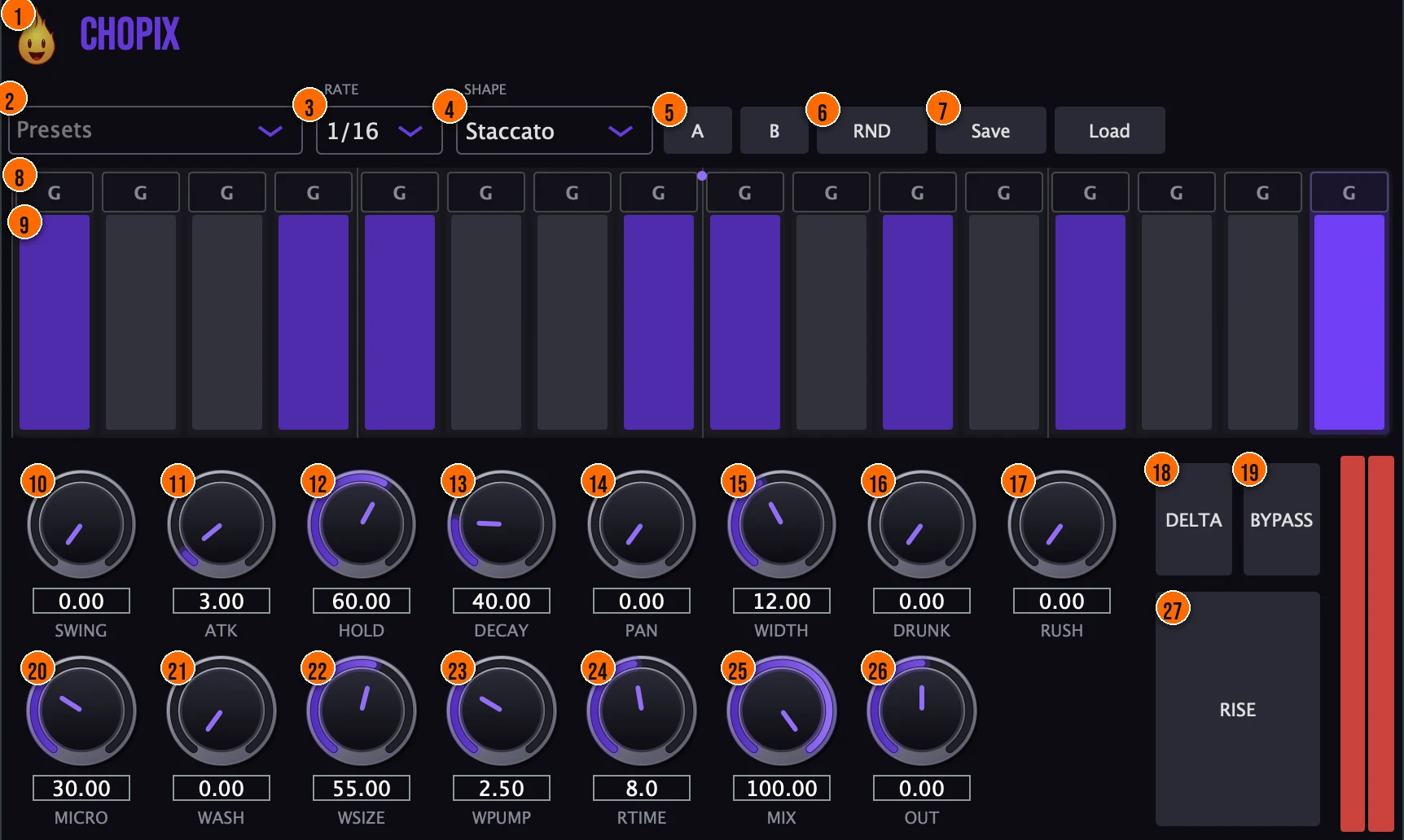
Controls
Top bar

- 1Fire Head: click the flame logo to open the About panel: what the plugin is, who made it, its version and the trademark notices. Click anywhere in the panel to close it.
- 2Presets: factory grooves, from Tech House Bounce and Triplet Chop to Stutter Build, Reverse Throw and Tape Stop Drop. Each stores all 16 steps and their slice modes, plus swing, envelope, shape, width and wash.
- 3Rate: the grid resolution. At 1/16 the 16 steps span one bar; at 1/8 they span two.1/8 or 1/16, default 1/16
- 4Shape: one envelope shape for every step's gate: Staccato is a sharp gate, Ramp-Up a reverse swell, and Sidechain-Pump (shown as SC-Pump) a fast-down, slow-up duck.Staccato, Ramp-Up, Sidechain-Pump; default StaccatoTip Sidechain-Pump gives every step a fast-down, slow-up duck, so the chops pump like a sidechained track. Staccato is the tightest gate.
- 5A / B: snapshot comparison: flip between two versions of your settings.
- 6RND (Randomize): new settings at random.
- 7Save / Load: save your settings as a preset file, or load one back.
Step grid
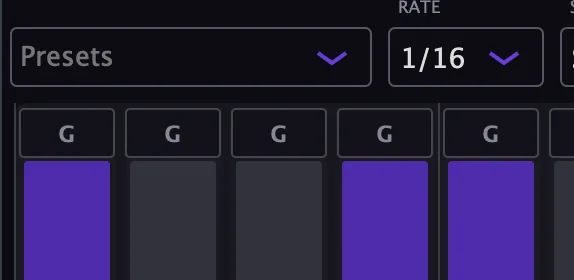
- 8Slice mode: the letter above each step shows how that step plays: G for Gate, or Reverse, Tape-Stop or Stutter. Click it to cycle through the modes. Each slice is spliced in with a 5 ms crossfade.Gate, Reverse, Tape-Stop, Stutter; default GateTip Set a few steps to Reverse or Tape-Stop and leave the rest on Gate. The contrast between straight chops and mangled slices keeps the pattern interesting.
- 9Steps: 16 on/off gates. Click a step to switch it on or off, and drag its bar to set its level, for accents and ghost notes.
Groove and envelope

- 10Swing: a sample-accurate shuffle that delays the off-beat steps.0 to 100%Tip Add 40–60% swing to push the off-beat steps late for a classic drum-machine shuffle that sits behind the beat.
- 11Atk (Attack): how fast each chop opens. The envelope sits beneath a 5 ms anti-click ramp.0.5 to 50 ms
- 12Hold: how long each chop stays open before it decays.0 to 100%
- 13Decay: how fast each chop fades. Short settings give a plucky vocal stab.1 to 200 ms
- 14Pan: automatic panning: bounces the steps left and right across the grid, at constant power.0 to 100%Tip Even a low Pan value (10–20%) spreads the chops across the stereo field, adding movement without pulling the vocal off center.
- 16Drunk: drags each chop late, behind the grid, by up to about 30 ms, for a low-slung, behind-the-kick groove. The transport stays on the grid, so nothing drifts.0 to 100%, default 0%
- 17Rush: pushes each chop early, ahead of the grid, by up to about 30 ms, for an urgent, on-top push.0 to 100%, default 0%
Width and space
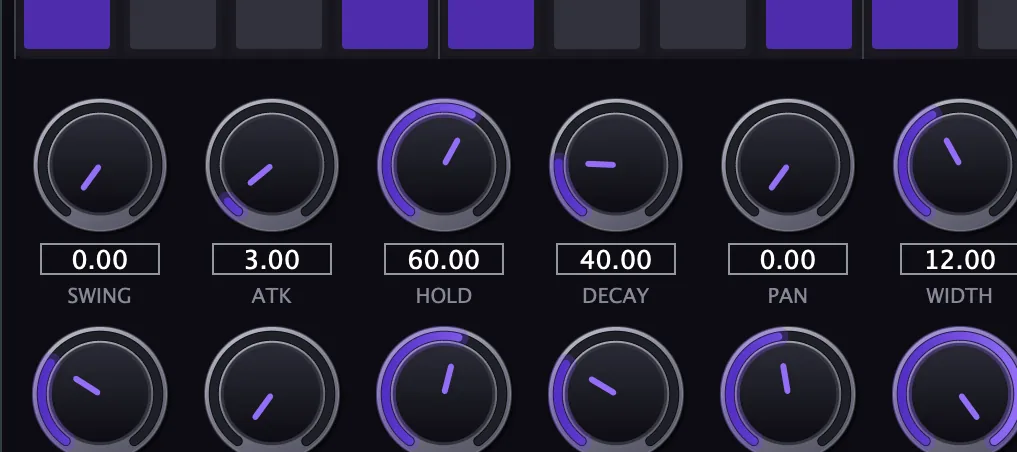
- 15Width: a short delay between the channels that opens the chops into a wide stereo image. The wet image is high-passed above 300 Hz first, so the low mids stay centered and sum to mono cleanly.0 to 30 msTip Start with a small Width for a subtle spread. The wet image is high-passed above 300 Hz, so the low mids stay centered at any setting.
- 20Micro (Micro-Tune): a very slow LFO moves the two width delays in opposite directions, for a width that keeps moving.0 to 100%
- 21Wash (Ducking Wash): a parallel reverb and short delay that ducks out of the way, so the space blooms in the gaps between the chops.0 to 100%, default 0%Tip Raise Wash for a reverb tail that blooms between the chops. It ducks on the beat, so the space never masks the vocal.
- 22WSize (Wash Size): the size and decay time of the wash space.0 to 100%, default 55%
- 23WPump (Wash Pump): shapes the tempo-locked 4/4 pump that ducks the wash: low for a soft swell, high for a snappy duck.0.2 to 8, default 2.5
Output and monitoring
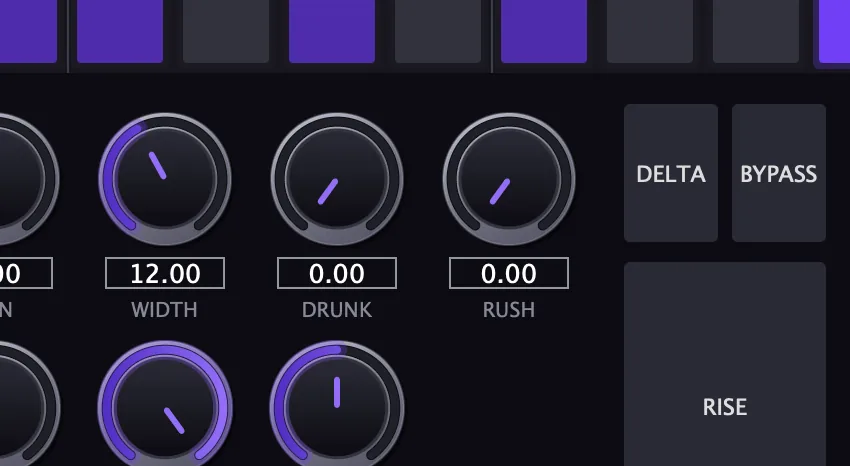
- 18Delta: Delta Monitor: hear only the ghost rhythm Chopix removed, the parts the gate cut out.Tip Turn on Delta to hear only the audio Chopix removed. If it sounds like music, your pattern is cutting too much.
- 19Bypass: true bypass, for comparing against the dry signal.
- 25Mix: an equal-power blend of the dry and processed sound.0 to 100%, default 100%
- 26Out (Output): the output trim.−12 to +12 dB, default 0 dB
Build-Up
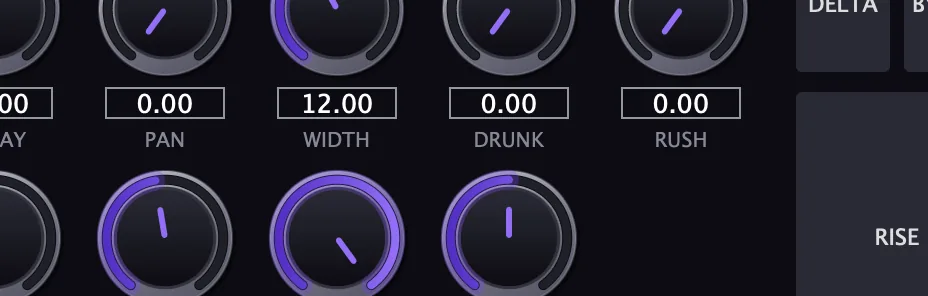
- 24RTime (Rise Time): how long RISE takes to climb to its peak, in bars, synced to the tempo.1 to 16 bars, default 8
- 27Rise (Build-Up / Rise): latch it on to ramp the mix up into a wall of tension over the RTime length: the wash blooms up to 100% and a high-pass sweeps up from 20 Hz to 2 kHz. Switch it off to slam back to the dry signal.Tip Latch Rise on a few bars before a drop: the wash blooms and a high-pass sweeps up over the RTime length. Switch it off on the downbeat to slam back to the dry signal.
Meters and displays
- Grid playhead: an animated playhead sweeps the grid in time with the transport, and the active step glows with the live gate level.
Key specs*
| Steps | 16, each with its own level and slice mode |
|---|---|
| Grid | 1/8 or 1/16, default 1/16 |
| Slice modes | Gate, Reverse, Tape-Stop, Stutter; 5 ms crossfade splice |
| Envelope | Attack 0.5 to 50 ms, Hold 0 to 100%, Decay 1 to 200 ms |
| Width | 0 to 30 ms; wet image high-passed above 300 Hz |
| Clock | Host tempo and position; free-runs at 120 BPM when stopped |
| MIDI | A note-on restarts the pattern from the first step |
| Output | −12 to +12 dB trim |
| Latency | Zero: no oversampling, no look-ahead |
* Key specs from the plugin page. Some specs may not be listed.
How does the sound flow through Chopix?
A simplified view of the main path.
Swing, Drunk and Rush shift the timing. The Build-Up Rise speeds the pattern up into a transition.
Swing grid
Swing delays every off-beat step, stretching the on-beat and shrinking the off-beat in each pair.
At 0% the grid is straight. At 100% each off-beat is clamped to 90% of a 16th late, leaving only a sliver for the off-beat step.
How do I chop a held vocal into a bouncing groove with Chopix?
- Load it. Put Chopix on a held vocal or pad and press play. It follows your DAW's tempo.
- Start from a groove. Pick Tech House Bounce from the presets, with Rate at 1/16.
- Make the pattern. Click steps on or off, and drag some bars down for ghost notes.
- Add shuffle. Raise Swing until the off-beats sit where you want them.
- Make it pluck. Choose Staccato in Shape, keep Atk short and lower Decay for a stab.
- Add space. Raise Width and Micro, add Wash so the space blooms in the gaps, then set Mix.
How do I build a rhythmic riser into a drop with Chopix?
- Load Chopix. Put Chopix on the vocal or synth track and set the Rate to 1/16.
- Set the pattern. Toggle a sparse pattern with a few steps off for gaps.
- Shape the chops. Set Shape to Staccato for tight, punchy hits.
- Set the Rise Time. Set RTime to the length of your build in bars, for example 4.
- Latch Rise. Switch Rise on that many bars before the drop. The wash blooms toward 100% and a high-pass sweeps up from 20 Hz to 2 kHz.
- Let it drop. Switch Rise off on the downbeat of the drop. Chopix slams back to the dry signal.
What about Chopix Raw?
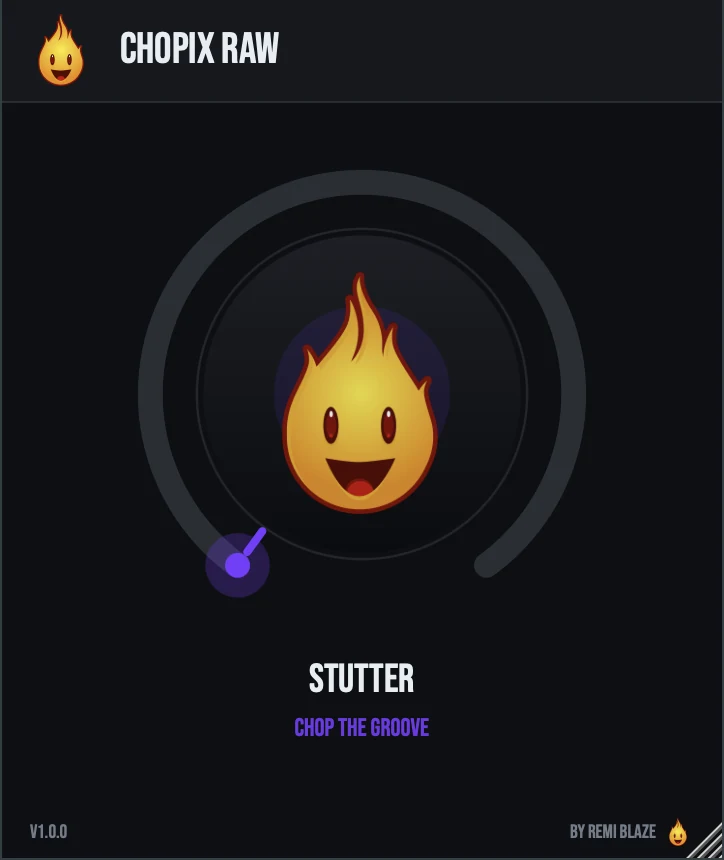
Chopix Raw is the one-knob version. Its STUTTER knob morphs through 8 syncopated gate rhythms, from a steady 8th-note pulse to busy 16th-note syncopation, and widens the stereo image as you turn it up. It stays level-matched and tempo-synced, and reports zero latency. Its own manual: Chopix Raw manual.
Chopix vs. Chopix Raw
A side-by-side look at what each version includes.
| Feature | Chopix | Chopix Raw |
|---|---|---|
| Presets | Included | Not included |
| Randomize | Included | Not included |
| Mix (dry/wet) | Included | Not included |
| Output level | Included | Not included |
| Delta / listen mode | Included | Not included |
Keyboard and mouse shortcuts
These work in every Chopix format (AU, VST3, CLAP, AAX, Standalone).
| Reset a control to its default | Double-click the knob or slider |
|---|---|
| Scroll to change a value | Hover over a knob and scroll the mouse wheel |
| Type an exact value | Click the value below a knob and type a number |
| Click a step | Toggle it on or off |
| Drag a step bar up or down | Set that step’s volume level |
| Right-click (or Ctrl-click) a step | Open its Mode menu (Gate, Reverse, Tape-Stop, Stutter) |
| Click the top strip of a step | Cycle its mode |
Frequently Asked Questions
Does Chopix need the transport to be running?
No. When the transport is stopped or there is no playhead, Chopix keeps chopping on its own clock at 120 BPM.
How do I restart the pattern from a MIDI note?
Send Chopix a MIDI note. The note-on snaps the pattern to the first step and overrides host sync while you hold it. On note-off it goes back to following your DAW.
Will Width make my vocal weaker in mono?
The wet image is high-passed above 300 Hz before it is widened, so the vocal's low-mid fundamental stays centered and sums to mono cleanly.
What does Delta let me hear?
Only the ghost rhythm: the parts of the sound the gate removed. It helps you hear exactly what the pattern is taking out.
Where can I find more about Chopix?
On the Chopix page: its features, system requirements and how to get it.
How do I buy and install Chopix?
- Buy it. Chopix is a one-time purchase. Buy it from the Chopix page, and the store emails you the download link.
- Run the installer. On macOS, double-click the .pkg file and choose AU, VST3, CLAP, AAX or Standalone. On Windows, run the .exe installer and choose VST3, CLAP or Standalone.
- Open your DAW. Restart your DAW and rescan plugins if needed, then find Chopix under Remi Blaze in your plugin list.
More about Chopix, including its features and system requirements, is on the Chopix page.
Where are the plugin files?
If you need to find Chopix on disk, for example to troubleshoot or to uninstall it manually, these are the standard locations.
| macOS AU | ~/Library/Audio/Plug-Ins/Components/ |
|---|---|
| macOS VST3 | ~/Library/Audio/Plug-Ins/VST3/ |
| macOS CLAP | ~/Library/Audio/Plug-Ins/CLAP/ |
| macOS AAX | /Library/Application Support/Avid/Audio/Plug-Ins/ |
| Windows VST3 | C:\Program Files\Common Files\VST3\ |
| Windows CLAP | C:\Program Files\Common Files\CLAP\ |
To uninstall, quit your DAW and delete the Chopix file from the relevant folder. Your DAW will stop listing it on its next rescan.
Need help with Chopix?
If something isn't covered here, or Chopix doesn't behave as described, contact support or email support@remiblaze.com. To get an answer faster, include:
- your operating system and version (for example macOS 15.6 or Windows 11)
- your DAW and its version
- the format you're using (AU, VST3, CLAP, AAX or Standalone)
- the Chopix version, shown in the About panel (click the Fire Head)
- what you did, what you expected, and what happened instead
This manual is for Chopix 1.1.0. Controls and settings can change between versions, so if something here doesn't match what you see, check which version you have: click the Fire Head to open Chopix's About panel. Spotted a mistake or have a question? Let us know.