What is Forgex?
Forgex is a free channel utility for Mac and Windows. It puts gain, pan, stereo width, phase, channel routing, low-end mono and safety limiting in one plugin you can put on every track, with meters that show what your signal is doing.
Gain sets the level, Pan places the sound with the pan law you choose, and Width narrows or widens it in mid/side. The Low-End Monomizer sums the lows to mono below the SUB Hz setting, the phase, mono and routing switches handle the channels, and a DC filter removes offset. The ISP Limiter, or a soft clipper when the limiter is off, guards the output.
How does phase correlation work?
Phase correlation compares the left and right channels. At +1 they are identical, which is mono. Around 0 they are unrelated, which sounds wide. Below 0 they work against each other, and parts of the sound cancel when the track is summed to mono.
Forgex shows correlation from -1 to +1 with a color-coded out-of-phase warning, and gives you the tools to act on it: MONO to hear the fold-down, PH-L and PH-R to flip a channel's polarity, Width to narrow the image and SUB to sum the low end to mono below the SUB Hz setting.
Quick start
Get a result with Forgex in under a minute.
- Insert it. Put Forgex on the track or bus you want to process.
- Pick a preset. Open the Presets menu and choose one close to what you want.
- Shape it. Work through the numbered controls below until it sounds right to your ear.
- Compare. Bypass the plugin in your DAW to hear before and after.
The interface
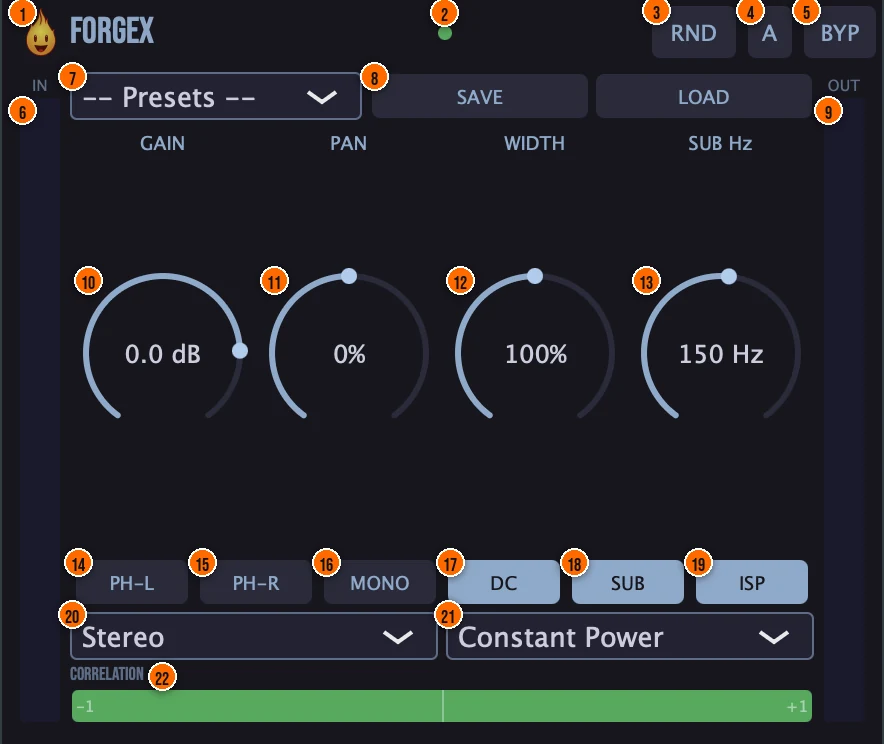
Controls
Top bar

- 1Fire Head: click the flame logo to open the About panel: what the plugin is, who made it, its version and the trademark notices. Click anywhere in the panel to close it.
- 3RND (Randomize): shakes up Gain, Pan and Width at random.
- 4A / B: stores and recalls two complete states, to compare two versions of your settings.
- 5BYP (Bypass): a clean comparison against the source.
Presets
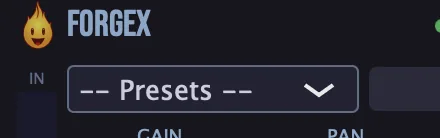
- 7Presets: 15 factory presets, from Init, Mono Check and Wide to Left Only, Mid Solo, Phase Flip and Gain Stage -6.
- 8Save / Load: save your own settings to disk, or load them back.
Knobs

- 10Gain: the level, for gain staging. It is smoothed over 20 ms, so automation doesn't zipper.−100 to +24 dBTip Gain is smoothed over 20 ms, so you can automate it for rides and fades without zipper noise.
- 11Pan: places the sound between left and right, with the pan law you pick in the pan law menu. Smoothed over 20 ms.
- 12Width: 0% is mono and 200% is extra wide, in the mid/side domain. Above 100%, all-pass decorrelation widens the image while keeping it mono compatible. Smoothed over 20 ms.0 to 200%Tip Width is smoothed over 20 ms too, so automating it from a narrow verse to a wide chorus stays free of zipper noise.
- 13SUB Hz: the crossover frequency of the Low-End Monomizer: with SUB on, everything below it is summed to mono.20 to 500 Hz
Switches

- 14PH-L (Phase invert left): flips the polarity of the left channel.On or offTip If the correlation meter sits below zero on a stereo recording, flip one side with PH-L or PH-R and watch whether the meter swings back above zero.
- 15PH-R (Phase invert right): flips the polarity of the right channel.On or off
- 16MONO: sums the sound to mono, for an instant mono compatibility check.On or off
- 17DC (DC filter): a 5 Hz high-pass that removes DC offset, for example from saturation earlier in the chain. You can switch it off.On or offTip Place Forgex after saturation or distortion and keep DC on: the 5 Hz high-pass removes any DC offset those stages add.
- 18SUB (Low-End Monomizer): sums the sub-bass to mono below the SUB Hz setting and keeps everything above it in stereo, through a 4th-order Linkwitz-Riley crossover that recombines the two in phase.On or offTip Turn on SUB on a stereo bass, a pad or a full mix bus: the sub goes mono below SUB Hz and everything above it keeps its stereo.
- 19ISP (ISP Limiter): an intersample-peak limiter: it catches peaks that fall between samples and holds a −0.1 dB ceiling, with an instant attack and a release of about 50 ms. When it is off, a soft clipper guards the output instead.On or offTip Turn on ISP as the last safety stage before you bounce: it holds a -0.1 dB ceiling and catches the peaks between samples that can clip on playback. With ISP off, a soft clipper guards the output instead.
Menus
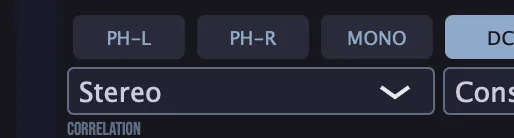
- 20Channel routing: which channels reach the output.Stereo, Swap L/R, Left Only, Right Only, Mid Only or Side OnlyTip Mid Only and Side Only let you hear the center and the sides on their own, a quick way to find out what sits in the sides of a mix.
- 21Pan law: how Pan behaves. Constant Power is energy-preserving (a sin/cos law).Balance or Constant PowerTip Pick Constant Power when you automate Pan across the stereo field: it is energy-preserving, so the level stays steady as the sound moves.
Meters and displays
- 2Mono-compatibility indicator: the light in the header, for a quick read on mono compatibility.
- 6IN meter: the stereo input level, with smoothed ballistics.
- 9OUT meter: the stereo output level.
- 22Correlation meter: the phase correlation between left and right in real time, from −1 to +1, color-coded with a warning when the signal goes out of phase.
Key specs*
| Gain | −100 to +24 dB |
|---|---|
| Pan laws | Balance or Constant Power (sin/cos) |
| Width | 0 to 200%, mid/side; all-pass decorrelation above 100% |
| Smoothing | 20 ms on Gain, Pan and Width |
| Low-End Monomizer | Linkwitz-Riley, 4th order, 20 to 500 Hz |
| ISP Limiter | −0.1 dB ceiling, instant attack, about 50 ms release |
| Without ISP | Soft clipper on the output |
| DC filter | 5 Hz high-pass, can be switched off |
| Routing | Stereo, Swap L/R, Left Only, Right Only, Mid Only, Side Only |
| Correlation meter | −1 to +1 |
| Factory presets | 15 |
* Key specs from the plugin page. Some specs may not be listed.
How does the sound flow through Forgex?
A simplified view of the main path.
PH-L and PH-R flip the phase per channel. The pan law menu sets the center attenuation.
How do the two pan laws compare?
Each panel shows the level of the left and right channels as you move Pan from hard left to hard right. Orange is left and blue is right. Pick the law in the Pan law menu.
Balance only turns the far side down, so a centered sound keeps its full level, but a sound panned hard to one side ends up quieter overall. Constant Power lowers both sides by 3 dB at the center and keeps the total power the same at every position, so the loudness stays steady as the sound moves.
How do I make a track mono-safe with Forgex?
- Load it. Put Forgex on the track, or on a bus, and start from the Init preset.
- Listen in mono. Press MONO and listen for parts that drop out or get thin. Watch the correlation meter at the same time.
- Center the lows. Turn on SUB and set SUB Hz so the low end below it is summed to mono.
- Set the width. Turn MONO off and adjust Width. Keep an eye on the correlation meter and the header light.
- Fix the phase. If the correlation meter warns that the channels are out of phase, try PH-L or PH-R.
- Stage and protect. Set Gain for the level you want, turn on ISP to catch intersample peaks, and press BYP to compare.
How do I hear what sits in the center and the sides with Forgex?
- Load it. Put Forgex on the mix bus and start from the Init preset.
- Hear the center. Set Channel routing to Mid Only. You hear only what the left and right channels share.
- Hear the sides. Switch to Side Only. You hear only the stereo content: anything missing here sits in the center.
- Check the low end. If you hear bass in Side Only, switch back to Stereo, turn on SUB and set SUB Hz so the low end goes mono.
- Check the result. Press MONO and watch the correlation meter to confirm the mix holds up summed to mono, then turn MONO off.
My layered kick sounds thin. How do I fix it with Forgex?
- Load it. Put Forgex on one of the kick layers.
- Flip the polarity. Turn on both PH-L and PH-R, which inverts the whole layer.
- Compare. Play the layered kick with PH-L and PH-R on, then bypass them. Keep whichever setting sounds fuller.
- Why it works. When two kick layers are out of phase, their lows cancel and the result sounds thin. Flipping one layer's polarity lines them up so the lows add instead of subtract.
Why flipping the polarity works
Two matching waves that move together add up to one wave twice as tall. If one of them is flipped, every peak meets a dip and the two cancel.
Real kick layers rarely line up this perfectly, so they usually cancel only in part, mostly in the lows. If your layers behave like the lower panel, turning on PH-L and PH-R on one layer moves them toward the upper one.
What about Forgex Raw?
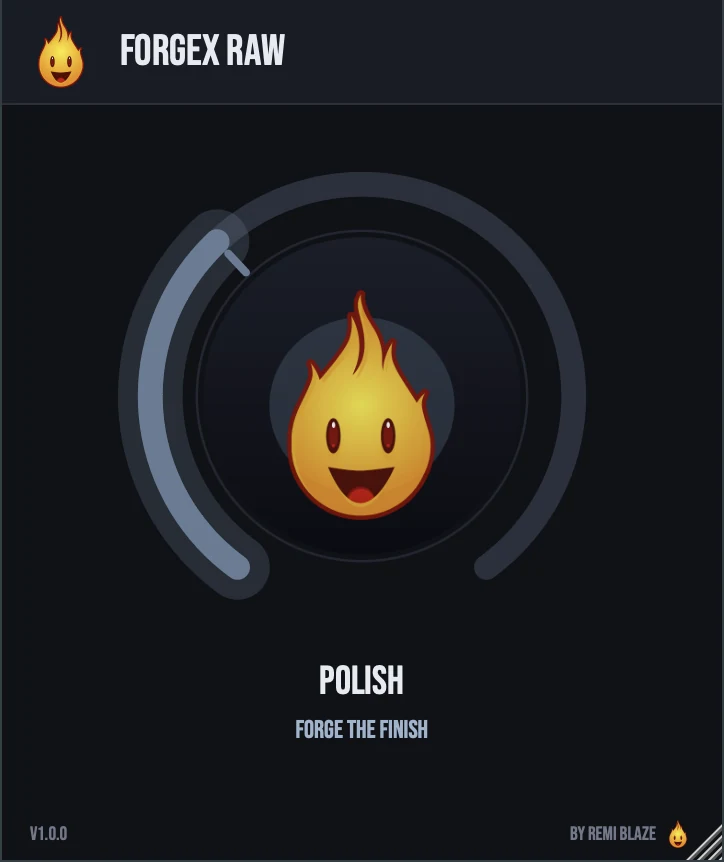
Forgex Raw is the free one-knob version. Its POLISH knob drives saturation, a tilt EQ, stereo width and an output trim together, for a finished sound in one move. The lows stay mono, the level stays matched, and at 0% it is clean. It is a zero-latency insert. Its own manual: Forgex Raw manual.
Forgex vs. Forgex Raw
A side-by-side look at what each version includes.
| Feature | Forgex | Forgex Raw |
|---|---|---|
| Presets | Included | Not included |
| Randomize | Included | Not included |
| Mono check | Included | Not included |
Keyboard and mouse shortcuts
These work in every Forgex format (AU, VST3, CLAP, AAX, Standalone).
| Reset a control to its default | Double-click the knob or slider |
|---|---|
| Scroll to change a value | Hover over a knob and scroll the mouse wheel |
Frequently Asked Questions
What do the routing modes do?
Stereo passes both channels as they are. Swap L/R swaps left and right. Left Only and Right Only play one channel. Mid Only and Side Only solo the center or the sides of the stereo image.
What is the difference between MONO and SUB?
MONO sums the whole sound to mono, for checking. SUB only sums the lows below the SUB Hz setting, and keeps everything above it in stereo.
What protects the output when ISP is off?
A soft clipper. Turn ISP on when you need a hard ceiling at −0.1 dB that also catches peaks between samples.
Can I automate Gain, Pan and Width without clicks?
Yes. Those three are smoothed over 20 ms, which removes zipper noise during automation.
What does RND change?
Gain, Pan and Width. Your switches and menus stay as they are.
Where can I find more about Forgex?
On the Forgex page: its features, system requirements and how to get it.
How do I get and install Forgex?
- Get it. Forgex is free. Get it from the Forgex page.
- Run the installer. On macOS, double-click the .pkg file and choose AU, VST3, CLAP, AAX or Standalone. On Windows, run the .exe installer and choose VST3, CLAP or Standalone.
- Open your DAW. Restart your DAW and rescan plugins if needed, then find Forgex under Remi Blaze in your plugin list.
More about Forgex, including its features and system requirements, is on the Forgex page.
Where are the plugin files?
If you need to find Forgex on disk, for example to troubleshoot or to uninstall it manually, these are the standard locations.
| macOS AU | ~/Library/Audio/Plug-Ins/Components/ |
|---|---|
| macOS VST3 | ~/Library/Audio/Plug-Ins/VST3/ |
| macOS CLAP | ~/Library/Audio/Plug-Ins/CLAP/ |
| macOS AAX | /Library/Application Support/Avid/Audio/Plug-Ins/ |
| Windows VST3 | C:\Program Files\Common Files\VST3\ |
| Windows CLAP | C:\Program Files\Common Files\CLAP\ |
To uninstall, quit your DAW and delete the Forgex file from the relevant folder. Your DAW will stop listing it on its next rescan.
Need help with Forgex?
If something isn't covered here, or Forgex doesn't behave as described, contact support or email support@remiblaze.com. To get an answer faster, include:
- your operating system and version (for example macOS 15.6 or Windows 11)
- your DAW and its version
- the format you're using (AU, VST3, CLAP, AAX or Standalone)
- the Forgex version, shown in the About panel (click the Fire Head)
- what you did, what you expected, and what happened instead
This manual is for Forgex 1.1.0. Controls and settings can change between versions, so if something here doesn't match what you see, check which version you have: click the Fire Head to open Forgex's About panel. Spotted a mistake or have a question? Let us know.