What is Furnix?
Furnix is a free compressor with saturation and punch for Mac and Windows. It evens out the dynamics of a track or bus like any compressor, then adds analog-style heat from a built-in saturation stage and brings back the attack that compression takes away with Punch.
Furnix is a feed-forward compressor: it measures the level of your sound, in peak or RMS, and turns it down above the threshold by the ratio, through a soft knee you can widen. A high-pass filter on the detector keeps kicks and sub from triggering it, or you can key it from an external sidechain. Heat drives the sound into one of three saturation modes, 4x oversampled, and Mix blends the result with the dry signal for parallel compression.
How does compression work?
A compressor reduces the difference between the loudest and quietest parts of a signal. When the level crosses the threshold, the compressor turns it down by the ratio you set. Attack controls how fast it reacts, release controls how fast it lets go, and knee controls how gradually the compression kicks in. Makeup gain brings the overall level back up after the peaks have been tamed.
Quick start
Get a result with Furnix in under a minute.
- Insert it. Put Furnix on the track or bus you want to process.
- Pick a preset. Open the Presets menu and choose one close to what you want.
- Shape it. Work through the numbered controls below until it sounds right to your ear.
- Listen to the difference. Switch on DELTA to hear only what the plugin is adding, then switch it off.
- Blend to taste. Pull Mix back from 100% if you want a subtler result.
- Compare. Bypass the plugin in your DAW to hear before and after.
The interface
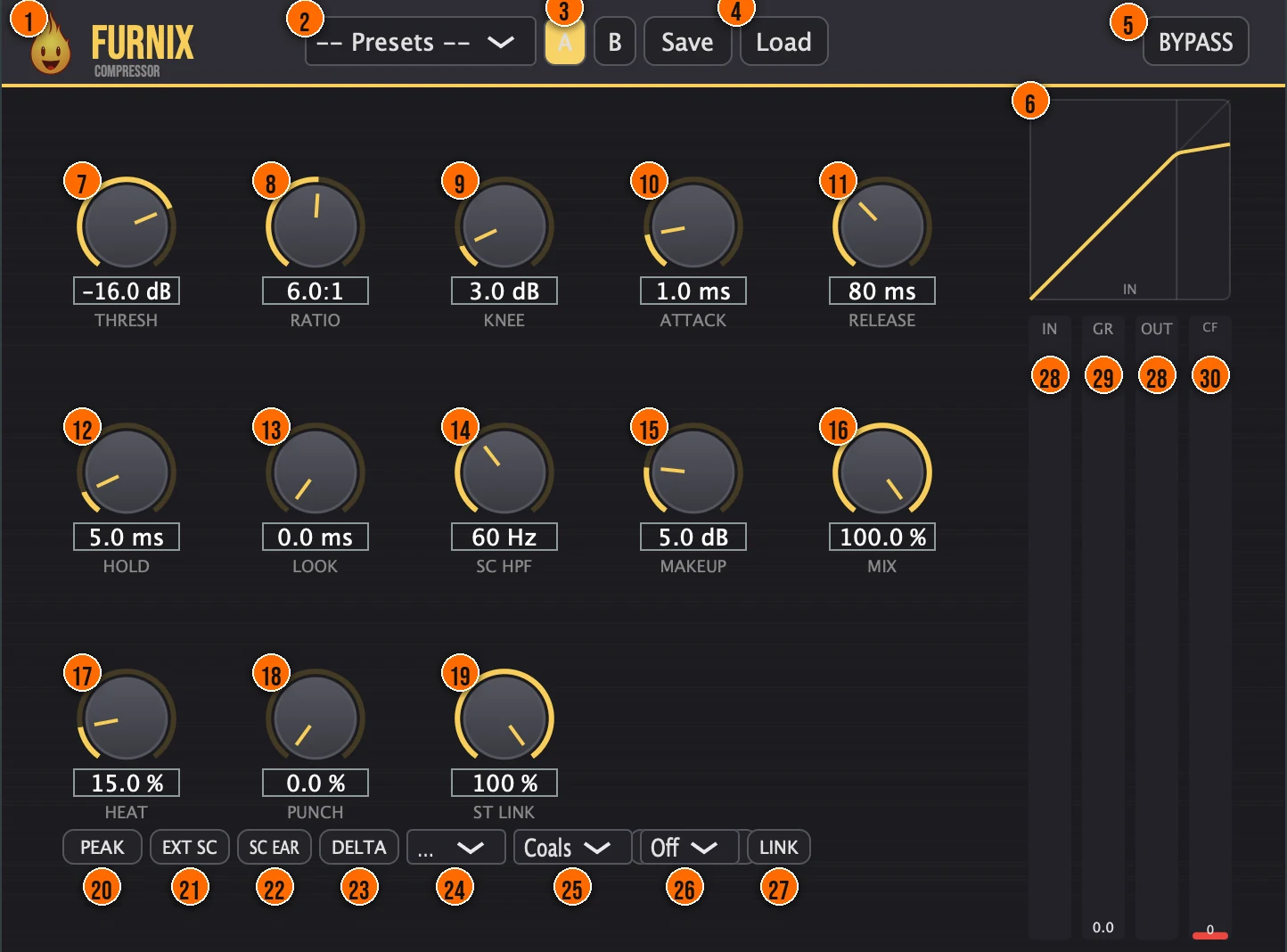
Controls
Top bar

- 1Fire Head: click the flame logo to open the About panel: what the plugin is, who made it, its version and the trademark notices. Click anywhere in the panel to close it.
- 2Presets: 16 presets tuned for tech house, from Init and Gentle Glue to Drum Bus Punch, Kick Tighten, Remi Blaze Squeeze and Warehouse Heat.
- 3A / B: compare two versions of your settings.
- 4Save / Load: save your own presets, or load them back.
- 5BYPASS: instant comparison against the dry signal.
Compression
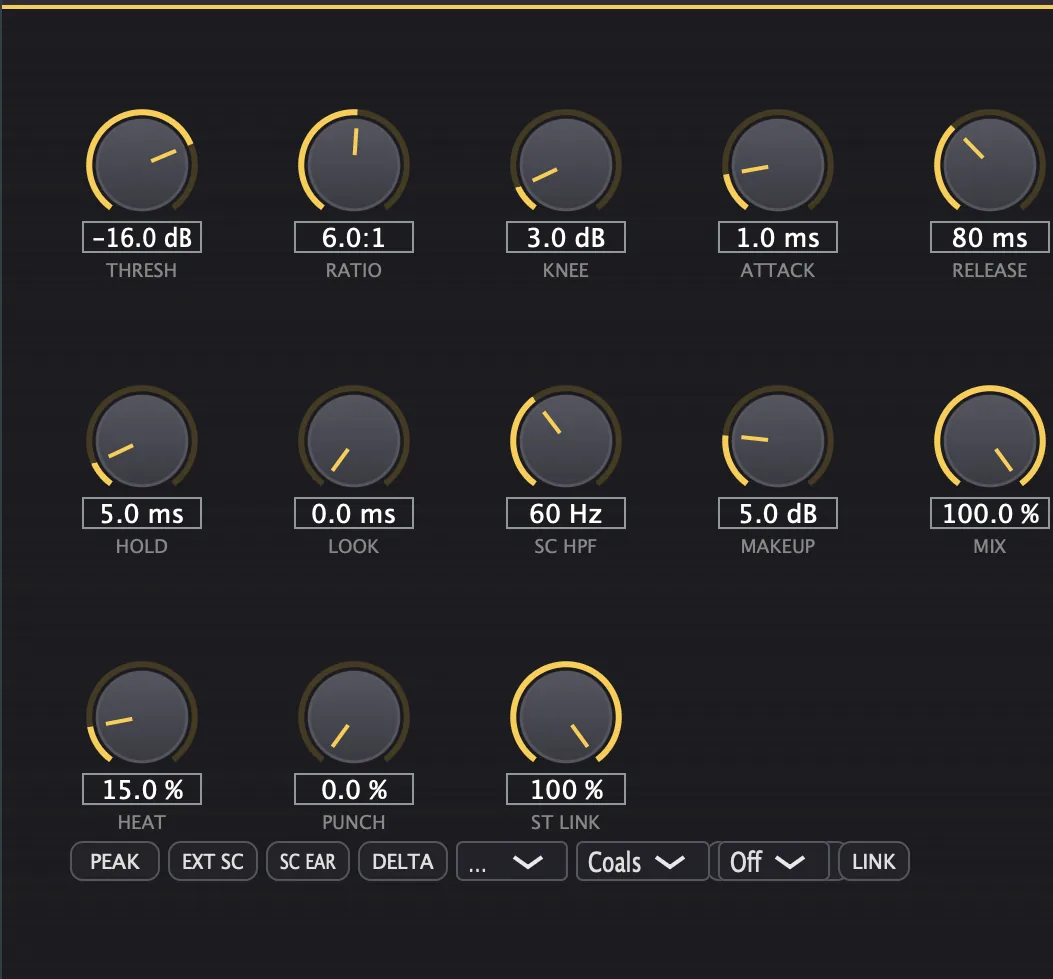
- 7Thresh (Threshold): the level where compression begins.−60 to 0 dBTip Lower the threshold until the gain reduction meter moves 3 to 6 dB on the loudest hits.
- 8Ratio: how strongly the level above the threshold is turned down.1:1 to 20:1Tip 2:1 to 4:1 for gentle glue. 8:1 or higher for limiting-style control on transients.
- 9Knee: the width of the soft knee: how gradually compression starts around the threshold.0 to 30 dB
- 10Attack: how fast the compression reacts.0.1 to 100 msTip Slower attack lets the transient through before compression kicks in, keeping the punch.
- 11Release: how fast the compression recovers. Furnix can also lock the release to musical divisions of your DAW's tempo (Grid Sync, 26), or blend it by crest factor (Auto).10 to 1000 msTip Match the release to the groove. Too fast pumps, too slow flattens the dynamics.
- 12Hold: the minimum time the gain reduction holds before it releases.0 to 50 ms
- 13Look (Lookahead): lets the compressor see transients coming and catch them cleanly. Furnix reports the latency to your DAW, which compensates for it.0 to 5 ms
- 20PEAK: switches the detection between peak and RMS response.
- 26Grid Sync (the Off menu): locks the release time to a musical division of your DAW's tempo. Auto blends the release between 1/16 and 1/8 notes by crest factor: faster on transient material, slower on dense material. Off uses the Release knob.Off, 1/4, 1/8, 1/8T, 1/16, 1/8. or Auto; default Off
Sidechain
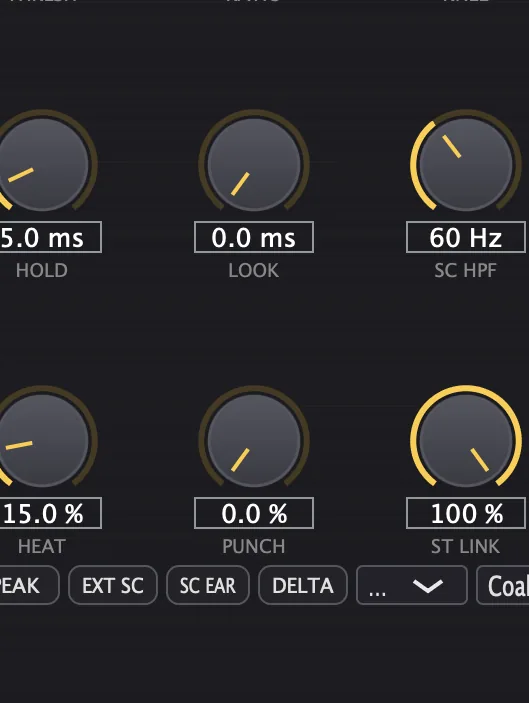
- 14SC HPF: a high-pass filter on the detector, so kick and sub energy don't trigger unwanted pumping.20 to 500 HzTip Raise the sidechain HPF to stop kick and sub energy from triggering compression on the whole bus.
- 19ST Link (Stereo Link): from 0%, where the left and right channels are compressed independently, to 100%, fully linked stereo compression.0 to 100%
- 21EXT SC (External Sidechain): keys the compressor from an external sidechain input, for classic ducking.
- 22SC EAR (SC Listen): plays the filtered sidechain signal in place of the compressed audio, so you can hear what the compressor is reacting to while you tune SC HPF.
- 24SC Tilt (the ... menu): the detector filter mode. HPF filters the detector with SC HPF. Tilt is mid-focused detection: the compressor listens to the mid (left plus right) signal on both channels and ignores side content, which keeps the stereo width while it controls center-panned parts such as vocals, kick and snare.HPF or Tilt, default HPF
Heat and Punch
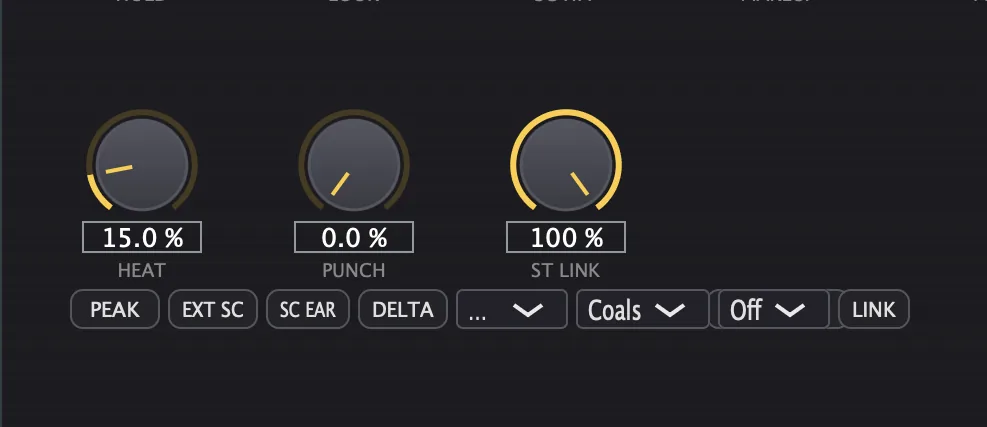
- 17Heat: how hard the sound is driven into the saturation stage. It is 4x oversampled, and auto-gain keeps the loudness stable.0 to 100%Tip Start with Coals for warmth. Switch to Flame for brighter harmonics or Blast for analog weight.
- 18Punch: a fast transient detector that puts back the attack energy compression removes, without touching the sustain.0 to 100%Tip Raise Punch after heavy compression to re-inject the attack energy that compression removes.
- 25Saturation mode: the character of Heat. Coals is a soft tanh curve, warm and tube-like. Flame is cubic: brighter, with more aggressive odd harmonics. Blast is asymmetric, with even harmonics for analog weight.Coals, Flame or Blast
- 27LINK (Heat Link): makes Heat follow the compression: the more gain reduction, the more the sound is driven into the saturation.On or off, default off
Output
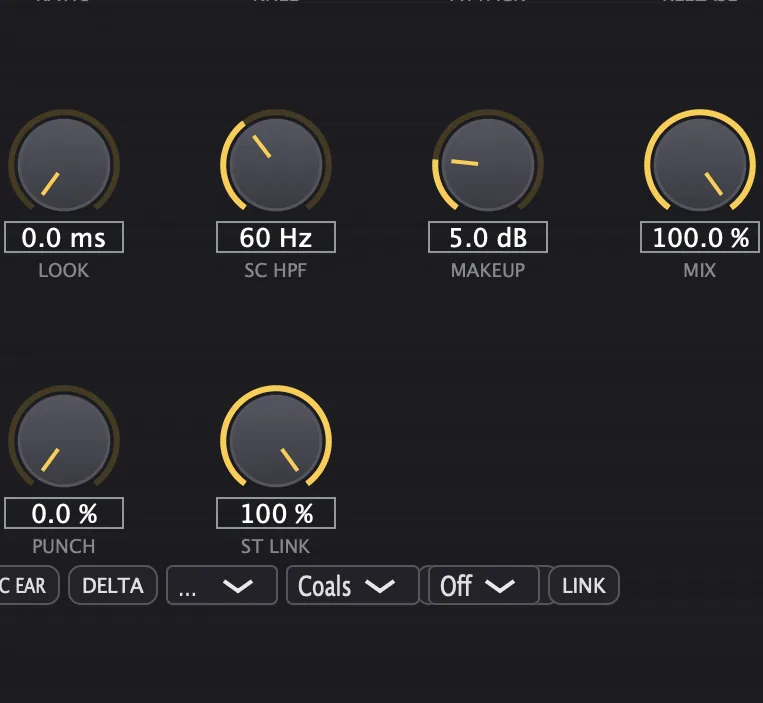
- 15Makeup: manual gain to make up the level the compression takes away.0 to 24 dB
- 16Mix: blends the compressed sound with the dry signal, for parallel (New York-style) compression.0 to 100%Tip Pull Mix back for parallel (New York) compression: the punch of heavy squash with the dynamics of the dry signal.
- 23DELTA: plays the difference between the dry input and the compressed output, so you hear exactly what the compression and saturation are changing.Tip DELTA lets you hear only what the compressor is doing to your signal, useful for dialing in Heat.
Meters and displays
- 6Transfer curve: a live view of the compressor's input/output response, so you can see the threshold, ratio and knee as you set them.
- 28IN and OUT meters: the stereo input and output levels.
- 29GR meter: the gain reduction in real time.
- 30CF (crest factor) meter: the peak-to-RMS ratio in dB: at a glance, whether your mix is pristine, club-standard or over-crushed.
Key specs*
| Topology | Feed-forward, peak or RMS detection |
|---|---|
| Threshold and ratio | −60 to 0 dB; 1:1 to 20:1 |
| Knee | Soft, 0 to 30 dB |
| Lookahead | 0 to 5 ms, reported to your DAW |
| Sidechain | High-pass 20 to 500 Hz, mid-focused Tilt, external input, listen |
| Release | 10 to 1000 ms; Grid Sync 1/4, 1/8, 1/8T, 1/16, 1/8.; Auto |
| Saturation | Coals, Flame, Blast; 4x oversampled with auto-gain |
| Output | −0.1 dBFS soft-clip ceiling, DC blocker on the wet path |
| Factory presets | 16 |
* Key specs from the plugin page. Some specs may not be listed.
Ratio and knee
The transfer curve shows how the compressor maps input level to output level. Below the threshold, the signal passes through unchanged (1:1). Above it, the ratio determines how much the level is turned down. A soft knee blends the transition so compression starts gradually.
The four curves use a 12 dB soft knee at −24 dB. Lower ratios compress gently; higher ratios approach limiting.
Attack and release
Attack sets how fast the compressor reacts; release sets how fast it recovers. The four combinations shape the dynamics differently.
Furnix’s Attack range is 0.1 to 100 ms; Release is 10 to 1000 ms. Grid Sync and Auto adapt the release to your tempo.
How does external sidechain compression work?
With EXT SC on, Furnix listens to a separate track, typically a kick, instead of the signal it is compressing. The kick audio enters the sidechain input, passes through SC HPF to remove sub energy, and the detector uses that filtered signal to set the gain reduction on the main audio, such as a bass or pad bus.
Turn on EXT SC (21), route your kick to Furnix's sidechain input in your DAW, and raise SC HPF until the compressor reacts only to the kick's click, not its sustained low energy.
How do I compress a drum bus with punch and heat?
- Load it. Put Furnix on your drum bus and start from the Drum Bus Punch preset.
- Set the amount. Lower Thresh until the GR meter shows the gain reduction you want, and adjust Ratio.
- Keep the kick in check. Raise SC HPF so the kick and sub don't make the whole bus pump.
- Bring back the hits. Turn up Punch to restore the attack the compression takes away.
- Add heat. Choose Coals for warmth, then raise Heat to taste. Press DELTA to hear what Furnix is changing, then press it again to return.
- Blend and match. Lower Mix for parallel compression, then set Makeup so the level matches when you compare with BYPASS.
How do I warm up a vocal with subtle compression?
- Insert it. Put Furnix on your vocal track, after any EQ.
- Set gentle compression. Set Ratio to 3:1, Attack to 10 ms and Release to 100 ms.
- Find the threshold. Lower Threshold until the gain reduction is 2 to 4 dB on the louder phrases.
- Add warmth. Switch Heat to Coals and raise it to about 30% for subtle tube-like color.
- Check with Delta. Switch on DELTA to hear only what Furnix is adding, then switch it off to judge the full sound.
What about Furnix Raw?
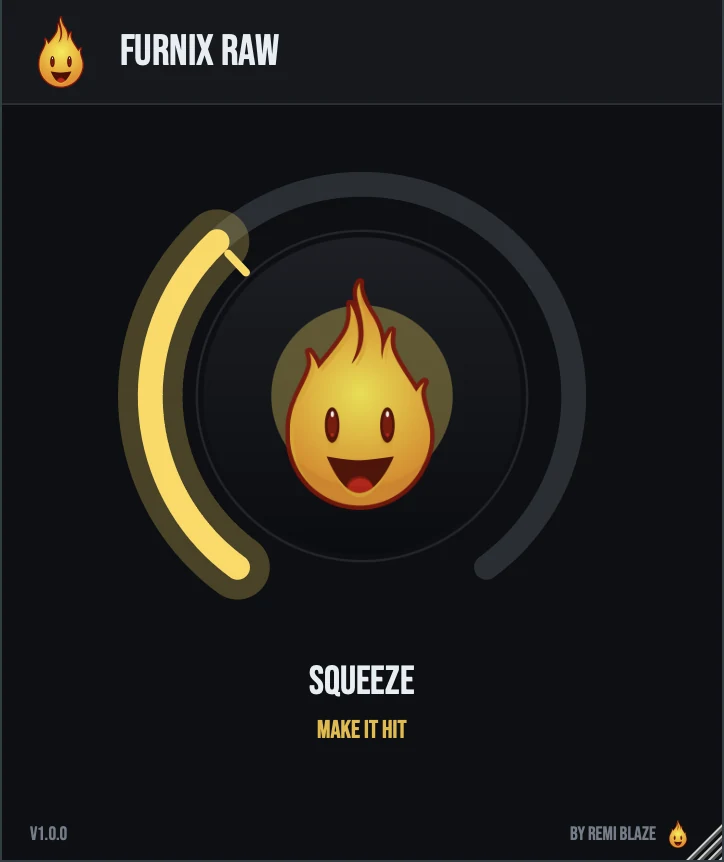
Furnix Raw is the free one-knob version, on the same compression engine. Its SQUEEZE knob sets the compression depth and the punch together, from gentle leveling at low settings to tighter, punchier dynamics near the top, with a touch of Coals heat. Automatic gain compensation keeps the level matched, and its 1 ms lookahead is fixed, so the latency never changes. Its own manual: Furnix Raw manual.
Furnix vs. Furnix Raw
A side-by-side look at what each version includes.
| Feature | Furnix | Furnix Raw |
|---|---|---|
| Presets | Included | Not included |
| Mix (dry/wet) | Included | Not included |
| Delta / listen mode | Included | Not included |
Keyboard and mouse shortcuts
These work in every Furnix format (AU, VST3, CLAP, AAX, Standalone).
| Reset a control to its default | Double-click the knob or slider |
|---|---|
| Scroll to change a value | Hover over a knob and scroll the mouse wheel |
| Type an exact value | Click the value below a knob and type a number |
Frequently Asked Questions
Should I use peak or RMS detection?
Peak reacts to the highest points of the signal, which suits catching fast transients. RMS follows the average level, which suits smoother leveling. The PEAK button switches between them.
Does Furnix add latency?
Lookahead (Look) adds up to 5 ms. Furnix reports its latency to your DAW, which compensates for it, so your tracks stay in time.
What does the CF meter tell me?
It shows the crest factor, the ratio between the peaks and the average level in dB. A higher value means more dynamics; a low value means the sound is heavily compressed.
What does ST Link change?
At 100%, both channels are compressed together, which keeps the stereo image steady. Lower it toward 0% to compress the left and right channels independently.
Can I use two stages of compression instead of one heavy stage?
Yes. Use Furnix on the bus for a couple of dB of gain reduction, then follow it with Clampit set to Knee GLUE. Push Clampit's Input by 2 to 4 dB and set Ceiling to -0.3 dB so it catches another 1 to 3 dB. Two light stages sound more transparent than one stage doing all the work.
Where can I find more about Furnix?
On the Furnix page: its features, system requirements and how to get it.
Related guides
How do I get and install Furnix?
- Get it. Furnix is free. Get it from the Furnix page.
- Run the installer. On macOS, double-click the .pkg file and choose AU, VST3, CLAP, AAX or Standalone. On Windows, run the .exe installer and choose VST3, CLAP or Standalone.
- Open your DAW. Restart your DAW and rescan plugins if needed, then find Furnix under Remi Blaze in your plugin list.
More about Furnix, including its features and system requirements, is on the Furnix page.
Where are the plugin files?
If you need to find Furnix on disk, for example to troubleshoot or to uninstall it manually, these are the standard locations.
| macOS AU | ~/Library/Audio/Plug-Ins/Components/ |
|---|---|
| macOS VST3 | ~/Library/Audio/Plug-Ins/VST3/ |
| macOS CLAP | ~/Library/Audio/Plug-Ins/CLAP/ |
| macOS AAX | /Library/Application Support/Avid/Audio/Plug-Ins/ |
| Windows VST3 | C:\Program Files\Common Files\VST3\ |
| Windows CLAP | C:\Program Files\Common Files\CLAP\ |
To uninstall, quit your DAW and delete the Furnix file from the relevant folder. Your DAW will stop listing it on its next rescan.
Need help with Furnix?
If something isn't covered here, or Furnix doesn't behave as described, contact support or email support@remiblaze.com. To get an answer faster, include:
- your operating system and version (for example macOS 15.6 or Windows 11)
- your DAW and its version
- the format you're using (AU, VST3, CLAP, AAX or Standalone)
- the Furnix version, shown in the About panel (click the Fire Head)
- what you did, what you expected, and what happened instead
This manual is for Furnix 1.1.0. Controls and settings can change between versions, so if something here doesn't match what you see, check which version you have: click the Fire Head to open Furnix's About panel. Spotted a mistake or have a question? Let us know.