What is Ghostix?
Ghostix is a MIDI-triggered multi-FX plugin for Mac and Windows. Your audio passes through clean until you play a note. Each key from C3 to C4 fires one of 13 effects: tempo-synced gates, bit-crush, saturation, reverse and an octave-up pitch shift. Hold the key to keep the effect, release it to fade back to dry, and play harder for more.
Each effect opens and closes with its own attack and release envelope, and velocity sets how hard it hits. Crush and reverse each have their own mix, a master mix blends the effects with the dry signal, and the Blaze Limiter keeps the peaks at −0.1 dBFS.
How does MIDI triggering work?
Ghostix sits on an audio track and listens for MIDI notes. With no note held, the audio passes through clean. Each key from C3 to C4 is tied to one effect: press it and the effect fades in over ATK, let go and it fades back to dry over REL.
Velocity sets how hard each effect hits, scaled by VEL, and INT sets the overall depth. Because the effects follow notes, you can record them into the piano roll and edit them like any other part, instead of drawing automation.
Quick start
Get a result with Ghostix in under a minute.
- Insert it. Put Ghostix on a track that receives both audio and MIDI, and play your loop.
- Turn on Sync. Switch Sync on so the gates follow your DAW’s tempo.
- Play a key. Hold C3 for a 1/16 gate or D3 for a 1/4 gate. Let go and the sound returns to dry.
- Shape it. Use ATK and REL to soften the edges, and set Crush for bit-crush or play F3–A3 for drive.
- Blend to taste. Set Mix for the wet/dry balance and Out for the final level.
The interface
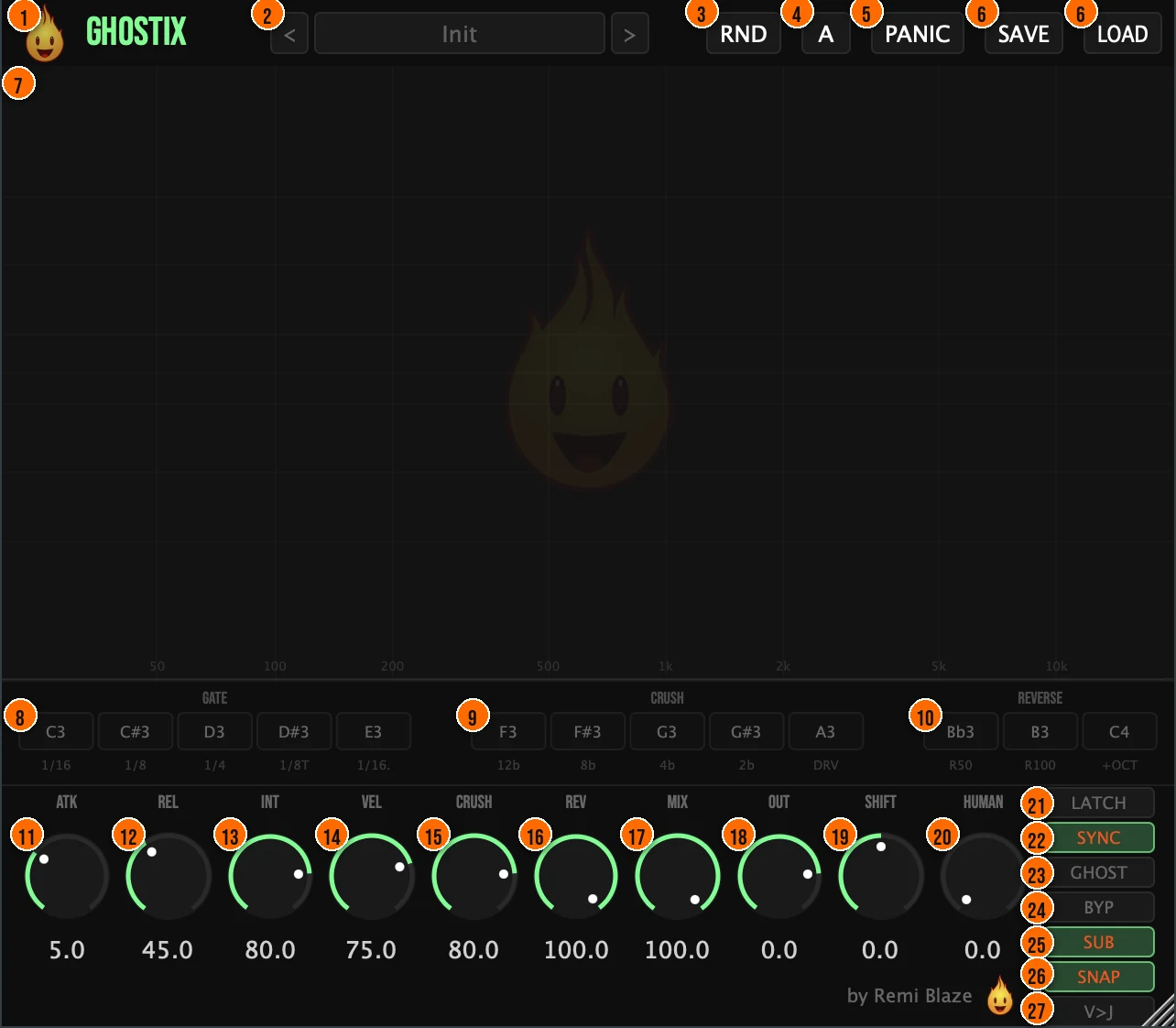
Controls
Top bar

- 1Fire Head: click the flame logo to open the About panel: what the plugin is, who made it, its version and the trademark notices. Click anywhere in the panel to close it.
- 2Presets: 14 factory presets, from The Ibiza Drive and Dirty Warehouse to Stutter Machine, Tape Stop and Remi Blaze Ghostix. The arrows step through them.
- 3RND (Randomize): new settings at random.
- 4A: A/B comparison: compare two versions of your settings.
- 5Panic: instantly stops all active effects, for safety during a live set.
- 6Save / Load: save your own presets, or load them back.
Note zones

- 8Gate (C3 to E3): five tempo-synced rhythmic gates. The label under each key shows its rate.C3 1/16, C#3 1/8, D3 1/4, D#3 1/8 triplet, E3 1/16 dottedTip D#3 (1/8 triplet) and E3 (1/16 dotted) pull against a straight beat. Switch to them for a bar to break up a four-on-the-floor groove.
- 9Crush (F3 to A3): four bit-crush depths and a full-drive saturation.F3 12-bit, F#3 8-bit, G3 4-bit, G#3 2-bit, A3 drive
- 10Reverse (Bb3 to C4): two buffer reverses and a pitch shift up one octave.Bb3 50 ms reverse, B3 100 ms reverse, C4 +1 octave
Envelope and velocity
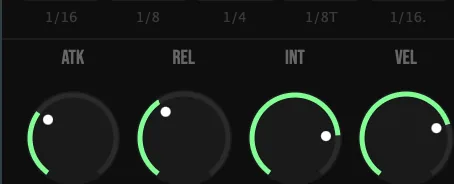
- 11ATK (Attack): how fast an effect fades in when you press a key, on an exponential curve.0.1 to 50 ms
- 12REL (Release): how fast an effect fades back to dry when you let go, on an exponential curve.1 to 500 ms
- 13INT (Intensity): the overall depth of the effects.
- 14VEL (Velocity Sensitivity): how much your playing velocity changes the intensity of each effect.Tip Turn VEL down when you want every note to hit at the same depth, however hard you play.
Mix and output
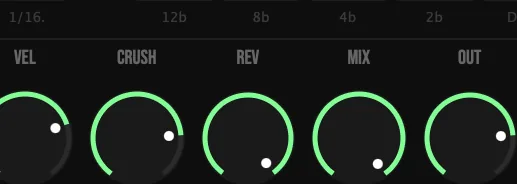
- 15Crush: Crush Mix: how much of the crushed sound is heard.Tip The crush keys range from 12-bit down to 2-bit. At the low bit depths, pull Crush down to blend the crushed sound in with the clean one.
- 16Rev: Reverse Mix: how much of the reversed sound is heard.
- 17Mix: Master Mix: blends the effects with the dry signal.
- 18Out (Output): the level leaving Ghostix.−24 to +6 dB
Timing
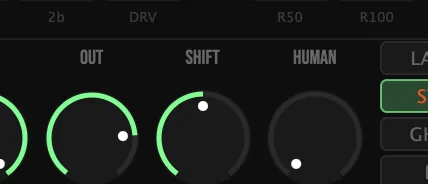
- 19Shift (Shift-Sync): moves the effects slightly earlier or later in time, with a smoothed shift.±25 msTip If the effects feel early or late against the beat, nudge them with Shift. The range is ±25 ms.
- 20Human (Humanize): random timing jitter, for a more natural feel.0 to 10 ms
Modes
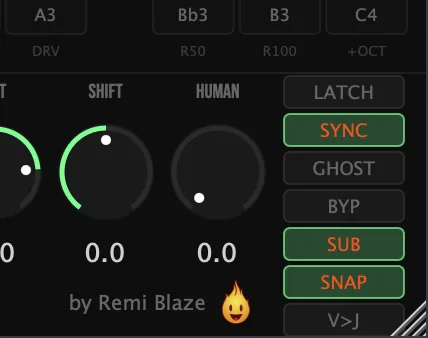
- 21Latch: Latch Mode: notes keep their effect running without you holding the key.Tip Use Latch when an effect should keep running for several bars without you holding the key, for example a gate under a whole build.
- 22Sync: Gate Sync: locks the gate effects to your DAW's tempo.
- 23Ghost: Ghost Mode: inverts the logic, so the effects run all the time and a note punches through to the dry signal.Tip Ghost Mode suits a loop you want mangled most of the time: the effects run constantly, and each note you play punches through to the clean sound.
- 24BYP (Bypass): full bypass, for comparing against the dry signal.
- 25Sub (Sub-Anchor): keeps the sub frequencies intact while the effects process, with a 150 Hz Linkwitz-Riley crossover.Tip Keep Sub on for drums and full mixes: below 150 Hz the low end stays intact while the effects run, so the kick and bass keep their weight under a gate or crush.
- 26Snap (Snap-to-Grid): quantizes the release of a note to the next 1/16, and shows a countdown arc while it waits.Tip Turn on Snap when you play live: even a late release lands on the next 1/16, so the effect ends on the grid.
- 27V>J (Vel-Jitter Link): ties the Humanize jitter to note velocity: harder hits stay tighter to the grid. It is off by default.
Meters and displays
- 7Spectrum display: an FFT spectrum analyzer on a frequency grid from 50 Hz to 10 kHz. It ignites while effects are playing.
- Note indicators: the key boxes in the three note zones show which notes are playing.
- Ghost mascot: Ghostix also has an animated ghost mascot. When Macro-Hold freezes the effects, the interface shows an ice-frost cue.
Key specs*
| Effects | 13, on the keys C3 to C4, in three zones |
|---|---|
| Macro-Hold | C0 |
| Attack | 0.1 to 50 ms, exponential |
| Release | 1 to 500 ms, exponential |
| Shift-Sync | ±25 ms |
| Humanize | 0 to 10 ms |
| Snap-to-Grid | 1/16 note release |
| Sub-Anchor | Linkwitz-Riley LR4 crossover at 150 Hz |
| Latency | Fixed, 35 ms |
| Output | −24 to +6 dB; Blaze Limiter, −0.1 dBFS soft clipper |
| Factory presets | 14 |
* Key specs from the plugin page. Some specs may not be listed.
How does the sound flow through Ghostix?
A simplified view of the main path.
Each key fires a different effect, and velocity sets the intensity. Crush and Reverse have their own mix controls alongside the master mix.
How do I play gates and crush on a loop with Ghostix?
- Load it. Put Ghostix on a track that receives both audio and MIDI, and play your loop.
- Lock the gates. Switch on Sync so the gates follow your DAW's tempo.
- Play a gate. Hold C3 for a 1/16 gate or D3 for a 1/4 gate. Let go and the sound returns to dry.
- Add grit. Play a key from F3 to A3 for bit-crush or drive, and set how much you hear with the Crush knob.
- Shape the feel. Use ATK and REL to soften the start and end of each effect, and VEL so softer notes hit lighter.
- Record it. Record the notes into your piano roll, then balance the result with Mix and Out.
How do I play Ghostix live and keep the effects on the grid?
- Load it. Put Ghostix on a track that receives both audio and MIDI, with your controller as the MIDI input.
- Lock the gates. Switch on Sync so the gate effects follow your DAW's tempo.
- Snap the releases. Switch on Snap. When you let go of a key, the effect ends on the next 1/16, and a countdown arc shows the wait.
- Add feel. Raise Human for a little timing jitter, and switch on V>J so harder hits stay tighter to the grid.
- Hold effects hands-free. Switch on Latch when you want an effect to keep running without holding the key.
- Stay safe. If an effect sticks, press Panic to stop all active effects at once.
What about Ghostix Raw?
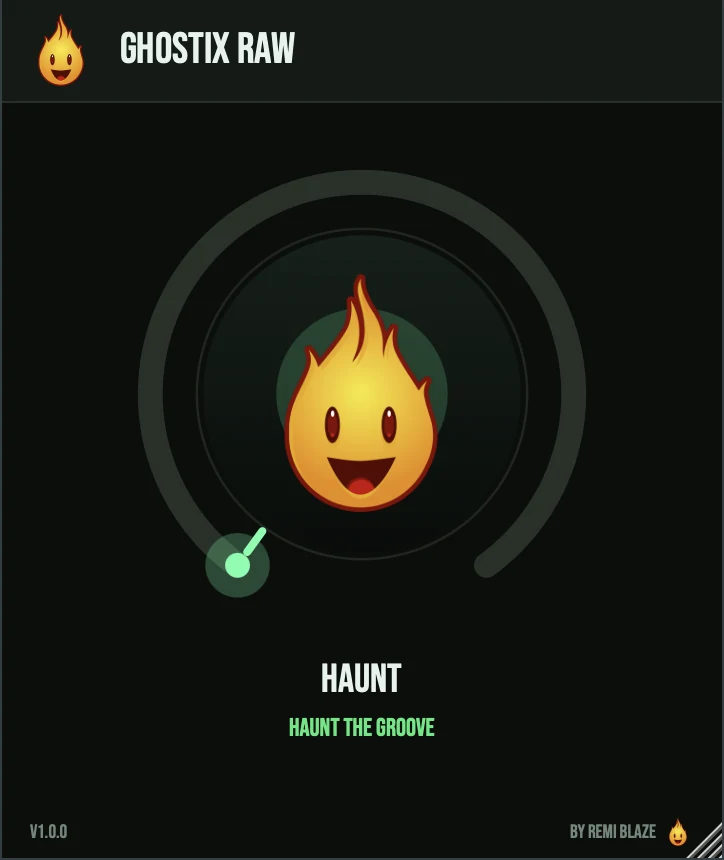
Ghostix Raw is the free one-knob version. Its HAUNT knob drives a tempo-synced ghost gate on a 1/8 note: a gentle pulse at low settings, a hard trance gate at the top, level-matched the whole way. It needs no MIDI, since the gate runs from your host tempo, and it reports zero latency. Its own manual: Ghostix Raw manual.
Ghostix vs. Ghostix Raw
A side-by-side look at what each version includes.
| Feature | Ghostix | Ghostix Raw |
|---|---|---|
| Presets | Included | Not included |
| A/B compare | Included | Not included |
| Randomize | Included | Not included |
| Mix (dry/wet) | Included | Not included |
| Output level | Included | Not included |
Keyboard and mouse shortcuts
These work in every Ghostix format (AU, VST3, CLAP, AAX, Standalone).
| Reset a control to its default | Double-click the knob or slider |
|---|---|
| Scroll to change a value | Hover over a knob and scroll the mouse wheel |
| Type an exact value | Click the value below a knob and type a number |
Frequently Asked Questions
What does Ghost Mode do?
It turns the logic around. The effects run all the time, and playing a note punches through to the dry signal.
How do I hold the effects I'm playing?
Press C0 for Macro-Hold: it freezes all active effects in their current state, and the interface shows an ice-frost cue. For a single effect, switch on Latch so notes keep going without holding the key.
Does Ghostix add latency?
Yes, a fixed 35 ms. Because it is fixed, it doesn't change while you play or switch effects.
What does Snap do?
It quantizes the end of each note to the next 1/16, so an effect always stops on the grid. A countdown arc shows the wait.
Can I control the timing of the effects?
Yes. Shift moves them up to 25 ms earlier or later, and Human adds up to 10 ms of random timing for a looser feel.
Where can I find more about Ghostix?
On the Ghostix page: its features, system requirements and how to get it.
How do I buy and install Ghostix?
- Buy it. Ghostix is a one-time purchase. Buy it from the Ghostix page, and the store emails you the download link.
- Run the installer. On macOS, double-click the .pkg file and choose AU, VST3, CLAP, AAX or Standalone. On Windows, run the .exe installer and choose VST3, CLAP or Standalone.
- Open your DAW. Restart your DAW and rescan plugins if needed, then find Ghostix under Remi Blaze in your plugin list.
More about Ghostix, including its features and system requirements, is on the Ghostix page.
Where are the plugin files?
If you need to find Ghostix on disk, for example to troubleshoot or to uninstall it manually, these are the standard locations.
| macOS AU | ~/Library/Audio/Plug-Ins/Components/ |
|---|---|
| macOS VST3 | ~/Library/Audio/Plug-Ins/VST3/ |
| macOS CLAP | ~/Library/Audio/Plug-Ins/CLAP/ |
| macOS AAX | /Library/Application Support/Avid/Audio/Plug-Ins/ |
| Windows VST3 | C:\Program Files\Common Files\VST3\ |
| Windows CLAP | C:\Program Files\Common Files\CLAP\ |
To uninstall, quit your DAW and delete the Ghostix file from the relevant folder. Your DAW will stop listing it on its next rescan.
Need help with Ghostix?
If something isn't covered here, or Ghostix doesn't behave as described, contact support or email support@remiblaze.com. To get an answer faster, include:
- your operating system and version (for example macOS 15.6 or Windows 11)
- your DAW and its version
- the format you're using (AU, VST3, CLAP, AAX or Standalone)
- the Ghostix version, shown in the About panel (click the Fire Head)
- what you did, what you expected, and what happened instead
This manual is for Ghostix 1.1.0. Controls and settings can change between versions, so if something here doesn't match what you see, check which version you have: click the Fire Head to open Ghostix's About panel. Spotted a mistake or have a question? Let us know.