What is Infernix?
Infernix is a live remix engine for Mac and Windows. Insert it on any track and it keeps recording the last 2 bars. On a phrase boundary, or when you press Ignite, it rearranges that audio into syncopated fills, then crossfades back to your dry signal.
Two ghost playheads read the buffered audio, each at its own speed, direction and slice length. An FFT engine pulls the result toward one of 16 sound profiles, and a tempo-synced Motion shape adds rhythmic gating. Then the fill crossfades back to the dry track.
How does live audio remixing work?
A circular buffer records the last two bars of incoming audio, overwriting itself as the track plays. When a fill fires, two ghost playheads start reading from the buffer at their own speeds, directions and slice lengths, rearranging the track's own audio into a syncopated pattern. The playheads snap to zero crossings so the slices join without clicks.
An FFT engine then pulls the result toward one of 16 sound profiles, changing the spectral shape without changing the rhythm. A tempo-synced motion shape adds rhythmic gating on top. The fill crossfades back to the dry signal at the end, so the track continues cleanly.
Quick start
Get a result with Infernix in under a minute.
- Insert it. Put Infernix on the track or bus you want to process.
- Shape it. Work through the numbered controls below until it sounds right to your ear.
- Blend to taste. Pull Mix back from 100% if you want a subtler result.
- Compare. Bypass the plugin in your DAW to hear before and after.
The interface
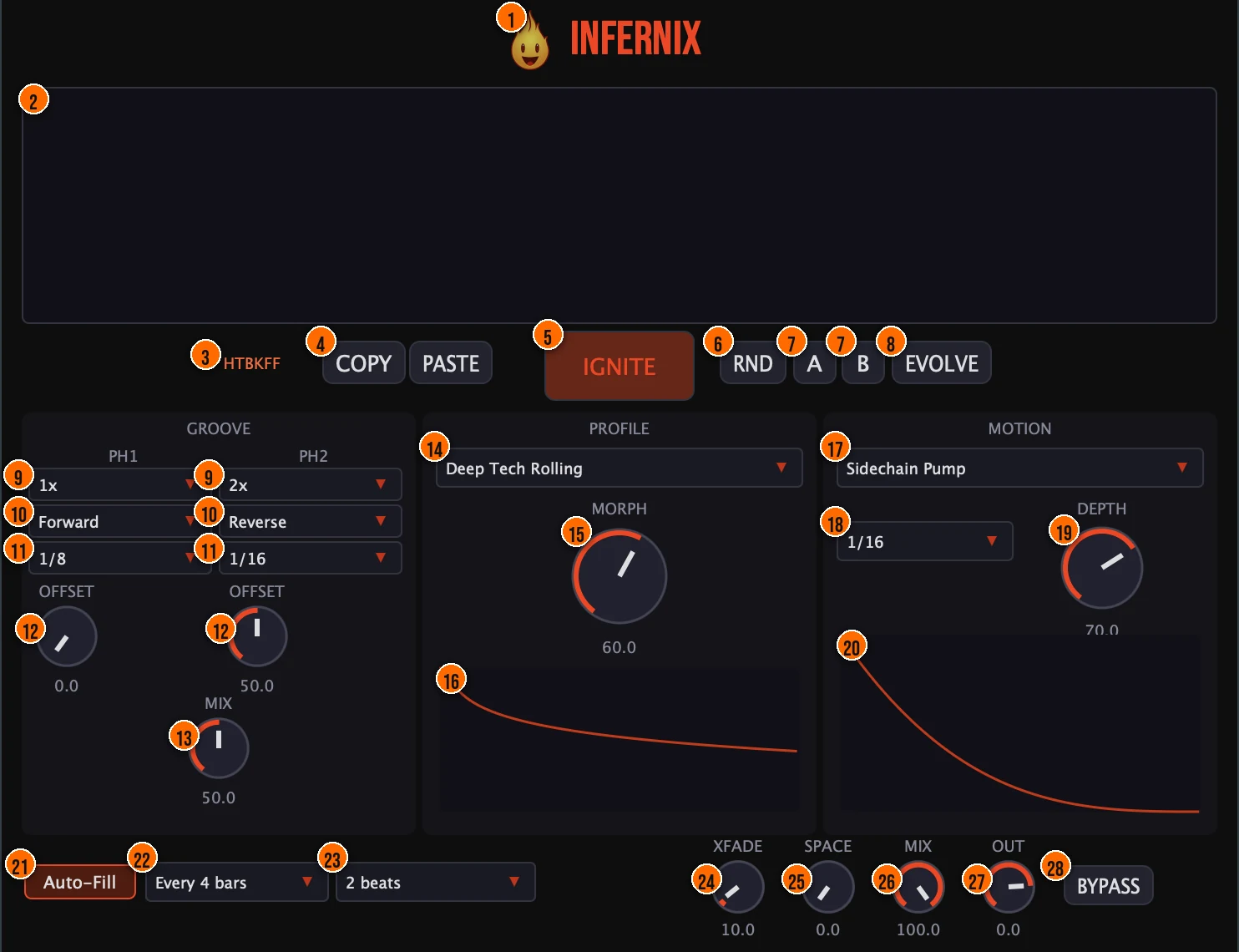
Controls
Top bar
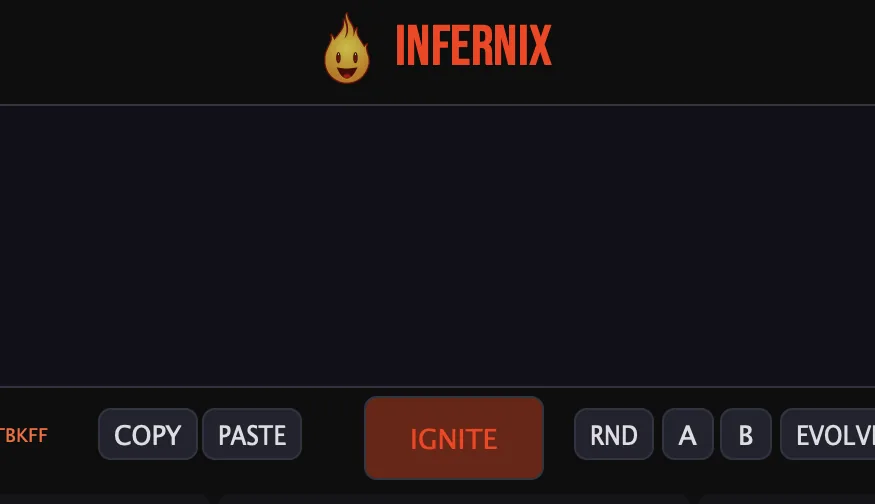
- 1Fire Head: click the flame logo to open the About panel: what the plugin is, who made it, its version and the trademark notices. Click anywhere in the panel to close it.
- 4Copy / Paste: copy the Pattern Seed to share it, or paste a code to recreate those exact settings.
- 5Ignite: Manual Ignite: fires a remix at any time, overriding Auto-Fill.
- 6RND (Randomize): jumps to a fresh configuration in one click.
- 7A / B: snapshots of two parameter states, for instant comparison.
- 8Evolve: Infinite Evolve: randomizes the profile and the motion by itself every 8 bars.Tip Turn on Evolve for a live set where the fills keep changing. It randomizes the profile and the motion every 8 bars.
Groove (PH1 and PH2)
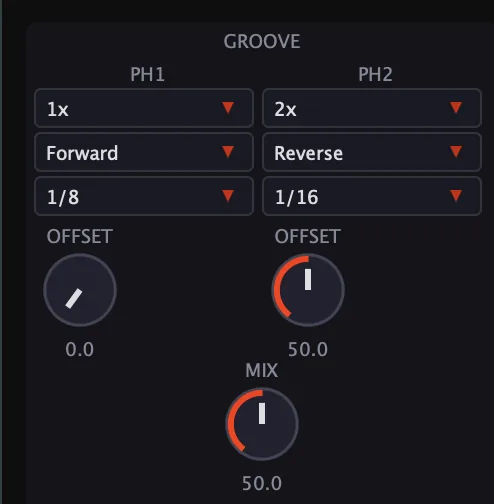
- 9Speed: how fast each ghost playhead reads the buffered audio. PH1 and PH2 are set separately.0.5x, 1x or 2xTip Run one playhead at 1x and the other at 2x for fills that combine the original speed with a double-time stutter.
- 10Direction: plays the slices forward or in reverse, for each playhead.Forward or Reverse
- 11Slice length: the length of each slice, for each playhead.1/16, 1/8, 1/4 or 1/2 noteTip Shorter slices (1/16) create rapid-fire glitch fills. Longer slices (1/4 to 1/2) rearrange bigger chunks and sound more musical.
- 12Offset: where in the buffer each playhead starts reading.Tip Offset controls where each playhead starts in the buffer. Set PH1 and PH2 to different offsets so they read different parts of the last two bars.
- 13Mix (Playhead Mix): blends between the two playheads.
Profile
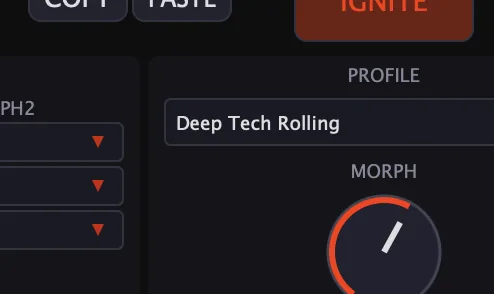
- 14Profile: the sound profile the remix is pulled toward: 16 profiles, from kick and drum characters and genre voicings (Minimal Click, Deep Tech Rolling, Warehouse Industrial, UK Garage) to synth textures and Telephone, Radio and Underwater effects.Tip Profiles shape the spectral character. Try Telephone or Underwater for a filtered effect, or Warehouse Industrial for an aggressive tone.
- 15Morph (Morph Amount): how far the remix is pulled toward the selected profile.Tip Low Morph keeps the fill close to the original sound. Higher values push it further toward the selected profile's character.
Motion
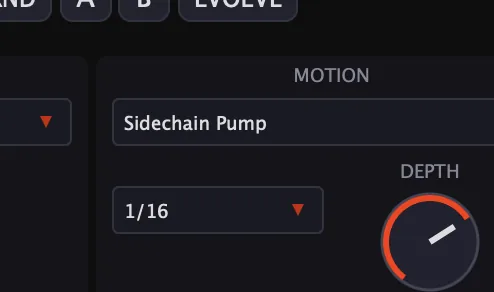
- 17Shape: 20 tempo-synced LFO shapes for rhythmic gating, including Sidechain Pump, Trance Gates, Sine, Triangle, Square and Saw.
- 18Rate: the note value the shape is synced to.1/4 to 1/32
- 19Depth: how deep the gating goes.
Auto-Fill
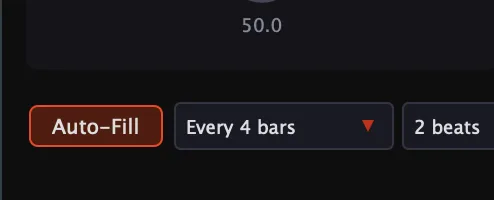
- 21Auto-Fill: the Auto-Fill Brain watches your DAW's transport and ignites a remix on phrase boundaries. A safety-arm threshold at −40 dB holds fire while the track is silent.Tip Set Every to 4 bars and Fill Length to 2 beats for a standard end-of-phrase fill. The safety arm stops fills from firing into silence.
- 22Every: how often Auto-Fill fires.Every 2, 4 or 8 bars
- 23Fill Length: how long each fill lasts.1 beat, 2 beats or a full bar
Output
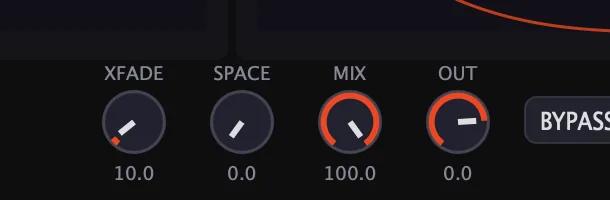
- 24XFade (Global Crossfade): the crossfade between the fill and your dry signal.5 to 100 msTip Raise XFade for a smoother transition between the fill and the dry signal. Lower it for a harder, more sudden cut.
- 25Space (3D Space): adds binaural depth, for width and distance.
- 26Mix: the dry/wet mix.
- 27Out (Output): the output trim.−24 to +6 dB
- 28Bypass: switches the effect off, for comparing against the dry signal.
Meters and displays
- 2Waveform display: shows the last two bars of audio Infernix has recorded, in real time, with the ghost playheads that read from it.
- 3Pattern Seed: your full remix configuration as a 6-character code. Use Copy and Paste (4) to share it or bring one back.
- 16Profile curve: previews the spectral shape of the selected profile.
- 20Motion shape: previews the waveform of the selected motion shape.
Key specs*
| Buffer | Circular, the last 2 bars; resizes itself to your project tempo |
|---|---|
| Ghost playheads | 2; speed 0.5x, 1x or 2x; forward or reverse; slices 1/16 to 1/2 note |
| Zero-crossing snap | ±64 samples |
| Profile Engine | 1024-bin FFT, 512-sample hops, 50% overlap-add, phase-preserving |
| Sound profiles | 16 |
| Motion | 20 LFO shapes, synced from 1/4 to 1/32 |
| Auto-Fill | Every 2, 4 or 8 bars; safety arm at −40 dB |
| Fill length | 1 beat, 2 beats or 1 bar |
| Crossfade | 5 to 100 ms |
| Output | −24 to +6 dB trim |
| Pattern Seed | 6-character code |
| Factory presets | 11 |
* Key specs from the plugin page. Some specs may not be listed.
How does the sound flow through Infernix?
A simplified view of what happens when a fill fires.
How do I add a remix fill every 4 bars with Infernix?
- Load it. Put Infernix on a drum loop, a vocal or the full mix, and press play so it records the last 2 bars.
- Start from a preset. Pick Tech House Fill or Glitch Fill as a starting point.
- Set the timing. Switch on Auto-Fill, set Every to 4 bars and the fill length to 2 beats.
- Shape the fill. Set each playhead's speed, direction and slice length, and balance them with the Mix knob under the playheads.
- Color it. Choose a profile and turn Morph up until the fill has the character you want.
- Play it. Press Ignite for an extra fill at any moment, and set XFade and Mix so it sits in the track.
How do I fire a manual fill on a transition with Infernix?
- Load it. Put Infernix on the track and let it record for at least two bars.
- Set the fill. Pick a preset or dial in the two playheads, a profile and a motion shape.
- Turn off Auto-Fill. Switch Auto-Fill off so fills only happen when you press the button.
- Fire it. Press Ignite at the moment you want the fill. The remix starts immediately.
- Let it return. The fill runs for its length and crossfades back to the dry signal.
- Vary it. Press RND or change the Profile between fills so each transition sounds different.
What about Infernix Raw?
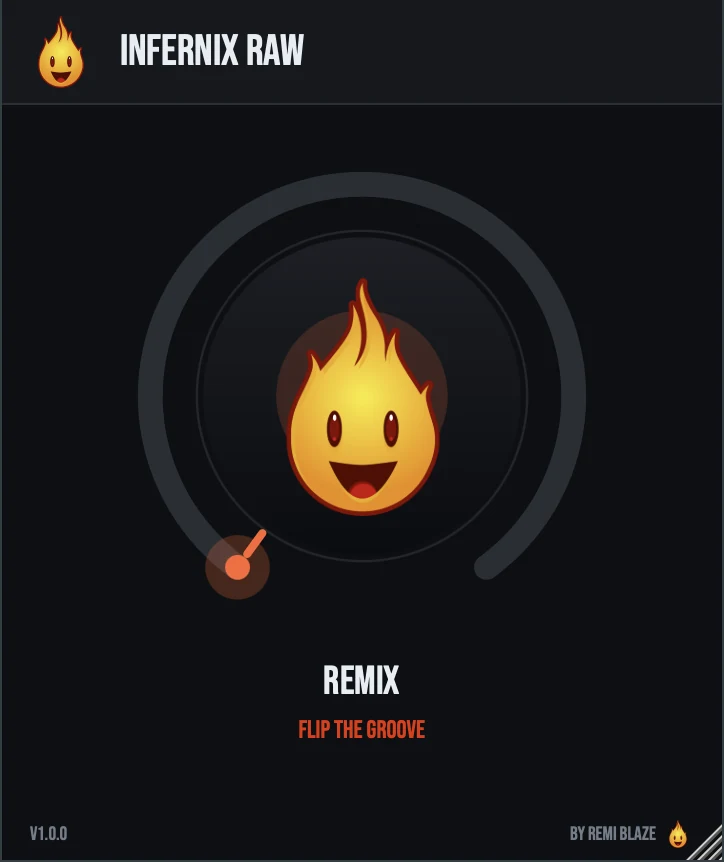
Infernix Raw is the free one-knob version. Its REMIX knob drives fill density, spectral morph, motion and cross-depth together: occasional flips at low settings, harder and more frequent fills further up. The output is auto-leveled, and its clock keeps running when the transport is stopped, so fills still fire. Its own manual: Infernix Raw manual.
Infernix vs. Infernix Raw
A side-by-side look at what each version includes.
| Feature | Infernix | Infernix Raw |
|---|---|---|
| Randomize | Included | Not included |
| Mix (dry/wet) | Included | Not included |
| Output level | Included | Not included |
Keyboard and mouse shortcuts
These work in every Infernix format (AU, VST3, CLAP, AAX, Standalone).
| Reset a control to its default | Double-click the knob or slider |
|---|---|
| Scroll to change a value | Hover over a knob and scroll the mouse wheel |
| Type an exact value | Click the value below a knob and type a number |
Frequently Asked Questions
Why doesn't Auto-Fill fire on a silent track?
A safety-arm threshold at −40 dB holds fire while the track is silent, so fills never trigger into empty space.
How do I share a setting?
Copy the 6-character Pattern Seed and send it. Pasting the code recreates the exact remix configuration.
What does Evolve do?
Infinite Evolve randomizes the profile and the motion every 8 bars, so the fills keep changing on their own.
Does Infernix keep a copy of my track?
No. The buffer only holds the last 2 bars, overwriting itself as the track plays. Nothing permanent is captured.
How do I make the switch into a fill smoother?
Raise XFade, the global crossfade between the fill and the dry signal, anywhere from 5 to 100 ms.
Where can I find more about Infernix?
On the Infernix page: its features, system requirements and how to get it.
How do I buy and install Infernix?
- Buy it. Infernix is a one-time purchase. Buy it from the Infernix page, and the store emails you the download link.
- Run the installer. On macOS, double-click the .pkg file and choose AU, VST3, CLAP, AAX or Standalone. On Windows, run the .exe installer and choose VST3, CLAP or Standalone.
- Open your DAW. Restart your DAW and rescan plugins if needed, then find Infernix under Remi Blaze in your plugin list.
More about Infernix, including its features and system requirements, is on the Infernix page.
Where are the plugin files?
If you need to find Infernix on disk, for example to troubleshoot or to uninstall it manually, these are the standard locations.
| macOS AU | ~/Library/Audio/Plug-Ins/Components/ |
|---|---|
| macOS VST3 | ~/Library/Audio/Plug-Ins/VST3/ |
| macOS CLAP | ~/Library/Audio/Plug-Ins/CLAP/ |
| macOS AAX | /Library/Application Support/Avid/Audio/Plug-Ins/ |
| Windows VST3 | C:\Program Files\Common Files\VST3\ |
| Windows CLAP | C:\Program Files\Common Files\CLAP\ |
To uninstall, quit your DAW and delete the Infernix file from the relevant folder. Your DAW will stop listing it on its next rescan.
Need help with Infernix?
If something isn't covered here, or Infernix doesn't behave as described, contact support or email support@remiblaze.com. To get an answer faster, include:
- your operating system and version (for example macOS 15.6 or Windows 11)
- your DAW and its version
- the format you're using (AU, VST3, CLAP, AAX or Standalone)
- the Infernix version, shown in the About panel (click the Fire Head)
- what you did, what you expected, and what happened instead
This manual is for Infernix 1.0.2. Controls and settings can change between versions, so if something here doesn't match what you see, check which version you have: click the Fire Head to open Infernix's About panel. Spotted a mistake or have a question? Let us know.