What is Orbitix?
Orbitix is a stereo width and shimmer plugin for Mac and Windows. It widens the stereo field above an adjustable crossover while the bass stays in mono, then a parallel high-frequency exciter adds air and presence, so your mix gets wider and brighter and still survives mono fold-down.
Below the crossover, the low end stays mono. Above it, one of three width algorithms spreads the sound, with a choice of three characters. The Shimmer exciter then adds harmonics in the air band. Safe Mode watches the phase correlation and pulls the width back when it drops too low.
How does stereo width processing work?
Stereo width is the sense of space between the left and right speakers. A narrow mix sounds small; a wide mix fills the room. Three common techniques widen the image: Haas delay adds a small inter-aural delay to one channel, Mid-Side processing boosts the side signal relative to the center, and Stereo Shuffle widens different frequency bands by different amounts.
Widening the low end can cause phase cancellation on mono playback. A mono-anchor crossover keeps everything below a cutoff frequency in mono before the width processing, so the sub-bass stays solid on any speaker. A phase-correlation meter shows how well the widened signal will translate to mono.
Quick start
Get a result with Orbitix in under a minute.
- Insert it. Put Orbitix on the track or bus you want to process.
- Shape it. Work through the numbered controls below until it sounds right to your ear.
- Blend to taste. Pull Mix back from 100% if you want a subtler result.
- Compare. Bypass the plugin in your DAW to hear before and after.
The interface
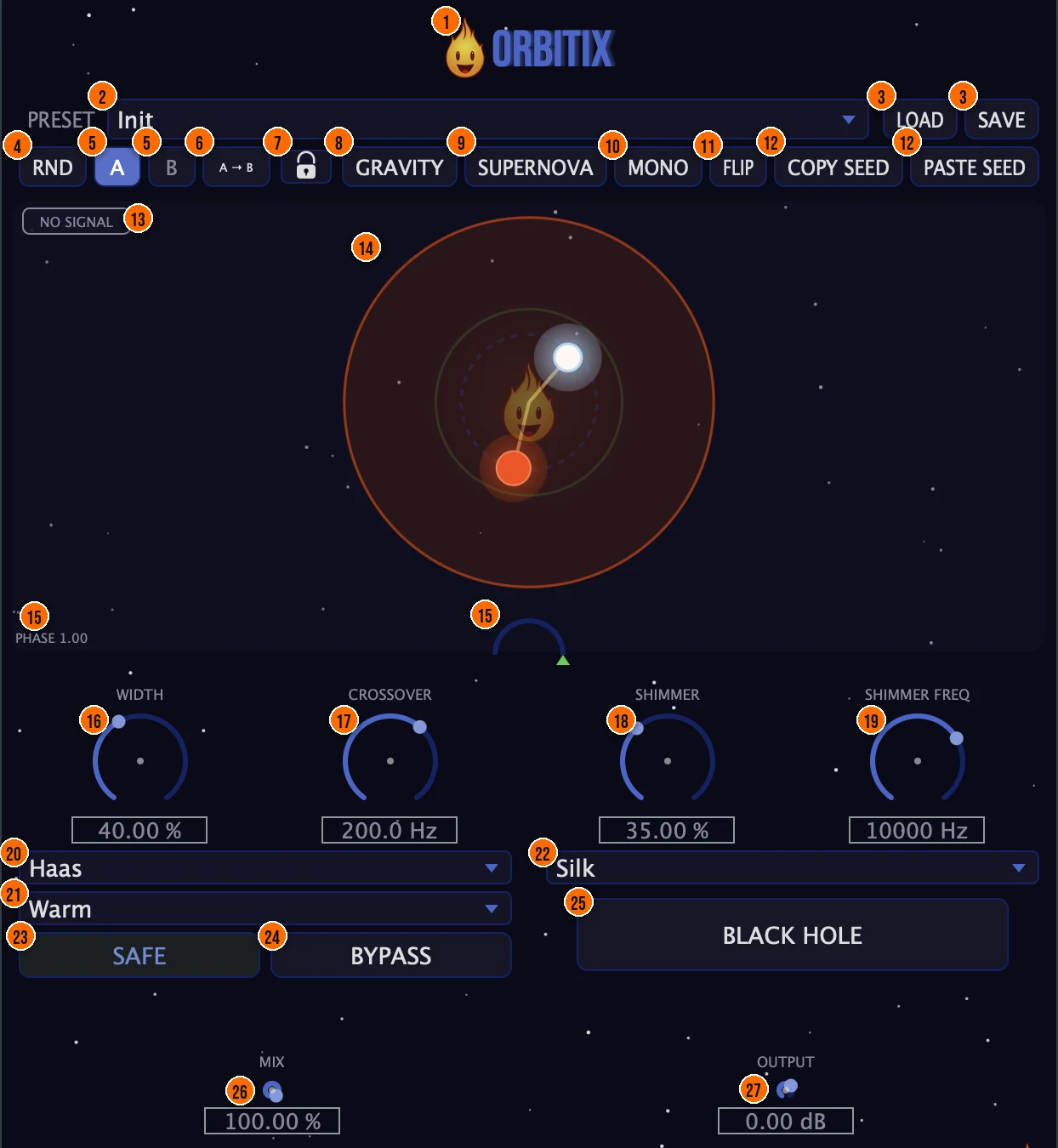
Controls
Top bar

- 1Fire Head: click the flame logo to open the About panel: what the plugin is, who made it, its version and the trademark notices. Click anywhere in the panel to close it.
- 2Preset: 12 factory presets for vocals, hats, master glue and mono checks, from Subtle Space and Ghost Vocal to Club Ready, Mono Check and Remi Blaze Orbitix.
- 3Load / Save: save your own presets as .preset files, or load them back.
Button row

- 4RND (Randomize): randomizes the width and shimmer settings in one click. Crossover, Safe Mode and Output keep their settings.
- 5A / B: two snapshots: click A or B to recall that snapshot.
- 6A → B: copies the active snapshot into the other slot. The label follows the active slot, so it reads B → A when you are on B.
- 7Lock (Eclipse Lock): pins Width and Shimmer at their current values, so you don't knock them out by accident.
- 8Gravity (Gravity Well): an optional mode: Width gently drifts back toward the safe zone when you let go, so you have to actively pull it wide.
- 9Supernova: a one-shot shimmer sweep over 2 bars, synced to your DAW's tempo: the shimmer rises to its maximum and falls back.
- 10Mono (Mono Preview): hold to fold left and right together and hear how the mix translates to mono.Tip Hold Mono to fold the mix to mono and check how it sounds on a phone speaker. Release to return to stereo.
- 11Flip (Phase-Flip Preview): hold to monitor L−R and hear the stereo-only content.
- 12Copy Seed / Paste Seed: Copy Seed puts an Orbit Seed on your clipboard: a short string that holds Width, Shimmer, Shimmer Freq and the three mode menus, to share your settings. Paste Seed applies an Orbit Seed from the clipboard.
Width
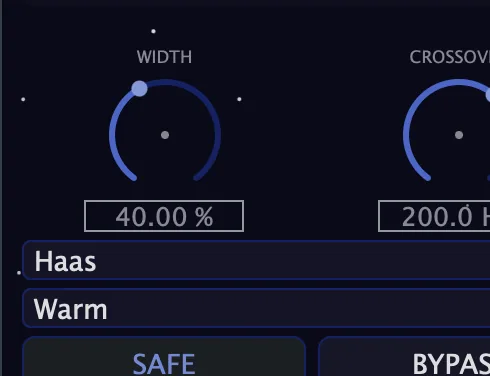
- 16Width: how far the sound above the crossover is widened.
- 17Crossover: the mono-anchor crossover: everything below it stays mono, and only the sound above it is widened. It is a Linkwitz-Riley crossover.60 to 400 HzTip Set the crossover above the fundamental of the lowest instrument you want to stay centered. 100–150 Hz is a safe starting point for most mixes.
- 20Width algorithm: Haas widens with an inter-aural delay, Mid-Side uses an M/S matrix with side-boost gain, and Stereo Shuffle widens by frequency and keeps the bass anchored.Haas, Mid-Side or Stereo ShuffleTip Stereo Shuffle widens by frequency and keeps the bass anchored, a safe start on full mixes. Haas gives an instant sense of space: check it with Mono Preview.
- 21Width character: Clean is a pure delay, Warm adds a 6 kHz low-pass, and Diffuse uses a 4-stage all-pass for a dense, natural spread.Clean, Warm or DiffuseTip Clean is transparent. Warm rolls off the highs in the widened signal for a softer spread. Diffuse adds allpass stages for a dense, natural width.
Shimmer
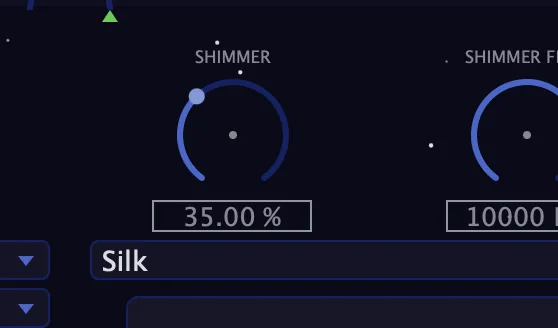
- 18Shimmer: blends in air and sparkle from the parallel exciter.0 to 100%Tip Shimmer adds high-frequency harmonics in parallel. A small amount (10–20%) brightens a dull source without EQ.
- 19Shimmer Freq: the exciter's high-pass corner, to isolate the air band.4 to 16 kHzTip Raise Shimmer Freq to isolate the exciter to the air band (10–16 kHz) so it brightens without thickening the upper mids.
- 22Shimmer mode: Air adds even harmonics, Silk a soft polynomial saturation, and Sizzle an odd-harmonic edge.Air, Silk or Sizzle
Protection and performance
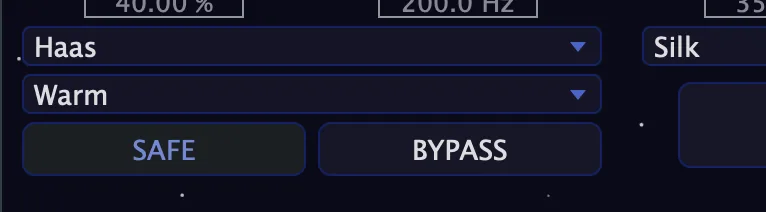
- 23Safe (Safe Mode): Safe Mode: automatically pulls back the width when the phase correlation drops below 0.3, keeping the mix mono-safe.On or off, default onTip Turn on Safe Mode on a master bus. It automatically pulls width back when the phase correlation drops too low, preventing mono collapse.
- 24Bypass: click-free bypass with latency-compensated pass-through.
- 25Black Hole: collapses the sound to mono, then explodes it back to ultra-wide stereo, for dramatic drops.Tip Press Black Hole to collapse to mono, then release for an instant explosion to wide stereo. Time it on a drop or transition.
Output
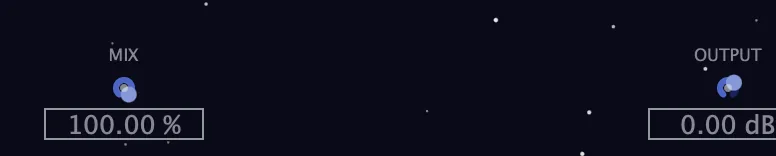
- 26Mix: the dry/wet blend, for parallel spatial processing.
- 27Output: the level trim, for an honest A/B comparison.−12 to +6 dB
Meters and displays
- 13No Signal: the badge shows when no signal is coming into Orbitix.
- 14Orbital display: the Fire Head at the center is a phase-correlation meter: calm and bright when the mix is mono-safe, shaking when correlation drops below 0.5, and shaking hard and turning red below 0.2. Two planets orbit it: the distance of one from the center shows the Width amount, and the other the Shimmer amount.
- 15Phase meter: real-time phase-correlation monitoring, so you can keep an eye on mono compatibility. The PHASE readout gives the value and the pointer on the arc shows it, from −1 (fully out of phase) to +1 (perfectly correlated).
Key specs*
| Width algorithms | Haas, Mid-Side, Stereo Shuffle |
|---|---|
| Width characters | Clean, Warm (6 kHz low-pass), Diffuse (4-stage all-pass) |
| Mono-anchor crossover | Linkwitz-Riley, 60 to 400 Hz |
| Shimmer exciter | Parallel, 8x oversampling, tanh-based saturation |
| Shimmer modes | Air, Silk, Sizzle |
| Shimmer Freq | 4 to 16 kHz |
| Output | −12 to +6 dB trim, 5 Hz DC blocker |
| Bypass | Click-free, latency-compensated |
| Factory presets | 12 |
* Key specs from the plugin page. Some specs may not be listed.
How does the sound flow through Orbitix?
A simplified view of the main path.
Safe Mode pulls back the width when the phase correlation drops too low.
Mid/side and bass mono
Orbitix widens the stereo field above an adjustable crossover while keeping the bass mono. The diagram shows how the signal splits into mid and side channels, and how the crossover folds the low end to mono so it stays centered.
How do I widen a vocal with Orbitix and keep it mono-safe?
- Load it. Put Orbitix on the vocal or synth bus, or start from the Ghost Vocal preset.
- Protect the lows. Set Crossover so the low end below it stays mono.
- Pick a width. Choose Haas, Mid-Side or Stereo Shuffle, then a character, and raise Width.
- Add air. Set Shimmer Freq to the air band you want, choose Air, Silk or Sizzle, and bring up Shimmer.
- Check mono. Switch on Safe, watch the Phase readout, and hold Mono to hear the fold-down.
- Match the level. Set Mix, then use Output to match the level for an honest comparison with Bypass.
How do I add shimmer and air to a dull bus with Orbitix?
- Insert Orbitix. Put Orbitix on the bus you want to brighten.
- Set the width. Choose Mid-Side as the algorithm and set Width to a moderate level.
- Dial in shimmer. Raise Shimmer to 15–25% and pick Air mode for smooth even harmonics.
- Set the frequency. Raise Shimmer Freq to around 8–12 kHz to focus the exciter on the air band.
- Protect the low end. Set the Crossover to 120 Hz so the bass stays mono.
- Check in mono. Hold Mono Preview to hear the mono fold. If the shimmer disappears, lower Width slightly until it holds up.
What about Orbitix Raw?
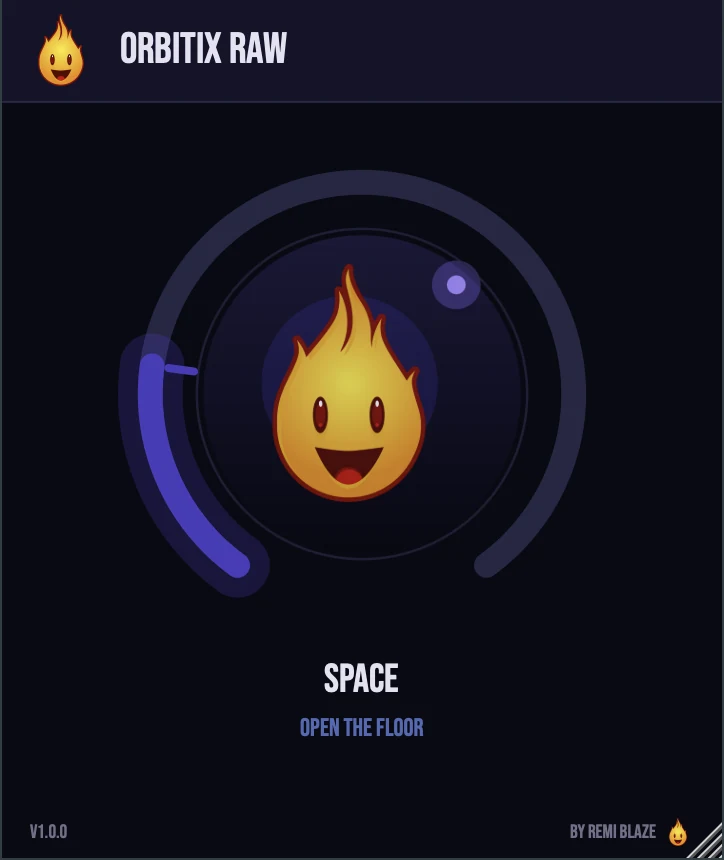
Orbitix Raw is the free one-knob version, on the same engine. Its SPACE knob spreads the stereo image and eases in high-frequency shimmer together, in a mono-safe, level-stable mode that keeps the bass mono. At zero it leaves the level and stereo image untouched. Its own manual: Orbitix Raw manual.
Orbitix vs. Orbitix Raw
A side-by-side look at what each version includes.
| Feature | Orbitix | Orbitix Raw |
|---|---|---|
| Randomize | Included | Not included |
| Mix (dry/wet) | Included | Not included |
| Output level | Included | Not included |
Keyboard and mouse shortcuts
These work in every Orbitix format (AU, VST3, CLAP, AAX, Standalone).
| Reset a control to its default | Double-click the knob or slider |
|---|---|
| Scroll to change a value | Hover over a knob and scroll the mouse wheel |
| Type an exact value | Click the value below a knob and type a number |
Frequently Asked Questions
How do I check what my mix sounds like in mono?
Hold Mono to fold left and right together. Hold Flip to hear only the stereo difference (L−R), which shows what would disappear in mono.
Which width algorithm should I start with?
Haas gives an instant sense of space from a short delay, Mid-Side gives controlled width from the side signal, and Stereo Shuffle widens by frequency while the bass stays anchored. Try each on the same part and listen in mono.
Where should I set the crossover?
Anywhere from 60 to 400 Hz. Everything below it stays mono, so set it high enough that the kick and bass stay centered.
Does Bypass click?
No. Bypass is click-free, with a latency-compensated pass-through.
Where can I find more about Orbitix?
On the Orbitix page: its features, system requirements and how to get it.
How do I buy and install Orbitix?
- Buy it. Orbitix is a one-time purchase. Buy it from the Orbitix page, and the store emails you the download link.
- Run the installer. On macOS, double-click the .pkg file and choose AU, VST3, CLAP, AAX or Standalone. On Windows, run the .exe installer and choose VST3, CLAP or Standalone.
- Open your DAW. Restart your DAW and rescan plugins if needed, then find Orbitix under Remi Blaze in your plugin list.
More about Orbitix, including its features and system requirements, is on the Orbitix page.
Where are the plugin files?
If you need to find Orbitix on disk, for example to troubleshoot or to uninstall it manually, these are the standard locations.
| macOS AU | ~/Library/Audio/Plug-Ins/Components/ |
|---|---|
| macOS VST3 | ~/Library/Audio/Plug-Ins/VST3/ |
| macOS CLAP | ~/Library/Audio/Plug-Ins/CLAP/ |
| macOS AAX | /Library/Application Support/Avid/Audio/Plug-Ins/ |
| Windows VST3 | C:\Program Files\Common Files\VST3\ |
| Windows CLAP | C:\Program Files\Common Files\CLAP\ |
To uninstall, quit your DAW and delete the Orbitix file from the relevant folder. Your DAW will stop listing it on its next rescan.
Need help with Orbitix?
If something isn't covered here, or Orbitix doesn't behave as described, contact support or email support@remiblaze.com. To get an answer faster, include:
- your operating system and version (for example macOS 15.6 or Windows 11)
- your DAW and its version
- the format you're using (AU, VST3, CLAP, AAX or Standalone)
- the Orbitix version, shown in the About panel (click the Fire Head)
- what you did, what you expected, and what happened instead
This manual is for Orbitix 1.0.0. Controls and settings can change between versions, so if something here doesn't match what you see, check which version you have: click the Fire Head to open Orbitix's About panel. Spotted a mistake or have a question? Let us know.