What is Prismate?
Prismate is a free three-band parametric EQ for Mac and Windows. It has a low shelf, a parametric mid bell and a high shelf, framed by a low cut and a high cut, with a live spectrum analyzer behind the EQ curve. It is made for adding clarity, presence and air where a track needs it.
Each band and filter can be switched on or off on its own, and Band Solo lets you hear one band by itself. Natural Phase runs the EQ at 2x oversampling for cleaner highs, Q-Link narrows the mid bell as you push it, and Auto-Gain matches the level so a boost doesn't just sound louder. A soft clipper near full scale guards the output.
How does parametric equalization work?
A parametric EQ shapes the tonal balance of a signal by boosting or cutting specific frequency ranges. A shelf raises or lowers everything above or below a corner frequency, adding weight (low shelf) or air (high shelf). A bell boosts or cuts a band centered on one frequency, with the Q controlling how wide or narrow that band is.
Cut filters (low cut and high cut) remove everything below or above a set point. A steeper slope (24 or 48 dB per octave) cuts more sharply, which is useful for cleaning rumble or taming harsh highs without affecting nearby frequencies.
Quick start
Get a result with Prismate in under a minute.
- Insert it. Put Prismate on the track or bus you want to process.
- Pick a preset. Open the Presets menu and choose one close to what you want.
- Shape it. Work through the numbered controls below until it sounds right to your ear.
- Use Auto-Gain. Switch on AG so the level stays matched, and judge the sound, not the volume.
- Compare. Bypass the plugin in your DAW to hear before and after.
The interface
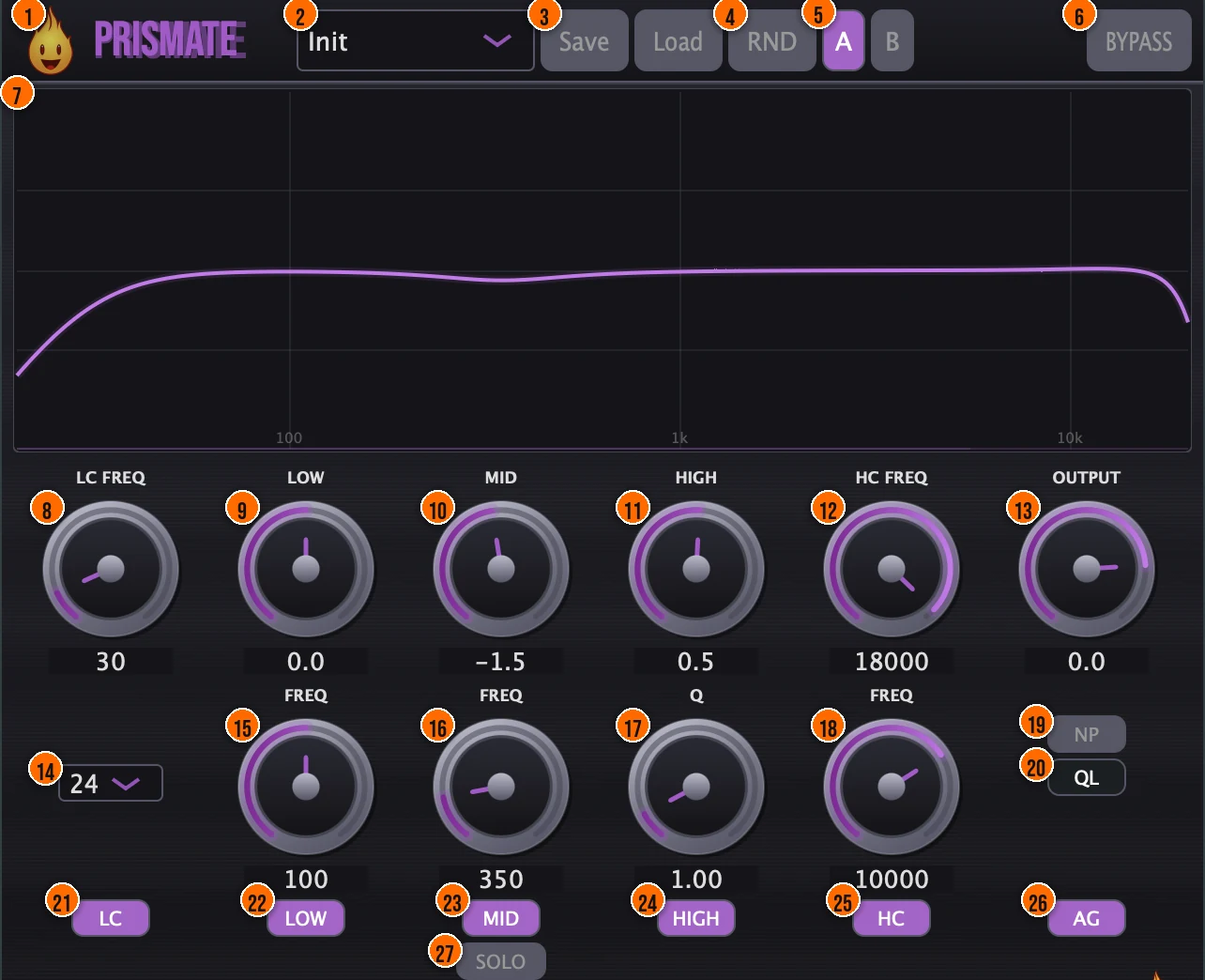
Controls
Top bar

- 1Fire Head: click the flame logo to open the About panel: what the plugin is, who made it, its version and the trademark notices. Click anywhere in the panel to close it.
- 2Presets: 15 factory presets, from Flat and Kick Room to 400Hz Mud-Arrest, Vocal Presence, Telephone and Air. Settings fade out and back in when you recall them, so they don't pop.
- 3Save / Load: save your own settings, or load them back.
- 4RND (Randomize): one click for a new EQ shape at random.
- 5A / B: two slots that store two settings, so you can switch between them instantly.
- 6Bypass: bypasses the whole plugin in one click. The bypass is delay-compensated, so your track stays in time.
Low cut
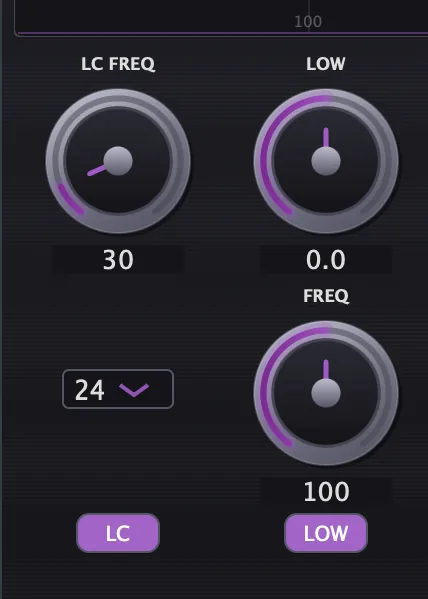
- 8LC Freq: the frequency of the low cut, a sweepable high-pass.20 to 1000 Hz
- 14Slope: how steeply the low cut rolls off.12, 24 or 48 dB per octaveTip Use 48 dB/oct on the low cut to remove rumble sharply without thinning the low mids. 12 dB/oct is gentler and suits musical roll-offs.
- 21LC: switches the low cut on or off.On or off
Low shelf
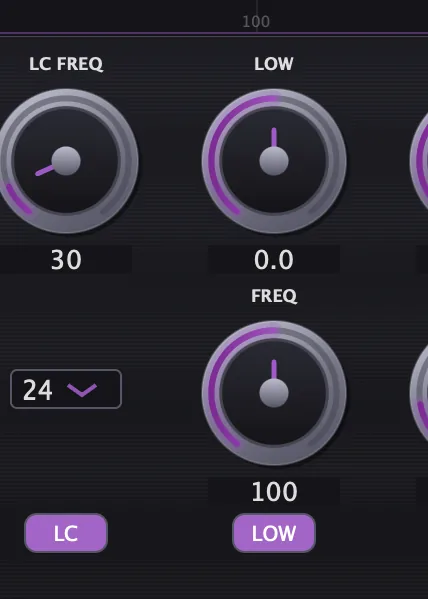
- 9Low: the gain of the low shelf, for weight and warmth.−24 to +24 dB
- 15Freq (low shelf): the frequency of the low shelf.20 to 500 Hz
- 22LOW: switches the low shelf on or off, to compare with and without it.On or off
Mid bell
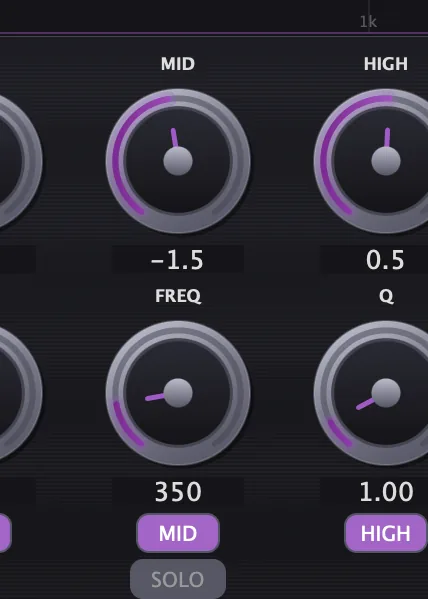
- 10Mid: the gain of the parametric mid bell.−24 to +24 dB
- 16Freq (mid bell): the center frequency of the mid bell.200 to 8000 Hz
- 17Q: the width of the mid bell: low values are broad, high values are narrow. It sits in the column under High.0.1 to 10.0, default 1.0Tip A narrow Q (5–10) targets a single problem frequency. A wide Q (0.3–1.0) shapes the overall character of a range.
- 23MID: switches the mid bell on or off.On or off
- 27SOLO (Band Solo): isolates one band so you hear exactly what you're shaping: a one-octave band centered on that band's frequency. Each click moves to the next band, Off, Low, Mid, High, and the button shows the band that is soloed: SOLO (off), S:LO, S:MD or S:HI.Off, Low, Mid or High, default OffTip Solo a band to hear exactly what that range sounds like in isolation. It helps you find the problem frequency before you cut.
High shelf
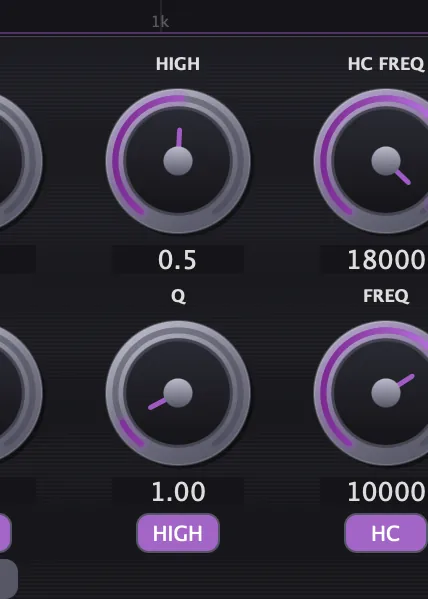
- 11High: the gain of the high shelf, for presence and air.−24 to +24 dBTip A gentle high shelf boost (+2 to +4 dB) at 8–10 kHz adds presence and air. Push it higher on dark sources; back off on bright ones.
- 18Freq (high shelf): the frequency of the high shelf. It sits in the column under HC Freq.2000 to 20000 Hz, default 10000 Hz
- 24HIGH: switches the high shelf on or off.On or off
High cut
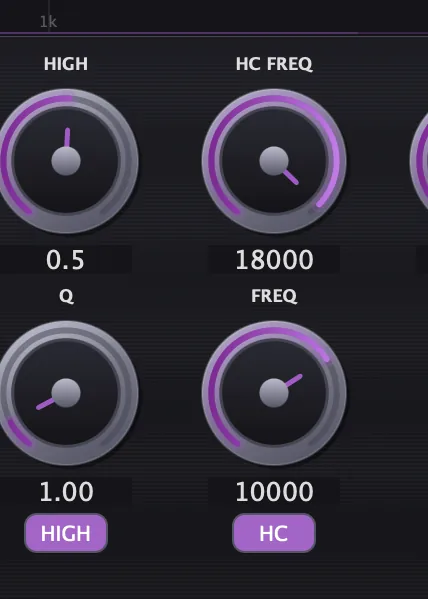
- 12HC Freq: the frequency of the high cut, a sweepable low-pass.1000 to 20000 Hz
- 25HC: switches the high cut on or off.On or off
Character and output
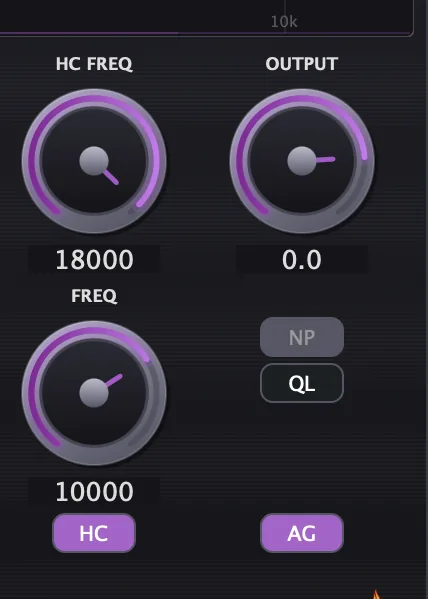
- 19NP (Natural Phase): runs the EQ at 2x oversampling, so the curve doesn't cramp near the top of the spectrum and the highs behave more cleanly. Prismate reports latency to your DAW only while Natural Phase is on.On or offTip Turn on Natural Phase when you boost the high shelf near the top of its range. Its 2x oversampling keeps the curve from cramping near Nyquist; it reports latency only while it is on.
- 20QL (Q-Link): tightens the mid bell's Q as you push its gain, so the bell narrows the way an analog EQ would.On or offTip Turn on Q-Link so the mid Q tightens automatically as you push the gain. It narrows the boost the more you add, keeping it musical.
- 13Output: the level leaving Prismate. A tanh soft clipper near full scale acts as a safety ceiling.−24 to +6 dB
- 26AG (Auto-Gain): matches the output level to the input (RMS), so you compare before and after at the same loudness.On or offTip Turn on Auto-Gain for an honest before-and-after comparison. It compensates the output level so louder does not sound better.
Meters and displays
- 7Spectrum analyzer and EQ curve: a real-time spectrum on a logarithmic frequency axis (100 Hz, 1 kHz and 10 kHz are marked), with the live response curve of your EQ drawn over it. It uses a 2048-point FFT and refreshes 30 times a second.
- Value boxes: the box under each knob shows its current setting.
Key specs*
| Low shelf | 20 to 500 Hz, −24 to +24 dB |
|---|---|
| Mid bell | 200 to 8000 Hz, −24 to +24 dB, Q 0.1 to 10.0 |
| High shelf | 2000 to 20000 Hz, −24 to +24 dB |
| Low cut | 20 to 1000 Hz, 12, 24 or 48 dB per octave |
| High cut | 1000 to 20000 Hz |
| Natural Phase | 2x IIR oversampling |
| Latency | Reported to your DAW only while Natural Phase is on |
| Analyzer | 2048-point FFT, 30 Hz refresh, logarithmic axis |
| Output | −24 to +6 dB, tanh soft clipper near full scale, 5 Hz DC blocker |
| Parameters | Smoothed on every control; preset recall fades out and back in |
| Window size | 500 x 400 up to 900 x 750 |
| Factory presets | 15 |
* Key specs from the plugin page. Some specs may not be listed.
Frequency zones
Where each band and filter sits on the frequency spectrum. Dashed outlines are the two cut filters; solid fills are the three EQ bands.
Drum EQ zones
Starting points for EQing common drum elements with Prismate. Solid bars are areas to explore boosting; dashed bars are areas to explore cutting. Every sound is different, so sweep by ear and adjust to taste.
What shape is each EQ band?
Each panel shows one band boosted by 6 dB, drawn from the same filter math Prismate uses. The dashed line marks Freq: a shelf reaches half its boost there, and the Mid Bell peaks there.
The Low Shelf and High Shelf have a fixed Q of 0.707, so Freq and the gain knob set their shape. The Mid Bell’s Q sets its width: Q 5 is narrow, Q 0.5 is wide. These curves show each band’s shape, not an exact measurement.
How do I add presence and air to a vocal with Prismate?
- Load it. Put Prismate on the vocal and pick the Vocal Presence preset, or start from Flat.
- Clean up the lows. Turn on LC and raise LC Freq until the rumble under the voice is gone but the body stays.
- Find the presence. Set the mid bell's Freq and raise Mid. Turn on QL if you want the bell to narrow as you boost.
- Add air. Raise High and move the high shelf's Freq until the top opens up. Turn on NP for cleaner highs.
- Hear one band. Use SOLO to isolate the band you're shaping, then turn it off.
- Compare honestly. Turn on AG so the level matches, then use Bypass or the A / B slots to compare.
How do I clean up a muddy mix bus with Prismate?
- Insert Prismate. Put Prismate on the mix bus.
- Cut the rumble. Enable the Low Cut and set it to 30–40 Hz with a 24 or 48 dB/oct slope to remove sub-bass rumble.
- Find the mud. Boost the Mid band by 6–8 dB and sweep the frequency between 200 and 500 Hz. The muddiest spot will jump out.
- Cut it. Once you find it, flip the gain to a moderate cut (−2 to −4 dB) at that frequency. Narrow the Q if the mud is concentrated.
- Add air. Raise the High shelf by 1–3 dB around 10 kHz to restore openness.
- Check with Auto-Gain. Turn on Auto-Gain and bypass Prismate to compare. The levels are matched, so you are judging tone, not volume.
What about Prismate Raw?

Prismate Raw is the free one-knob version, on the same Natural Phase engine. Its AIR knob drives a high-shelf air lift, a presence bell around 3 kHz and a gentle low-mid scoop together, with auto-gain always on so it gets brighter, not just louder. Natural Phase is always on, so its latency stays constant. Its own manual: Prismate Raw manual.
Prismate vs. Prismate Raw
A side-by-side look at what each version includes.
| Feature | Prismate | Prismate Raw |
|---|---|---|
| Presets | Included | Not included |
| Randomize | Included | Not included |
| Output level | Included | Not included |
| Auto-gain | Included | Included |
Keyboard and mouse shortcuts
These work in every Prismate format (AU, VST3, CLAP, AAX, Standalone).
| Reset a control to its default | Double-click the knob or slider |
|---|---|
| Scroll to change a value | Hover over a knob and scroll the mouse wheel |
| Type an exact value | Click the value below a knob and type a number |
Frequently Asked Questions
Why does Prismate add latency only sometimes?
Latency comes from Natural Phase, the 2x oversampling. Prismate reports it to your DAW only while NP is on, and the bypass is delay-compensated, so your tracks stay aligned either way.
Which knob sets the high shelf frequency?
The Freq knob in the bottom row under HC Freq. The Q knob under High belongs to the mid bell.
What is the difference between the LOW, MID and HIGH buttons and SOLO?
The band buttons switch each band on or off, so you can compare with and without it. SOLO isolates a band so you hear only the part of the sound it shapes.
How do I reset a knob?
Double-click it to return it to its default.
Can I switch presets while the track plays?
Yes. Prismate fades out, swaps the settings at a zero crossing and fades back in, so recalling a preset doesn't pop.
Is Natural Phase linear-phase?
No. Natural Phase is 2× oversampling, not linear-phase processing. It runs the EQ filters at double the sample rate so the frequency response stays accurate near Nyquist, then downsamples back. The result is cleaner highs without the pre-ringing that linear-phase EQs can add to transients. Latency is only reported while NP is on.
Where can I find more about Prismate?
On the Prismate page: its features, system requirements and how to get it.
Related guides
How do I get and install Prismate?
- Get it. Prismate is free. Get it from the Prismate page.
- Run the installer. On macOS, double-click the .pkg file and choose AU, VST3, CLAP, AAX or Standalone. On Windows, run the .exe installer and choose VST3, CLAP or Standalone.
- Open your DAW. Restart your DAW and rescan plugins if needed, then find Prismate under Remi Blaze in your plugin list.
More about Prismate, including its features and system requirements, is on the Prismate page.
Where are the plugin files?
If you need to find Prismate on disk, for example to troubleshoot or to uninstall it manually, these are the standard locations.
| macOS AU | ~/Library/Audio/Plug-Ins/Components/ |
|---|---|
| macOS VST3 | ~/Library/Audio/Plug-Ins/VST3/ |
| macOS CLAP | ~/Library/Audio/Plug-Ins/CLAP/ |
| macOS AAX | /Library/Application Support/Avid/Audio/Plug-Ins/ |
| Windows VST3 | C:\Program Files\Common Files\VST3\ |
| Windows CLAP | C:\Program Files\Common Files\CLAP\ |
To uninstall, quit your DAW and delete the Prismate file from the relevant folder. Your DAW will stop listing it on its next rescan.
Need help with Prismate?
If something isn't covered here, or Prismate doesn't behave as described, contact support or email support@remiblaze.com. To get an answer faster, include:
- your operating system and version (for example macOS 15.6 or Windows 11)
- your DAW and its version
- the format you're using (AU, VST3, CLAP, AAX or Standalone)
- the Prismate version, shown in the About panel (click the Fire Head)
- what you did, what you expected, and what happened instead
This manual is for Prismate 1.1.3. Controls and settings can change between versions, so if something here doesn't match what you see, check which version you have: click the Fire Head to open Prismate's About panel. Spotted a mistake or have a question? Let us know.