What is Scatterit?
Scatterit is a transient glitch slicer for Mac and Windows. It reacts to your audio, not a clock: it listens for transients such as a drum hit or a vocal onset, captures that slice, and rolls the dice to play it forward, reversed, pitched, stuttered, or replaced with your own one-shot.
Detection finds the transients, using one of three modes and the Threshold, Sensitivity and envelope settings, on the bands you arm or from a sidechain input. Each captured slice then gets its effect by probability: the Probability slider sets the overall chance, and the five weights set how likely each effect is. Pitched slices can snap to a key and scale, and Mix blends the result with the dry signal.
How does audio-reactive slicing work?
A grid slicer cuts on a fixed clock. Scatterit cuts on the audio itself: when it detects a transient, such as a drum hit or a vocal onset, it captures that slice.
For each captured slice it rolls the dice. Probability sets the chance that the slice gets an effect at all, and the Fwd, Rev, Pitch, Stut and Samp weights set how likely each effect is. Because the triggers follow the audio, the glitches land on real hits and never feel locked to the grid.
Quick start
Get a result with Scatterit in under a minute.
- Insert it. Put Scatterit on the track or bus you want to process.
- Pick a preset. Open the Presets menu and choose one close to what you want.
- Shape it. Work through the numbered controls below until it sounds right to your ear.
- Blend to taste. Pull Mix back from 100% if you want a subtler result.
- Compare. Bypass the plugin in your DAW to hear before and after.
The interface
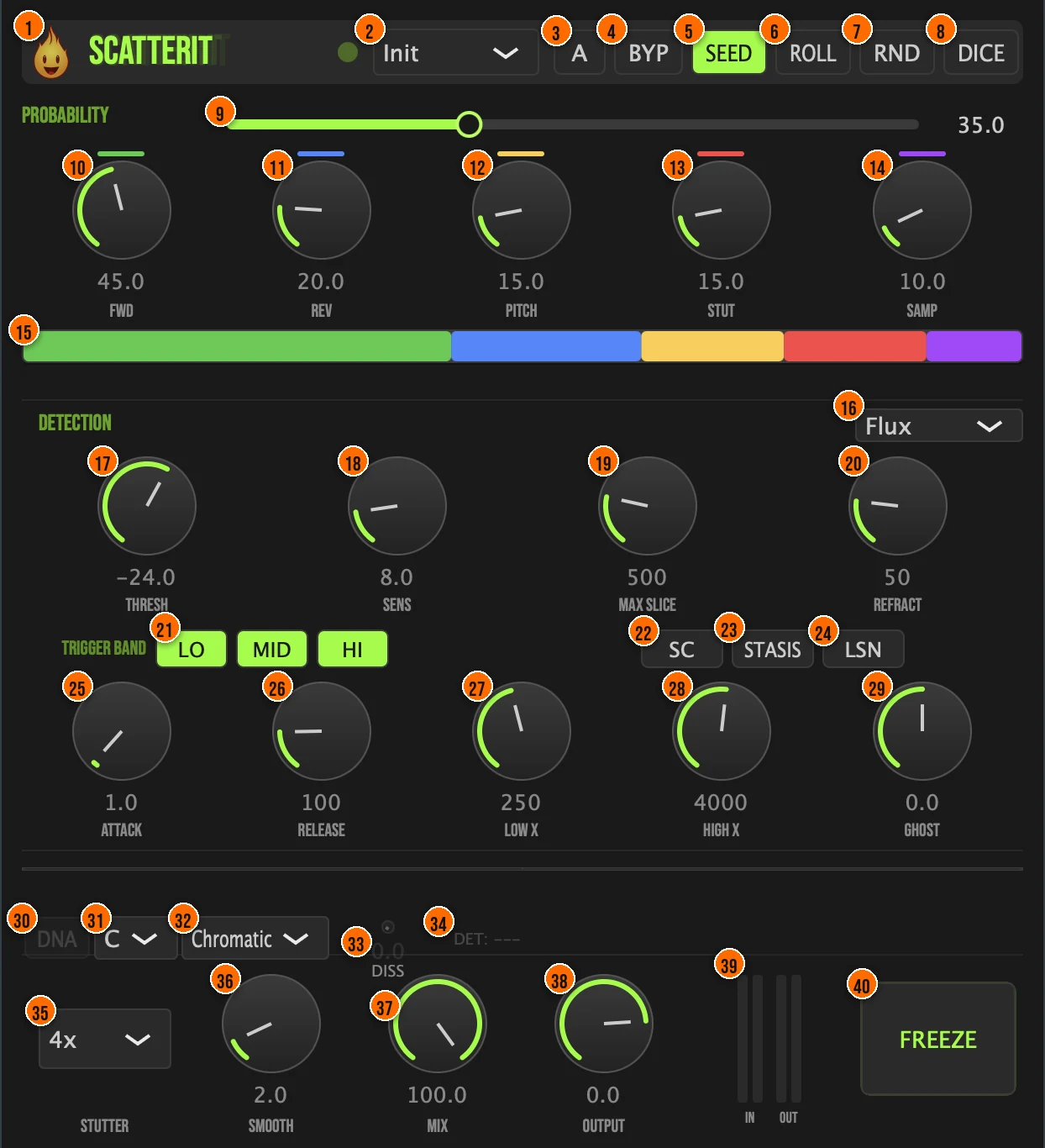
Controls
This manual covers the controls documented for the current release. Some controls on the panel aren't covered yet.
Top bar

- 1Fire Head: click the flame logo to open the About panel: what the plugin is, who made it, its version and the trademark notices. Click anywhere in the panel to close it.
- 2Presets: 15 factory presets, from Subtle Glitch and Drum Fracture to Stutter Machine, Ghost Sidechain and Infinite Rise.
- 3A (A/B): compare two versions of your settings.
- 4BYP (Bypass): instant comparison against the dry signal.
- 5Seed (Seed Lock): when it's lit, the scatter pattern is reproducible, so a saved project reloads to the same pattern. Turn it off for fresh randomness on each playback, for live jamming. It is on by default.
- 6ROLL: rolls a new scatter pattern, which then stays reproducible like any locked pattern.
- 7RND (Randomize): randomizes the whole engine.
- 8Dice: re-rolls only the effect weights (Fwd, Rev, Pitch, Stut and Samp).Tip Dice re-rolls only the effect weights and keeps your detection settings, so it's safe to press once the triggers are dialed in.
Probability
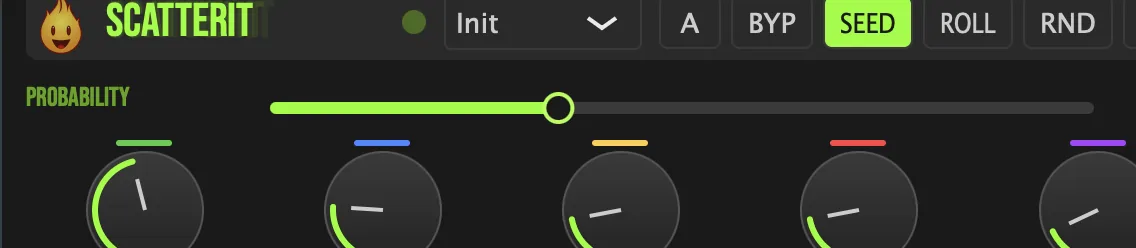
- 9Probability: the overall chance that a captured slice gets an effect.
- 10Fwd (Forward): the weight for playing the slice forward.
- 11Rev (Reverse): the weight for playing the slice reversed.
- 12Pitch: the weight for pitch-shifting the slice. Pitched slices can snap to the key and scale below.
- 13Stut (Stutter): the weight for stuttering the slice. Set the number of repeats with the Stutter menu.
- 14Samp (Sample Replace): the weight for replacing the slice with your own one-shot. Drag and drop a WAV, AIFF, FLAC, MP3 or OGG file to use, with folder-cycle options (random and lock). Dropped one-shots are level-matched to −18 dBFS so they sit consistently in the mix.Tip Dropped one-shots are level-matched to −18 dBFS, so you can swap samples without rebalancing the mix.
Detection
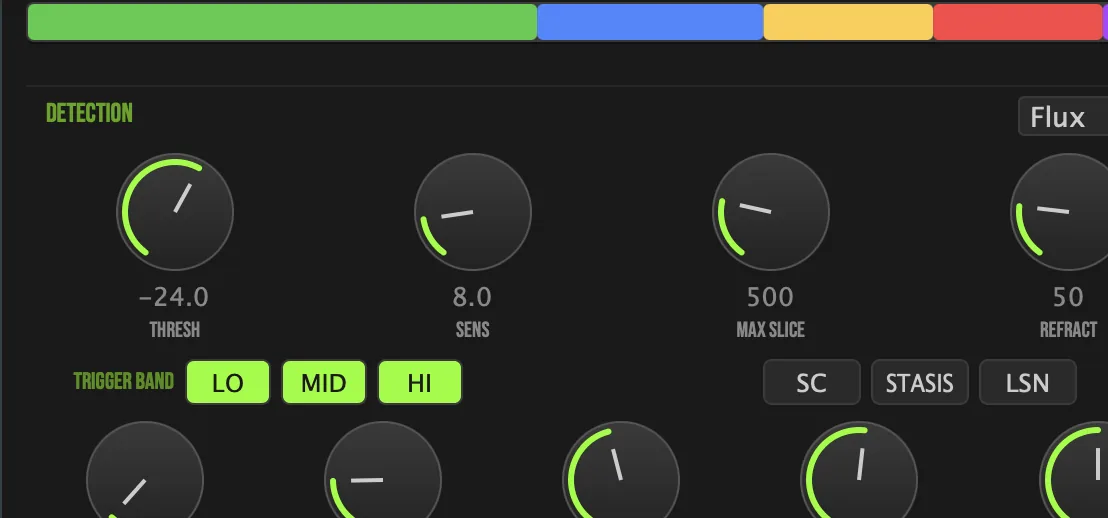
- 16Detection mode: how Scatterit finds transients.Flux (Spectral Flux, FFT onset), Envelope Peak or Envelope RMSTip Spectral Flux finds onsets with an FFT; Envelope Peak and Envelope RMS follow the level. If one mode misses hits on your material, try another before you push Thresh.
- 17Thresh (Threshold): how loud a moment must be to count as a transient.
- 18Sens (Sensitivity): how readily the detector responds.
- 19Max Slice: the longest a captured slice can be, to keep captures clean.
- 20Refract (Refractory time): spaces out the triggers, so slices don't fire too close together.Tip Raise Refract on busy loops so slices don't fire on every small hit; lower it for rapid-fire glitches.
- 25Attack: the detection envelope's attack.
- 26Release: the detection envelope's release.
Triggering
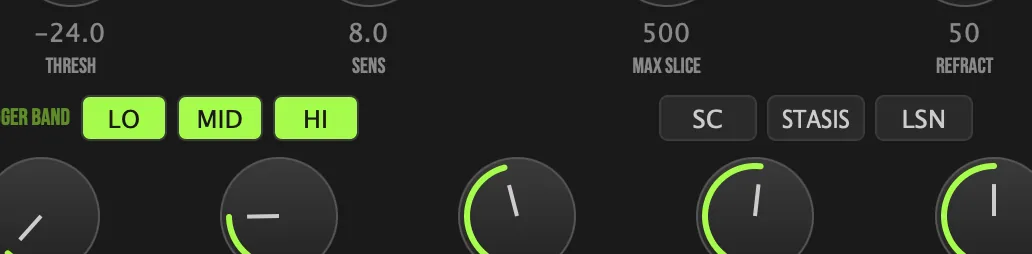
- 21Trigger Band: Lo / Mid / Hi: a crossover splits the signal into three bands, and you arm each band independently, so only the parts you choose trigger slices.
- 27Low X: the Low crossover point, where the Lo band ends.
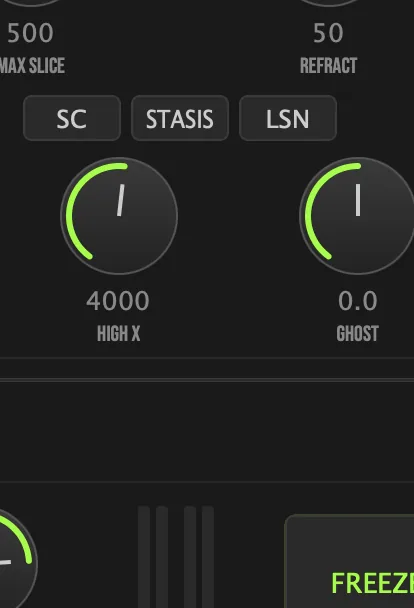
- 28High X: the High crossover point, where the Hi band begins.
- 22SC (Sidechain): fires slices from an external input instead of the track itself.Tip With SC on, another track's rhythm fires the slices, for example a pad glitched by the drums. Ghost moves the triggers earlier or later by up to ±20 ms.
- 29Ghost (Ghost Offset): moves the trigger timing earlier or later.Up to ±20 ms
- 24LSN (Detection Listen): solos the trigger signal, so you can hear what the detector hears while you dial it in.
Harmony and slices
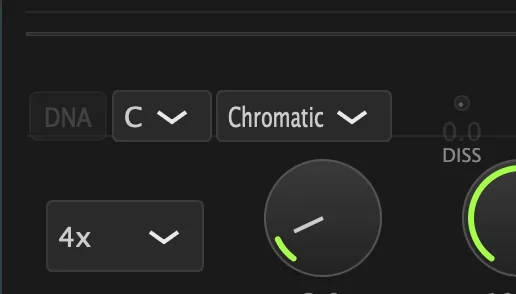
- 30DNA (Harmonic Align): switches Harmonic Alignment on or off. When it's on, Scatterit detects the pitch of what it captures and snaps pitched slices to the Key and Scale beside it. It is off by default.
- 31Key (Project Key): the key pitched slices snap to.
- 32Scale: the scale pitched slices snap to.Chromatic, Major, Minor, Phrygian, Dorian, Mixolydian, Harmonic Minor or Pentatonic
- 33Diss (Dissonance): the Dissonance amount for pitched slices, for controlled tension.
- 35Stutter: the number of repeats when a slice stutters.2x, 4x, 8x or 16xTip 2x and 4x give a quick double hit; 8x and 16x give a roll.
- 36Smooth (Slice Smooth): helps keep captures clean.
Performance
- 23Stasis: Freeze-on-Silence: when it's on and the input drops below the threshold, Scatterit captures and loops the last slice, and picks back up with a short crossfade when the input returns. It is off by default.Tip Stasis turns gaps into texture: when the input drops below the threshold, the last slice keeps looping, and the sound picks back up with a short crossfade when the input returns.
- 40Freeze (Freeze Slice): press and hold to loop the last captured slice. Made for live performance.Tip Hold Freeze on the last hit before a drop to loop it, then let go on the downbeat.
Output
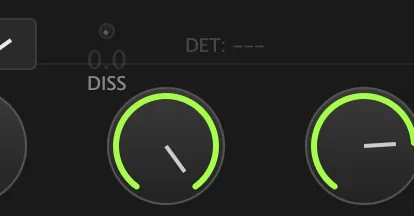
- 37Mix: blends the glitched sound with the dry signal.
- 38Output: the output trim.
Meters and displays
- 15Weight bar: a color-coded bar under the effect knobs that shows how the five effect weights share out, in the same colors as the marks above the knobs. Each segment flashes when its effect fires.
- 34DET (detected note): shows the note Harmonic Alignment detects, for example DET: G#2. It reads --- when there's no note to show.
- 39IN / OUT meters: the input and output levels (RMS).
- Value readouts: each knob and the Probability slider show their current value.
Key specs*
| Detection modes | Spectral Flux (FFT onset), Envelope Peak, Envelope RMS |
|---|---|
| Effect modes | Forward, Reverse, Pitch, Stutter, Sample Replace, each with its own weight |
| Stutter repeats | 2x, 4x, 8x, 16x |
| Trigger bands | Low, Mid, High; Linkwitz-Riley 4th-order (24 dB/octave) crossover |
| Ghost Offset | Up to ±20 ms |
| Sample formats | WAV, AIFF, FLAC, MP3, OGG; level-matched to −18 dBFS |
| Scales | Chromatic, Major, Minor, Phrygian, Dorian, Mixolydian, Harmonic Minor, Pentatonic |
| Preset files | .scatteritpreset, including the replacement sample path |
| Factory presets | 15 |
* Key specs from the plugin page. Some specs may not be listed.
How does the sound flow through Scatterit?
A simplified view of the main path.
Each effect has a separate weight that sets how likely it is. Stasis freezes on silence, looping the last captured slice, and Sample Replace can swap in your own one-shot.
How do I make a drum loop glitch on its own hits with Scatterit?
- Load it. Put Scatterit on the drum loop and start from the Drum Fracture preset.
- Catch the hits. Switch on LSN to hear the trigger signal, then set Thresh and Sens until the hits you want are caught. Switch LSN off again.
- Choose the bands. Arm Lo, Mid or Hi under Trigger Band, so only the part of the sound you choose fires slices. Move Low X and High X to set where the bands split.
- Set the odds. Set Probability for how often a slice is glitched, then balance Fwd, Rev, Pitch, Stut and Samp. Raise Refract if slices fire too close together.
- Keep it in key. Set Key and Scale to your track, so pitched slices stay in tune.
- Lock and blend. Keep Seed on when you like the pattern, so it comes back the same (press ROLL for a new one), then set Mix and Output.
How do I swap some hits for my own one-shots with Scatterit?
- Load it. Put Scatterit on a drum loop.
- Drop a one-shot. Drag a WAV, AIFF, FLAC, MP3 or OGG one-shot onto Scatterit. It is level-matched to −18 dBFS.
- Weight the replace. Raise Samp and lower Rev, Pitch and Stut, so most effected slices become your one-shot.
- Pick the hits. Arm only the band you want under Trigger Band, for example Hi for the hats, and use LSN to hear what triggers.
- Set how often. Set Probability for how often a slice is replaced.
- Blend it. Set Mix and Output, and turn Seed on when you like the pattern so it comes back the same.
What about Scatterit Raw?
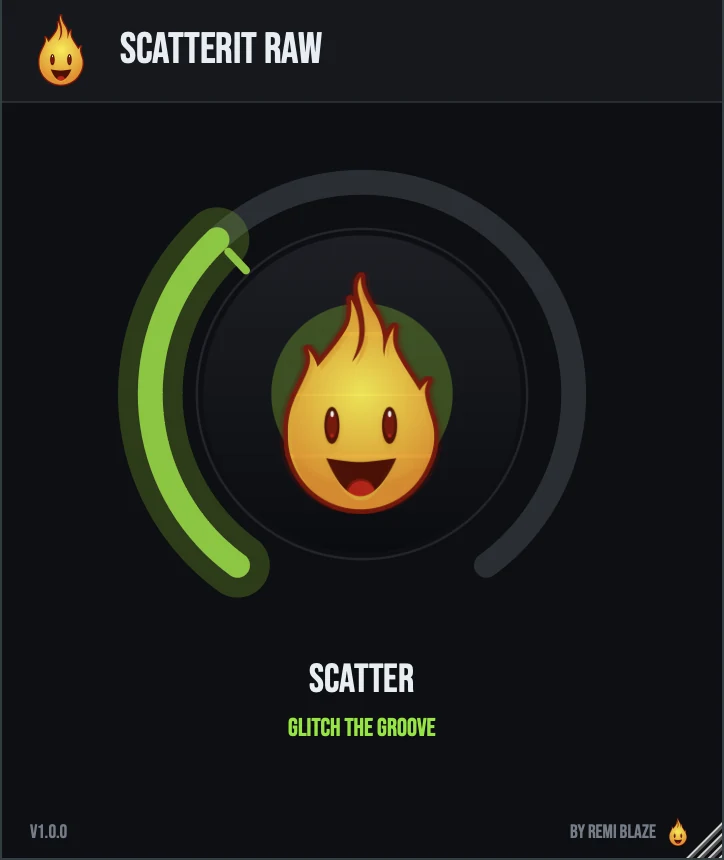
Scatterit Raw is the free one-knob version. Its SCATTER knob sets the intensity and density of the glitches: occasional hiccups at low settings, full chaos at the top, and a clean signal at zero. Each slice plays forward, reversed, pitched or stuttered, and the pattern is seeded, so a saved project reloads to the same performance. Its own manual: Scatterit Raw manual.
Scatterit vs. Scatterit Raw
A side-by-side look at what each version includes.
| Feature | Scatterit | Scatterit Raw |
|---|---|---|
| Presets | Included | Not included |
| Randomize | Included | Not included |
| Mix (dry/wet) | Included | Not included |
| Output level | Included | Not included |
Keyboard and mouse shortcuts
These work in every Scatterit format (AU, VST3, CLAP, AAX, Standalone).
| Reset a control to its default | Double-click the knob or slider |
|---|---|
| Scroll to change a value | Hover over a knob and scroll the mouse wheel |
| Type an exact value | Click the value below a knob and type a number |
Frequently Asked Questions
How do I hear what Scatterit is detecting?
Switch on LSN (Detection Listen). It solos the trigger signal, so you can set Thresh, Sens and the trigger bands by ear.
Can another track trigger the slices?
Yes. Switch on SC to fire slices from an external sidechain input, and use Ghost to move the trigger timing up to 20 ms earlier or later.
What is the difference between Stasis and Freeze?
Stasis works by itself: while it's on, it loops the last captured slice whenever the input goes silent, and lets go when the sound returns. Freeze loops the last captured slice for as long as you hold it.
Can I get the same glitch pattern every time?
Yes. Seed is on by default, so the pattern is reproducible and a saved project reloads to the same one. Press ROLL for a new pattern. Switch Seed off for patterns that change on each playback.
Do my presets remember the replacement sample?
Yes. A saved .scatteritpreset file includes the replacement sample's path.
Where can I find more about Scatterit?
On the Scatterit page: its features, system requirements and how to get it.
How do I buy and install Scatterit?
- Buy it. Scatterit is a one-time purchase. Buy it from the Scatterit page, and the store emails you the download link.
- Run the installer. On macOS, double-click the .pkg file and choose AU, VST3, CLAP, AAX or Standalone. On Windows, run the .exe installer and choose VST3, CLAP or Standalone.
- Open your DAW. Restart your DAW and rescan plugins if needed, then find Scatterit under Remi Blaze in your plugin list.
More about Scatterit, including its features and system requirements, is on the Scatterit page.
Where are the plugin files?
If you need to find Scatterit on disk, for example to troubleshoot or to uninstall it manually, these are the standard locations.
| macOS AU | ~/Library/Audio/Plug-Ins/Components/ |
|---|---|
| macOS VST3 | ~/Library/Audio/Plug-Ins/VST3/ |
| macOS CLAP | ~/Library/Audio/Plug-Ins/CLAP/ |
| macOS AAX | /Library/Application Support/Avid/Audio/Plug-Ins/ |
| Windows VST3 | C:\Program Files\Common Files\VST3\ |
| Windows CLAP | C:\Program Files\Common Files\CLAP\ |
To uninstall, quit your DAW and delete the Scatterit file from the relevant folder. Your DAW will stop listing it on its next rescan.
Need help with Scatterit?
If something isn't covered here, or Scatterit doesn't behave as described, contact support or email support@remiblaze.com. To get an answer faster, include:
- your operating system and version (for example macOS 15.6 or Windows 11)
- your DAW and its version
- the format you're using (AU, VST3, CLAP, AAX or Standalone)
- the Scatterit version, shown in the About panel (click the Fire Head)
- what you did, what you expected, and what happened instead
This manual is for Scatterit 1.1.0. Controls and settings can change between versions, so if something here doesn't match what you see, check which version you have: click the Fire Head to open Scatterit's About panel. Spotted a mistake or have a question? Let us know.