What is Scorchit?
Scorchit is a formant-linked saturator for Mac and Windows. It pairs four saturation modes with a five-band formant filter bank, so driving harder makes a vocal sound deeper or chirpier without changing its pitch.
Your sound is saturated first, then runs through five parallel bandpass filters that model the resonances of a voice. Drive and Character are coupled: as Drive rises, the formant bank shifts in the Character direction, by as much as Link allows. Drop an audio clip onto the drop zone and its envelope pumps the Drive, for rhythmic, breathing saturation.
How does formant-linked saturation work?
Formants are the resonant peaks that give a voice its vowel character. A formant filter bank boosts specific frequency bands to shape a sound the way a mouth shapes vowels. When that filter bank is linked to a saturation stage, pushing the drive harder also shifts the formant character, so the tone and the distortion move together instead of fighting each other.
Quick start
Get a result with Scorchit in under a minute.
- Insert it. Put Scorchit on the track or bus you want to process.
- Pick a preset. Open the Presets menu and choose one close to what you want.
- Shape it. Work through the numbered controls below until it sounds right to your ear.
- Use Auto-Gain. Switch on AG so the level stays matched, and judge the sound, not the volume.
- Blend to taste. Pull Mix back from 100% if you want a subtler result.
- Compare. Bypass the plugin in your DAW to hear before and after.
The interface
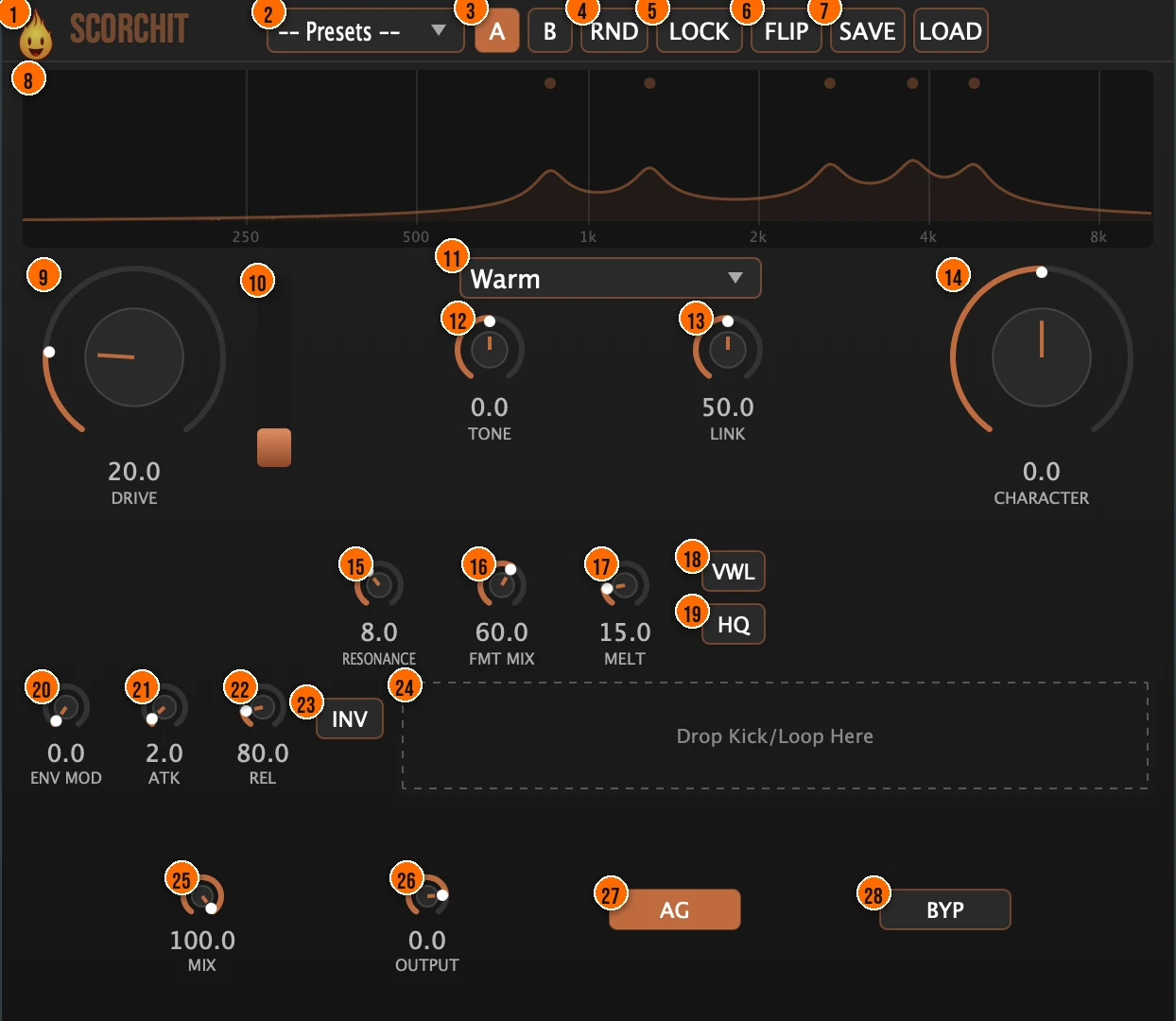
Controls
Top bar

- 1Fire Head: click the flame logo to open the About panel: what the plugin is, who made it, its version and the trademark notices. Click anywhere in the panel to close it.
- 2Presets: 15 factory presets, from Vocal Warmth and Deep Voice to Pumping Saturation, Robo-Talker and Presence Shifter.
- 3A / B: compare two versions of your settings.
- 4RND (Randomize): new settings at random.
- 5LOCK (Link Lock): when it's lit, the Drive and Character knobs move together, so one knob transforms everything.
- 6FLIP (Character Flip): inverts the formant direction in one click, so the shift Character sets goes the other way.
- 7Save / Load: save your own presets, or load them back.
Saturation
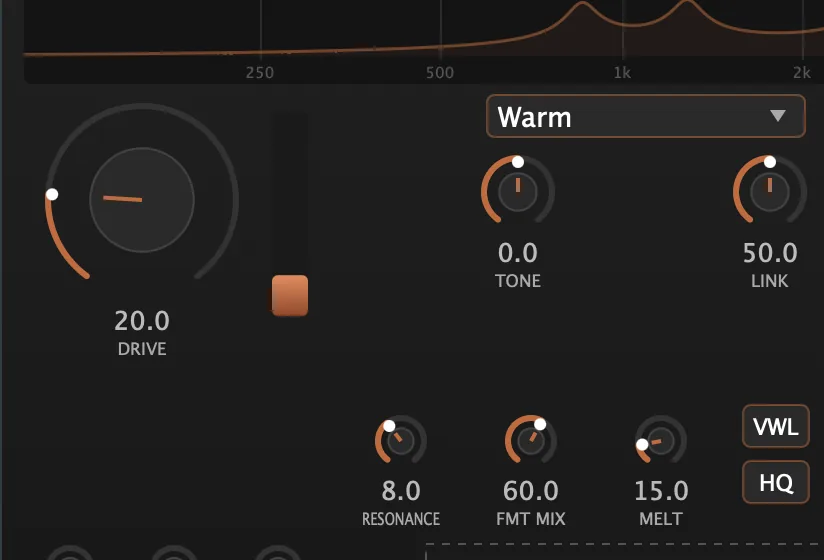
- 9Drive: how hard the signal is saturated. As Drive rises, the formant bank shifts in the Character direction.0 to 100%Tip Low Drive with a vowel-locked character turns Scorchit into a subtle tone shaper. High Drive makes it a vocal effect.
- 11Mode: the saturation character. Warm is a smooth tanh soft clip. Grit is an asymmetric hard clip with odd and even harmonics. Tape is tanh with a high-frequency rolloff. Tube adds even (second) harmonics.Warm, Grit, Tape or TubeTip Warm is forgiving on everything. Grit adds edge. Tape rolls off highs. Tube emphasizes the second harmonic.
- 19HQ: switches the oversampling from Standard to HQ. The latency is reported statically, so switching is gapless.Standard (4x) or HQ (8x)
Formant link
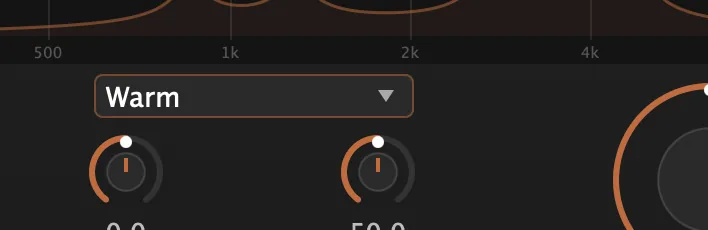
- 12Tone: a high-shelf EQ, for a darker or brighter result.−100% to +100%, a shelf of up to ±12 dB
- 13Link (Formant Link): how much Drive moves the Character.0 to 100%Tip Higher Link values couple the formant shift more tightly to the drive. At zero, they move independently.
- 14Character: shifts the formant bank, so the voice sounds deeper or chirpier without a change in pitch. Drive pushes it further in the direction you set.−100% to +100%Tip Sweep Character slowly while playing audio to find the sweet spot where the formant and drive complement each other.
Formant bank
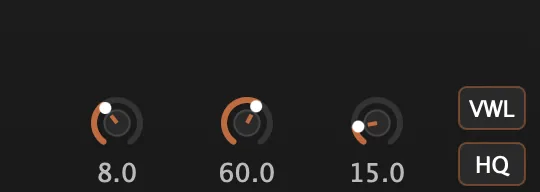
- 15Resonance: the Q of the five formant filters: higher sounds synthetic or robotic, lower sounds natural.Q 1 to 20Tip Raise Resonance to sharpen the formant peaks. Lower it for a broader, subtler coloring.
- 16Fmt Mix (Formant Mix): blends between the saturated signal before the formant bank and the formant-filtered signal.0 to 100%
- 17Melt: formant entropy: slow, organic drift in the formant frequencies, like the instability of a real vocal tract. Left and right drift independently, for subtle stereo movement.0 to 100%Tip Melt adds slow, organic drift to the formant position, so the sound never sits still.
- 18VWL (Vowel Lock): snaps Character to five vowel positions, with gain compensation for each vowel and smooth, click-free moves between them.U, O, A, E, ITip Vowel Lock snaps Character to five vowel positions (U, O, A, E, I) for a talk-box feel.
Envelope modulation
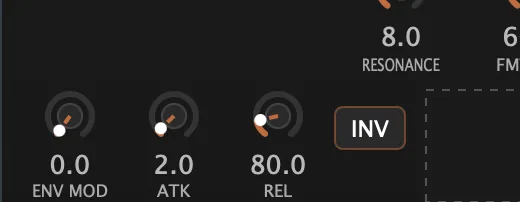
- 20Env Mod: how much the dropped sample's envelope moves the Drive.0 to 100%
- 21Atk (Attack): how fast the envelope follows the sample as it gets louder.0.1 to 50 ms
- 22Rel (Release): how fast the envelope falls back.10 to 500 ms
- 23INV (Invert): inverts the envelope, for breathing or ducking saturation.
- 24Drop zone: drag a kick, loop or vocal onto it. It plays back looped and normalized, and its amplitude envelope modulates the Drive.WAV, AIFF, MP3 or FLAC
Output
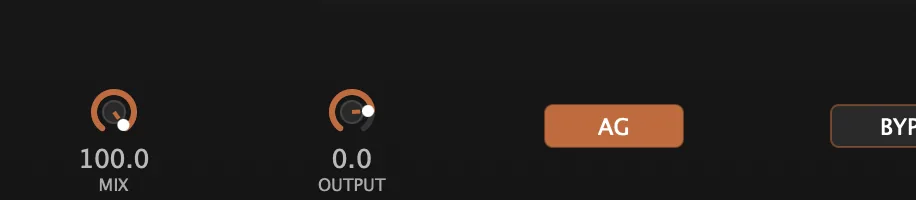
- 25Mix: blends the processed sound with the dry signal, across the full range. The dry path is phase-aligned, so partial settings don't cause cancellation.Tip Pull Mix back to blend the formant-shaped signal with the dry original for a thicker, layered sound.
- 26Output: the output trim.−24 to +6 dB
- 27AG (Auto-Gain): RMS-matched gain compensation, so the perceived volume stays the same however hard you drive. It is on by default.Tip Switch on AG so you hear the tonal change, not the volume change.
- 28BYP (Bypass): switches the effect off, for an instant comparison with the dry signal. It is off by default.
Meters and displays
- 8Formant display: shows the response of the five formant bands in real time, with a dot on each peak, on a frequency grid (250 Hz to 8 kHz are marked).
- 10Drive meter: shows the effective drive level: the Drive setting plus the envelope modulation.
Key specs*
| Saturation modes | Warm (tanh), Grit (asymmetric), Tape (tanh with rolloff), Tube (even harmonics) |
|---|---|
| Oversampling | Standard (4x) or HQ (8x); latency reported statically |
| Formant bank | 5 parallel bandpass filters, Q 1 to 20 |
| Drive / Character / Link | 0 to 100% / −100% to +100% / 0 to 100% |
| Vowel Lock | U, O, A, E, I, with per-vowel gain compensation |
| Envelope | Attack 0.1 to 50 ms, release 10 to 500 ms, invert |
| Sample formats | WAV, AIFF, MP3, FLAC |
| Tone | ±12 dB high shelf |
| Output | −24 to +6 dB trim; RMS-matched Auto-Gain |
| Factory presets | 15 |
* Key specs from the plugin page. Some specs may not be listed.
How does the sound flow through Scorchit?
A simplified view of the main path.
Tone and Auto-Gain also shape the result, and a dropped sample's envelope modulates Drive.
How do I make saturation pump with a kick in Scorchit?
- Load it. Put Scorchit on a vocal or synth and start from the Pumping Saturation preset.
- Pick the heat. Choose Warm, Grit, Tape or Tube in the mode menu, and set Drive.
- Drop a kick. Drag a kick or loop (WAV, AIFF, MP3 or FLAC) onto the drop zone. Its envelope now moves the Drive.
- Shape the pump. Raise Env Mod for depth, then set Atk and Rel for how quickly it grabs and lets go.
- Flip it. Press INV to invert the envelope, for a breathing or ducking feel.
- Level it. Switch on AG so the volume stays steady, then set Mix and Output.
How do I make a synth talk with Scorchit?
- Insert it. Put Scorchit on a synth pad or lead.
- Lock the vowels. Switch on VWL (Vowel Lock) so Character snaps to vowel positions.
- Set the mode. Choose Warm for a smooth vocal quality, or Tube for a brighter, more forward character.
- Automate Character. Draw Character automation to move between vowel positions over time, spelling out a vowel sequence.
- Add movement. Turn up Melt slightly so the formant drifts between automation points for a more natural feel.
- Blend. Set Mix to about 70% so the dry synth signal fills in behind the formant effect.
What about Scorchit Raw?
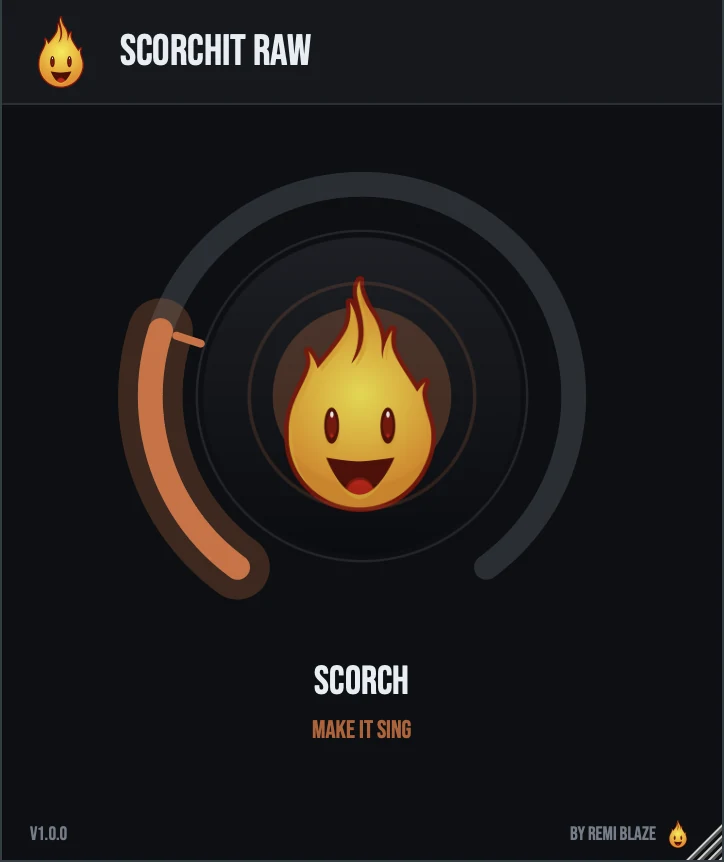
Scorchit Raw is the free one-knob version, on the same formant-linked engine. Its SCORCH knob sets the drive, and as it climbs the formant bank glides open for a singing, vowel-like color. It runs with HQ oversampling and automatic gain, so the level stays matched at every setting. Its own manual: Scorchit Raw manual.
Scorchit vs. Scorchit Raw
A side-by-side look at what each version includes.
| Feature | Scorchit | Scorchit Raw |
|---|---|---|
| Presets | Included | Not included |
| Randomize | Included | Not included |
| Mix (dry/wet) | Included | Not included |
| Output level | Included | Not included |
| Auto-gain | Included | Included |
Keyboard and mouse shortcuts
These work in every Scorchit format (AU, VST3, CLAP, AAX, Standalone).
| Reset a control to its default | Double-click the knob or slider |
|---|---|
| Scroll to change a value | Hover over a knob and scroll the mouse wheel |
| Type an exact value | Click the value below a knob and type a number |
Frequently Asked Questions
What does HQ change?
It raises the oversampling from 4x (Standard) to 8x (HQ). Scorchit reports its latency statically, so switching between them is gapless.
What does Resonance do to the sound?
It sets the Q of the five formant filters, from 1 to 20. Higher settings sound synthetic or robotic; lower settings sound more natural.
Will more Drive make my track louder?
Not with AG on. Auto-Gain matches the RMS level, so the perceived volume stays the same and you hear the tone change, not just a louder signal.
Does blending with Mix sound phasey?
No. The dry path runs through a matched all-pass chain, so it stays phase-aligned with the processed sound at partial Mix settings.
Where can I find more about Scorchit?
On the Scorchit page: its features, system requirements and how to get it.
How do I buy and install Scorchit?
- Buy it. Scorchit is a one-time purchase. Buy it from the Scorchit page, and the store emails you the download link.
- Run the installer. On macOS, double-click the .pkg file and choose AU, VST3, CLAP, AAX or Standalone. On Windows, run the .exe installer and choose VST3, CLAP or Standalone.
- Open your DAW. Restart your DAW and rescan plugins if needed, then find Scorchit under Remi Blaze in your plugin list.
More about Scorchit, including its features and system requirements, is on the Scorchit page.
Where are the plugin files?
If you need to find Scorchit on disk, for example to troubleshoot or to uninstall it manually, these are the standard locations.
| macOS AU | ~/Library/Audio/Plug-Ins/Components/ |
|---|---|
| macOS VST3 | ~/Library/Audio/Plug-Ins/VST3/ |
| macOS CLAP | ~/Library/Audio/Plug-Ins/CLAP/ |
| macOS AAX | /Library/Application Support/Avid/Audio/Plug-Ins/ |
| Windows VST3 | C:\Program Files\Common Files\VST3\ |
| Windows CLAP | C:\Program Files\Common Files\CLAP\ |
To uninstall, quit your DAW and delete the Scorchit file from the relevant folder. Your DAW will stop listing it on its next rescan.
Need help with Scorchit?
If something isn't covered here, or Scorchit doesn't behave as described, contact support or email support@remiblaze.com. To get an answer faster, include:
- your operating system and version (for example macOS 15.6 or Windows 11)
- your DAW and its version
- the format you're using (AU, VST3, CLAP, AAX or Standalone)
- the Scorchit version, shown in the About panel (click the Fire Head)
- what you did, what you expected, and what happened instead
This manual is for Scorchit 1.1.0. Controls and settings can change between versions, so if something here doesn't match what you see, check which version you have: click the Fire Head to open Scorchit's About panel. Spotted a mistake or have a question? Let us know.