What is Vaporate?
Vaporate is a spectral smear and freeze plugin for Mac and Windows. It splits your sound into frequency bands with an FFT, then blurs and holds them: a little Smear softens a harsh attack, more turns a vocal or a synth into a moving texture, and Freeze holds a single moment as a pad that sustains for as long as you want.
The sound is analyzed frame by frame and processed band by band: Smear randomizes the phase, Blur and Tilt shape the levels, Spread widens it, and Freeze holds the current spectrum. Then it is rebuilt into audio and blended with the dry signal. Instead of live input, you can drop an audio file on the plugin and run that through the same engine.
How does spectral processing and freeze work?
Spectral processing uses an FFT (Fast Fourier Transform) to split the audio into hundreds of frequency bins, process them independently, and reassemble the result. Smearing randomizes the phase of each bin, blurring transients into smooth textures. Feedback carries the smear forward over time, so it builds and blurs progressively.
Freezing captures the current spectrum and holds it as a static drone. Because only the frequency content is stored, not the waveform, a frozen sound can sustain indefinitely as an ambient pad. Drift slowly evolves the frozen spectrum so it stays alive rather than looping.
Quick start
Get a result with Vaporate in under a minute.
- Insert it. Put Vaporate on the track or bus you want to process.
- Pick a preset. Open the Presets menu and choose one close to what you want.
- Shape it. Work through the numbered controls below until it sounds right to your ear.
- Blend to taste. Pull Mix back from 100% if you want a subtler result.
- Compare. Bypass the plugin in your DAW to hear before and after.
The interface
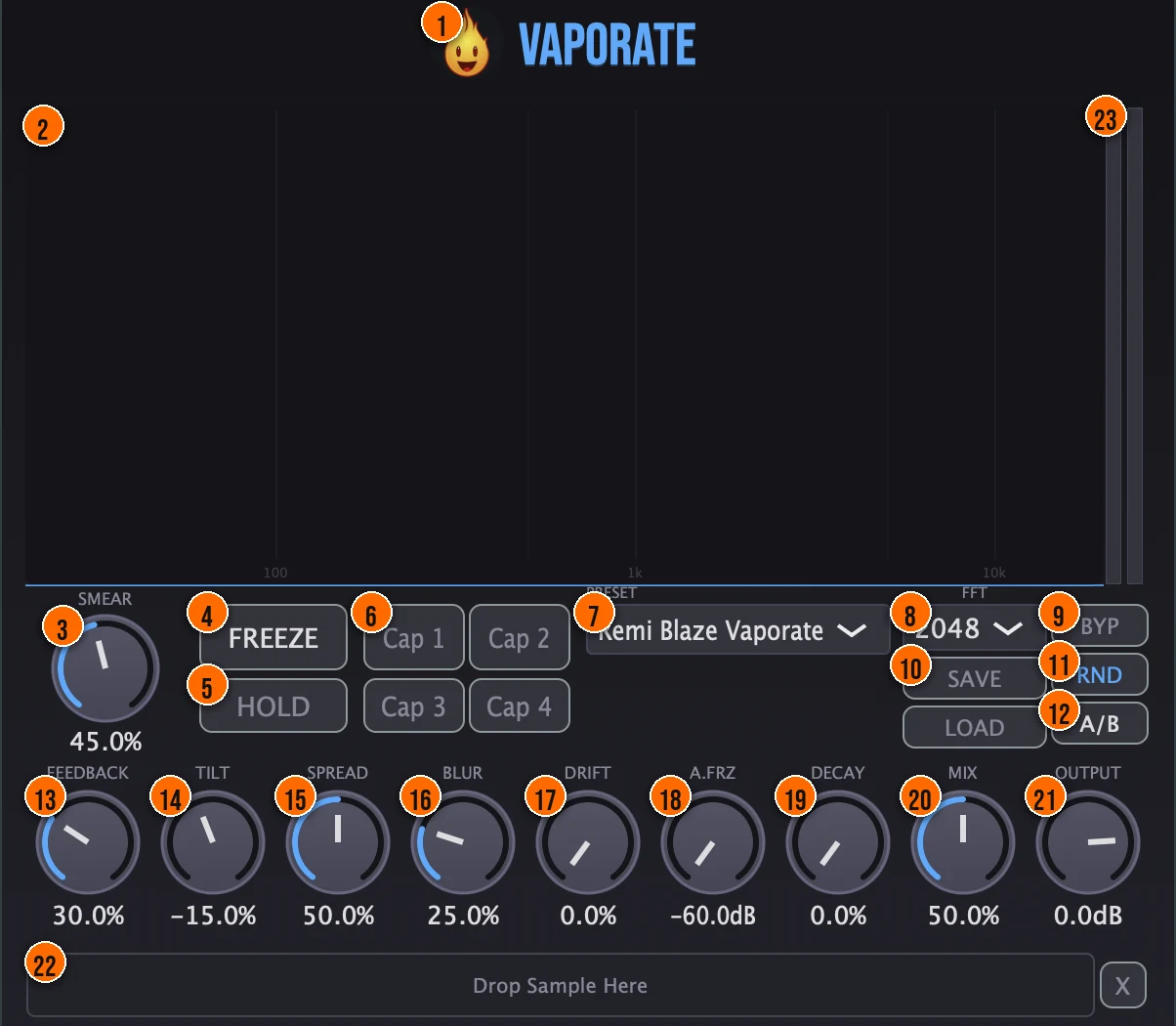
Controls
Top bar
- 1Fire Head: click the flame logo to open the About panel: what the plugin is, who made it, its version and the trademark notices. Click anywhere in the panel to close it.
Spectral engine
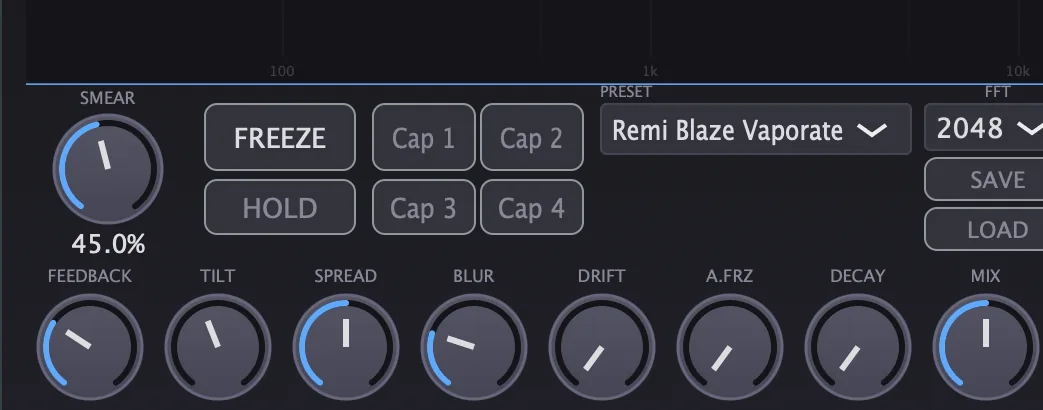
- 3Smear: randomizes the phase across the frequency bands, blurring transients into smooth texture. A little softens a harsh sound without adding a room.0 to 100%Tip Low Smear (10–20%) softens transients without losing the rhythm. High Smear (80–100%) dissolves everything into a wash.
- 8FFT size: the size of each analysis frame. The latency Vaporate reports to your DAW equals the FFT size, so the DAW keeps everything in time.512, 1024, 2048 or 4096Tip The latency Vaporate reports equals the FFT size, so 512 responds fastest. Larger sizes analyze finer frequency detail at the cost of more delay.
- 13Feedback: feeds the processed sound back into the engine, so the smear builds up over time. Push it before a drop for a build.0 to 99%Tip Moderate Feedback (30–50%) builds up layers over a few seconds. High values create a dense, self-reinforcing texture.
- 14Tilt: a spectral EQ tilt: negative for darker and warmer, positive for brighter and airier.−100% to +100%Tip Tilt shifts the spectral balance of the wet signal. Drag it positive to brighten a dark pad, or negative to darken a harsh texture.
- 15Spread: stereo width, made by offsetting the phase of the left and right channels. It widens even a mono source.
- 16Blur: smooths the levels over time, separately from Smear's phase blurring, so the texture changes more slowly.
Freeze
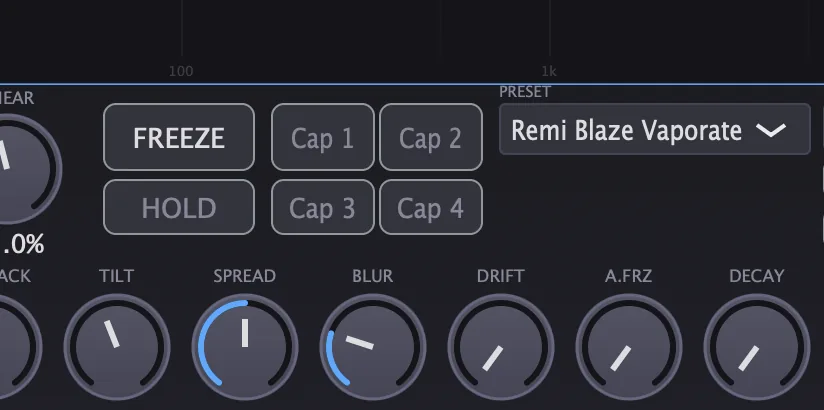
- 4Freeze: captures the current spectrum and holds it as a sustained pad until you switch it off.Tip Toggle Freeze on a sustained chord or vocal note to capture it as an infinite pad. Use Hold for a momentary freeze you can release.
- 5Hold: the momentary version of Freeze for live use: it holds only while you press it.
- 17Drift: slowly evolves a frozen spectrum so it keeps moving instead of sitting still.Tip Raise Drift on a frozen sound to keep it slowly evolving. Without Drift, a freeze is perfectly static.
- 18A.FRZ (Auto-Freeze): a threshold: when the input drops below it, Freeze engages by itself. Hysteresis keeps it from switching on and off rapidly around the threshold.−60 to 0 dBTip Set Auto-Freeze so the spectrum freezes automatically when the input drops below a threshold. It catches the tail of a reverb or the last note of a phrase.
- 19Decay: lets a frozen spectrum fade out gradually, for a controlled tail.
- 6Cap 1 to Cap 4 (capture slots): four slots for spectral snapshots. Recall them on the fly: switching between captures morphs smoothly between them, without clicks.Tip Save four different frozen spectra and recall them on the fly. Each slot holds a full spectral snapshot.
Presets and compare
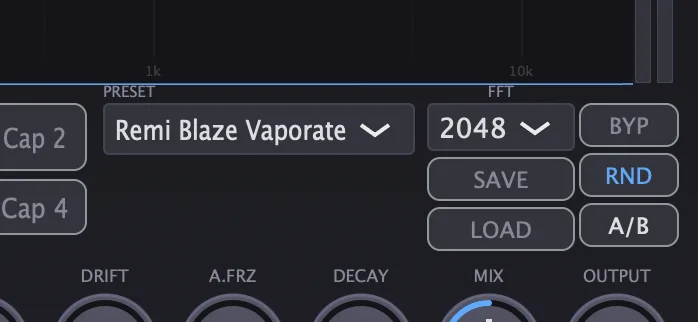
- 7Presets: 22 factory presets, from Subtle Haze and Vocal Wash to Frozen Moment and Sub-Void. A short crossfade prevents clicks when you switch.
- 9BYP (Bypass): instant comparison against the dry signal.
- 10Save / Load: write your settings to a .preset file, or bring one back.
- 11RND (Randomize): new settings at random, for instant ideas.
- 12A/B: flip between two full sets of settings.
Output
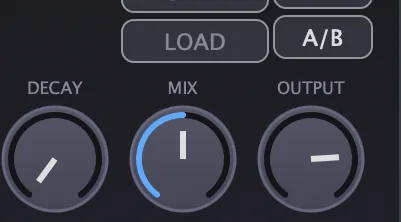
- 20Mix: blends the processed sound with the dry signal, for parallel processing.0 to 100%, default 50%
- 21Output: the level leaving Vaporate.−24 to +6 dB
Source
- 22Sample drop zone: drag a WAV, AIFF, MP3, FLAC or OGG file here to run it through the engine instead of live input.
Meters and displays
- 2Spectral display: shows the spectrum in real time on a frequency grid (100 Hz, 1 kHz and 10 kHz are marked).
- 23Level meters: the two bars at the right edge show the left and right output level. They turn red near the top.
- Cloud Head: the animated character bobs with Drift, scales with your audio, tilts, pulses when you freeze, and shows a halo as captures crossfade.
- Mist Grade: the Cloud Head's density follows Smear and Blur together, through four tiers: Translucent, Haze, Fog and The Void.
Key specs*
| Engine | FFT overlap-add, Hann window, 75% overlap |
|---|---|
| FFT sizes | 512, 1024, 2048, 4096 |
| Latency | Equal to the FFT size, reported to your DAW |
| Smear | 0 to 100% |
| Feedback | 0 to 99% |
| Tilt | −100% to +100% |
| Auto-Freeze threshold | −60 to 0 dB |
| Output | −24 to +6 dB |
| Capture slots | 4 |
| Sample formats | WAV, AIFF, MP3, FLAC, OGG |
| Parameters | Smoothed to avoid zipper noise; presets crossfade |
| Factory presets | 22 |
* Key specs from the plugin page. Some specs may not be listed.
How does the sound flow through Vaporate?
A simplified view of the main path.
How do I turn a vocal into a pad with Vaporate?
- Load it. Put Vaporate on the vocal track, or drop the vocal file onto the sample zone.
- Catch the moment. Play the vocal and press Freeze on the vowel you want. Vaporate holds that tone as a pad.
- Keep it alive. Raise Drift so the frozen pad keeps moving instead of sitting still.
- Shape the tail. Add Decay if the pad should fade out on its own.
- Soften and widen. Add a little Smear and Blur for a softer texture, and Spread for width.
- Save it. Store the result in one of the capture slots, then balance it with Mix and Output.
How do I build a transition into a drop with Vaporate?
- Insert Vaporate. Put Vaporate on the track or bus that leads into the drop.
- Set the smear. Set Smear around 40–60% and raise Mix so the texture is clearly audible.
- Push Feedback. Automate Feedback up over the bar before the drop. The smear carries forward and gets blurrier.
- Brighten it. Optionally automate Tilt slightly positive over the same bar so the wash brightens as it builds.
- Pull back at the drop. Bring Feedback back down as the drop lands, so the drop hits clean.
- Check the timing. Play through the transition a few times and move the automation earlier if the blur needs longer to build.
What about Vaporate Raw?
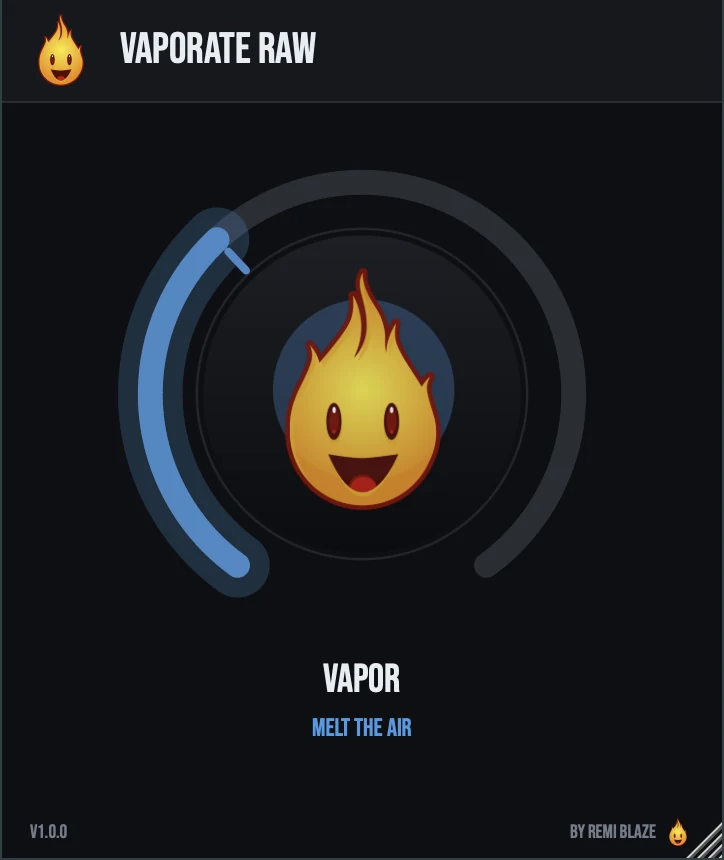
Vaporate Raw is the free one-knob version. Its VAPOR knob drives smear, blur, stereo spread, feedback and a gentle darkening tilt together, from a soft haze of air at low settings to a continuous wash near the top. Its FFT size is fixed at 2048, so the latency your DAW sees never changes while you turn it. Its own manual: Vaporate Raw manual.
Vaporate vs. Vaporate Raw
A side-by-side look at what each version includes.
| Feature | Vaporate | Vaporate Raw |
|---|---|---|
| Presets | Included | Not included |
| Randomize | Included | Not included |
| Mix (dry/wet) | Included | Not included |
| Output level | Included | Not included |
Keyboard and mouse shortcuts
These work in every Vaporate format (AU, VST3, CLAP, AAX, Standalone).
| Reset a control to its default | Double-click the knob or slider |
|---|---|
| Scroll to change a value | Hover over a knob and scroll the mouse wheel |
| Type an exact value | Click the value below a knob and type a number |
Frequently Asked Questions
What is the difference between Freeze and Hold?
Freeze holds the current spectrum until you switch it off. Hold does the same only while you press it, which suits live use.
Why does Vaporate add latency?
It works on frames of audio, so it reports a latency equal to the FFT size to your DAW, which keeps everything in time. A smaller FFT size means less latency.
What do Drift and Decay do to a frozen sound?
Drift keeps a frozen spectrum slowly evolving so it doesn't sound static. Decay lets it fade out gradually instead of holding forever.
Can Freeze switch on by itself?
Yes. Set the A.FRZ threshold and Freeze engages whenever the input drops below it, for example at the end of a phrase.
Where can I find more about Vaporate?
On the Vaporate page: its features, system requirements and how to get it.
How do I buy and install Vaporate?
- Buy it. Vaporate is a one-time purchase. Buy it from the Vaporate page, and the store emails you the download link.
- Run the installer. On macOS, double-click the .pkg file and choose AU, VST3, CLAP, AAX or Standalone. On Windows, run the .exe installer and choose VST3, CLAP or Standalone.
- Open your DAW. Restart your DAW and rescan plugins if needed, then find Vaporate under Remi Blaze in your plugin list.
More about Vaporate, including its features and system requirements, is on the Vaporate page.
Where are the plugin files?
If you need to find Vaporate on disk, for example to troubleshoot or to uninstall it manually, these are the standard locations.
| macOS AU | ~/Library/Audio/Plug-Ins/Components/ |
|---|---|
| macOS VST3 | ~/Library/Audio/Plug-Ins/VST3/ |
| macOS CLAP | ~/Library/Audio/Plug-Ins/CLAP/ |
| macOS AAX | /Library/Application Support/Avid/Audio/Plug-Ins/ |
| Windows VST3 | C:\Program Files\Common Files\VST3\ |
| Windows CLAP | C:\Program Files\Common Files\CLAP\ |
To uninstall, quit your DAW and delete the Vaporate file from the relevant folder. Your DAW will stop listing it on its next rescan.
Need help with Vaporate?
If something isn't covered here, or Vaporate doesn't behave as described, contact support or email support@remiblaze.com. To get an answer faster, include:
- your operating system and version (for example macOS 15.6 or Windows 11)
- your DAW and its version
- the format you're using (AU, VST3, CLAP, AAX or Standalone)
- the Vaporate version, shown in the About panel (click the Fire Head)
- what you did, what you expected, and what happened instead
This manual is for Vaporate 1.1.0. Controls and settings can change between versions, so if something here doesn't match what you see, check which version you have: click the Fire Head to open Vaporate's About panel. Spotted a mistake or have a question? Let us know.